
Conduct stocktake on the go using your Convenience PDE device. Scan items as you walk around your store, and the system automatically updates counts in real-time to your back office stocktake batch.
ℹ️Note: This article covers the new Convenience PDE app. Not sure which version you're using? Learn how to identify your PDE here.
Before You Start
Ensure your stocktake batch is created in the back office before starting. The batch must exist in your system before you can begin counting items on the PDE.
👉🗂️ Stocktake Essentials Part 2: Creating Your Stocktake Batch
Conducting Stocktake
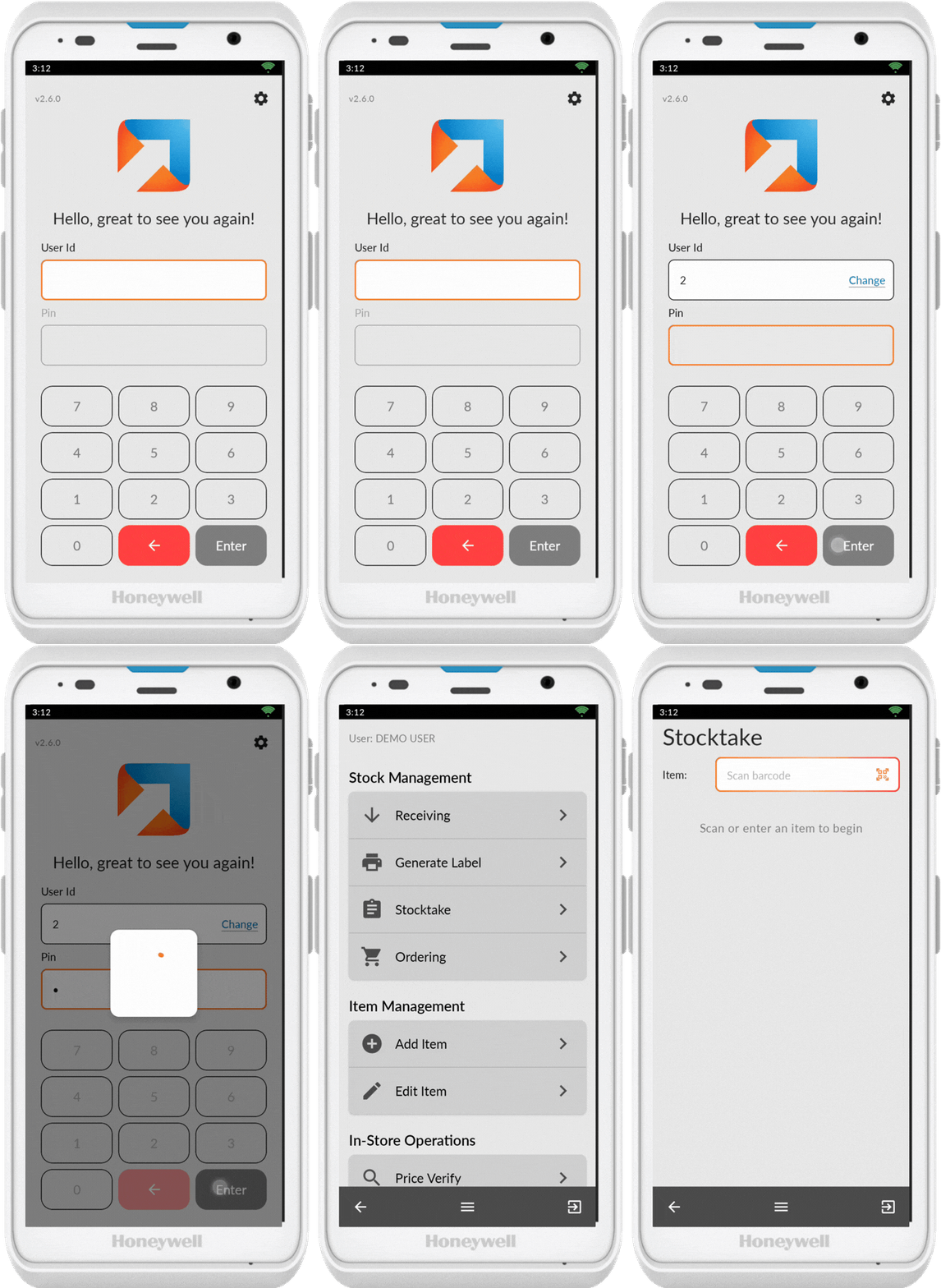
Open Stocktake
- Log in to your Convenience PDE
- Scroll through the menu to find Stocktake
- Tap to open
Scan Items
-
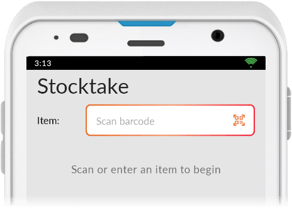
Ensure the scanner icon (QR code) is showing
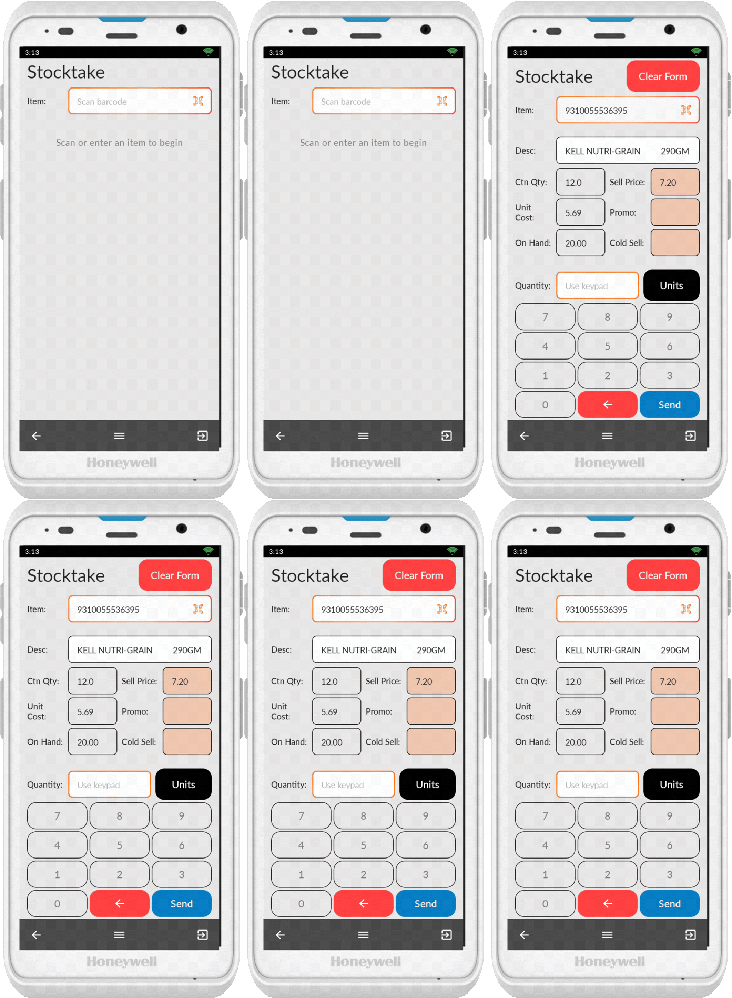
- Scan an item
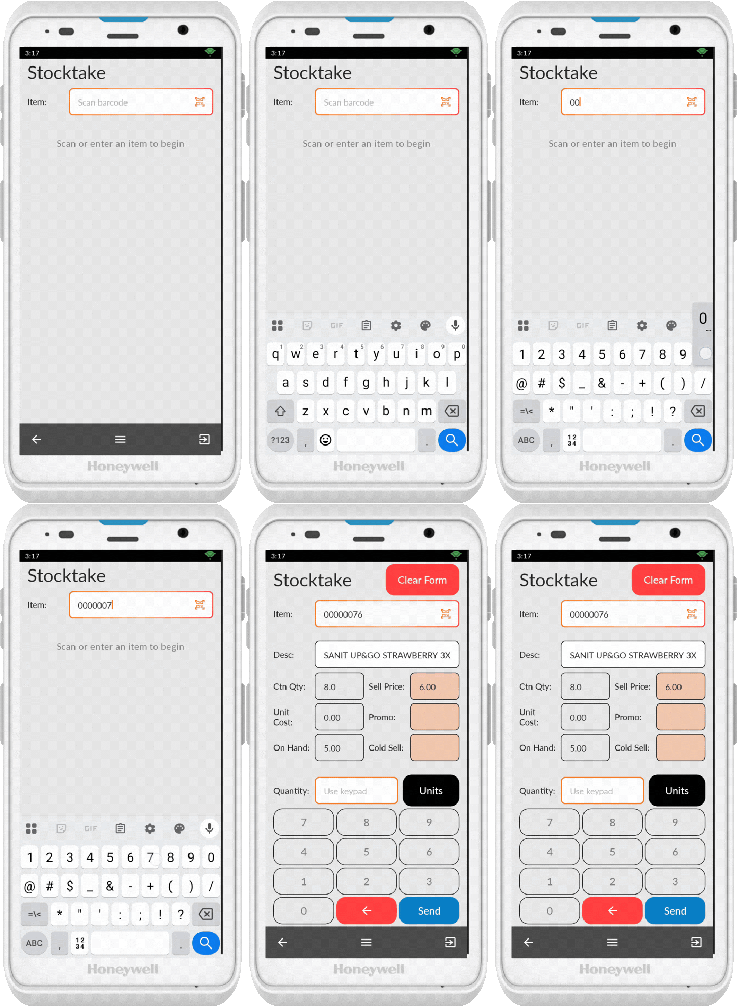
If the barcode or shelf label doesn't scan, tap on the Item field to bring up the keypad and enter the number manually. Tap anywhere on the screen to hide the keypad.
Adjust Quantity
Once an item is scanned:- Enter the quantity using the keypad
- Toggle between Units, Cartons, and Kilos by tapping the unit button (units is default)
- Tap Send or scan the next item to send the item to the back office
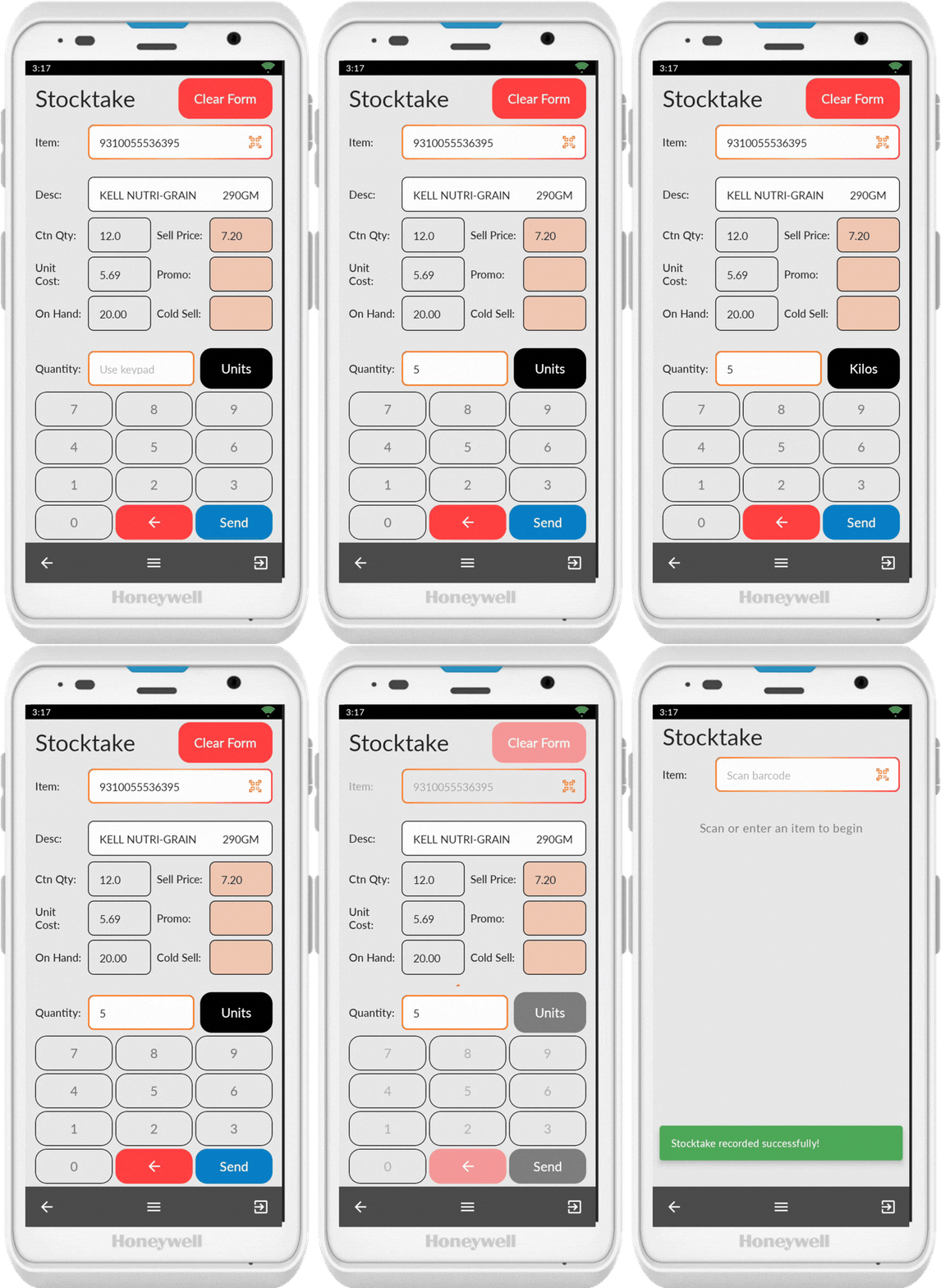
Continue scanning and entering quantities for other items.
To change the item scanned without adding the scanned item to the stocktake, tap Clear Form.
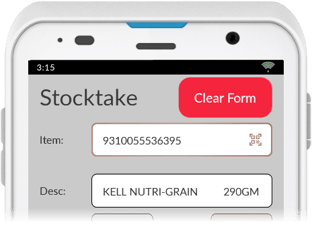
Currently you cannot edit or delete items in a stock adjustment batch from the Convenience PDE. Make these changes in the back office if needed.
💡 Tip: If you scan the same item multiple times at different times, the counts will be added together automatically.
Handling Special Cases
Item Not on File
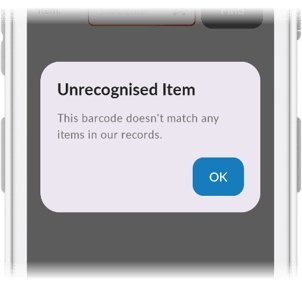
If you scan an item that doesn't exist in your system, you'll see a pop-up message Unrecognised Item. Use the Add Item function to add it to the system before continuing with stocktaking.
👉➕ Adding New Items with your Convenience PDE
Completing Your Stocktake
Finish Counting
Once you've scanned all items throughout your store, simply exit the stocktake function on your Convenience PDE. All counts are already synced to the back office.
Update in Back Office
Navigate to your back office system to finalise the stocktake batch. Review the counted items, make any adjustments if needed, and update the batch to apply the stock changes to your system.
👉📊 Stocktake Essentials Part 4: Running Stocktake Reports
💡 Tip: Multiple PDEs can be used simultaneously for the same stocktake. All counts sync in real-time, allowing your team to work efficiently across different areas of the store.