
Add new products to your inventory directly from your Convenience PDE when receiving unrecognised items or expanding your product range. Enter all essential item details on the go and sync immediately with your back office.
ℹ️Note: This article covers the new Convenience PDE app. Not sure which version you're using? Learn how to identify your PDE here.
Adding an Item
Access Add Item
- Log in to your Convenience PDE
- Scroll to find Add Item
- Tap on it to open
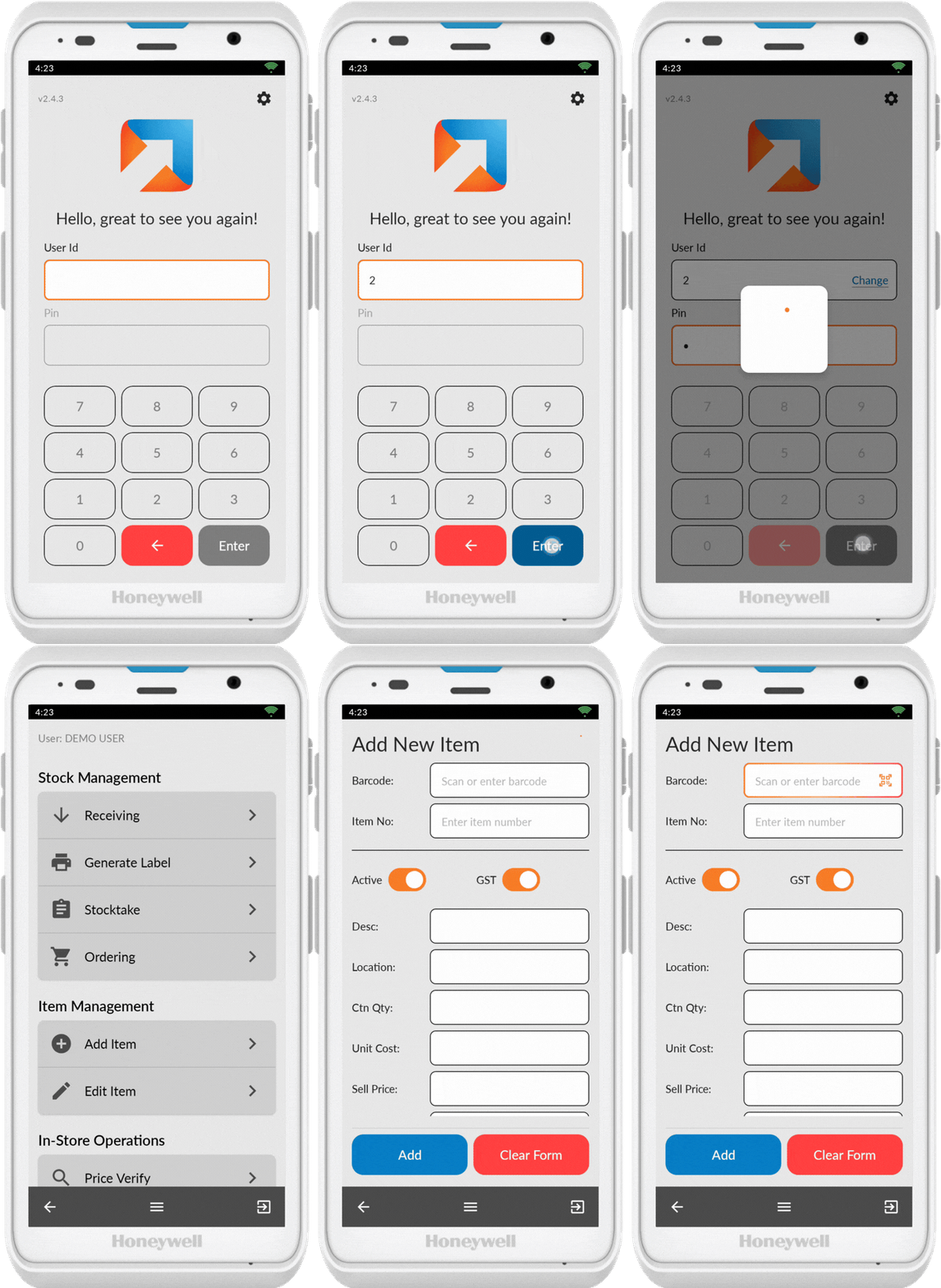
Scan Item Barcode
- Ensure the scanner icon (QR code) is showing
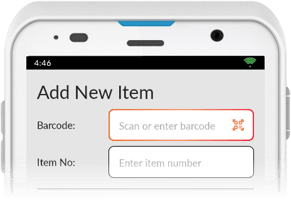
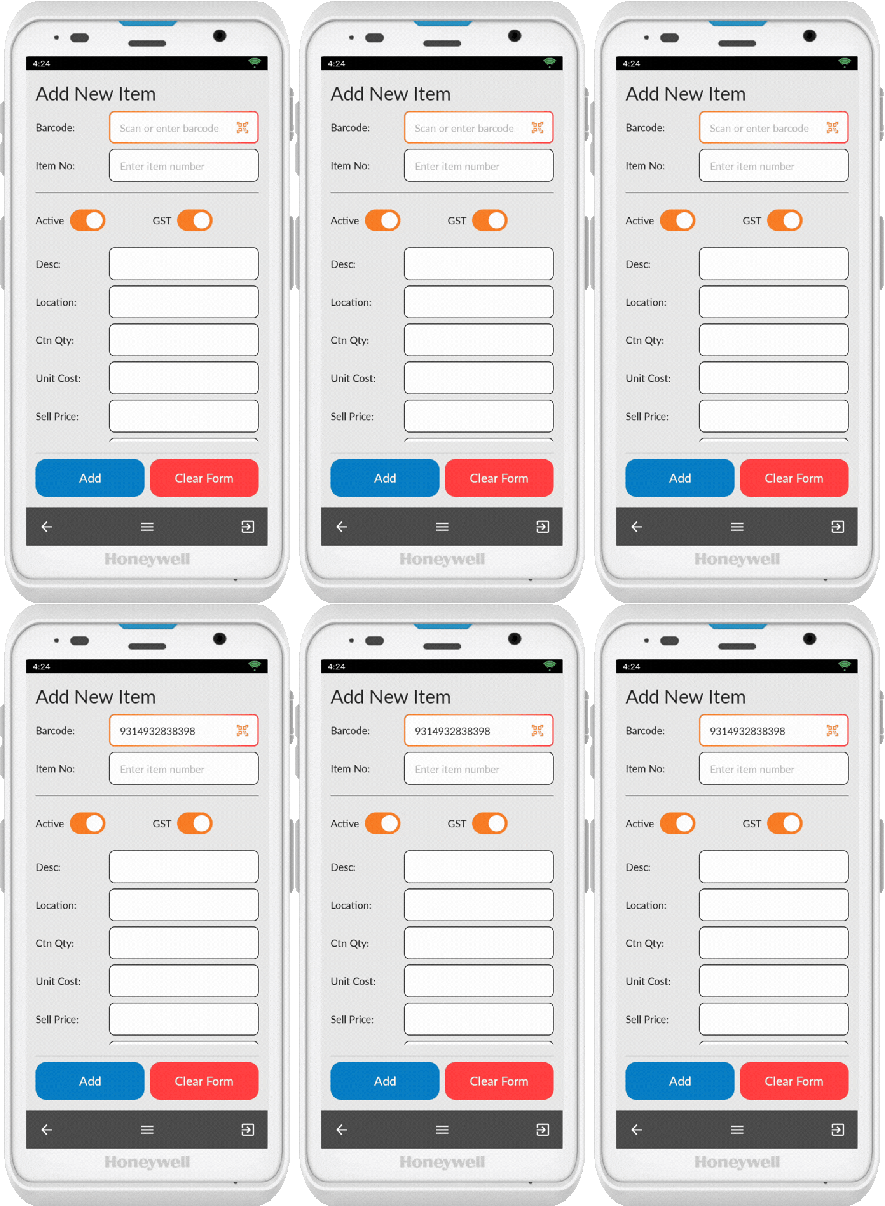
- Scan the item's barcode
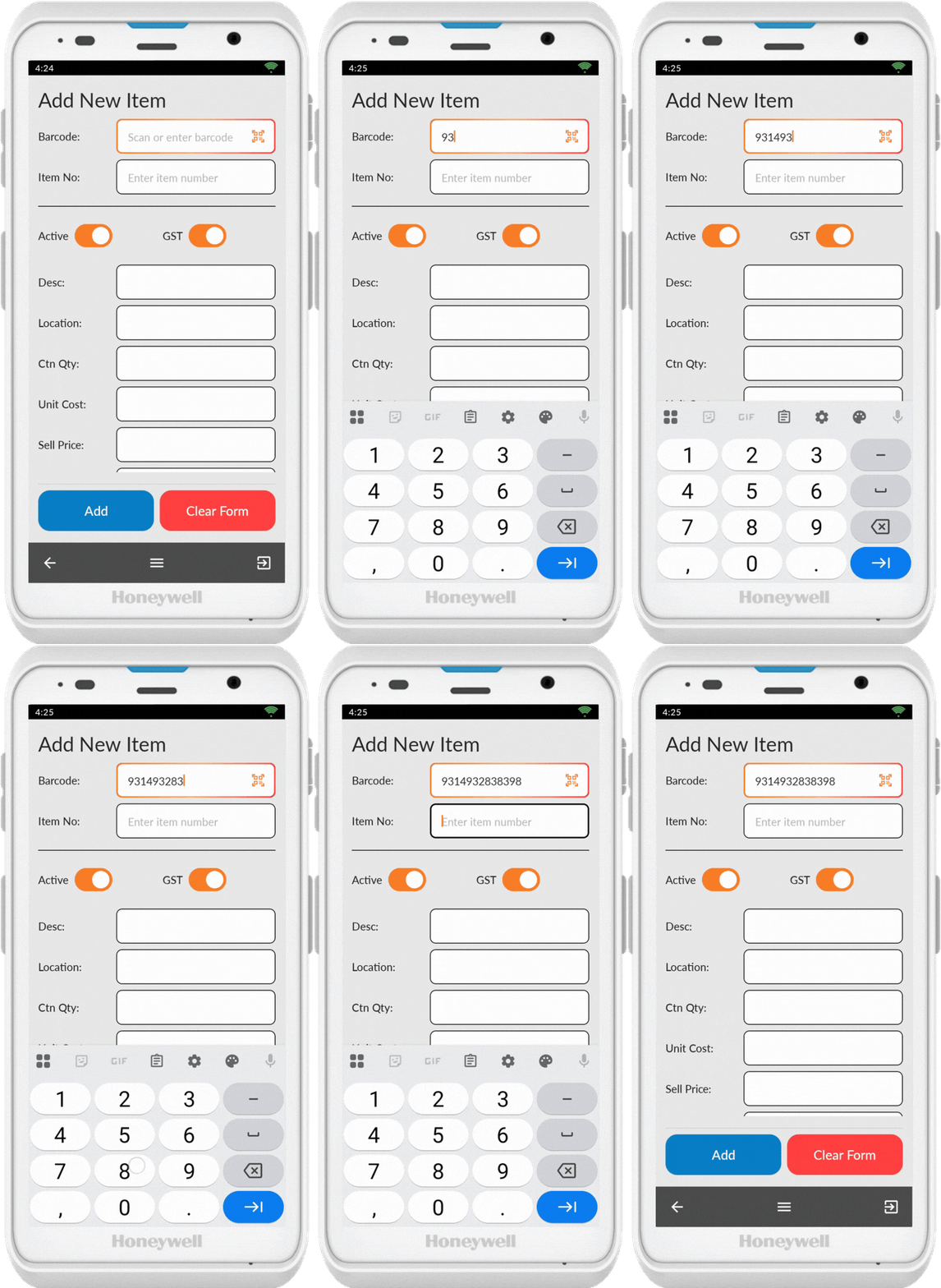
If the barcode doesn't scan, tap on the barcode field to bring up the keypad and enter the number manually. Tap anywhere on the screen to hide the keypad.
💡 Tip: If the item you scanned already exists in the system, a pop-up will display to let you know.
Fill Out Item Details
Enter all required information for the new item:
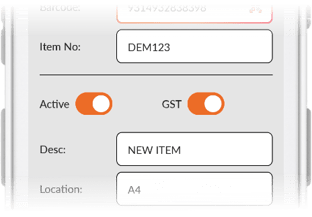
- Item number: Your internal product code (required)
- Desc: Full item description
- Location: Aisle Number (optional)
- Ctn Qty: Supplier Cost
- Sell Price: Retail price
- Department: Product department
- Sub Dept: Products Sub-department
- Cold Price: Retail price for chilled items (optional)
Turn on or off these options as required:
- GST: Enable if the item includes GST
- Active: Enable to make the item immediately available for sale
Save Item
Once you've completed all fields, select Add.
The item is added to the system.
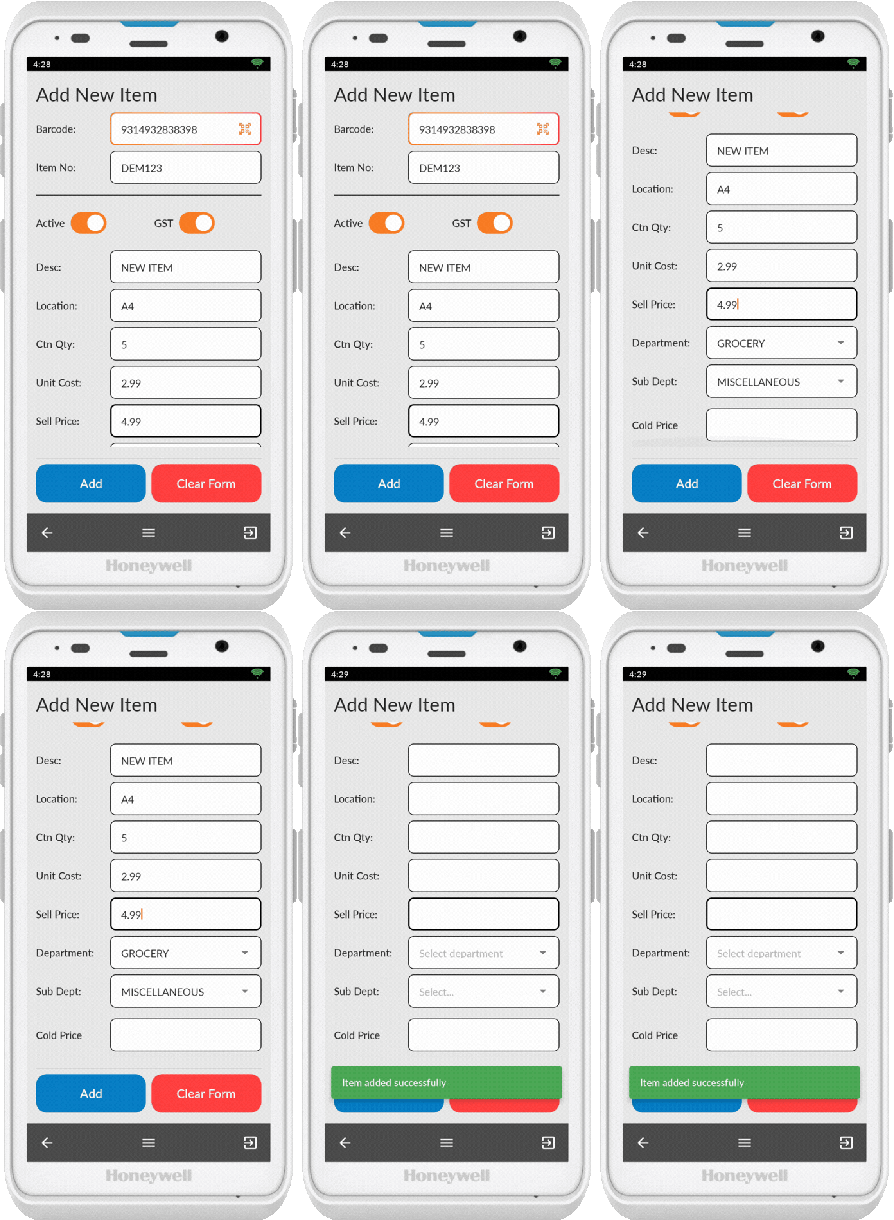
You will see a green confirmation pop-up when an item is successfully created
💡 Tip: If you make a mistake while entering information, press Clear Form to remove everything and start again.
Syncing with Registers
After adding items, you'll need to send changes to tills and print shelf labels from the back office.