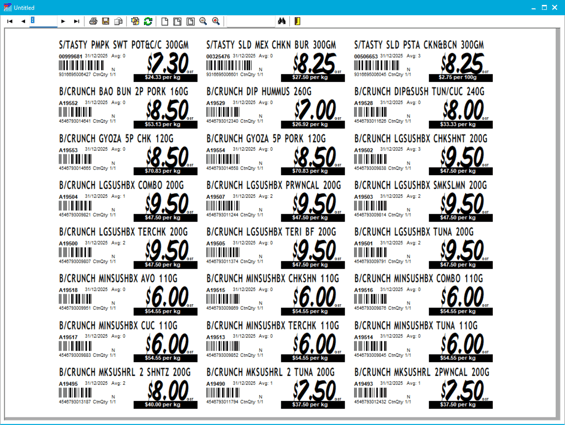
Print Shelf Labels allows you to print any type of label for your store, from 24-up shelf labels to A4 special labels for fruit and veg promos. The system prints queued labels from host changes, instore changes, or promotion batches.
Before You Start
The number of labels queued to print is displayed at the bottom of Convenience in the Labels field (shown as an orange number). You can view, add, or manage these queued labels through the Label Changes screen in the Inventory tab.

For detailed instructions on viewing and managing label changes:
Generating a Label Batch
- Navigate to the Printing tab in Convenience
- Select Print Shelf Labels
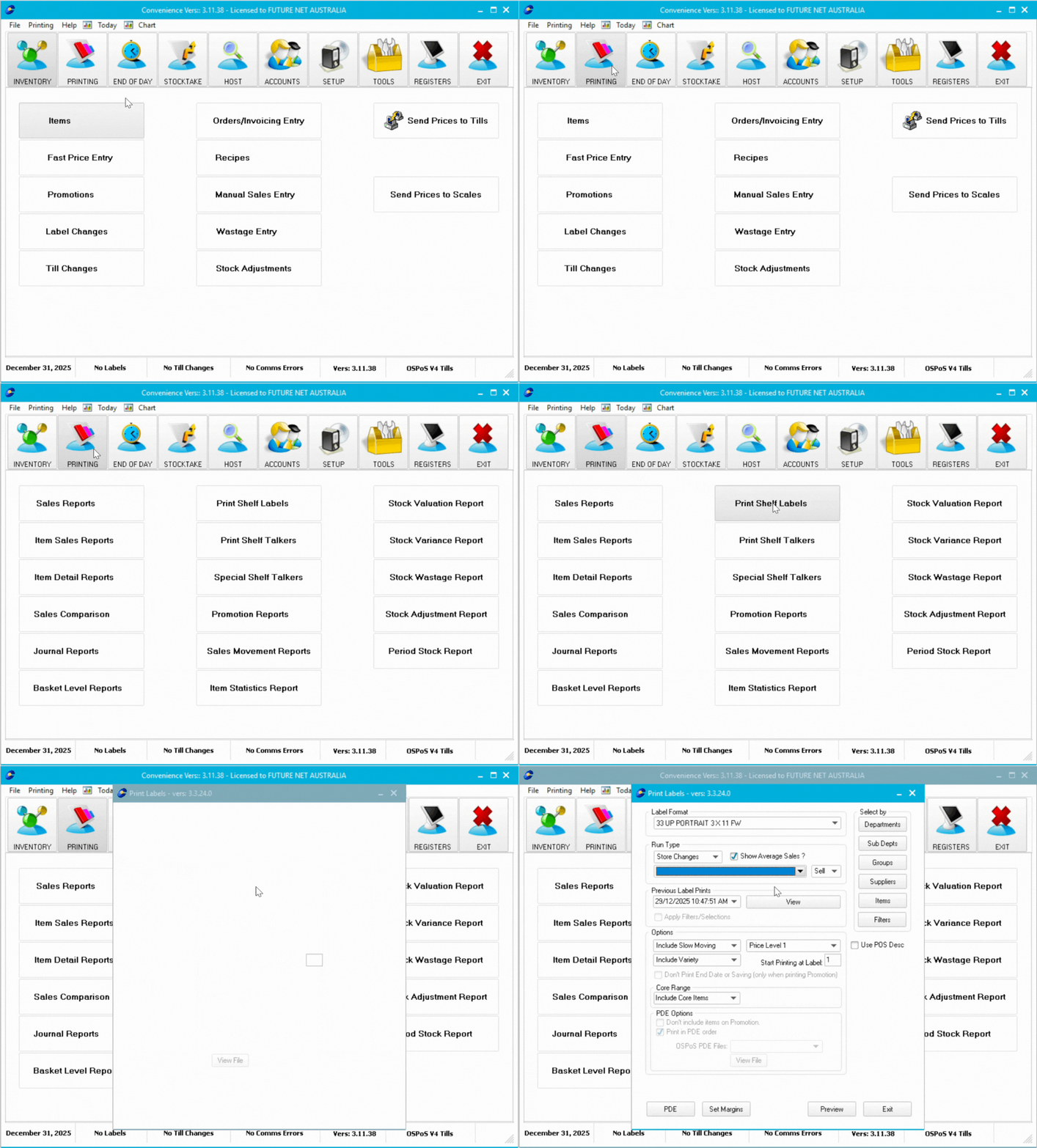
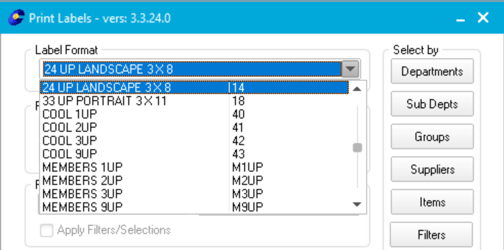
Label Format
Select your label type from the dropdown menu. Label names indicate labels per page.
For example:
- 24up = 24 labels per page
- 9up = 9 labels per page
- 3up = 3 labels per page
Labels marked COOL include country of origin details.
Need a custom label format? Contact Future Net support at help.futurenet.com.au/support
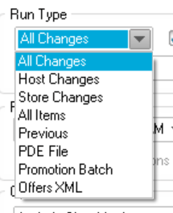
Run Type
Select the type of label batch to generate:
All Changes
Prints every label change queued in the system (visible at bottom of Convenience).
Host Changes
Prints only label changes flagged as HOST (host updates).
Store Changes
Prints only label changes not flagged as HOST (manual instore changes).
All Items
Prints all items in the system. Use with Select By to filter which items print. This is the run type for re-ticketing aisles using the Filters option.
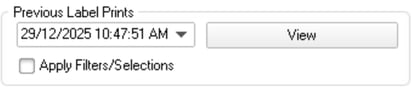
Previous
Prints a previously generated label batch.
-
- Select Previous as the run type
- Choose a batch from the Previous Label Prints dropdown (sorted newest to oldest)
- Click View to see items in the selected batch
- Optionally tick the box to apply filters or selections to the previous batch
PDE File
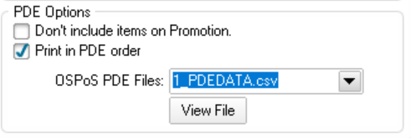
Generates labels from your wireless PDE device.
-
- Select PDE File as the run type
- Choose whether to include items on promotion
- Choose whether to print in the order scanned on the PDE
- Select the PDE file from the OsPoS PDE Files dropdown
- Click View File to see items in the batch
Promotion Batch
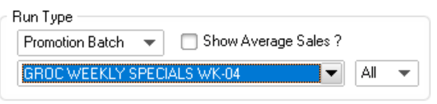
Prints labels for a specific promotion batch.
-
- Select Promotion Batch as the run type
- Select the promotion batch from the dropdown menu
- Use the Sell dropdown to filter by promotion type
- The batch automatically prints promotion prices
Offers XML
Prints offer promotions from the last downloaded Metcash offer host (.XML file). Use label formats designed for displaying offer details.
Average Sales Option
Tick or untick the Show Average Sales box to include or exclude average sales data on labels.
Select By
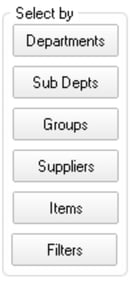
Choose how to filter your label batch:
| Option | Description |
|---|---|
| Departments | Print labels for specific departments |
| Sub-Departments | Print labels for specific sub-departments |
| Groups | Print labels for specific product groups |
| Suppliers | Print labels for specific suppliers |
| Items | Print labels for specific items |
| Filters | Print labels using item ranges or aisle numbers |
For Items selection:
- Enter the item number in the blank field
- Click the Item Description field to auto-fill details
- Or double-click the Item Number field to search for items
- Select your item and click OK
- Add more items as needed
- Click Clear Grid to remove all items
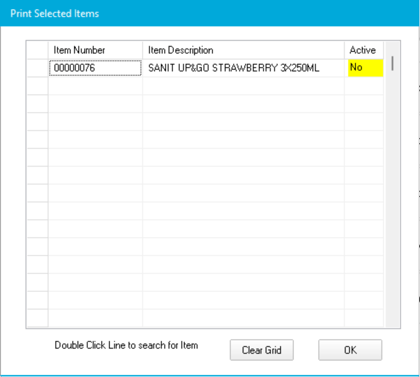
For Filters selection:
- Enter an item number range
- Enter an item description range
- Enter an aisle number to print an entire aisle
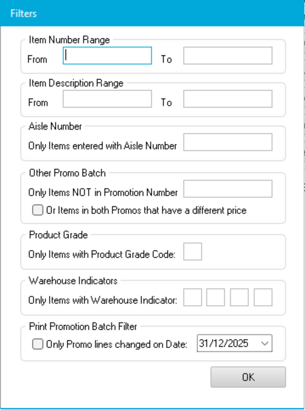
Options
Configure additional filters and settings for your label batch:
Slow Moving/Variety Items:
- Include, exclude, or show only these items
Core Range:
- Include, exclude, or show only core range items
- Select Custom to choose specific core range types
Price Level:
Select which price displays on the label:
| Price Level | Shows |
|---|---|
| Price Level 1 | Normal sell price |
| Price Level 2 | Wholesale price (wholesale stores only) |
| Price Level 3 | Cold price |
| Price Level 4 | RRP |
| Promo Price | Promotional price (if item on promotion) |
| Current Price | Current selling price |
| Quick Promo Price | Quick promotion price (if applicable) |
Starting Label Position:
Choose whether to start printing from the first label or a different label position on the sheet.
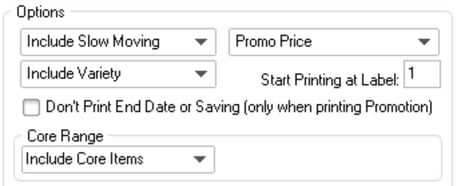
To generate the batch
Click Preview after configuring all settings.
Printing the Labels
Once the label batch generates, you'll see a list of items to be printed in print order.
To change the label format:
Use the dropdown menu at the top right corner.
To change the sort order:
Select your preferred sorting option. For PDE files, select PDE Order.
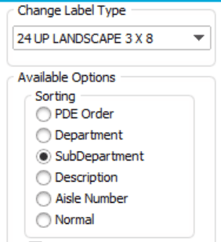
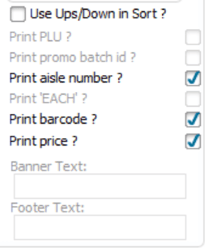
Print Options
Configure what details appear on the labels. The Use Ups/Down in Sort? option applies to host changes only:
- When ticked, the system prints separator labels: "Start of Up labels", all price increases, "End of Up labels", "Start of Down labels", all price decreases, and "End of Down labels"
- This uses 4 additional labels for separators
To print
- Click Print Labels to print immediately
- Click View and Print to preview the labels before printing