
Receive supplier deliveries directly on your Convenience PDE to track stock accurately and streamline your receiving process. Scan items as they arrive, and the system automatically updates quantities against your invoices.
ℹ️Note: This article covers the new Convenience PDE app. Not sure which version you're using? Learn how to identify your PDE here.
Before You Start
Ensure invoices are received in the back office before starting. In your back office system, receive supplier invoices through orders/invoice entry so they're available on the Convenience PDE for receiving.
👉📥Orders & Invoicing Fundamentals Part 5: Importing Electronic Invoices
⚠️ Important: While receiving a deliver, be careful not to press Finish if you are not finished receiving. If you need to pause receiving temporarily, press the back button instead to exit. Pressing Finish tells the system the delivery is fully received.
Preparing to Recieve
Access Receiving
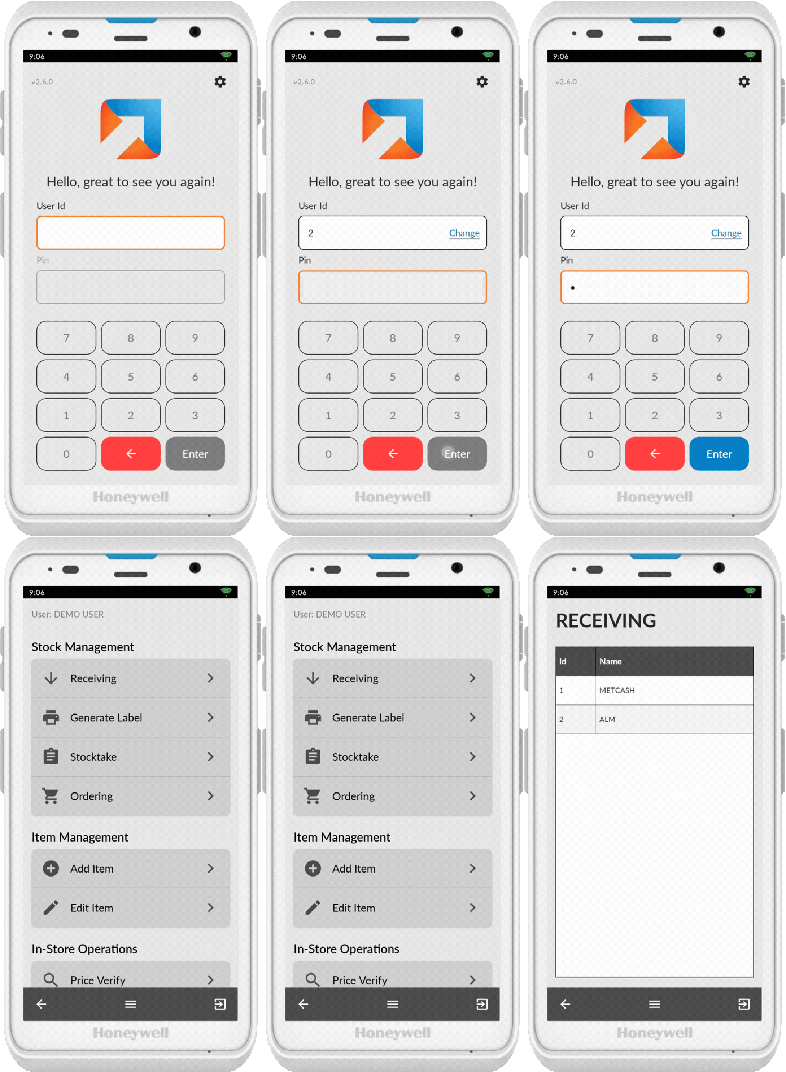
- Log in to your Convenience PDE
- Scroll to find Receiving
- Tap on it to open
A list of suppliers displays.
ℹ️ Note: If the supplier you need isn't showing, you'll need to enable that supplier for handheld use in your back office under supplier configuration.
👉(Article Coming Soon)
Select Invoices
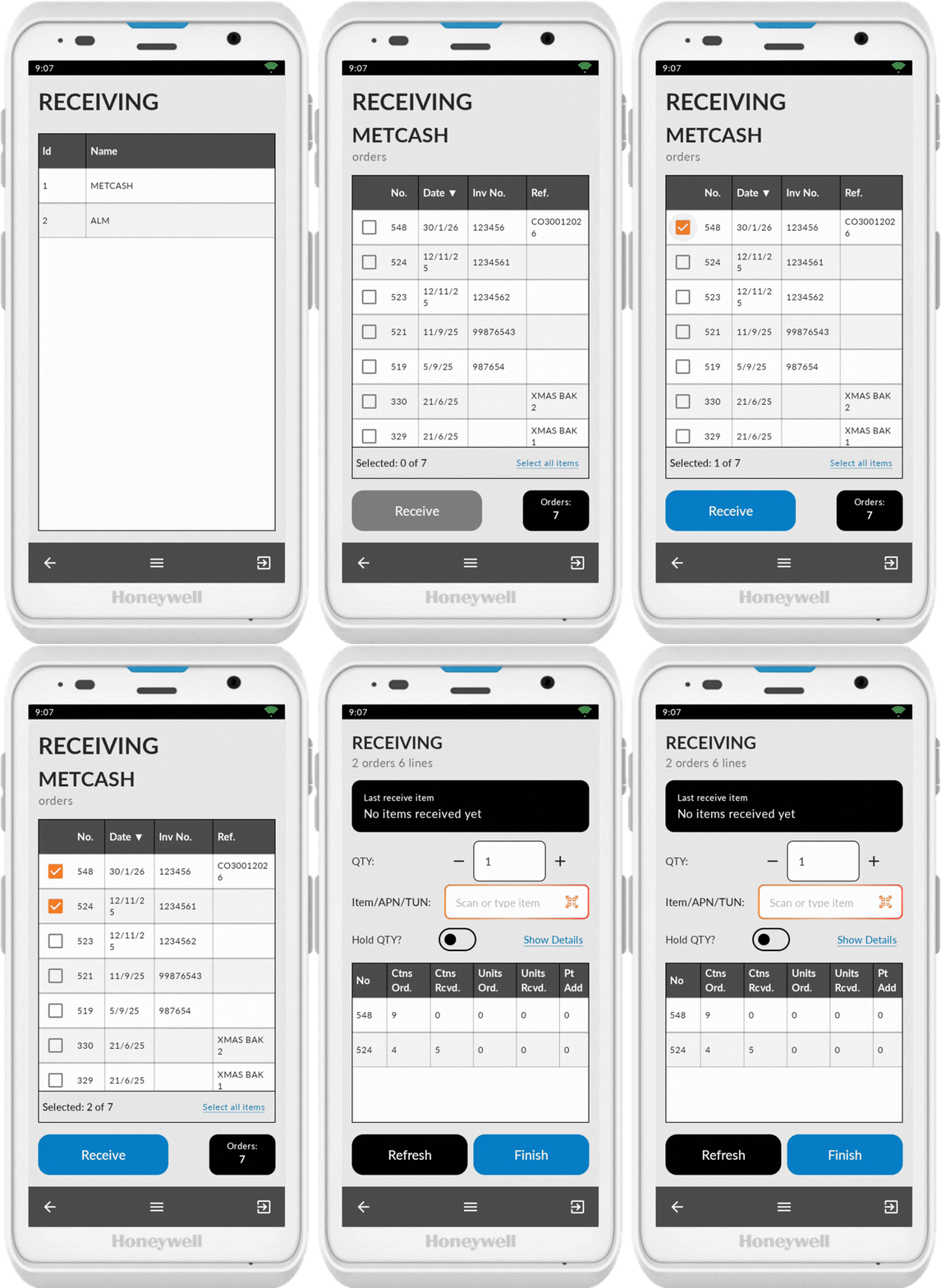
- Tap on the supplier you're receiving from
- Check the box for each invoice you need to receive (or tap Select All Items to select all invoices)
- Tap Receive to begin
Receiving Items
Scan Items
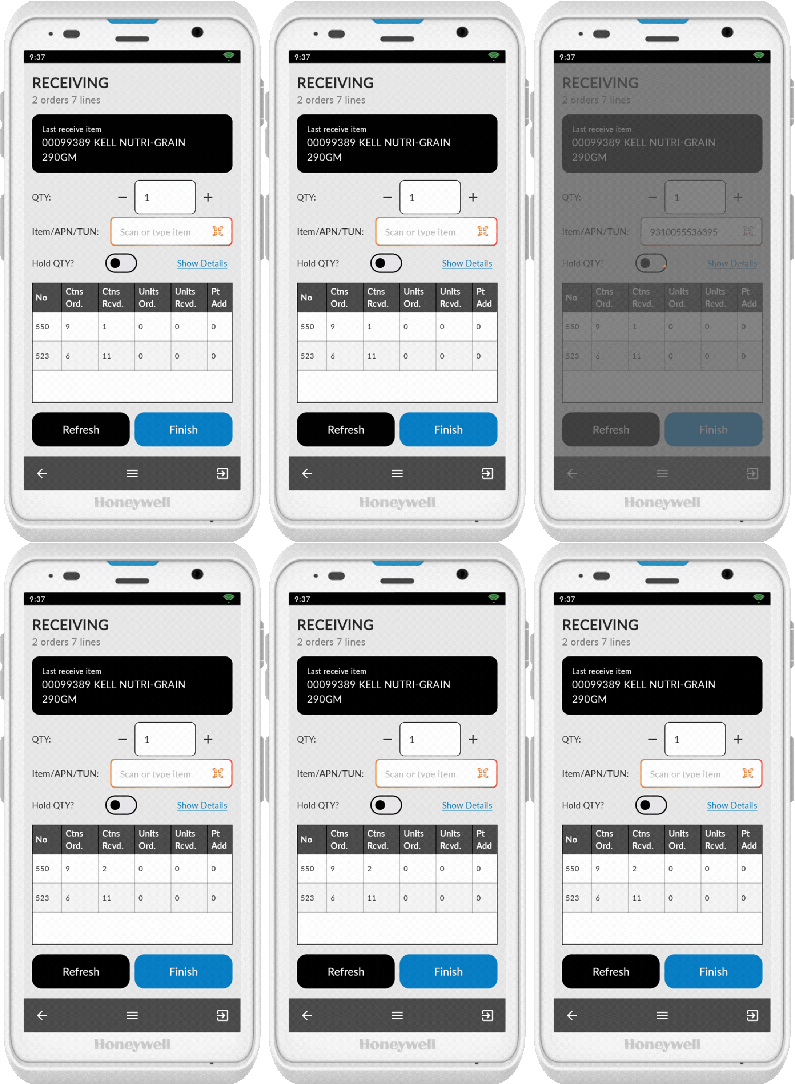
The receiving screen displays a table with all selected invoices. As you scan items, the units received and cartons received columns update automatically.
To receive items:
- Ensure the scanner icon (QR code) is showing
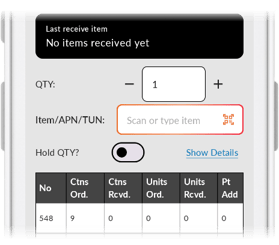
- Scan items from the delivery
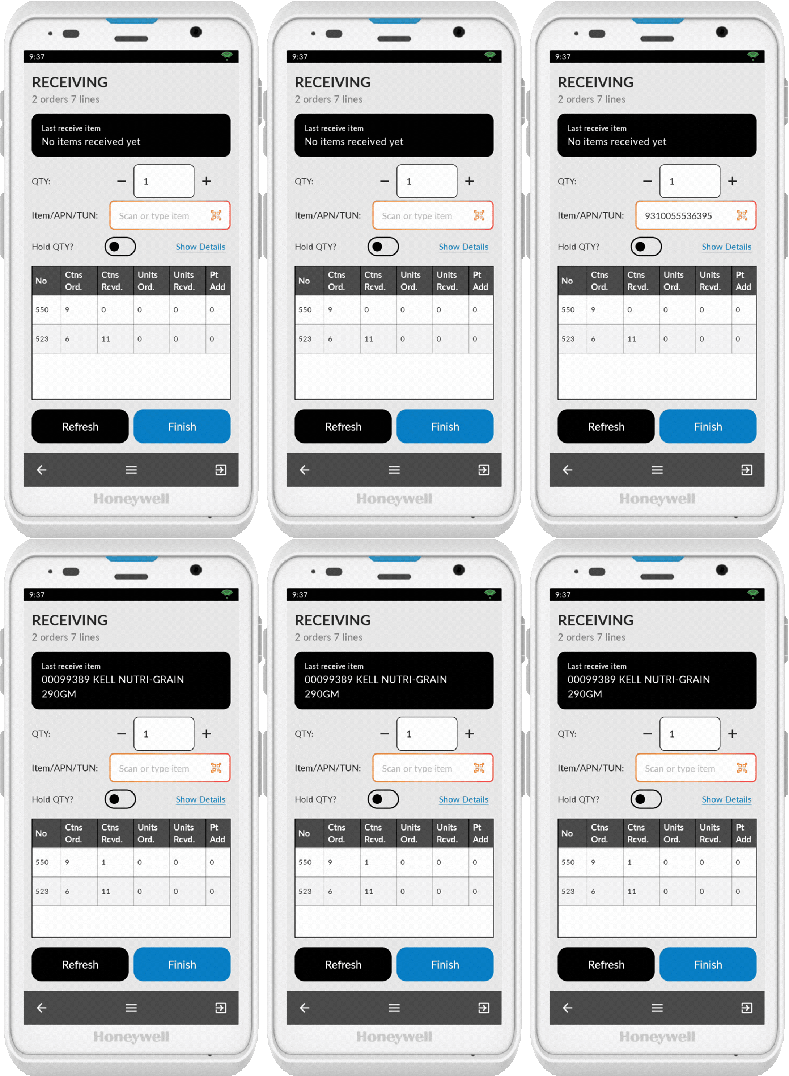
If the barcode doesn't scan correctly, tap on the Item/APN/TUN field to bring up the keypad and enter the number manually. Tap anywhere on the screen to hide the keypad.
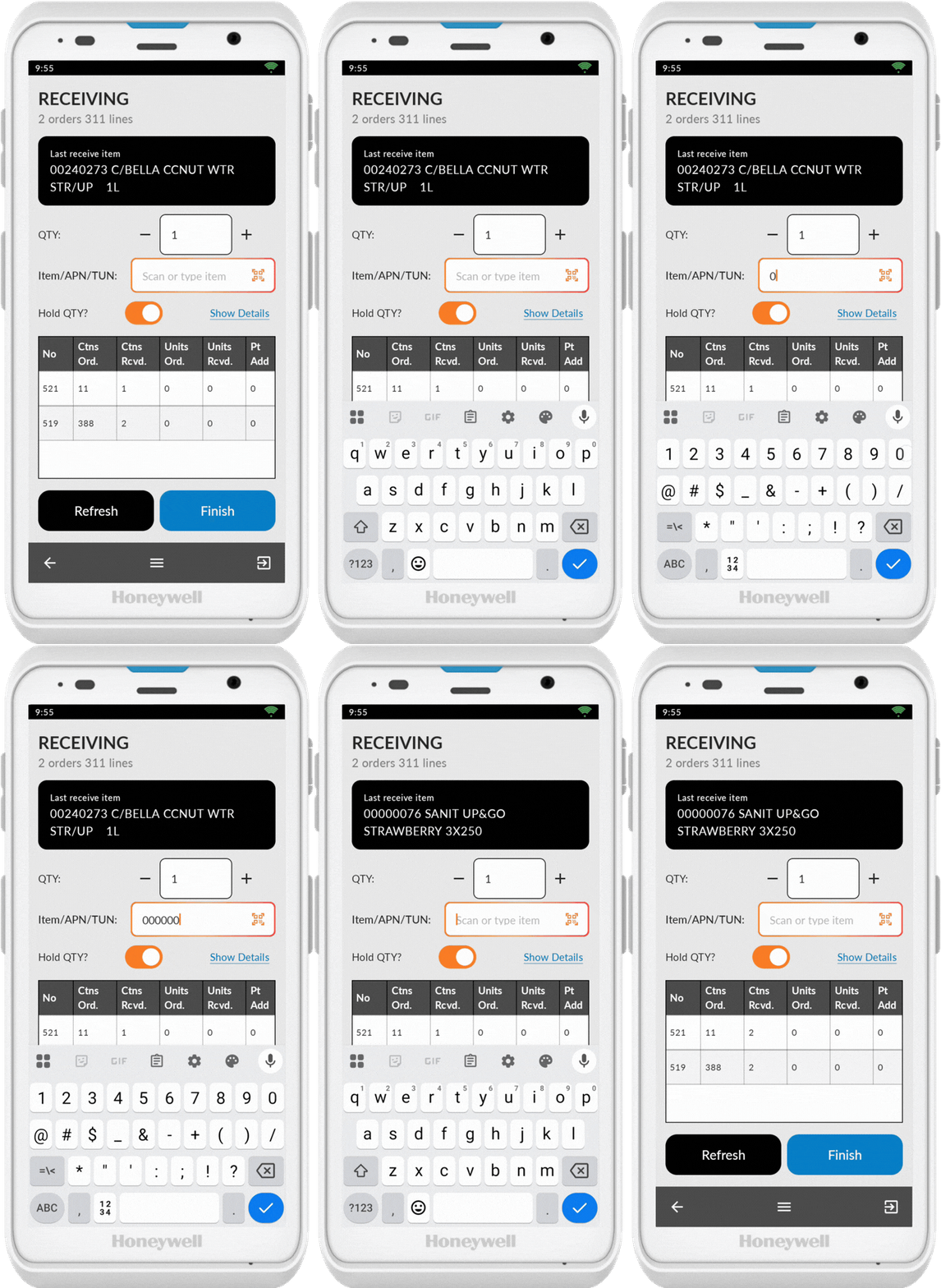
Adjust Quantities
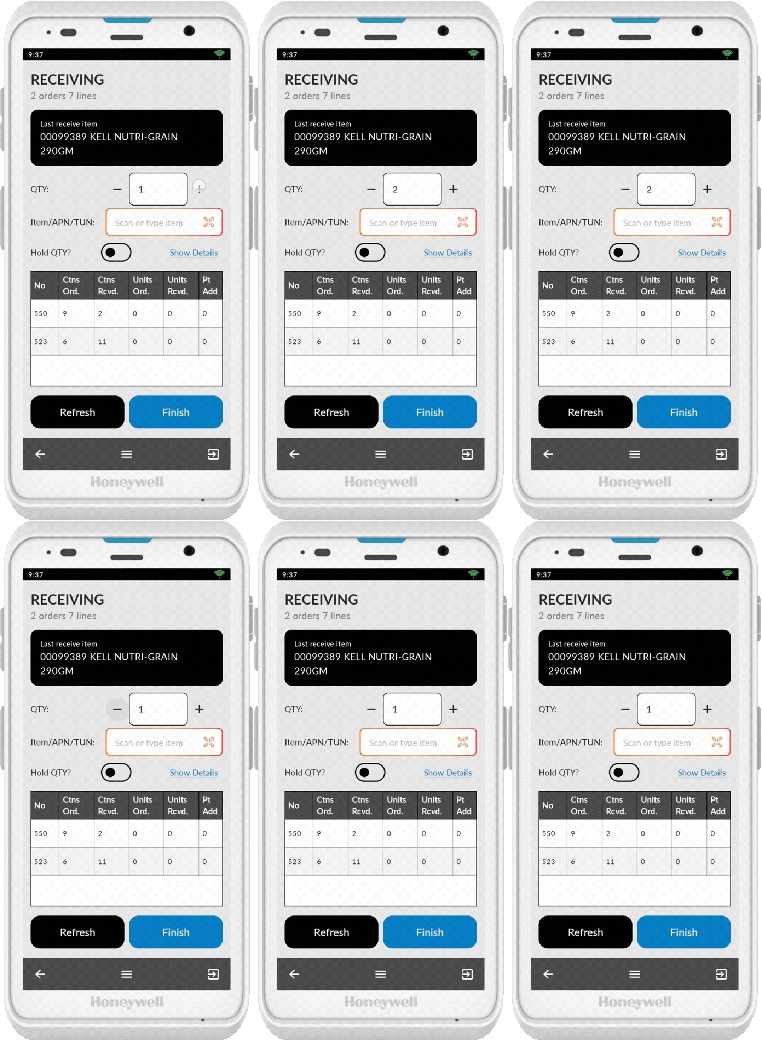
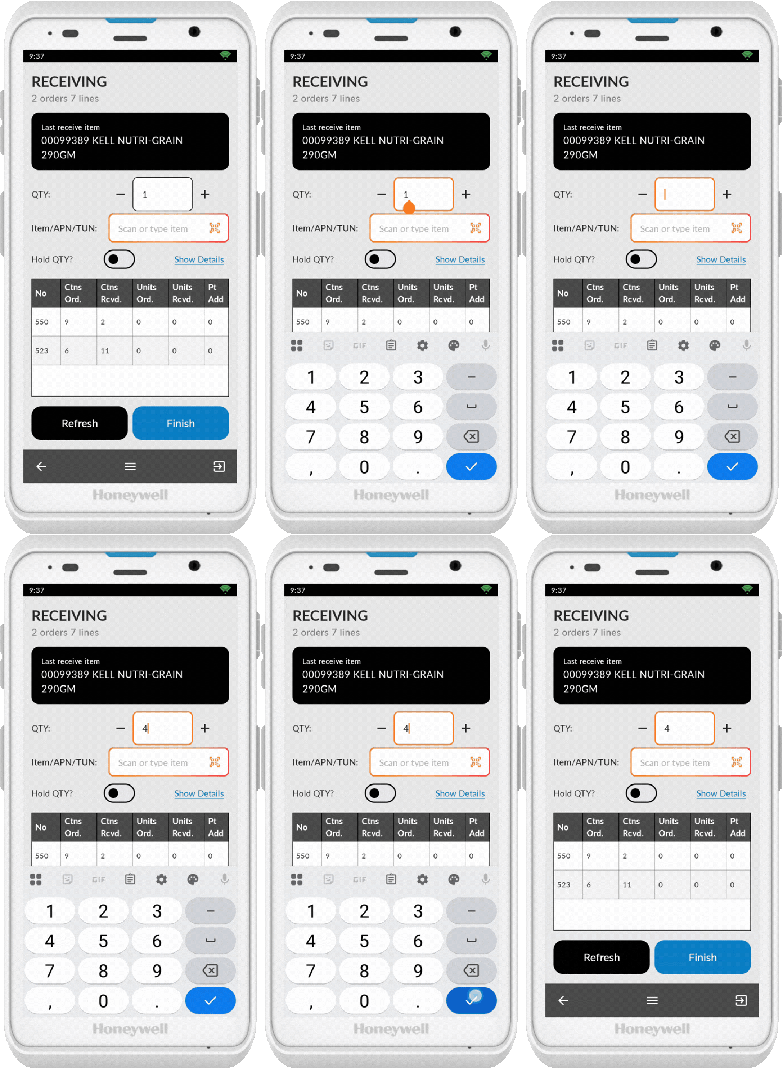
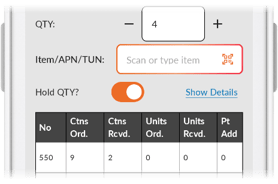
When you scan an item, it displays at the top of the screen. To adjust the received quantity you can:
- Change quantity using + or - before scanning
- Tap the quantity field to manually edit the number before scanning
- Turn on Hold Qty to maintain the same quantity while scanning multiple items
- Keep scanning the same product to add to the quantity received
Working with TUN Numbers
If you scan a TUN number (box barcode):
- The system automatically adds the product if the TUN is already known
- For new TUN numbers that aren't yet in the system, simply take the item out of the box and scan the product barcode directly
ℹ️Note: The ability to link new TUN numbers will be available in a future app release
Managing the Receiving Process
Viewing Received Items
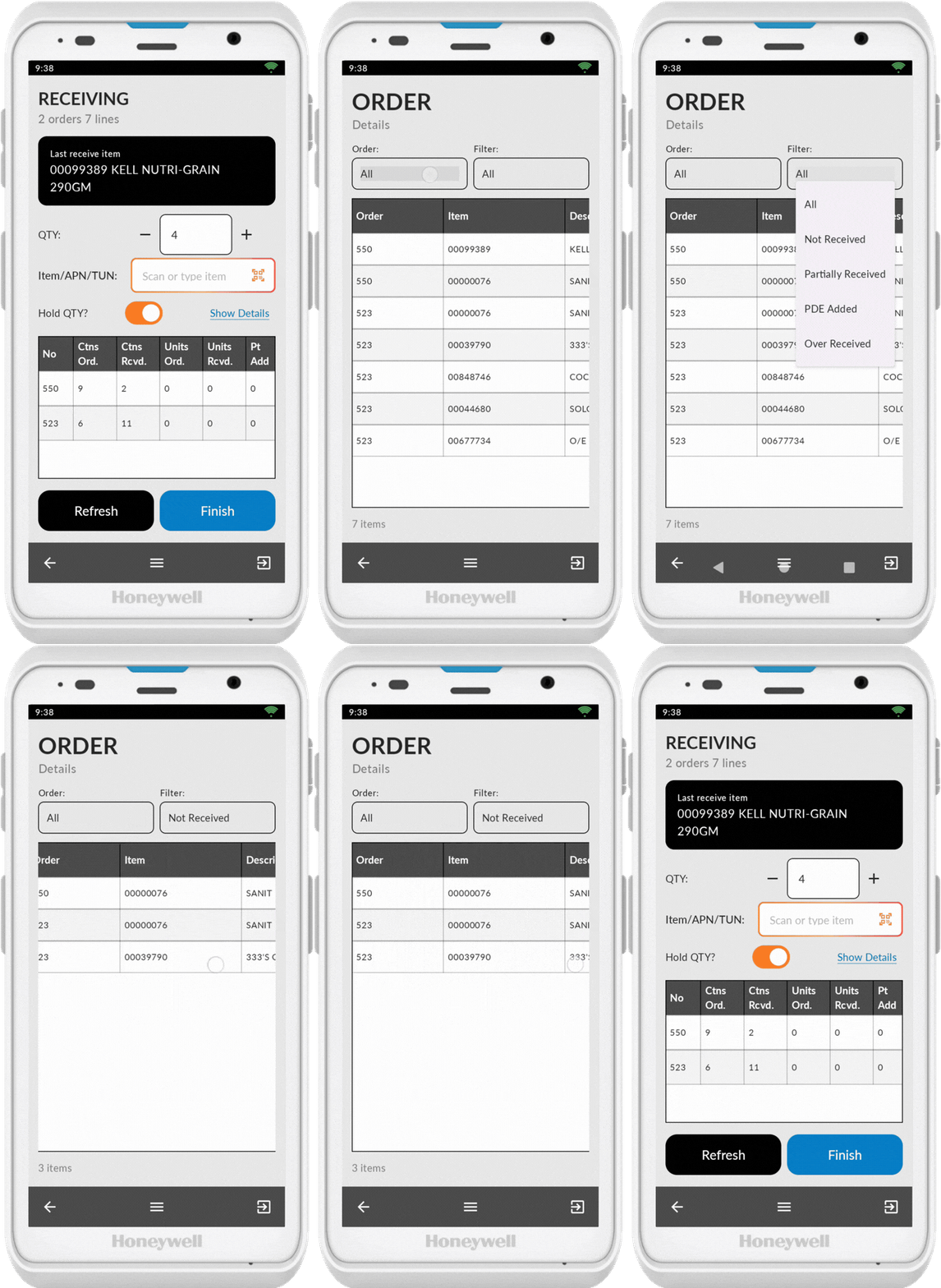
Tap Show Details to view scanned items.
Filter by order number or item status within the delivery. Press the back button to return and continue receiving.
Handling Special Cases
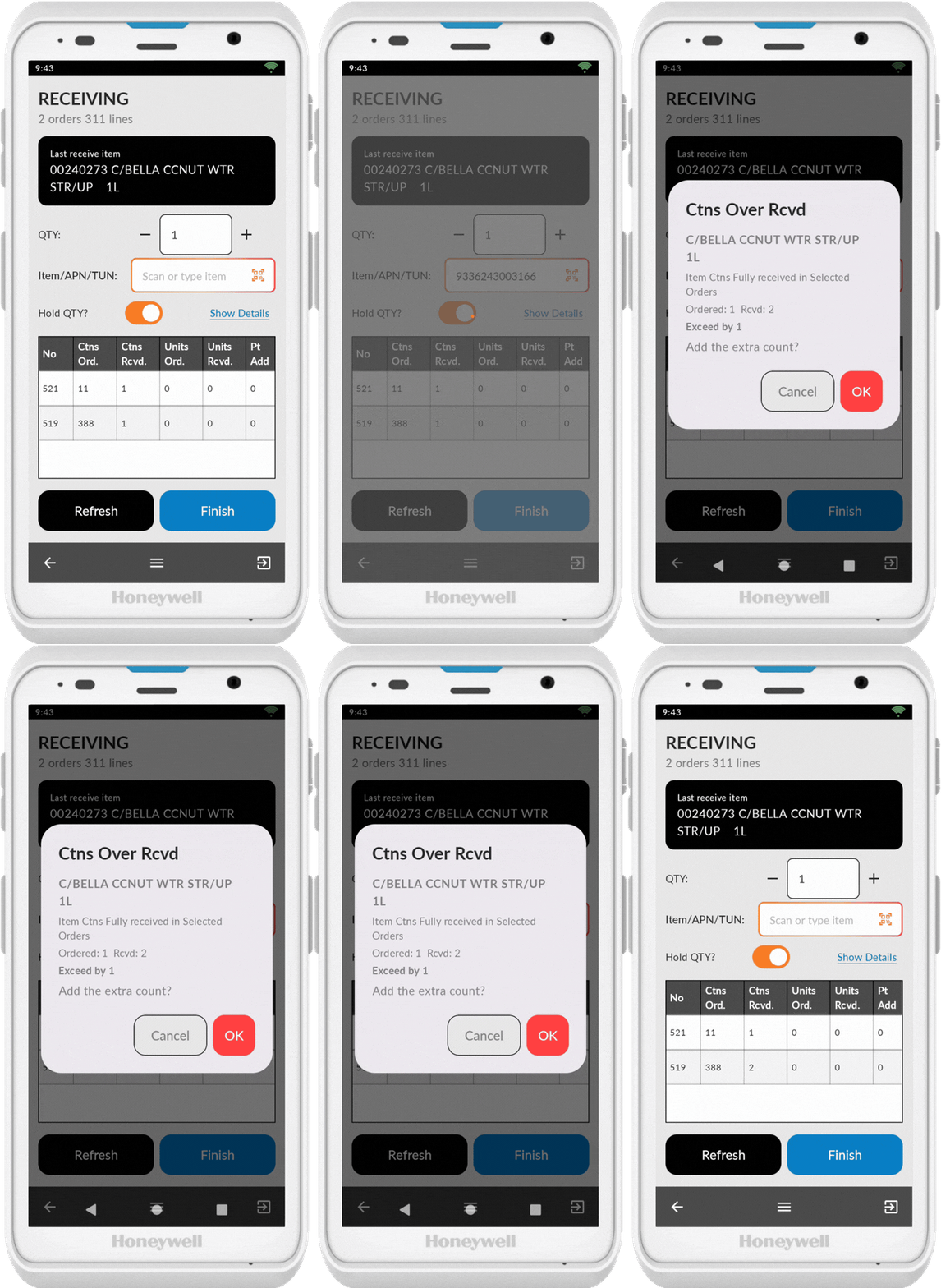
Expected Quantity Already Received: A prompt confirms if you want to add extra counts (prevents accidental overscanning). Press Cancel if you don't wish to add extra.
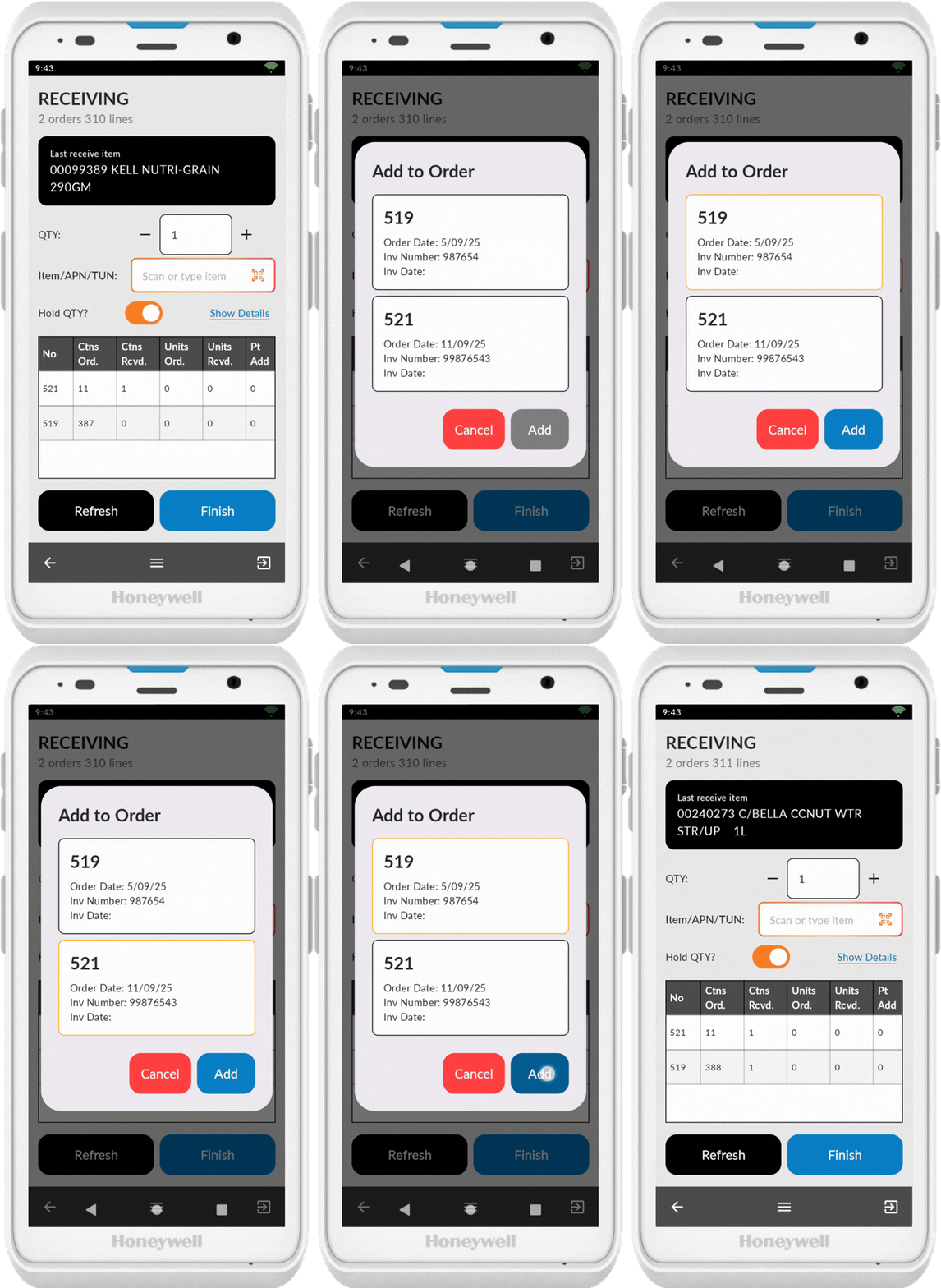
Item Not in Invoice: You'll be prompted to add the item to the invoice (for unexpected items sent by supplier). Select the invoice (if more than 1) and tap Add or Cancel accordingly.
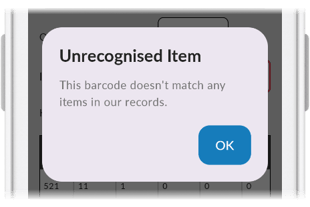
Unrecognised Item: If the item doesn't exist in your system but was correctly ordered and delivered, use the Add Item function on your PDE to add it to the system before continuing with receiving.
👉➕ Adding New Items with your Convenience PDE
Bottom Screen Controls
- Refresh: Updates counts manually (helpful when multiple PDEs are in use simultaneously)
- Finish: Completes receiving and updates the invoice in the back office
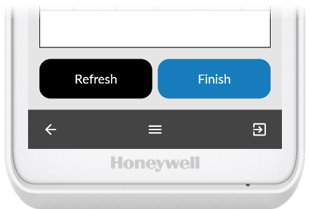
⚠️ Important: Do not press Finish if you need to pause receiving temporarily. Press the back button instead to exit without finalising. Pressing Finish tells the system the delivery is fully received.
Completing the Delivery
Finish Receiving
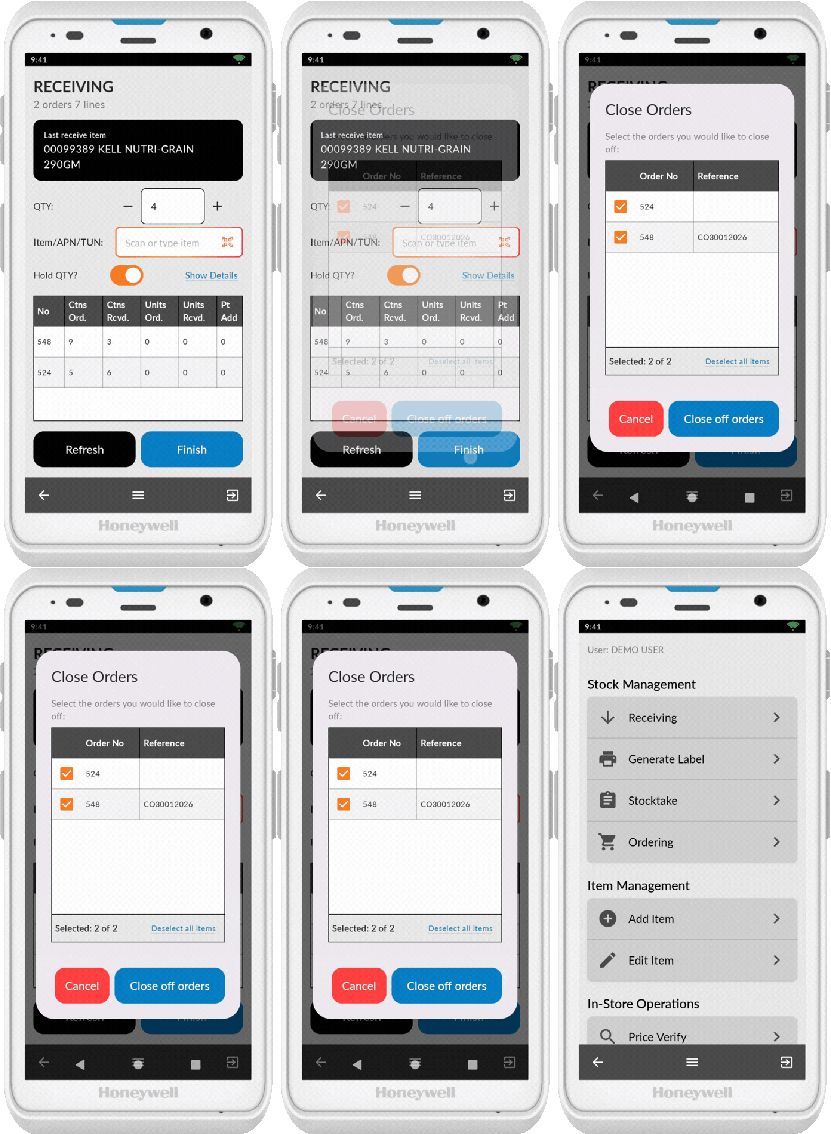
- Once all items in the delivery are scanned, press Finish
- Select which invoices to close off
- The invoice are now ready to be updated in the back office
Update Back Office
Navigate to the back office to finalise the invoice. Review the received items, confirm quantities, and post the invoice to update your inventory and accounts.