
Price Verify allows you to quickly check product prices and stock levels while on the shop floor. View normal pricing, promotional pricing, and current stock on hand without needing to access the back office or registers.
ℹ️Note: This article covers the new Convenience PDE app. Not sure which version you're using? Learn how to identify your PDE here.
Checking a Price
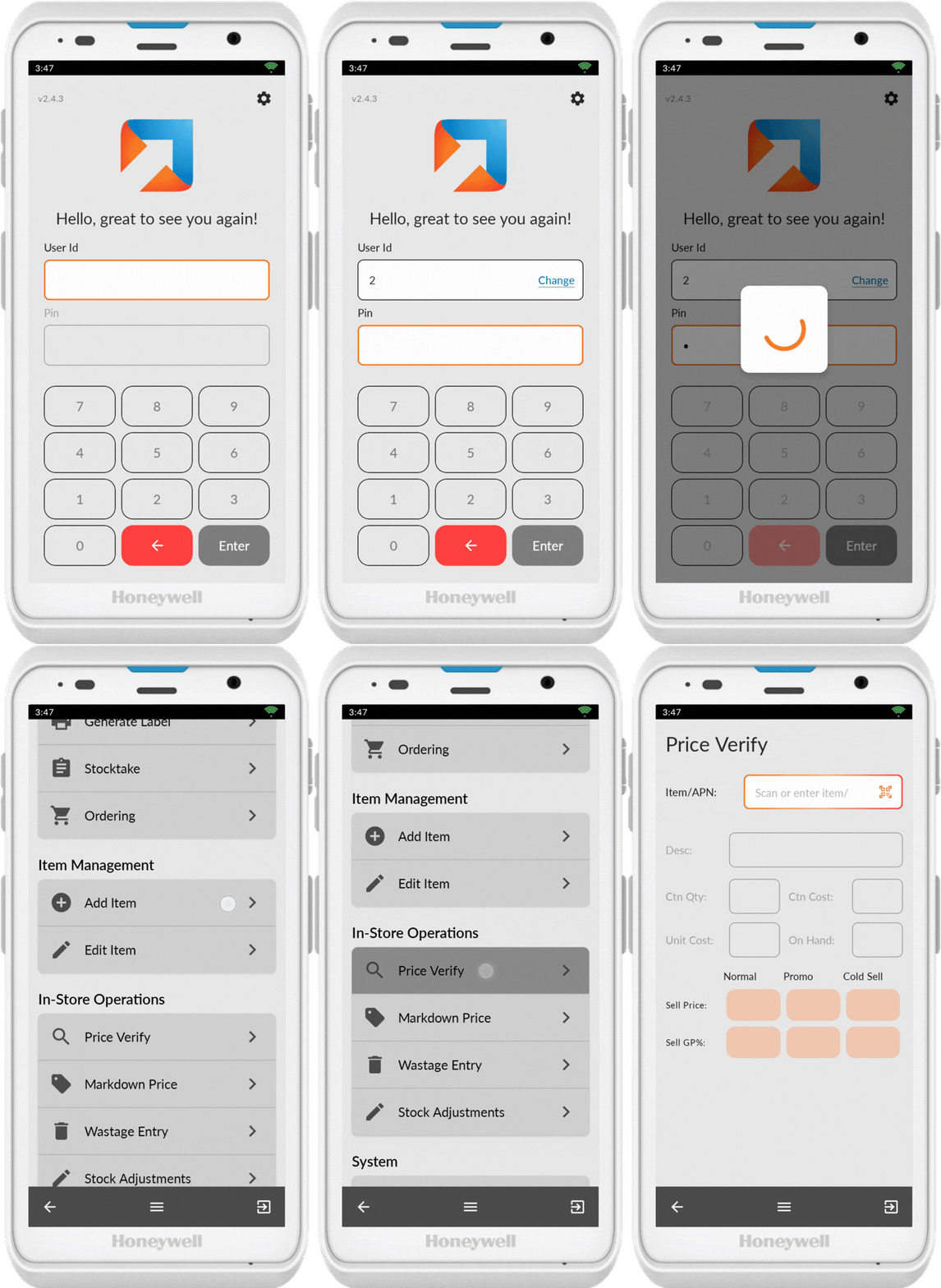
Access Price Verify
- Log in to your Convenience PDE
- Scroll to find Price Verify
- Tap on it to open
Scan Item
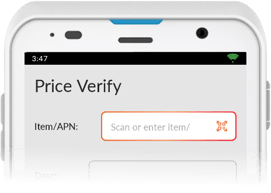
- Ensure the scanner icon (QR code) is showing
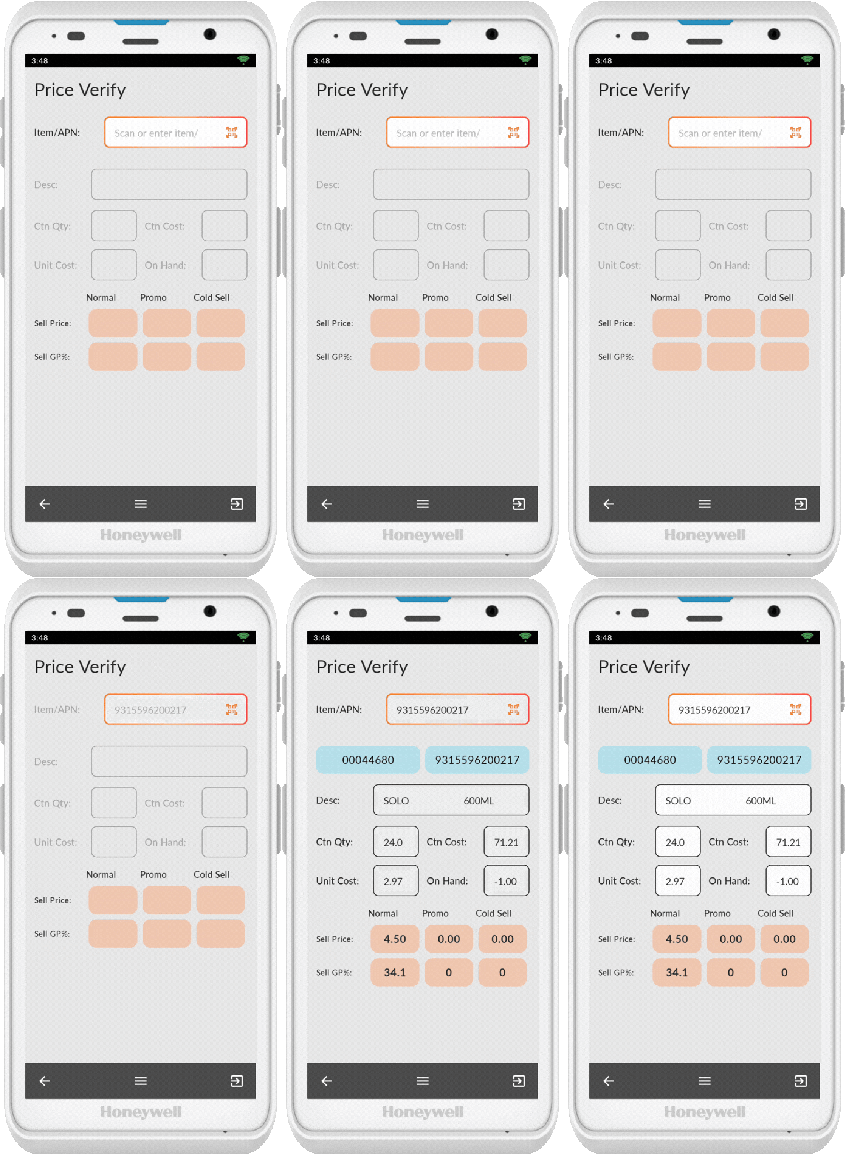
- Scan an item
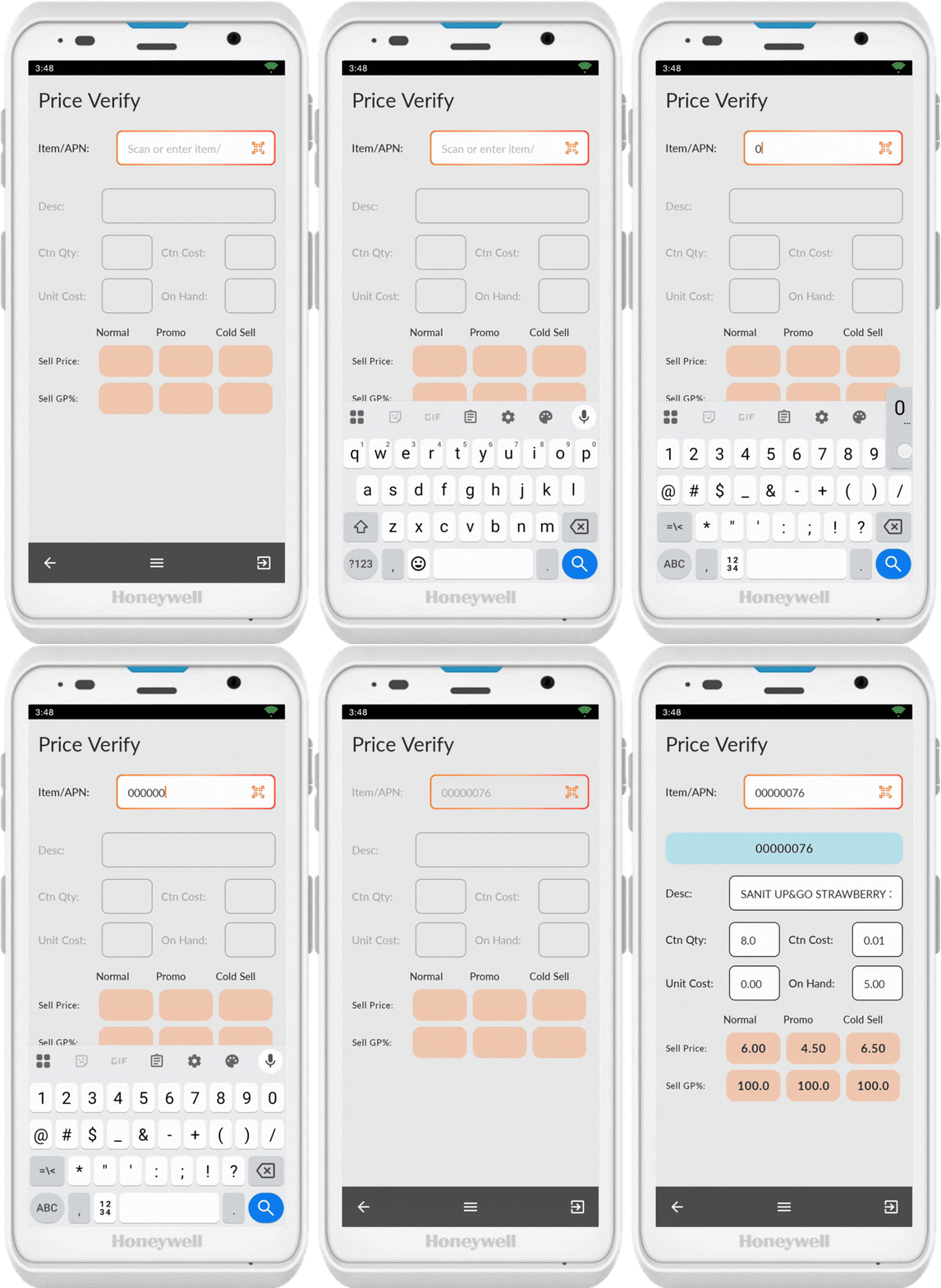
If the barcode doesn't scan correctly, tap on the barcode field to bring up the keypad and enter the number manually. Tap anywhere on the screen to hide the keypad.
View Pricing Information
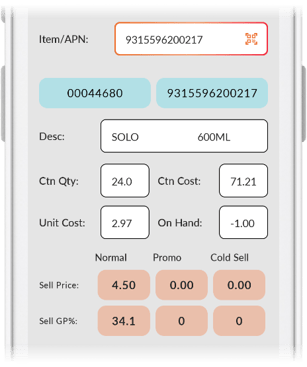
Once an item is scanned, the screen displays:
- Normal pricing: Standard retail price
- Promotional pricing: Any active promotions or special offers
- Stock quantity on hand: Current inventory levels
Editing Prices
To change item prices, use the Edit Item function on your Convenience PDE. This allows you to update prices, activate products, and change item options directly from the handheld.
👉✏️ Editing Items with your Convenience PDE
💡 Tip: Keep Price Verify as a go-to tool for answering customer price queries quickly without leaving the shop floor.