
Edit item details directly from your Convenience PDE without returning to the back office. Update prices, activate products, and change item options while on the shop floor.
ℹ️Note: This article covers the new Convenience PDE app. Not sure which version you're using? Learn how to identify your PDE here.
Editing an Item
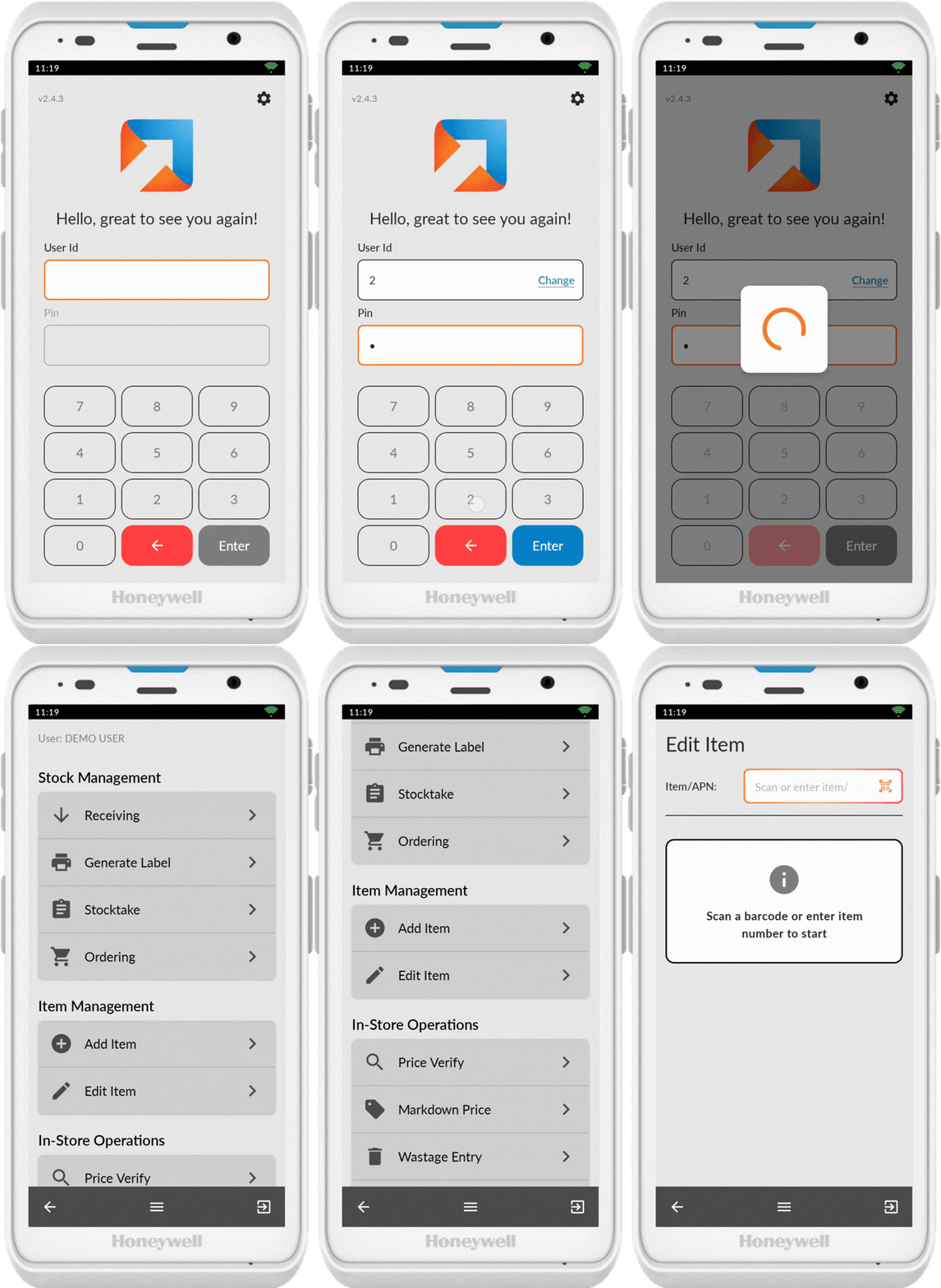
Access Edit Item
- Log in to your Convenience PDE
- Scroll to find Edit Item
- Tap on it to open
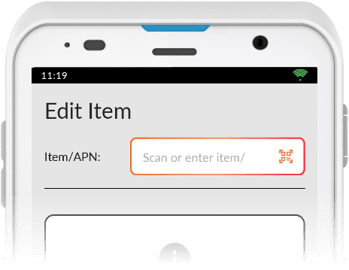
Scan Item
- Ensure the scanner icon (QR code) is showing
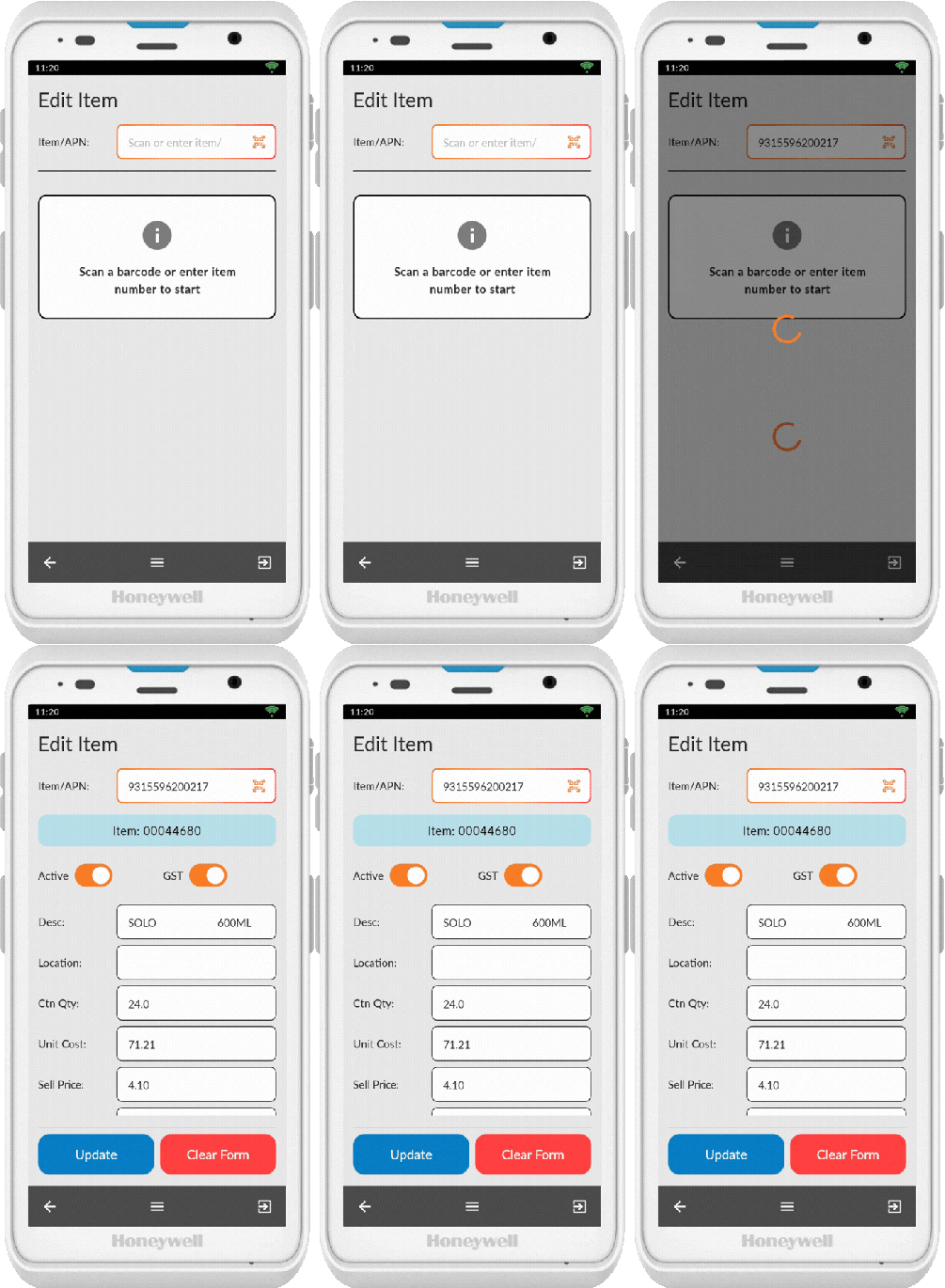
- Scan an item
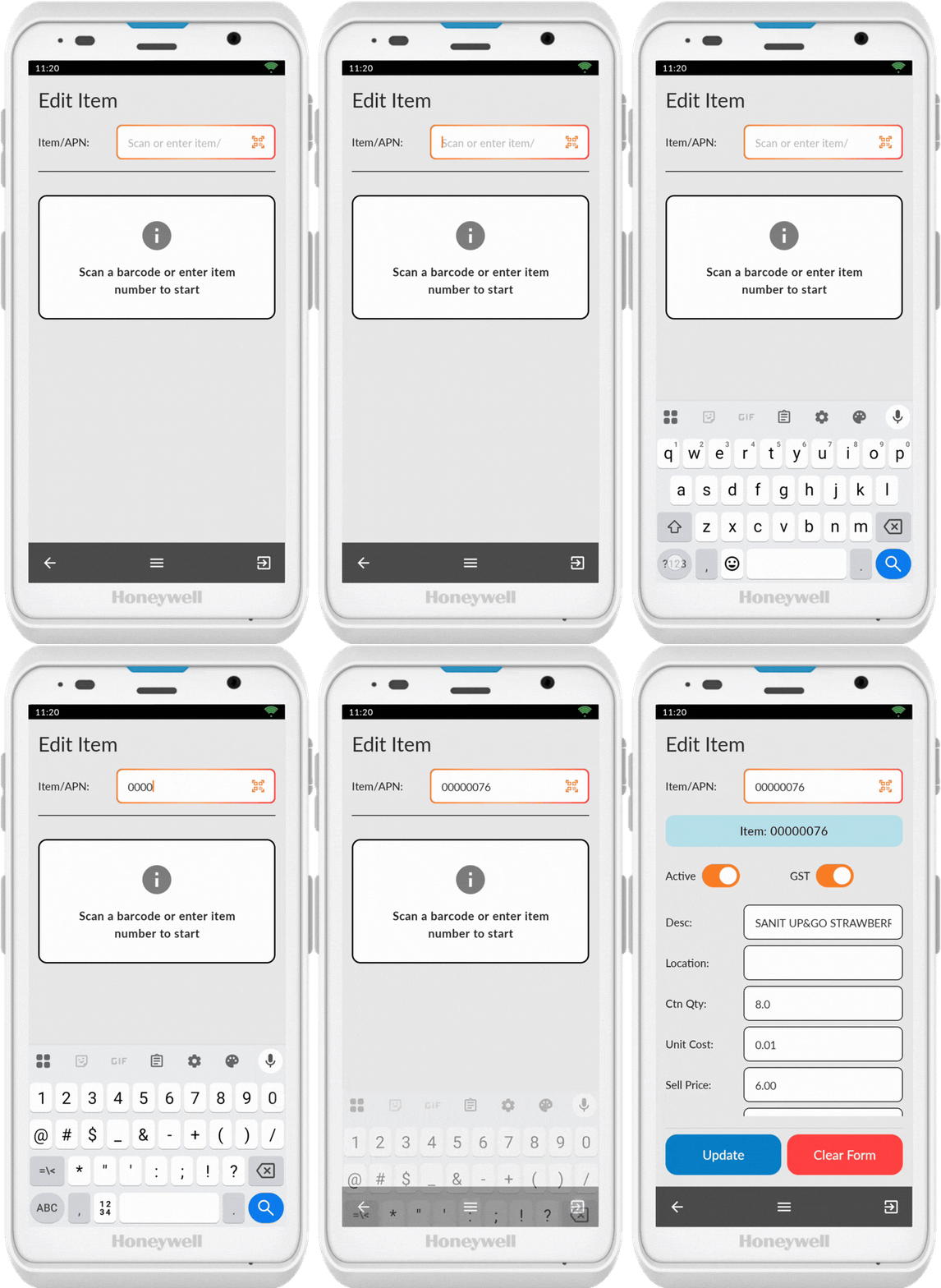
If the barcode or shelf label doesn't scan, tap on the item/APN field to bring up the keypad and enter the number manually. Tap anywhere on the screen to hide the keypad.
Make Changes
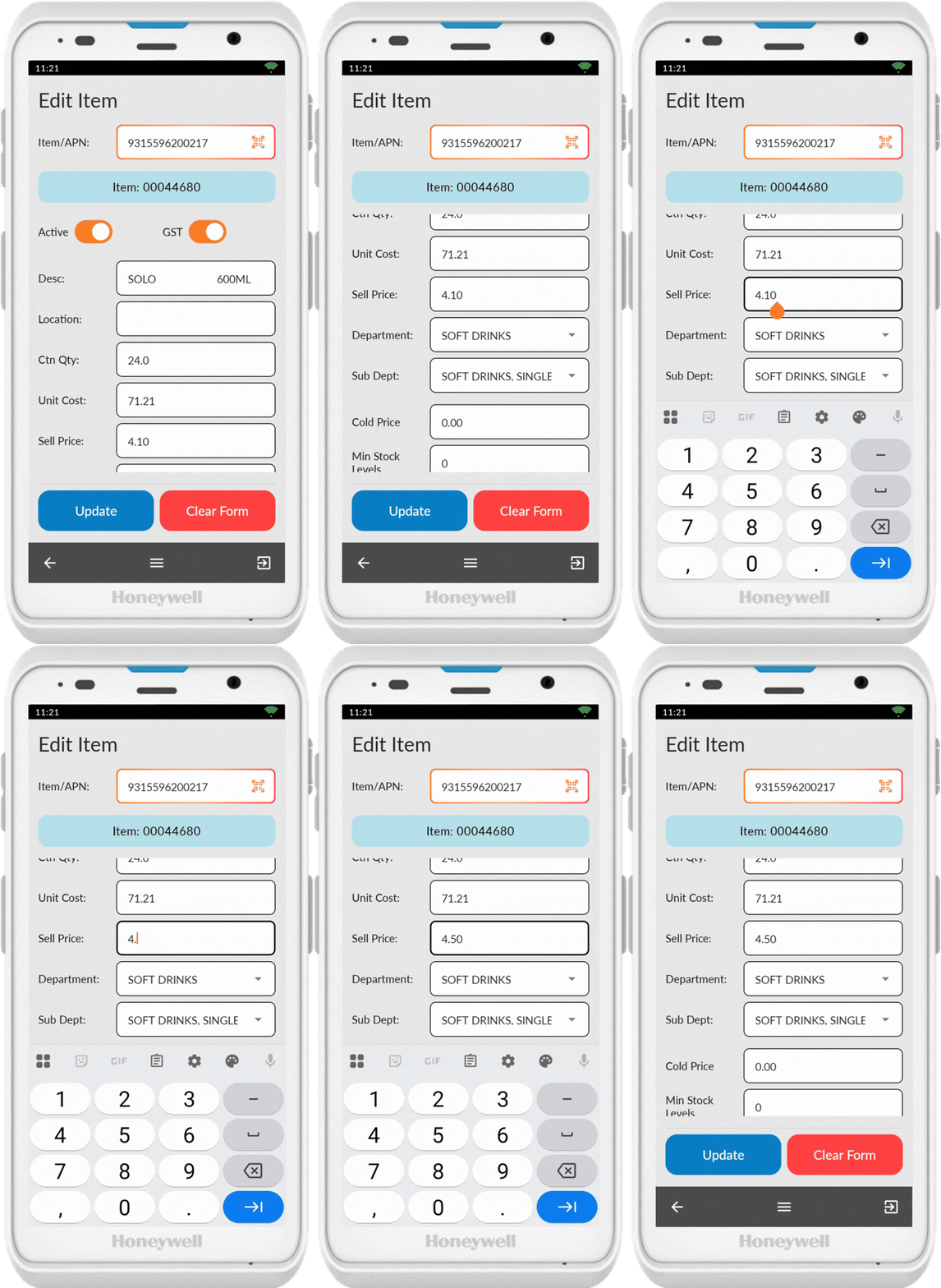
Once the item is scanned, you can change any displayed fields, including:
- Item pricing
- Product activation status
- Skip automatic order setting
- Other item options
Save Changes
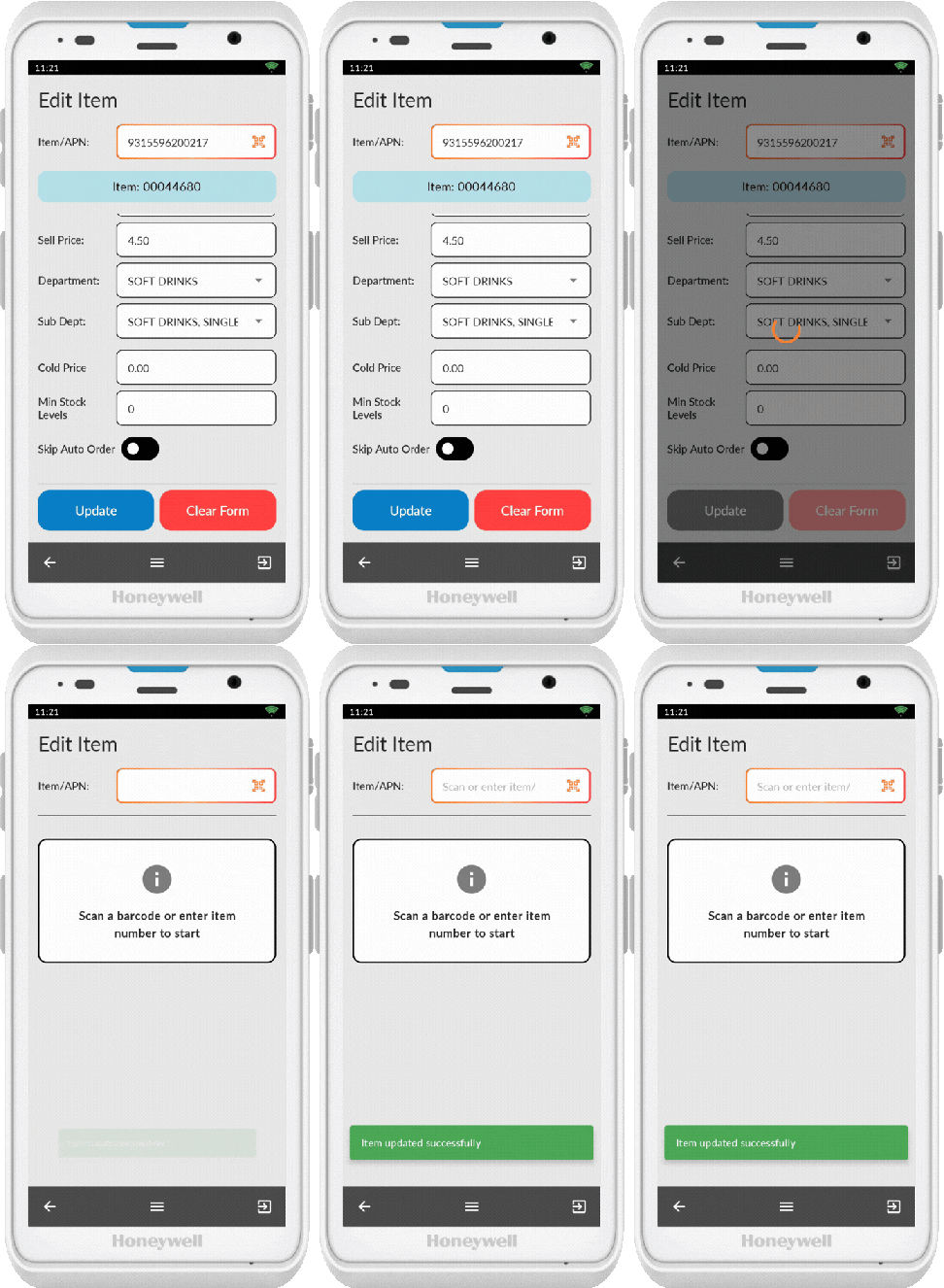
Once you're happy with the changes, tap Update to post the changes to the back office
To revert changes before saving, tap Clear Form
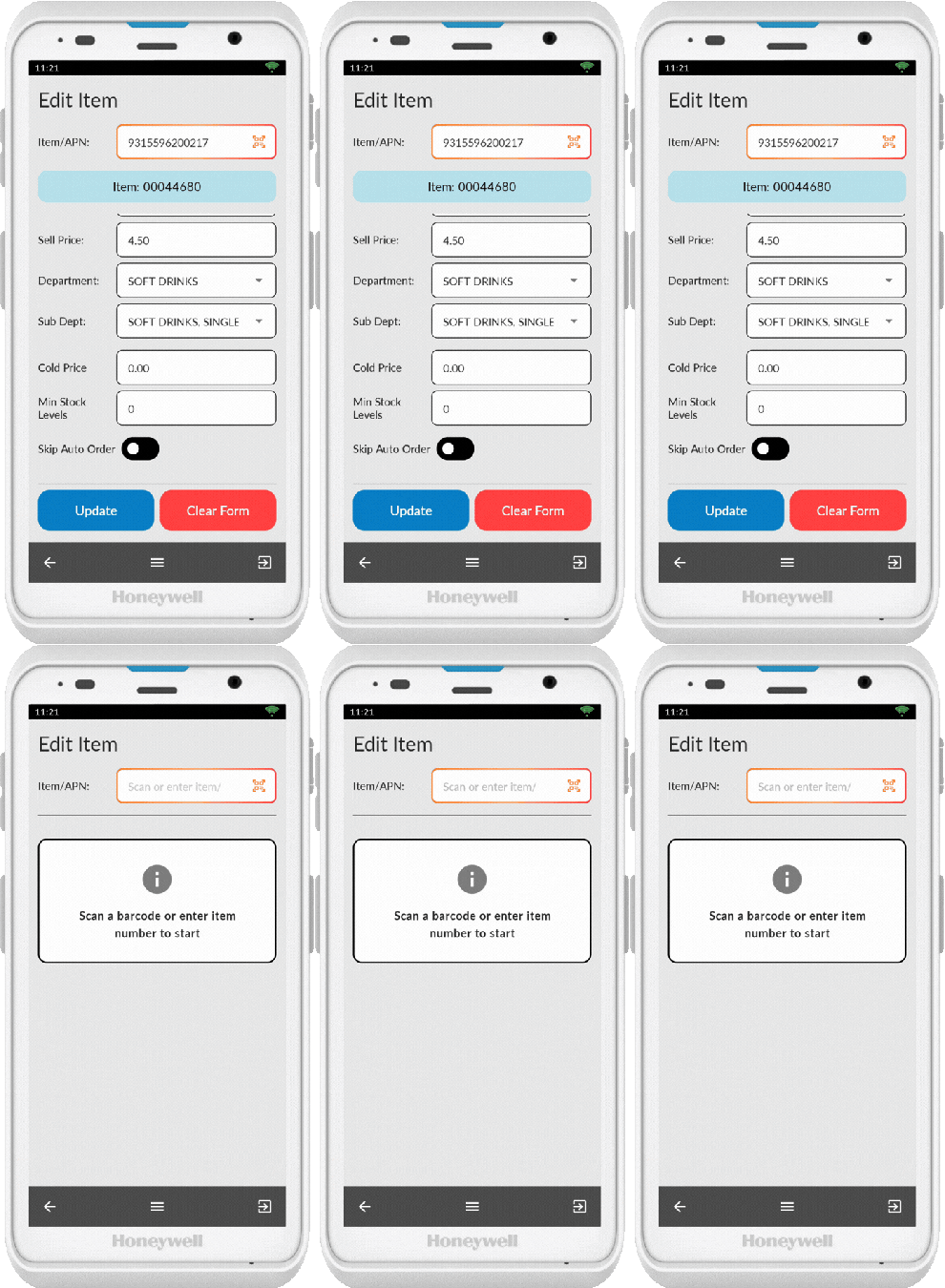
⚠️ Important: If you make changes and scan a new product without clicking Update, your changes will not save. Always press Update before scanning another item.
After Editing Items
After editing items, you'll need to send changes to tills and print shelf labels from the back office.
💡 Tip: Use the Clear Form button to reset all changes if you make a mistake before pressing Update.