
Generate shelf labels directly from your Convenience PDE by scanning items and adding them to the label queue. Print labels in the order they were scanned or through your standard back office process.
ℹ️Note: This article covers the new Convenience PDE app. Not sure which version you're using? Learn how to identify your PDE here.
Generating Labels
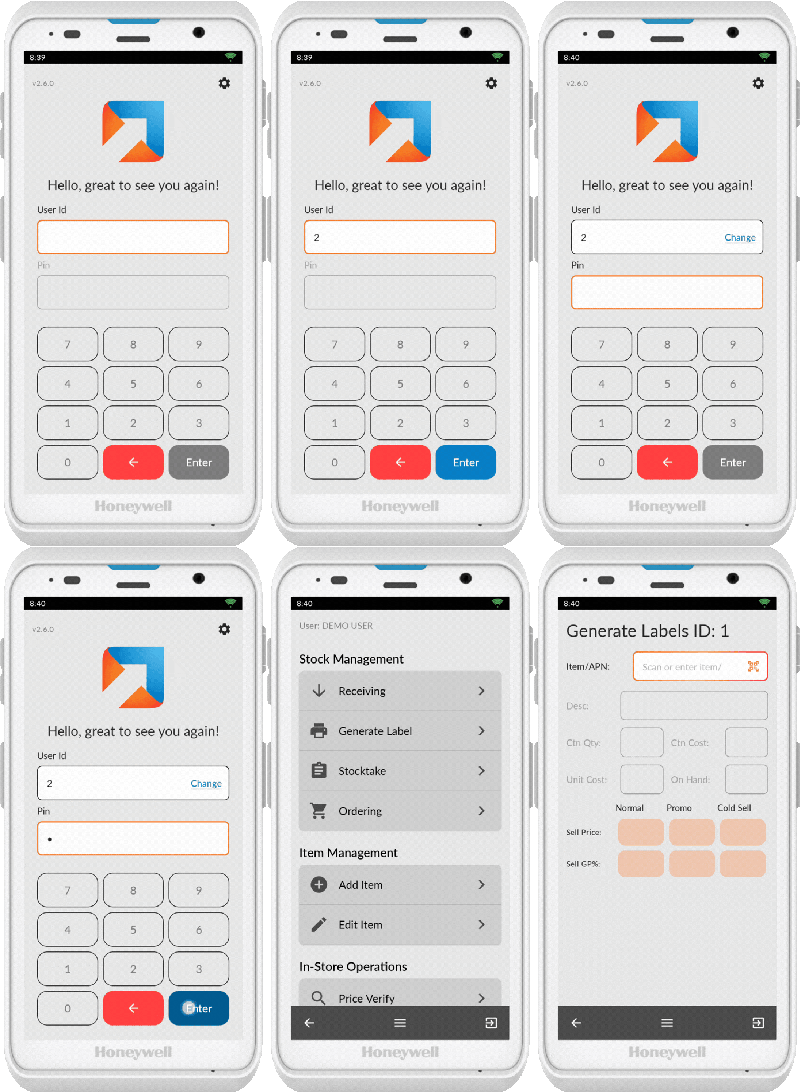
Access Generate Shelf Labels
- Log in to your Convenience PDE
- Scroll to find Generate Shelf Labels
- Tap on it to open
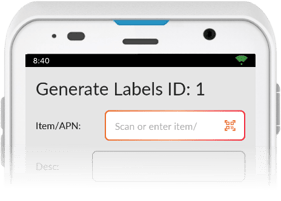
Scan Items
- Ensure the scanner icon (QR code) is showing
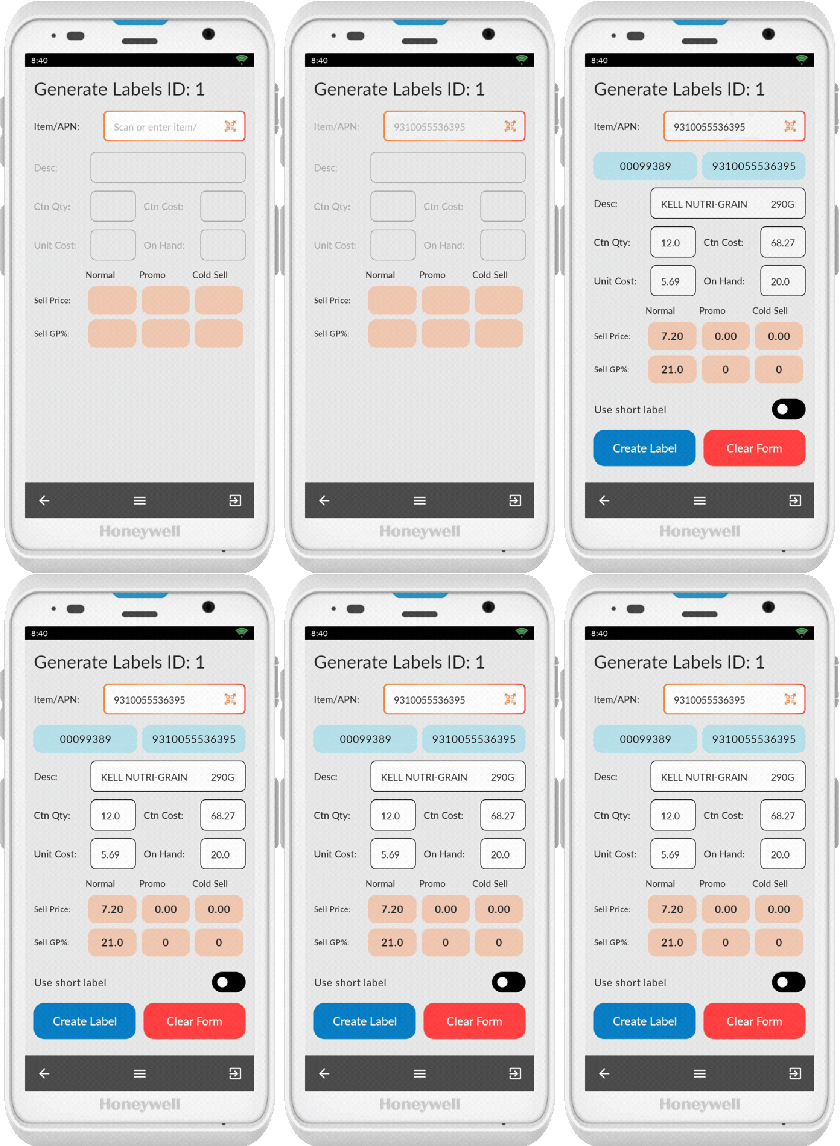
- Scan an item
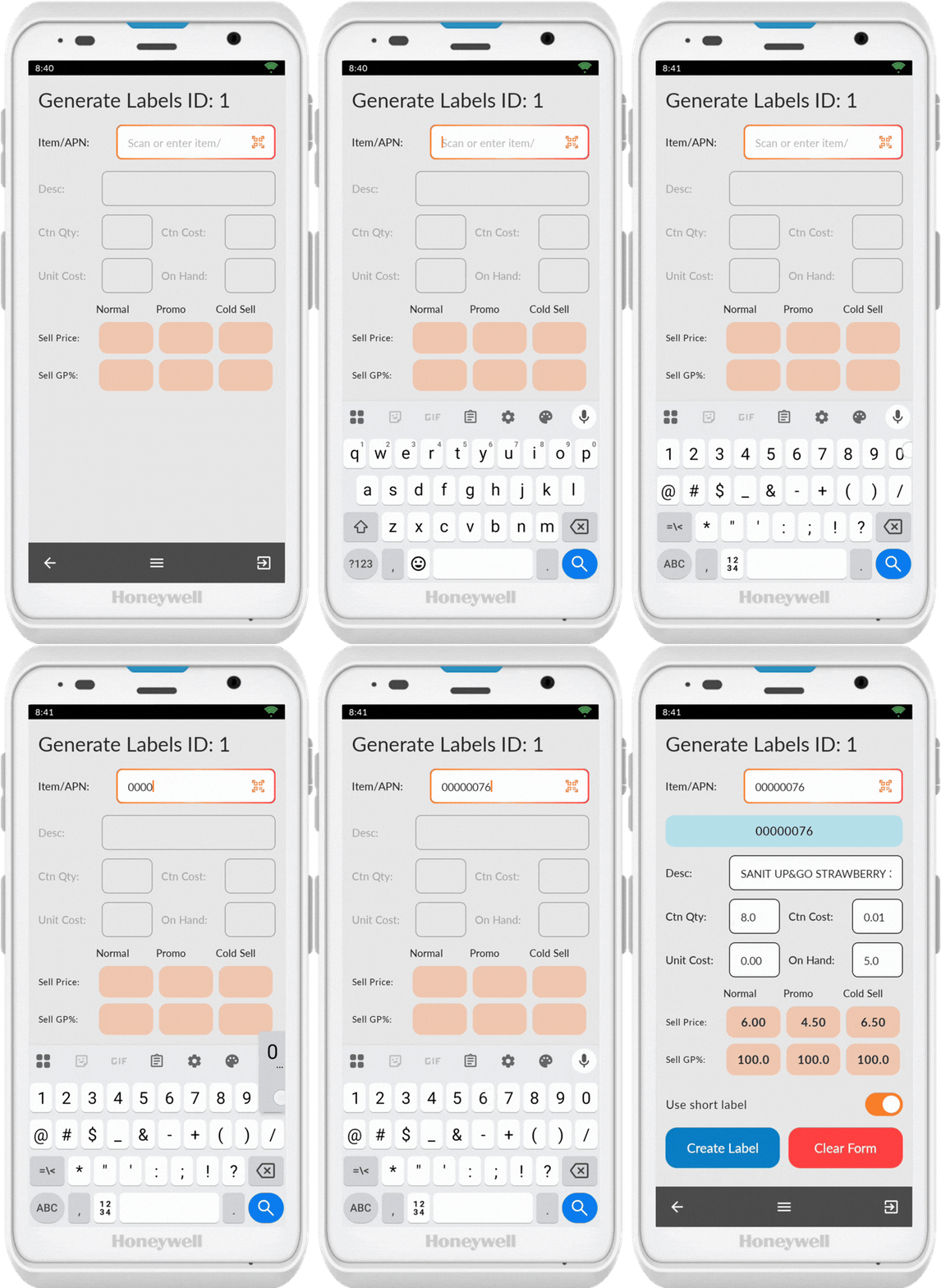
If the barcode or shelf label doesn't scan, tap on the item/APN field to bring up the keypad and enter the number manually. Tap anywhere on the screen to hide the keypad.
Create Label
Once the item is scanned, an option to create label appears at the bottom of the screen.
You have two options:
- Tap Create Label button: Adds the item to the label queue
- Scan the next product: The previous product automatically adds to the label queue
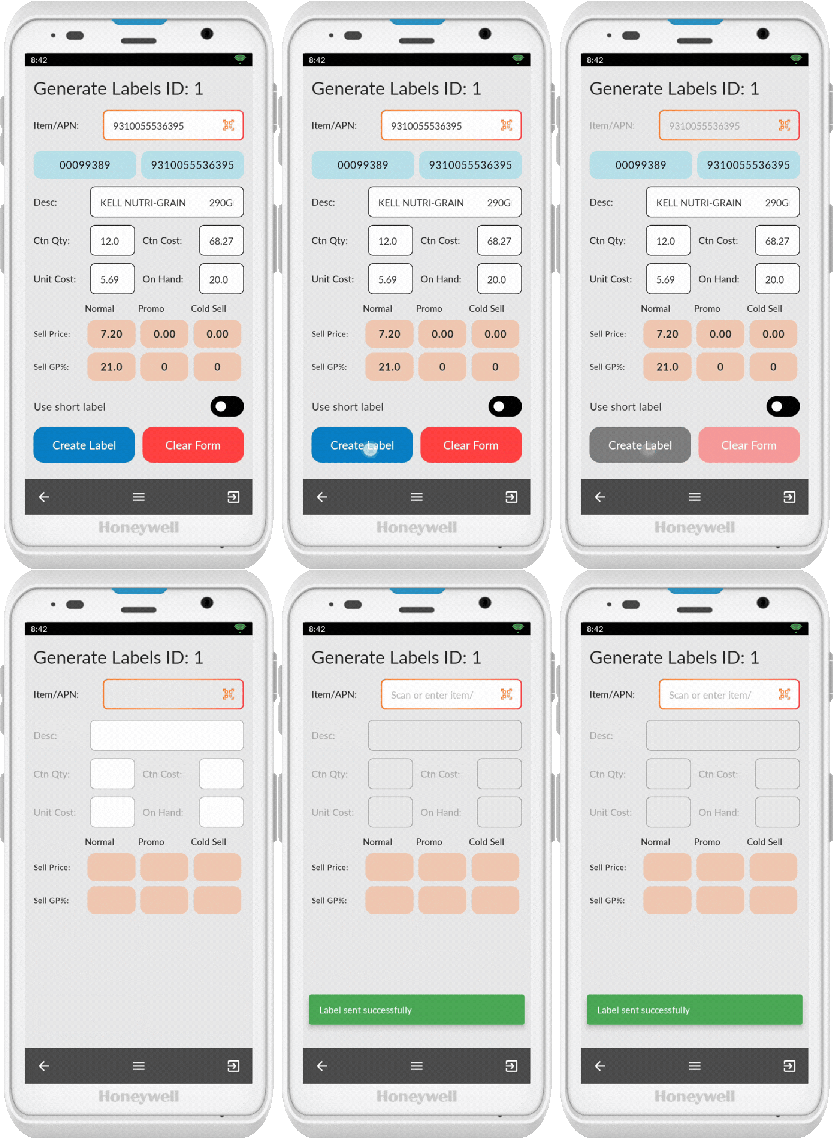
You will see a green confirmation pop-up when an item is successfully activated
Short Label Option
Turn on Use Short Label to generate a short label for the product instead of a standard label.
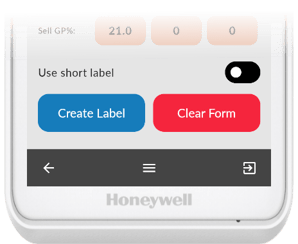
💡 Tip: If you don't wish to generate a label for a scanned item, press Clear Form before scanning the next item.
Printing Labels
Once you've generated all the labels you need, you can print them in two ways:
-
Print labels as usual in the back office using store changes.
-
Print labels in the order they were scanned using the PDE batch option.
To learn more about printing shelf labels in the back office.