
Your Convenience PDE requires a WiFi connection to communicate with the back office and allow Future Net support to remotely assist with troubleshooting. This guide shows you how to connect and monitor your WiFi connection.
ℹ️Note: This article covers the new Convenience PDE app. Not sure which version you're using? Learn how to identify your PDE here.
Checking WiFi Connection
When your PDE is connected to WiFi, a WiFi symbol appears in the top right corner within the app.
The WiFi symbol changes as signal strength varies:
- Full bars: Strong connection
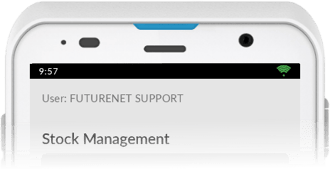
- Fewer bars: Weaker connection
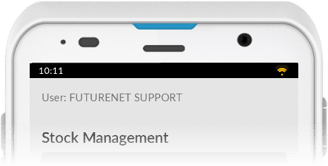
- Low bars: Weak connection
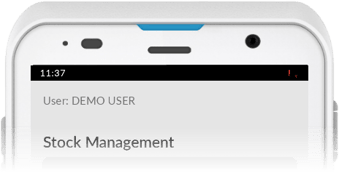
- Warning popup: No WiFi signal detected
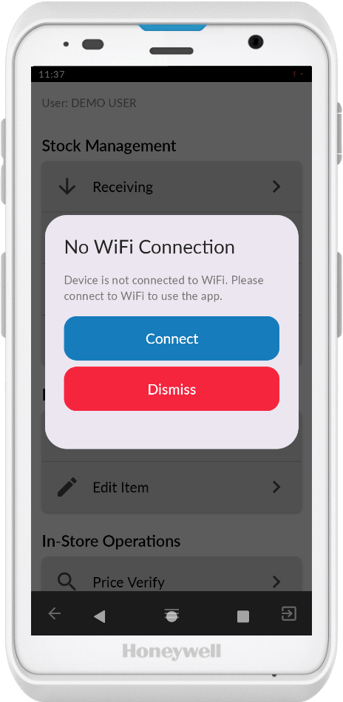
If you receive a weak signal warning, tap the Connect button to navigate directly to WiFi settings.
Connecting to WiFi
Access WiFi Settings
- Swipe down from the top of the screen to display the device quick access menu
- Tap and hold on the WiFi icon
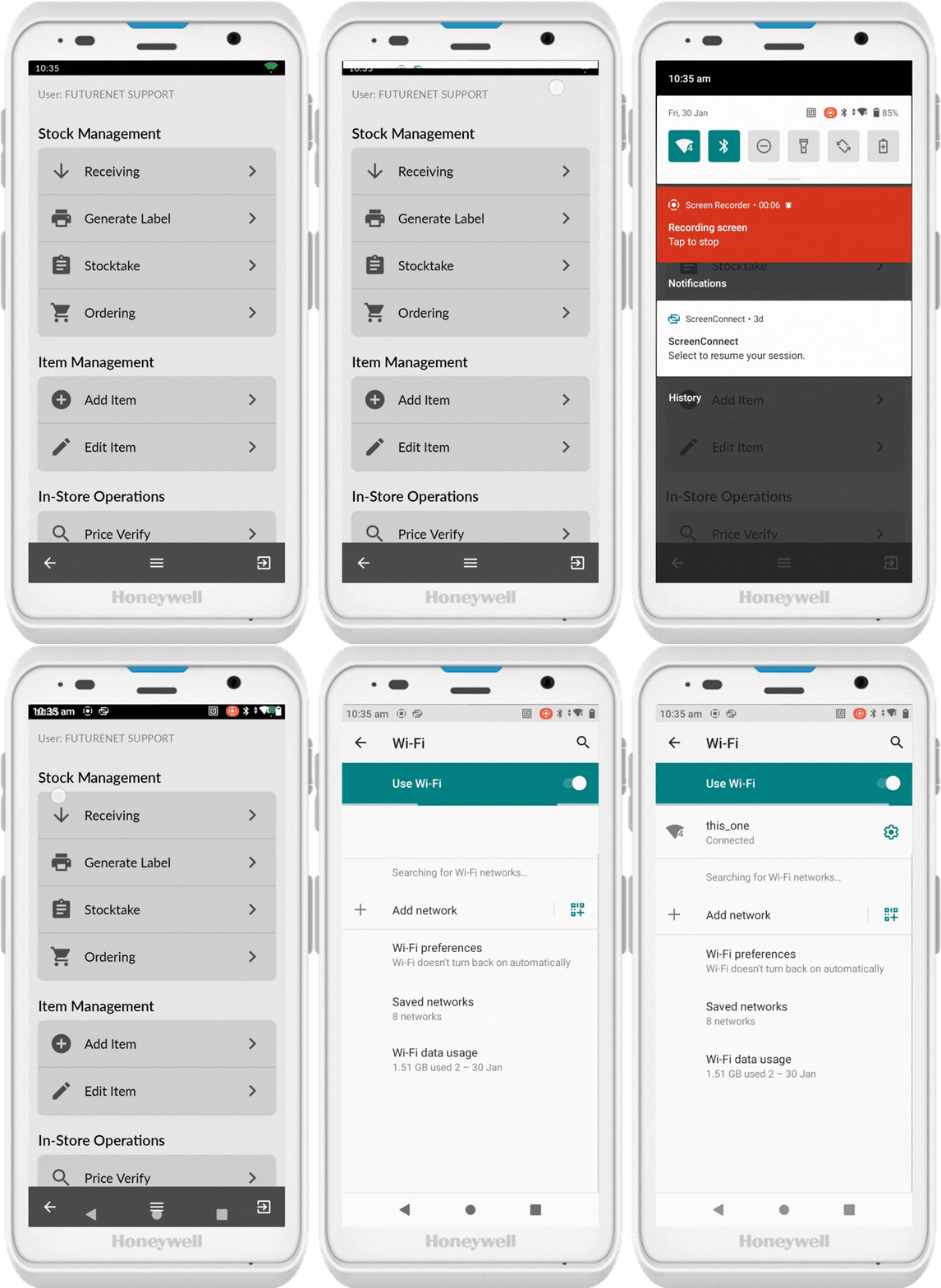
Select Network
- Find the correct WiFi network for your store
- Tap on the network name
- Enter the WiFi password
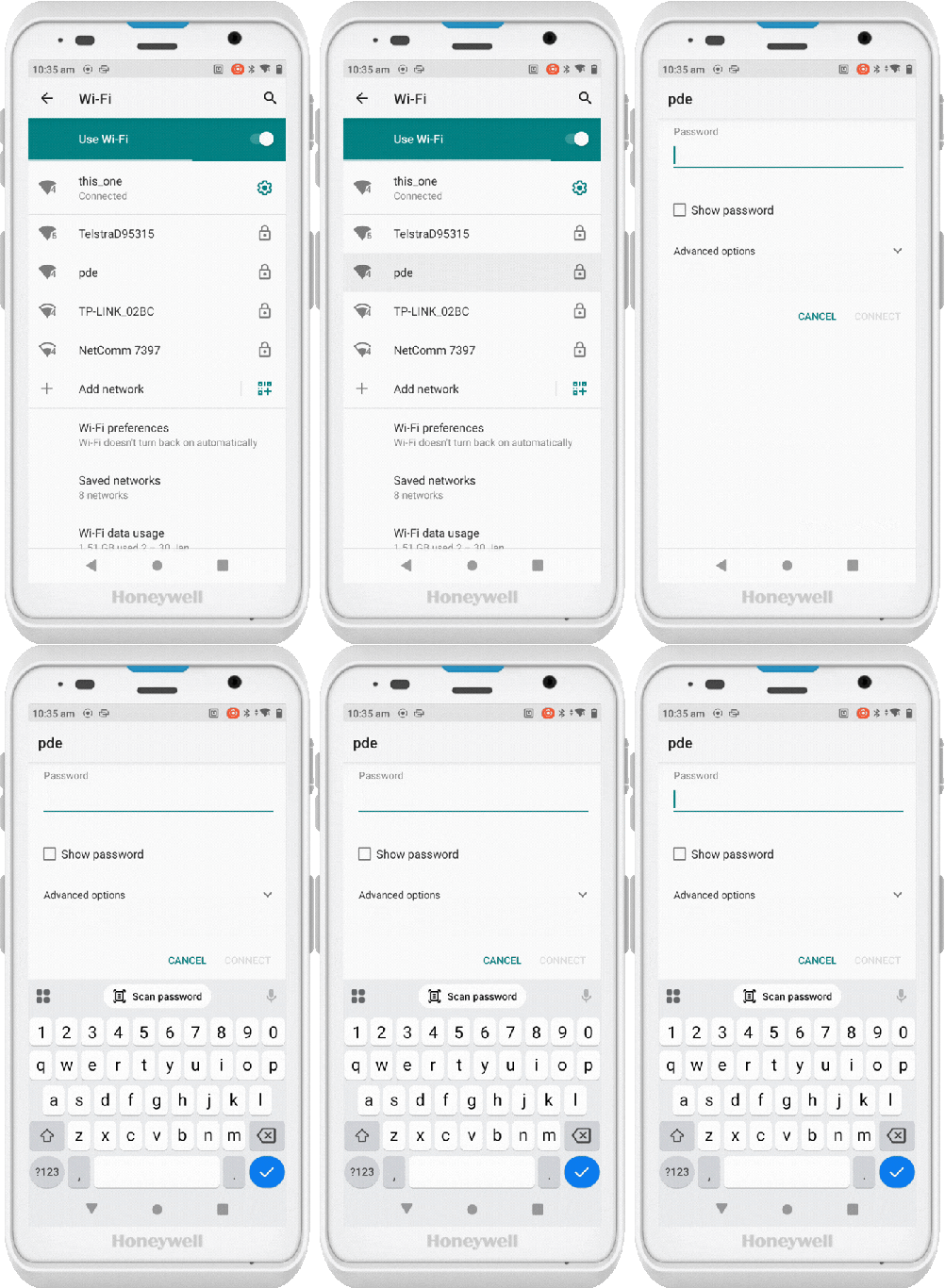
If the Keyboard doesn't show up, it may still be hidden from using the old WebPDE app. Head to setttings to turn your keyboard back on.
👉⌨️ Turn the Keyboard On or Off in Your PDE
💡 Tip: If you don't know the WiFi password, check your modem for a sticker with the network name and password. If unavailable, contact your ISP (Internet Service Provider) for assistance.
Return to Convenience PDE App
Once connected, tap the back button until you return to the Convenience PDE app- You may need to press the multitasking icon (square button) to select the app again
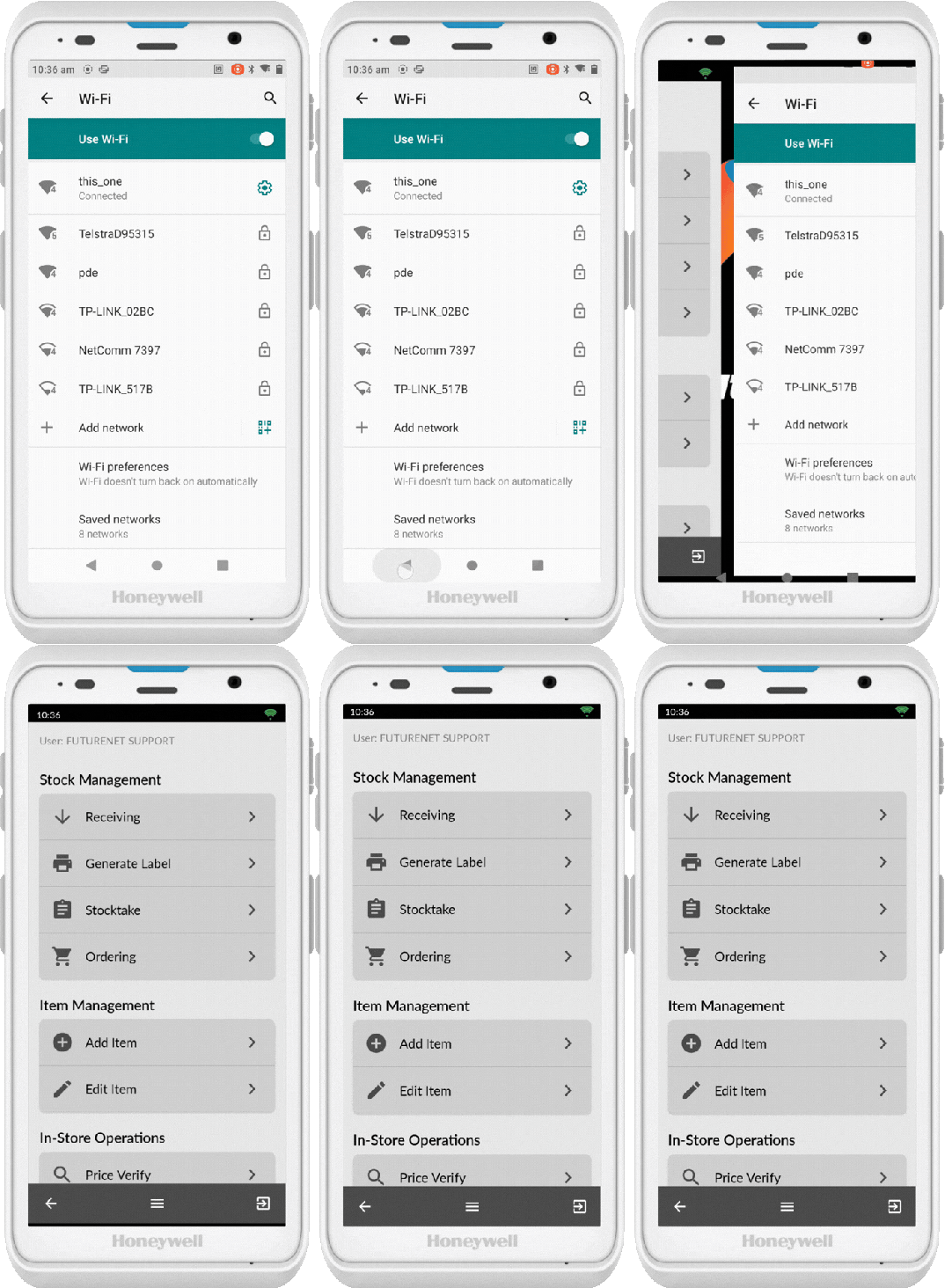
Back Office Connection
The Convenience PDE should connect to the back office automatically once WiFi is established. If it doesn't connect automatically, it may prompt you to search for the back office, or setup manually.
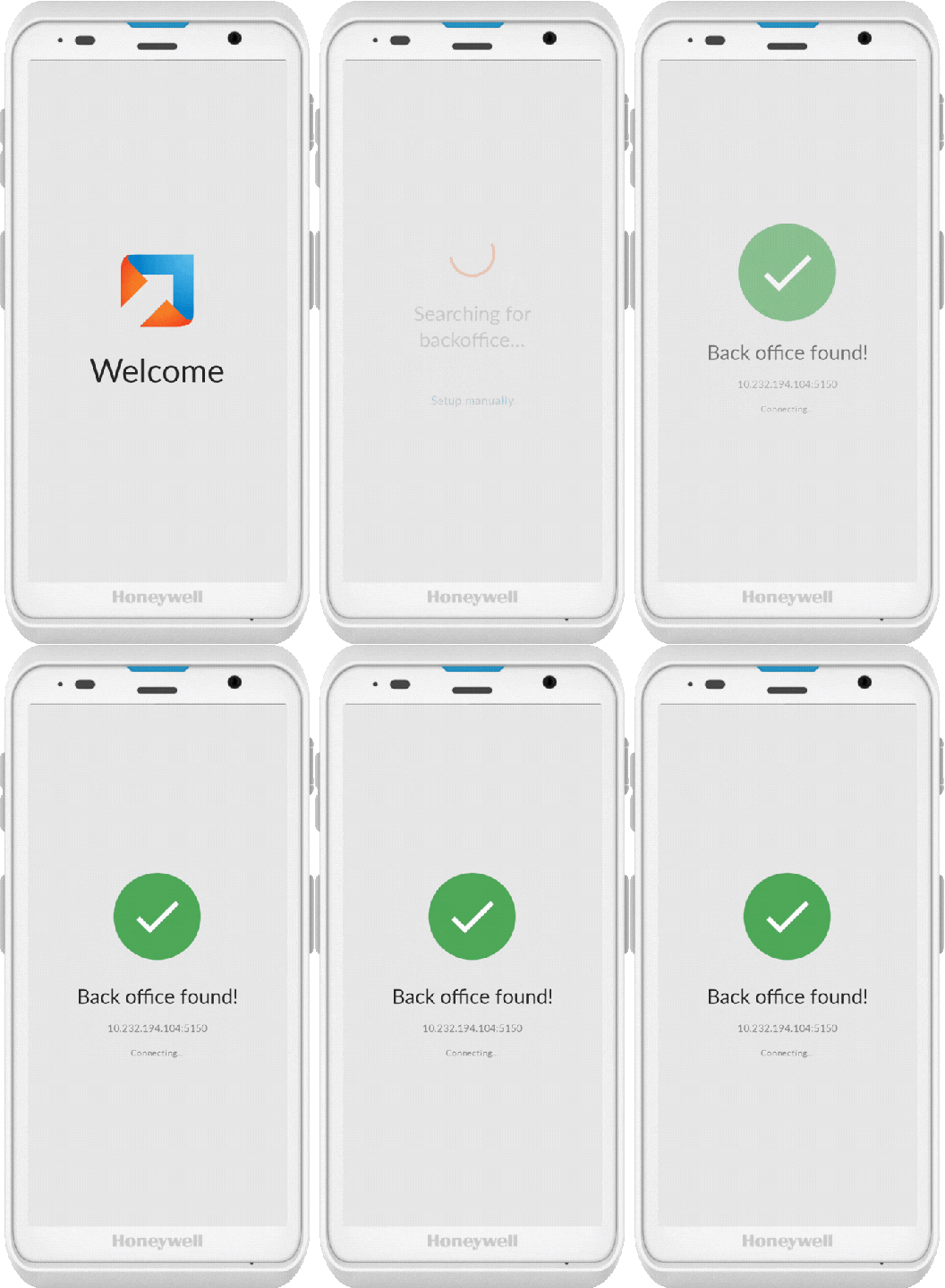
To see more information on connecting to the back office.
👉(article Coming Soon)