Historically the on-screen keyboard was hidden by default so it doesn’t pop-up while using the WebPDE program.
Since the release of the new Convenience PDE app, this no required and the keyboard can be turned back on with no issues.
Having it hidden becomes a problem when you need to enter something like a Wi-Fi password, or trying to use the keypad in the new Convenience PDE app.
Here’s how it is turned on/off.
Change your keyboard settings
Accessing the keyboard settings
-
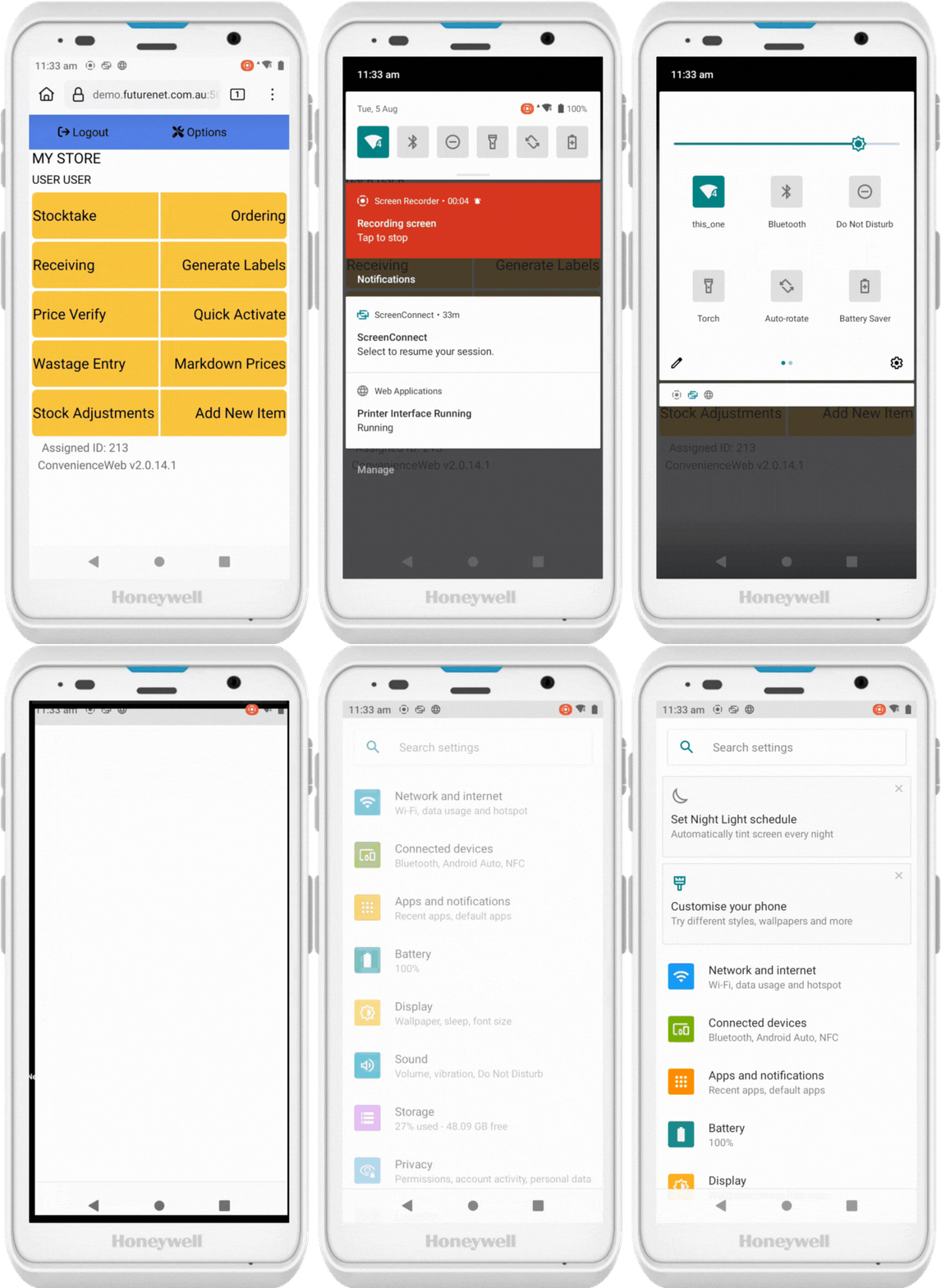
Swipe down from the top of the screen.
-
Swipe down again to expand the full settings panel.
-
Tap the ⚙️ Settings icon.
-
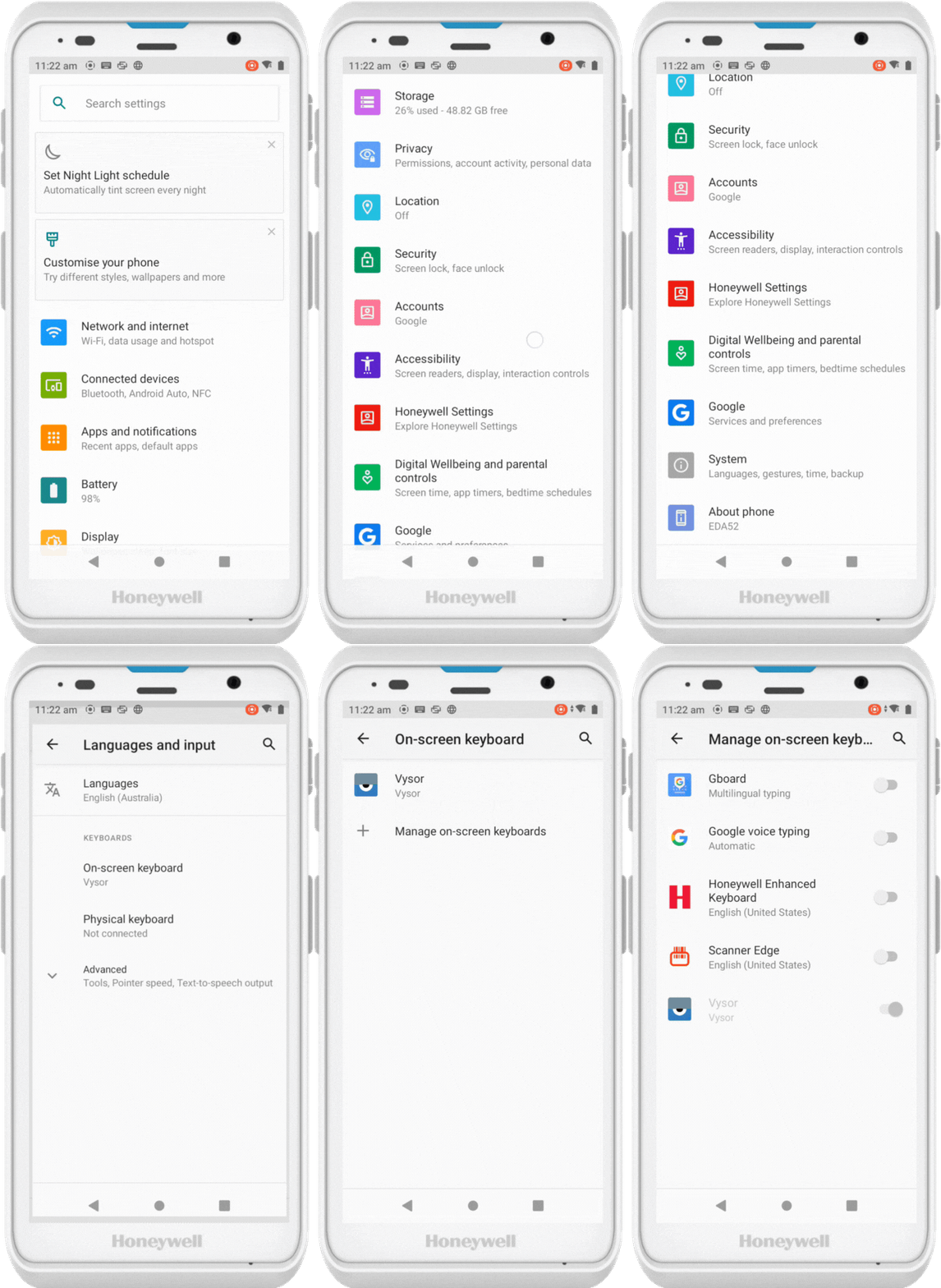
Scroll down and tap System.
-
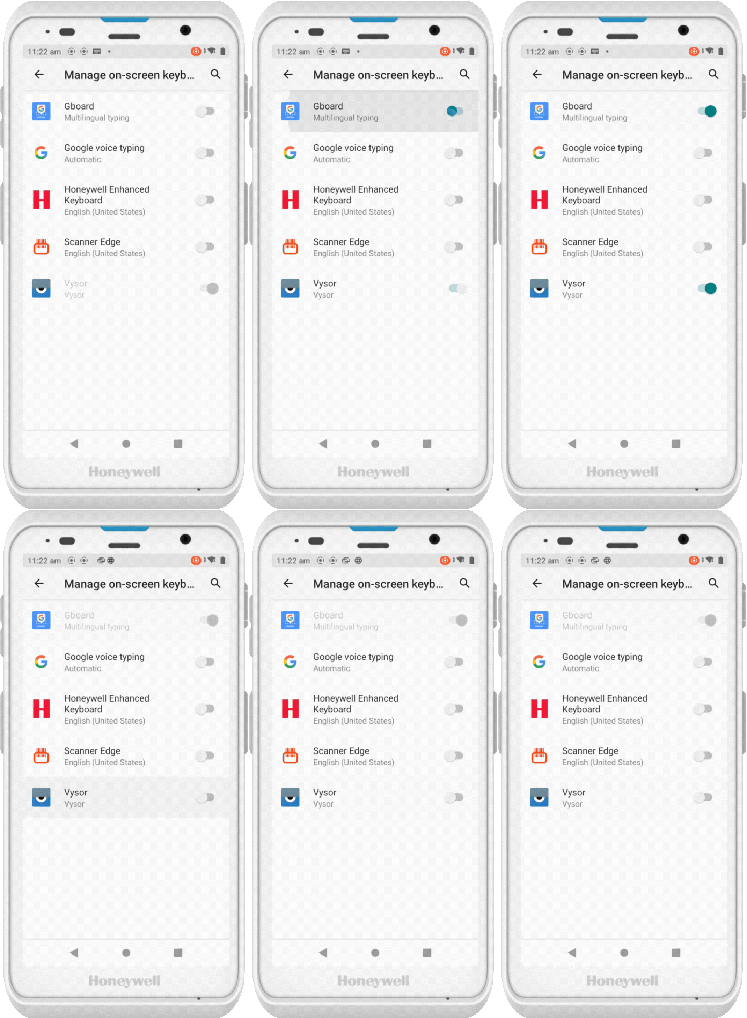
Tap Languages & Input > On-screen keyboard > Manage on-screen keyboards.
Hide the keyboard (WebPDE only)
-
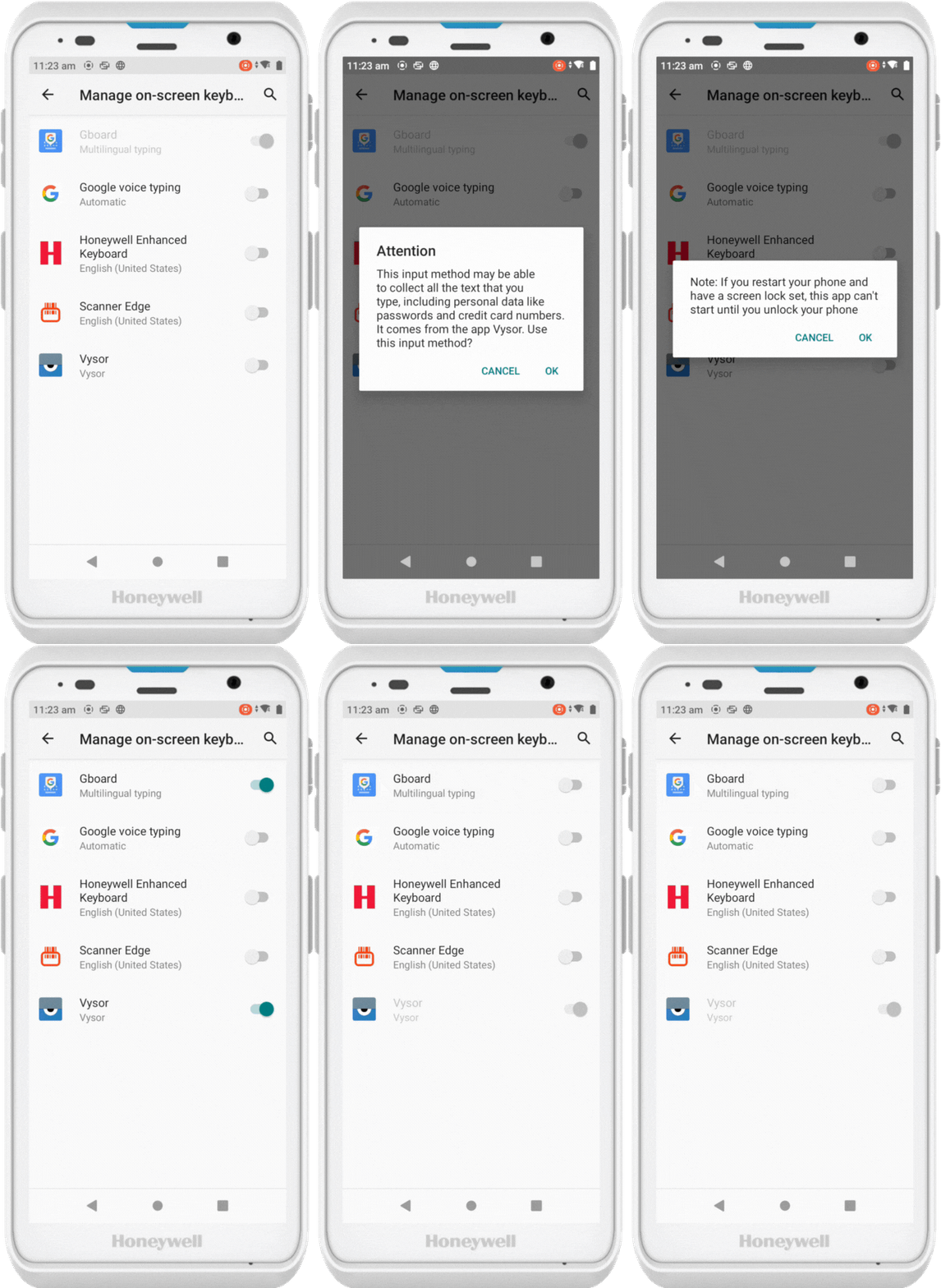
Turn Vysor ON
-
Turn all other keyboards OFF
-
This stops the Android keyboard from appearing — your PDE program has one built in.
⚠️ Important: Only hide the keyboard if you are still using the WebPDE app. Contact Future Net support at help.futurenet.com.au/support to get access the the new ConveniencePDE app.
Show the keyboard (New Convenience PDE)
-
Turn Gboard ON (or another keyboard if Gboard isn’t installed)
-
Turn Vysor OFF
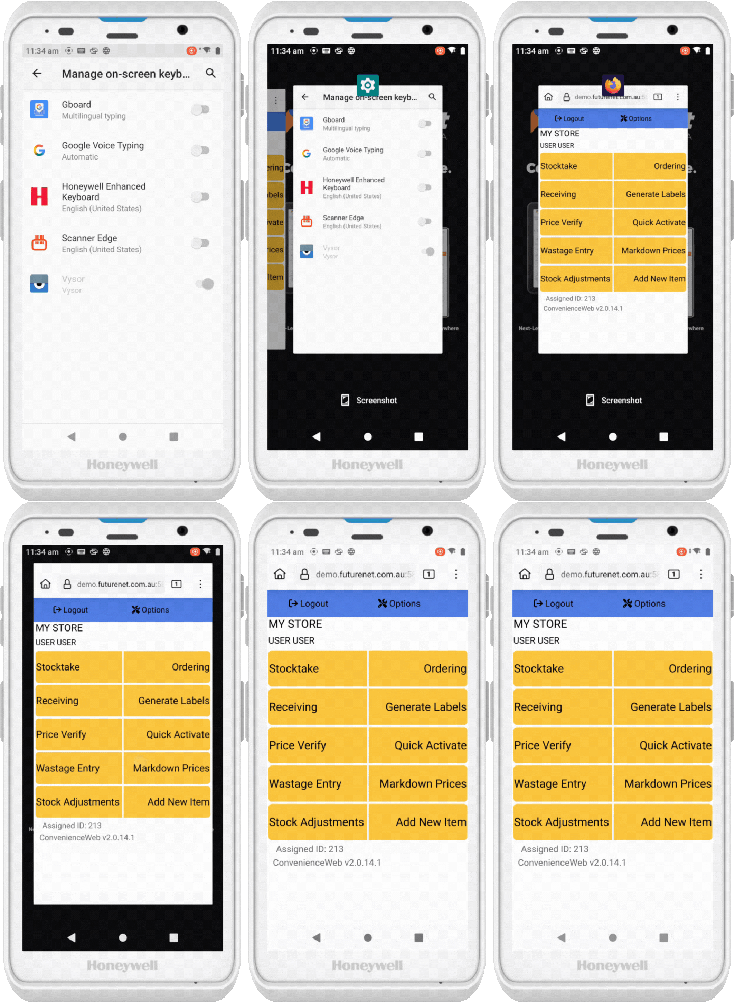
Switch back to the PDE program
Once you're done updating your keyboard settings:
-
Tap the multitask button (the square icon or swipe gesture)
-
Swipe away the Settings window
-
Open the Browser window to return to the PDE program