
Wastage entry tracks damaged, expired, or unsellable stock. Record wastage directly on your Convenience PDE to maintain accurate inventory levels and identify loss patterns in your store.
ℹ️Note: This article covers the new Convenience PDE app. Not sure which version you're using? Learn how to identify your PDE here.
Creating a Wastage Batch
Access Wastage Entry
- Log in to your Convenience PDE
- Scroll to find Wastage Entry
- Tap on it to open
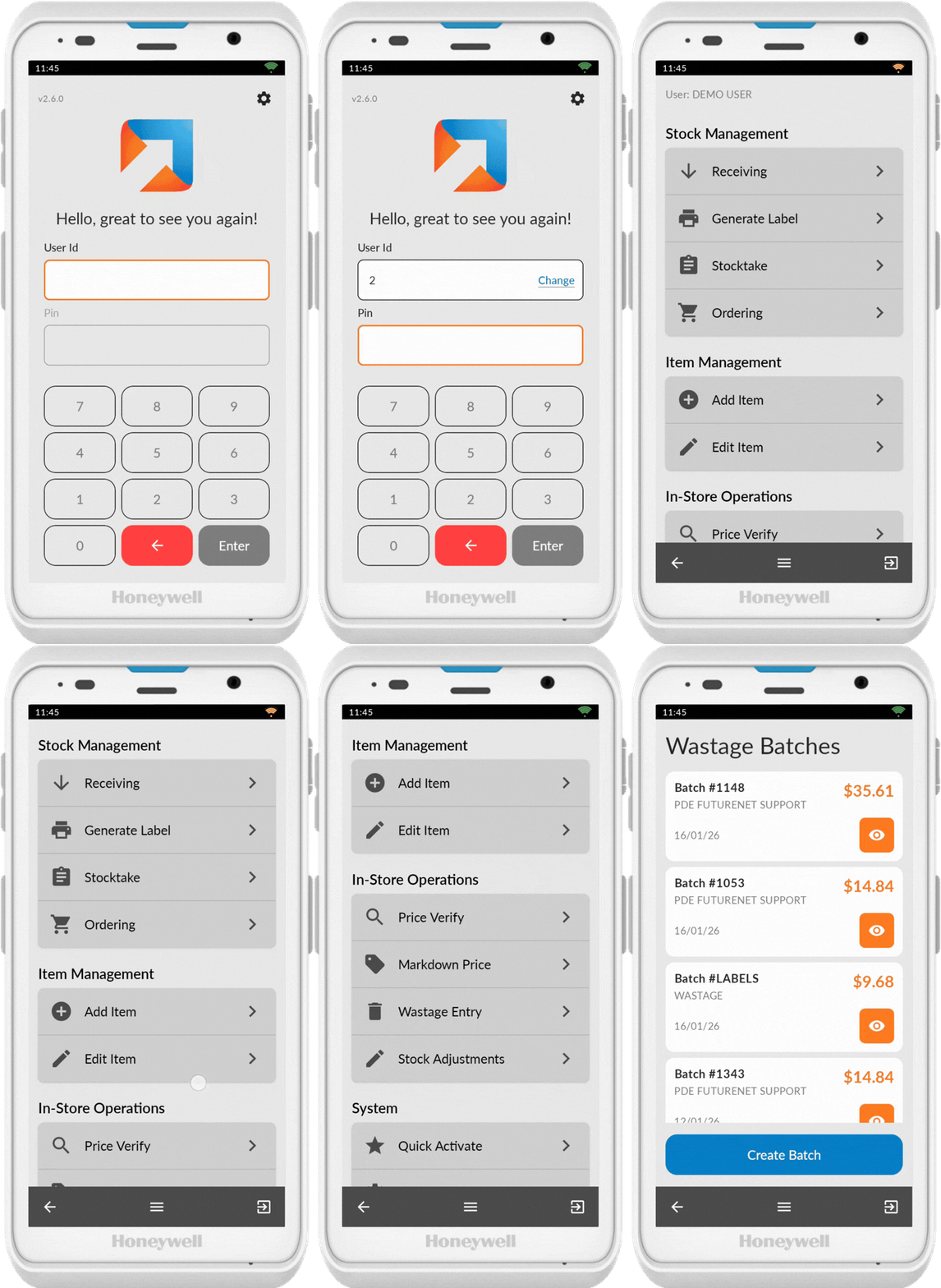
Create or Edit a Batch
You can either:
- Preview existing batch: Tap the eye icon to view contents (press back button to return)
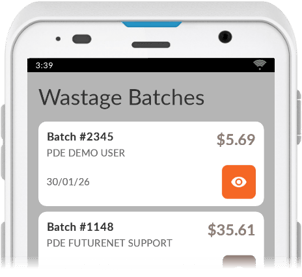
- Add to existing batch: Tap on the batch itself
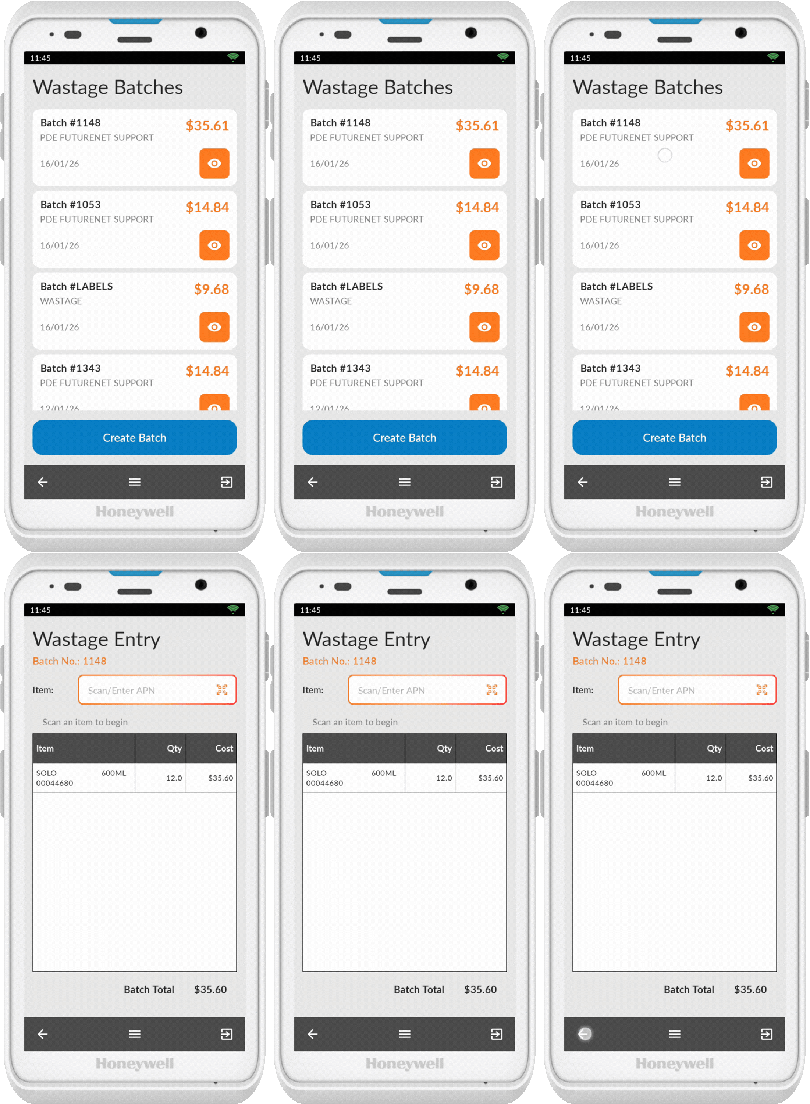
- Create new batch: Press Create Batch
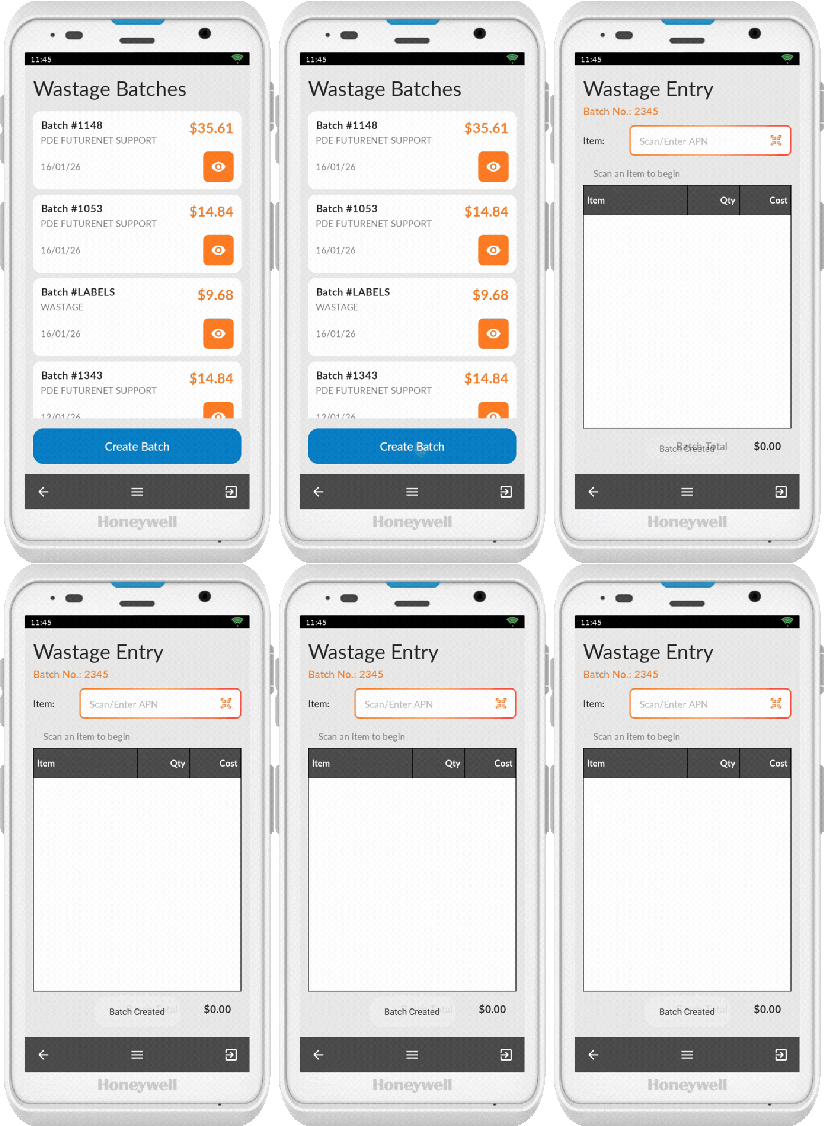
Adding Items to the Batch
Scan Items
- Ensure the scanner icon (QR code) is showing
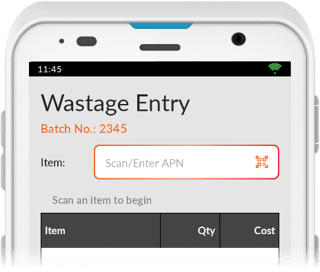
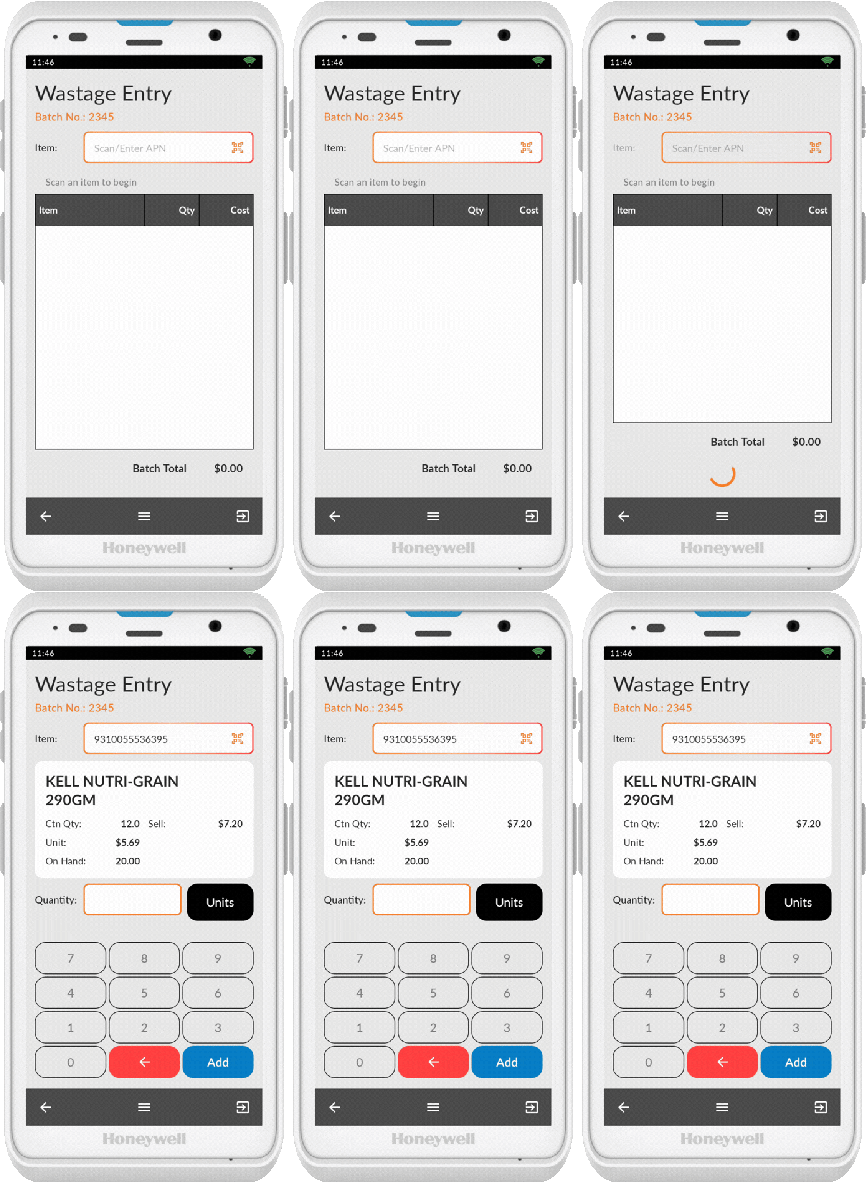
- Scan an item
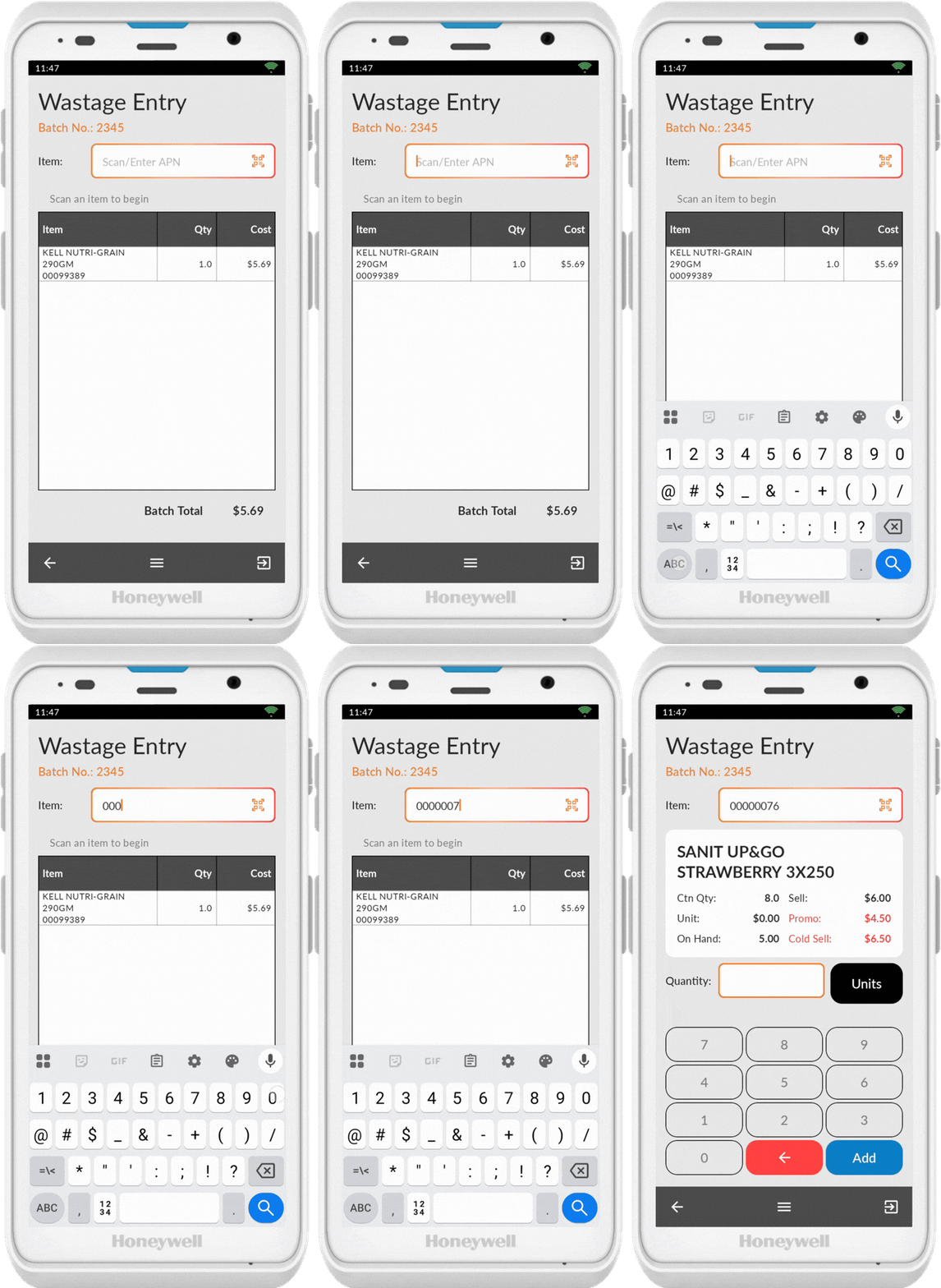
If the barcode doesn't scan, tap on the item field to bring up the keypad and enter the number manually. Tap anywhere on the screen to hide the keypad.
Enter Quantity
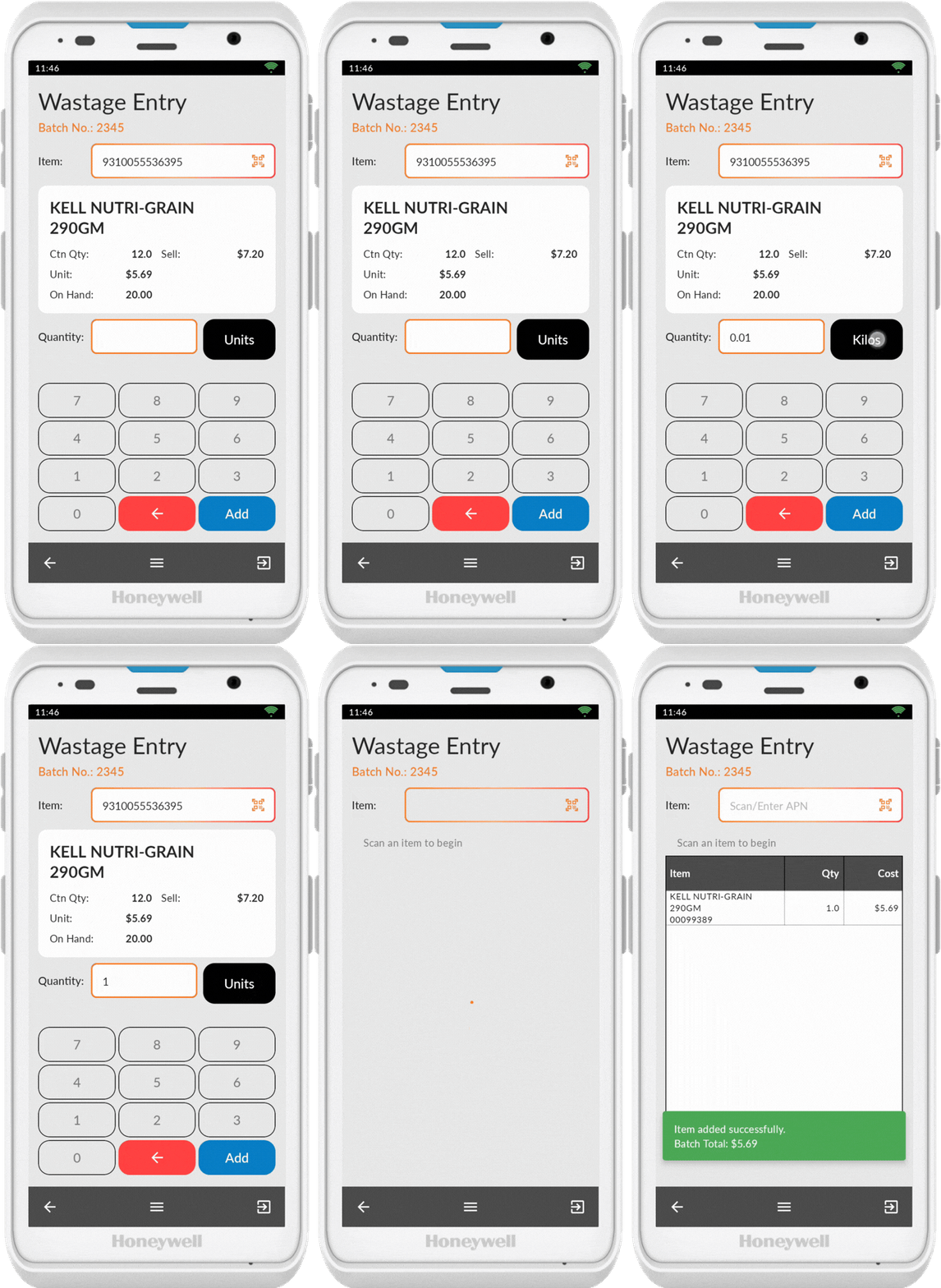
- Review the product info displayed (stock on hand and pricing)
- Enter the quantity using the keypad at the bottom of the screen
- Toggle between Units, Cartons, or Kilos by pressing on the unit type
- Press ADD before moving to the next item
The item now appears in the wastage batch.
ℹ️ Note: If you scan the same product again and enter a different quantity, it will add to the previously entered quantity.
Currently you cannot edit or delete items in a stock adjustment batch from the Convenience PDE. Make these changes in the back office if needed.
Updating the Batch
Once you've added all items to the wastage batch, navigate to the back office to review and post the wastage batch.