
Till and Label Changes track items that need to be sent to registers or printed on labels. These changes occur when you modify item details (like price or description), receive host file updates, or need to re-send items to registers. The status displays at the bottom of Convenience showing pending changes.

Viewing Changes
Navigate to the Inventory tab in Convenience and select either Label Changes or Till Changes.
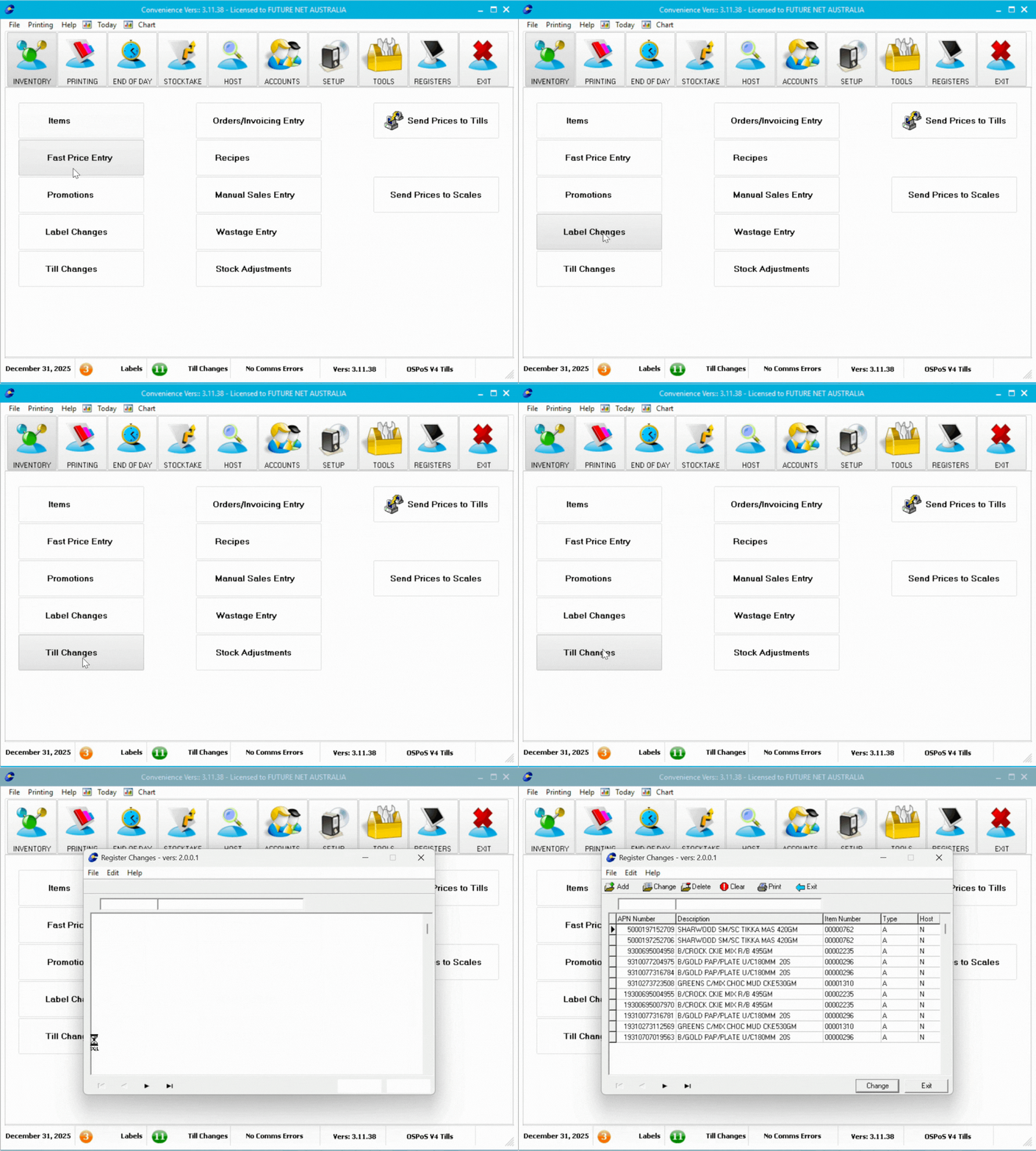
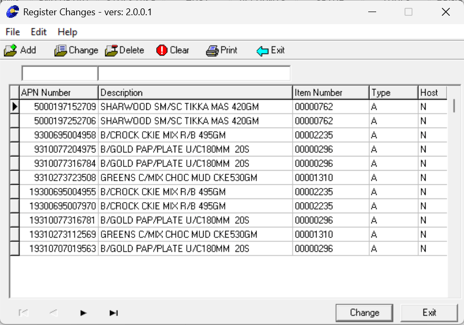
The changes window displays:
- List of items requiring updates
- Host change indicator showing whether changes originated from host file updates
- Search fields to find items by number or description
- Action buttons to add, change, or delete items from the list
Sending or Printing Changes
Once changes are queued, you'll need to process them:
👉 📤 Send Prices to Tills - Send updated item information to registers
👉 🏷️ Printing Shelf Labels - Print updated price labels
ℹ️ Note: After processing, the change counter at the bottom of Convenience should show zero. If changes remain, see Troubleshooting below.
Troubleshooting Stuck Items
Check Item Details
If items won't send or print:
- Navigate to Inventory, then select Till Changes or Label Changes
- Select the stuck item in the list
- Click Change
- Select Edit Item Record
- Verify the item has all required fields, especially APN and Price
- Save the item and retry sending or printing
⚠️ Important: Missing APN or Price values are the most common cause of stuck items.
Remove Items from Queue
To delete a single item:
- Navigate to Inventory, then select Till Changes or Label Changes
- Select the item
- Click Delete
To clear all items:
- Navigate to Inventory, then select Till Changes or Label Changes
- Click Clear