
Quick Activate streamlines the process of activating inactive products and generating shelf labels. Scan items to activate them for sale and queue labels in one efficient workflow.
ℹ️Note: This article covers the new Convenience PDE app. Not sure which version you're using? Learn how to identify your PDE here.
Using Quick Activate
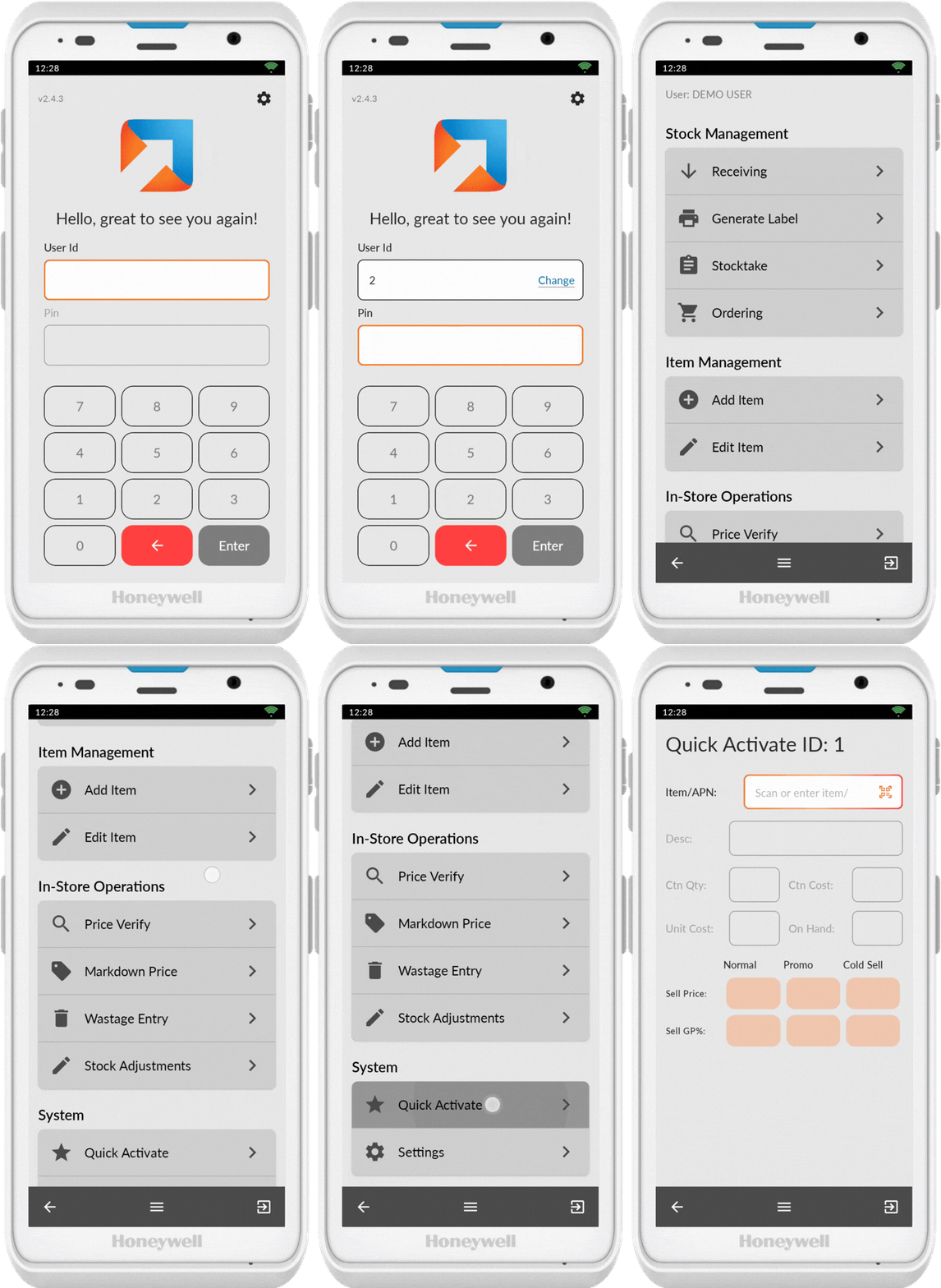
Access Quick Activate
- Log in to your Convenience PDE
- Scroll to find Quick Activate
- Tap on it to open
Scan Item
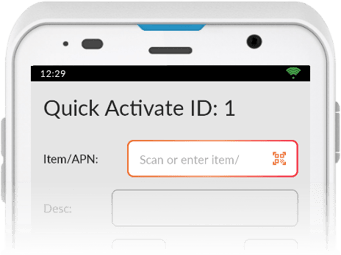
- Ensure the scanner icon (QR code) is showing
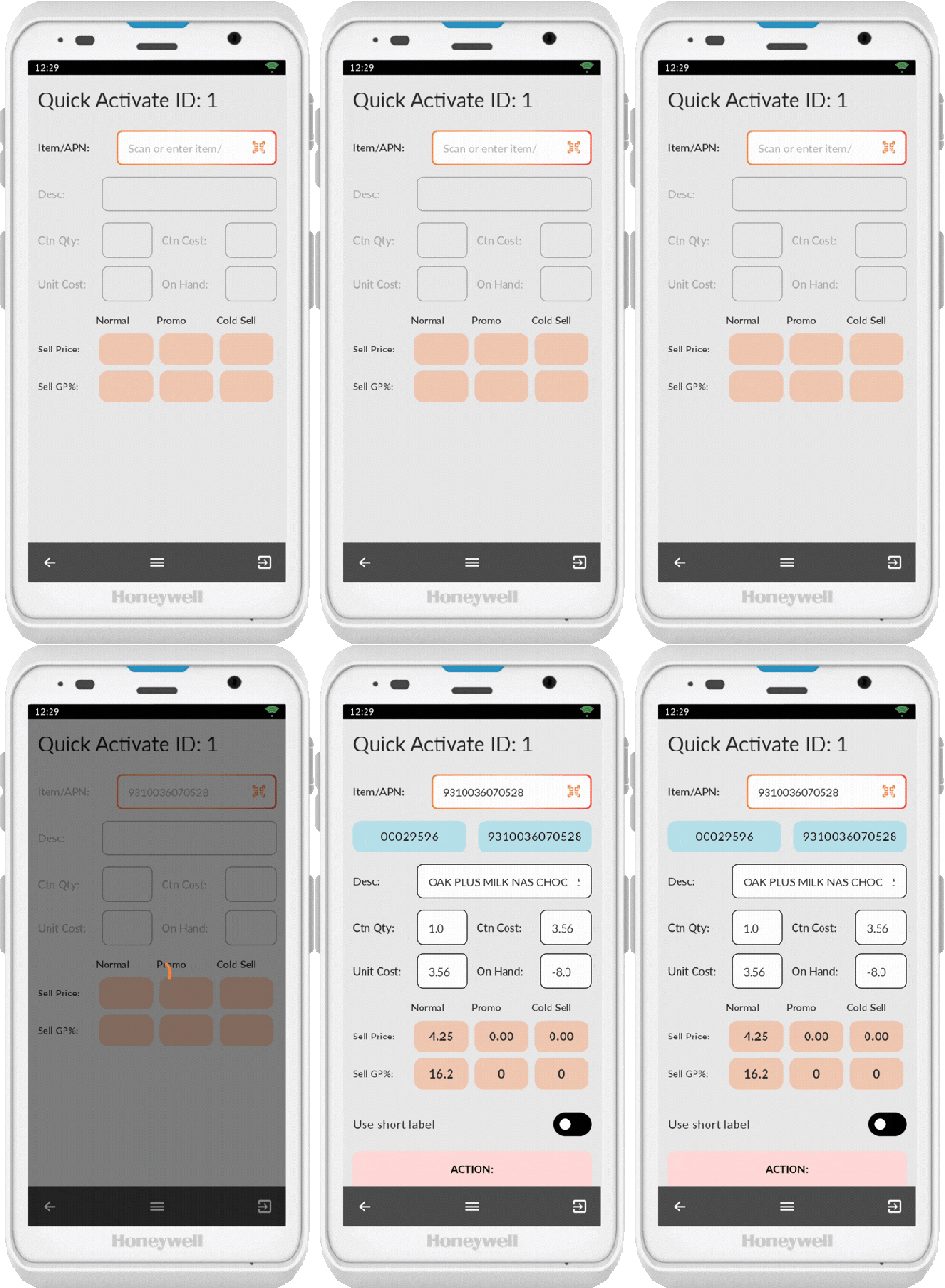
- Scan an item
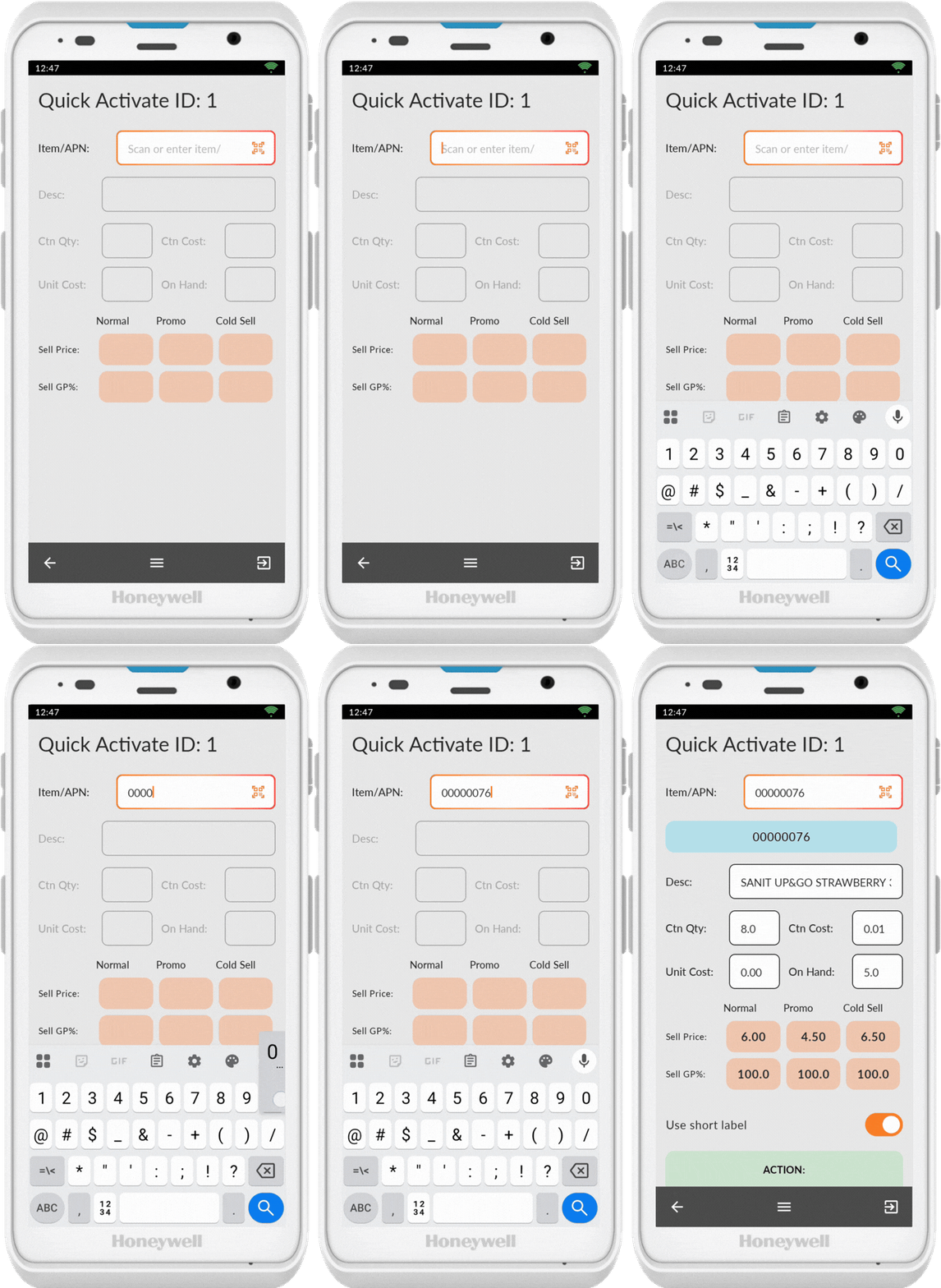
If the barcode doesn't scan correctly, tap on the item/APN field to bring up the keypad and enter the number manually. Tap anywhere on the screen to hide the keypad.
Activating Inactive Items
If the item is not active, the PDE displays: Activate and Generate Label
You can either:
- Press Activate to manually confirm
- Scan the next product, which automatically activates the previously scanned item
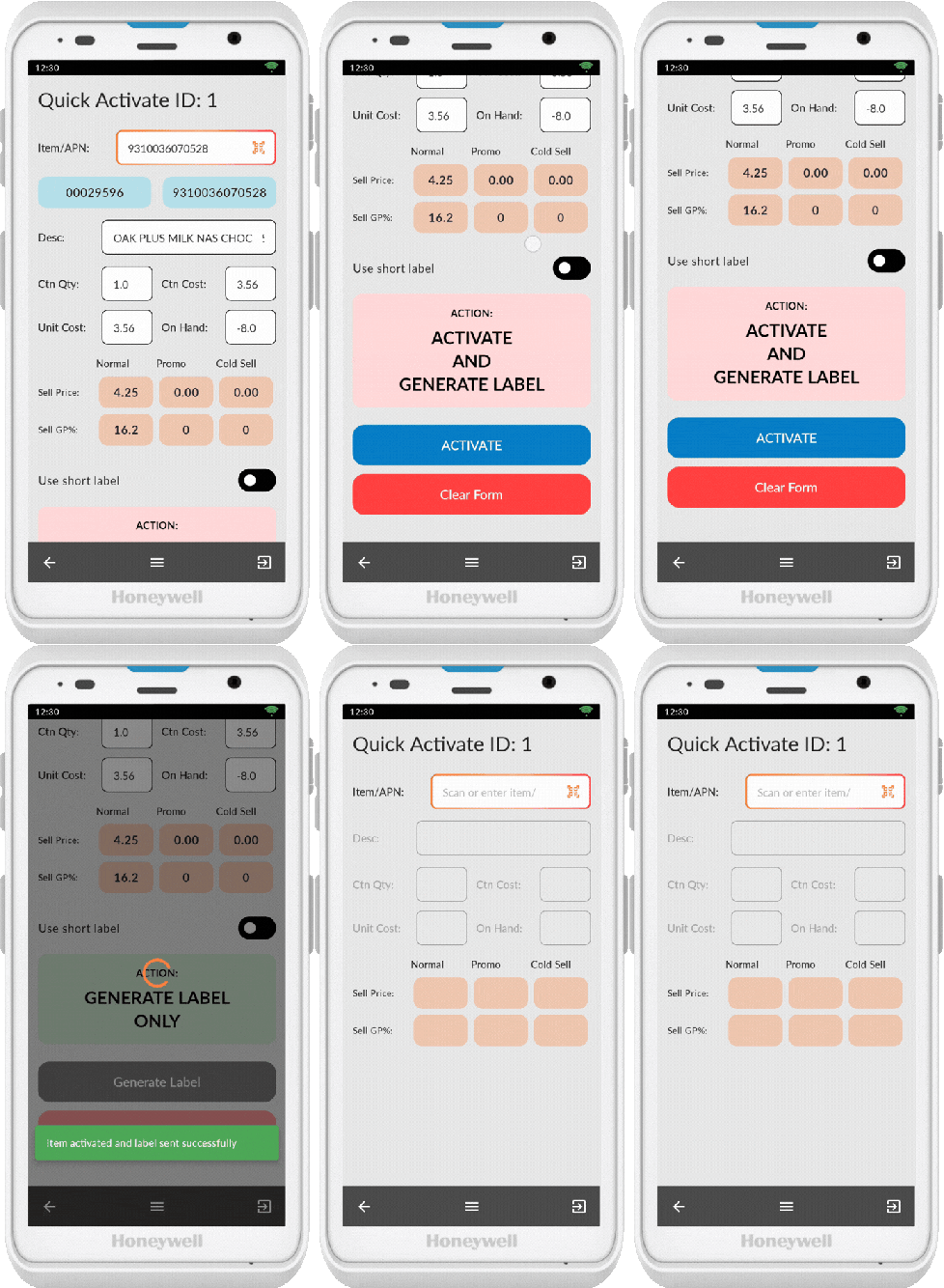
You will see a green confirmation pop-up when an item is successfully activated
💡 Tip: If you scan an inactive item but don't want to activate it, press Clear Form at the bottom before scanning another item.
Generating Labels for Active Items
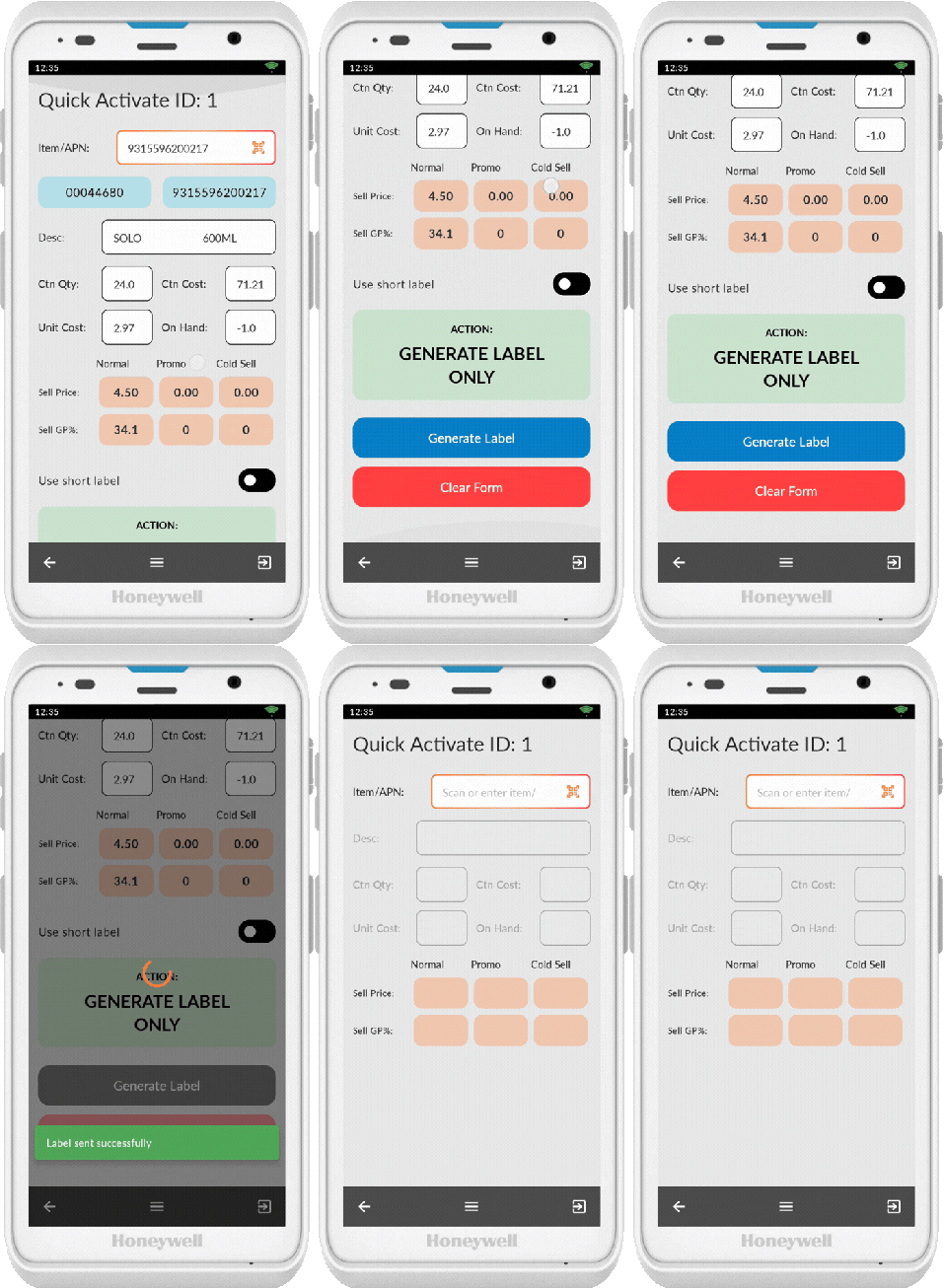
If you scan an item that's already active, the PDE displays: Generate Label only
- Select Generate Label
- The system queues the label for printing
Short Label Option
If an item requires a short label format:
- Turn on the Use Short Label slider
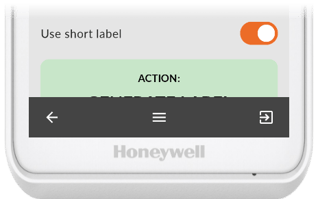
ℹ️ Note: The short label setting applies to future label printing for that item.