
The Convenience PDE app provides intuitive navigation for all your store operations. This guide covers the login process, menu access, navigation controls, and essential features to help you work efficiently.
ℹ️Note: This article covers the new Convenience PDE app. Not sure which version you're using? Learn how to identify your PDE here.
Logging In
Enter User Credentials
After opening the app:
- Type your user ID (same as your back office login)
- Press Enter
- Type in your PIN
- Press Enter again
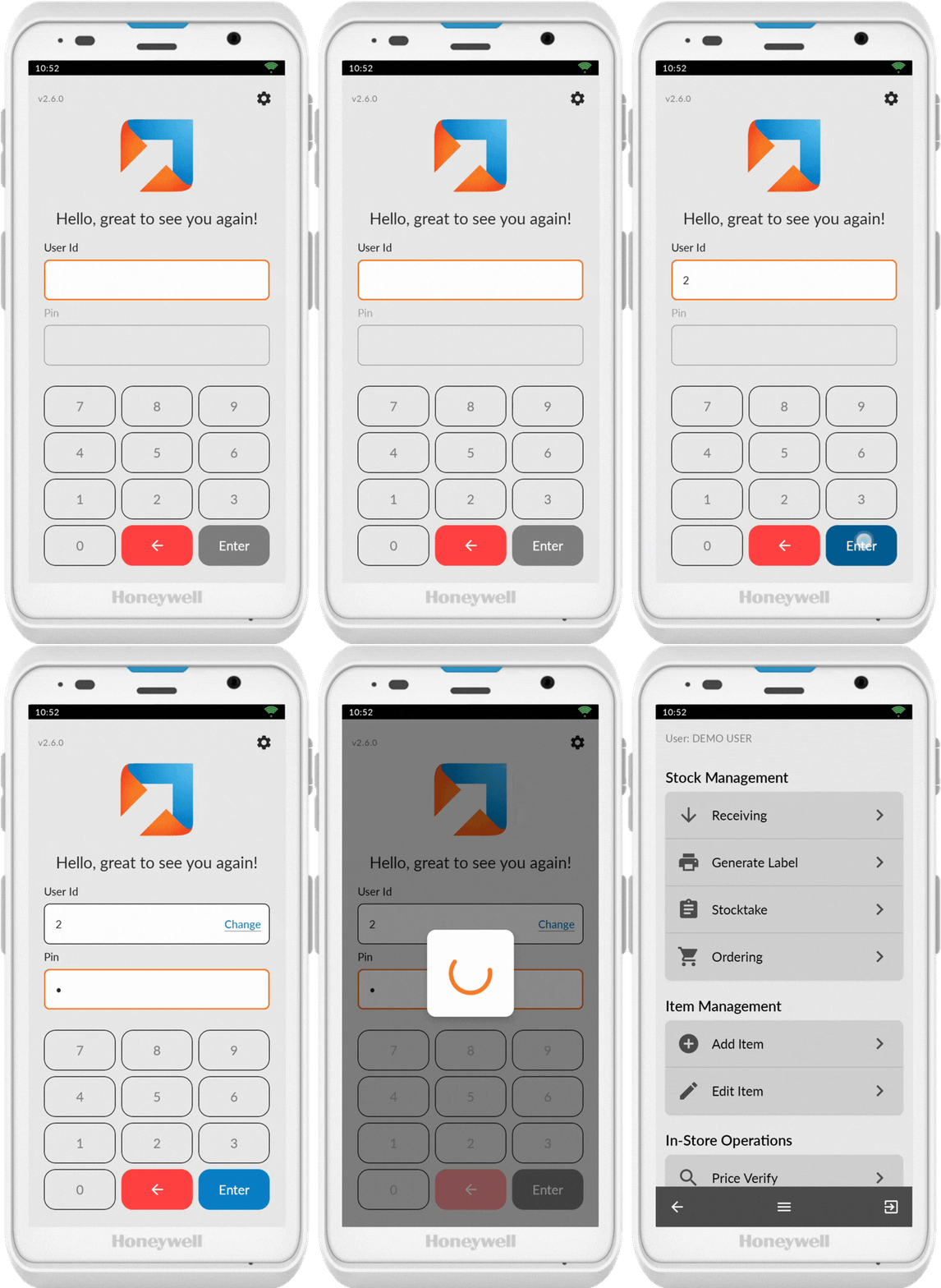
Throughout the app, fields selected for editing will be highlighted with an orange border, indicating the field is active and ready for input (as shown in the example above).
If you enter the user ID wrong, press Change and enter the correct ID.
ℹ️ Note: If you don't have back office users set up, you'll need to create them in your back office system before you can log in to the PDE. User credentials must match your back office login details.
Login Screen Features
Settings Icon (Top Right)
Access important configuration options from the login screen settings icon:
- Find Back Office: Scan for the back office if you get a connection error when trying to login
- Device Information: View details about your PDE
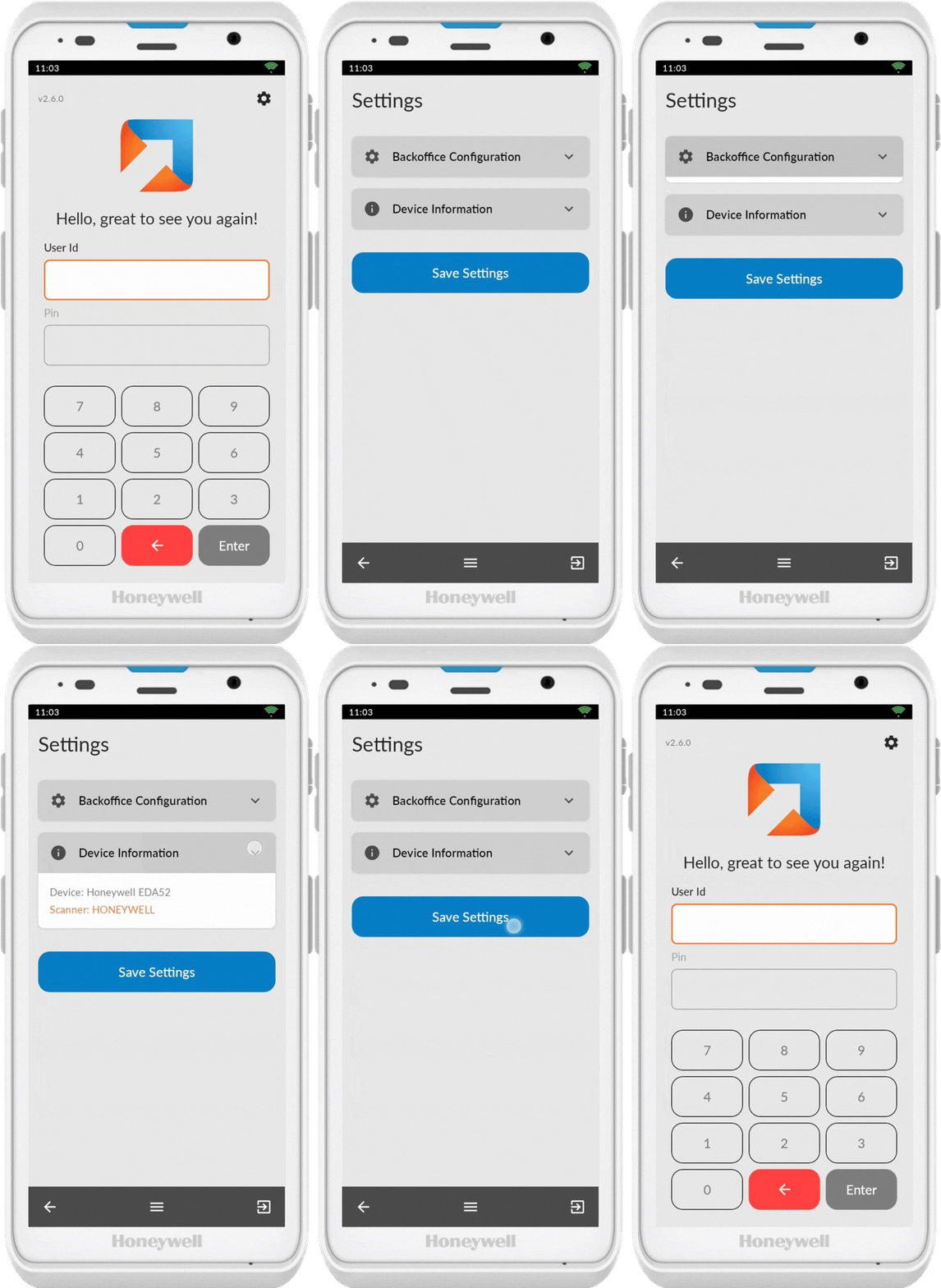
ℹ️ Note: Use the Find Back Office button if you experience connection errors during login.
App Navigation
Main Screen Elements
Once logged in, familiarise yourself with the key navigation elements:
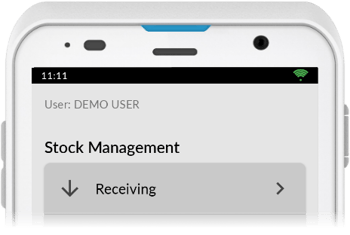
Top of display:
- Time (Left): Displays the current time
- WiFi Signal (Right): Displays current WiFi signal strength
- User: Shows the currently logged-in user
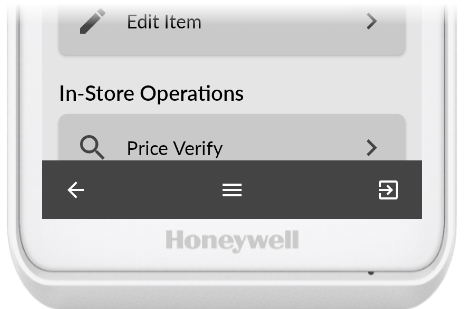
Bottom of display:
- Back Arrow (Left): Return to the previous screen
- Main Menu (Centre) : Access the menu within any app at any point
- Logout (Right): Logout of the app and return to login screen
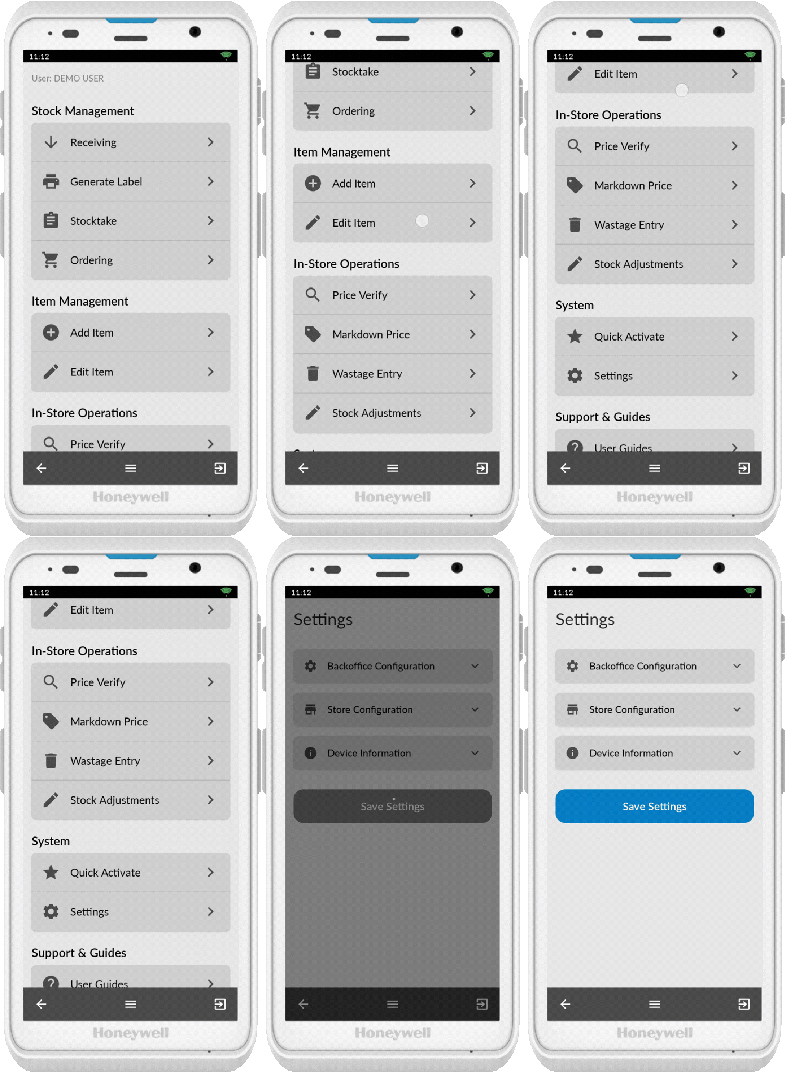
Accessing Settings
To access settings when logged in:
- Scroll to the System section in the menu screen
- Tap Settings
Support & Guides
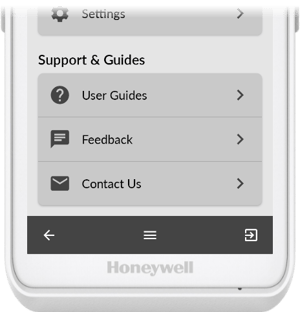
Access help resources directly from the app menu:
- User Guides - Quick access to help articles directly on your PDE
- Feedback - Report issues or submit feature requests
- Contact Us - Link to help.futurenet.com.au/support for comprehensive troubleshooting
Scanning Barcodes
When using any of the programs within the app, you will need to scan items. Here is how to ensure you get a successful scan each time.
- Ensure the scanner icon (QR code) is showing
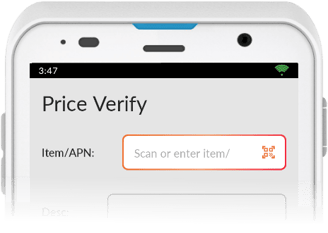
- Pull the trigger and confirm the scanner light displays
-
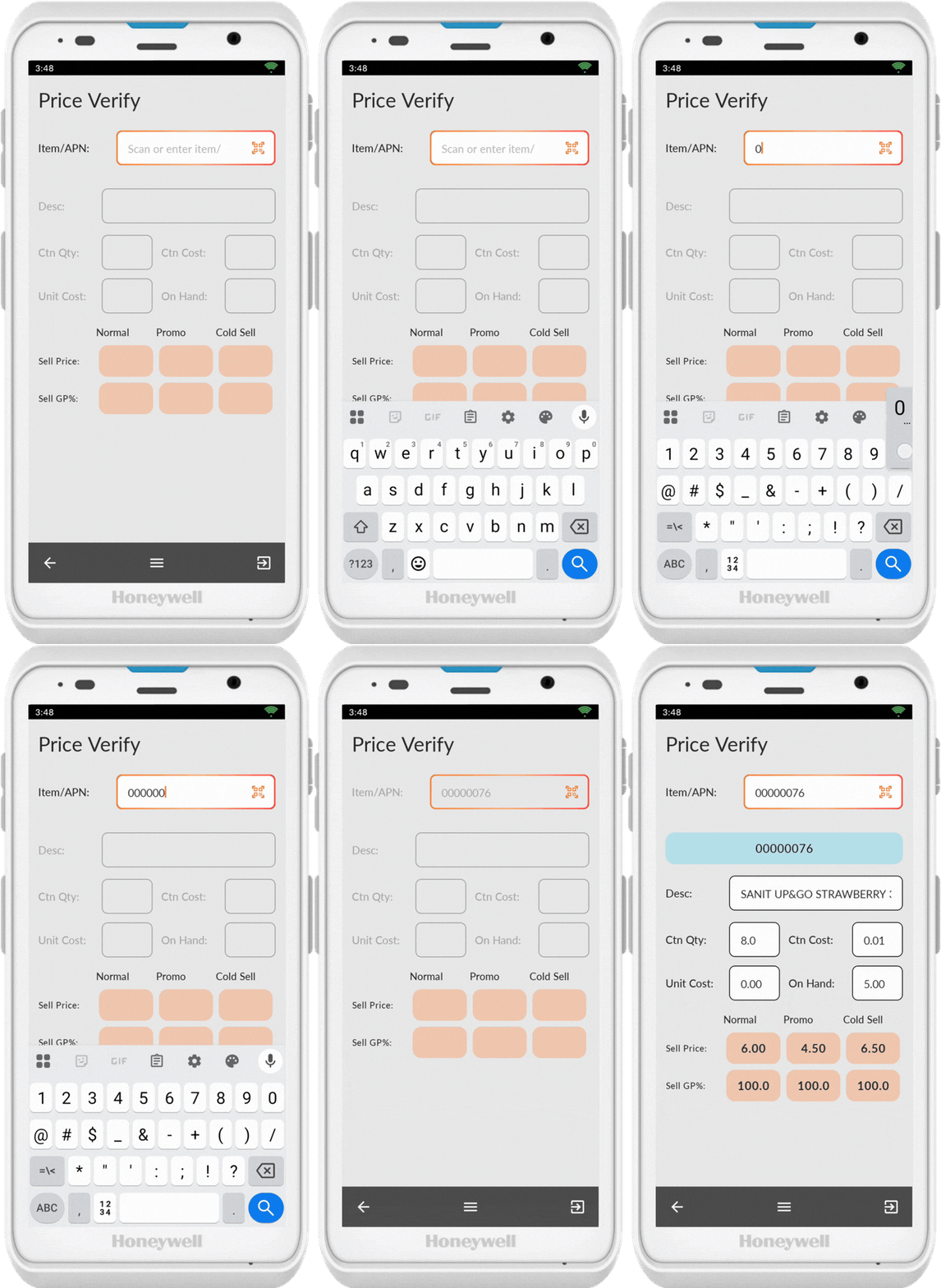
Tap on the barcode field to bring up the keypad and enter the number manually. Tap anywhere on the screen to hide the keypad.
Ready to Start
You're now ready to start using the Convenience PDE app. Return to the main menu to browse all available help articles. Happy scanning!