
Import electronic invoices directly from hosted suppliers (Metcash, C-Store, ALM, Foodworks, SPAR) when orders are delivered. This automated process saves time and reduces data entry errors.
⚠️ Important: Download and update all electronic invoices regularly to maintain accurate stock levels.
Before You Start
Ensure electronic invoicing is set up with your host company.
Importing from Metcash/C-Store/ALM/Foodworks
- In Orders/Invoicing Entry, click Import Electronic Invoices
- Click Connect and Pickup
- Select the host relevant to your invoice:
- MetcashV7 Host for grocery
- ALMV7 for liquor
- Click List All Documents
- Click Download All (download all invoices to maintain accurate stock management)
- Close the window
- Click Import
- A message confirms which invoices were imported and their order numbers
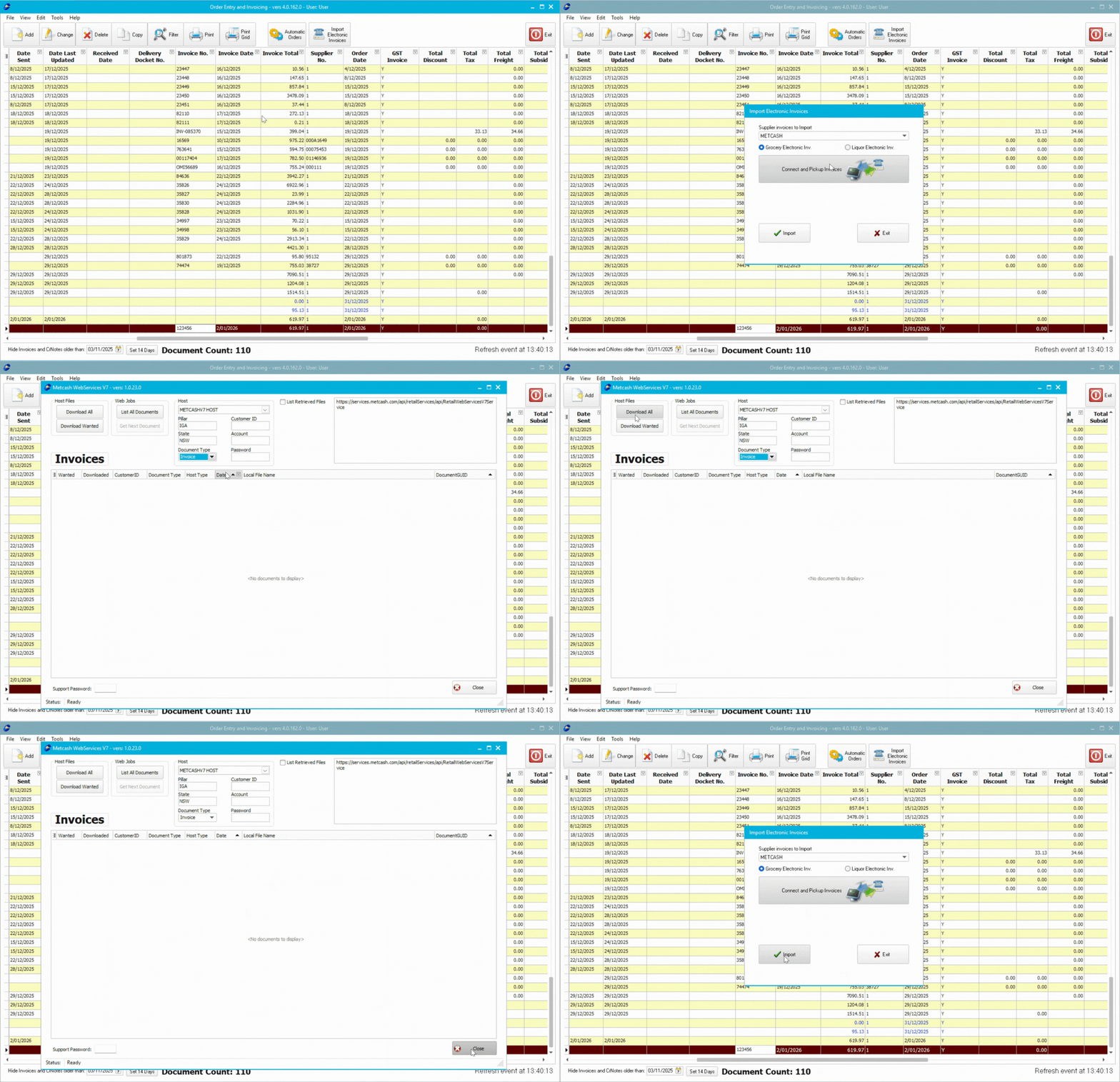
ℹ️ Note: Always download all invoices rather than selecting specific ones. This ensures your stock levels stay accurate across all deliveries.
Importing from SPAR
- In Orders/Invoicing Entry, click Import Electronic Invoices
- Change the Operation field to Receive Invoice
- Click Go!
- Wait for the FTP to finish
- Close the window
- Click Import
- A message confirms which invoices were imported and their order numbers
Checking Imported Invoices
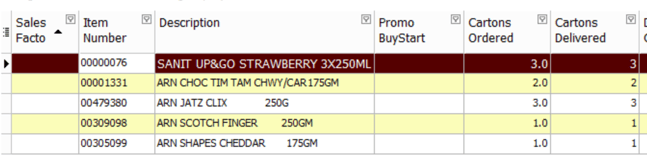
Imported invoices appear as Order/Invoice status in your orders list.
- Open the imported invoice from the list
- Check the Cartons Delivered column matches what was actually delivered
- Verify quantities for each item
Using Convenience PDE to Verify Quantities
If you're using Future Net's Convenience PDE, the device will automatically detect your invoices. You can scan items off as you go through the delivery, with items appearing as received in the invoice on your PC in real-time.
To learn how to do this, check out the article on using the Convenience PDE for receiving.
👉📦 Receiving Deliveries with your Convenience PDE
ℹ️ Note: Using your PDE to receive items ensures quantities match what was actually delivered, not just what the supplier invoiced.
Updating Imported Invoices
Once you've verified the invoice is correct, you need to update it to add the stock to your inventory.
For detailed instructions on updating invoices, including how to verify totals, handle mismatches, and review cost changes, refer to:
👉✅Orders & Invoicing Fundamentals Part 7: Updating Invoices
Troubleshooting
No invoices downloaded:
- Check your internet connection
- Verify electronic invoicing is set up with your host company
- Confirm the correct host is selected
- Contact your host company to verify invoices are available
Invoice quantities don't match delivery:
- Use your wireless PDE to verify actual quantities received
- Contact your supplier about discrepancies
Next Steps
Congratulations! You've learned how to import and update electronic invoices. Your inventory is now up to date. Continue learning:
👉🔄 Orders & Invoicing Fundamentals Part 6: Converting Orders to Invoices