
Convert existing orders in Order/Order status into Order/invoice when stock arrives. This method is ideal for non-hosted suppliers or when you've created and sent orders manually via email.
Before You Start
Ensure the order has been sent and updated to Order/Order status.
Converting the Order
- Open the order in Order/Order status
- Change Document Type from Order to Invoice
- Enter the Invoice Date from your supplier's invoice
- Enter the Invoice Number from your supplier's invoice
- Click Edit
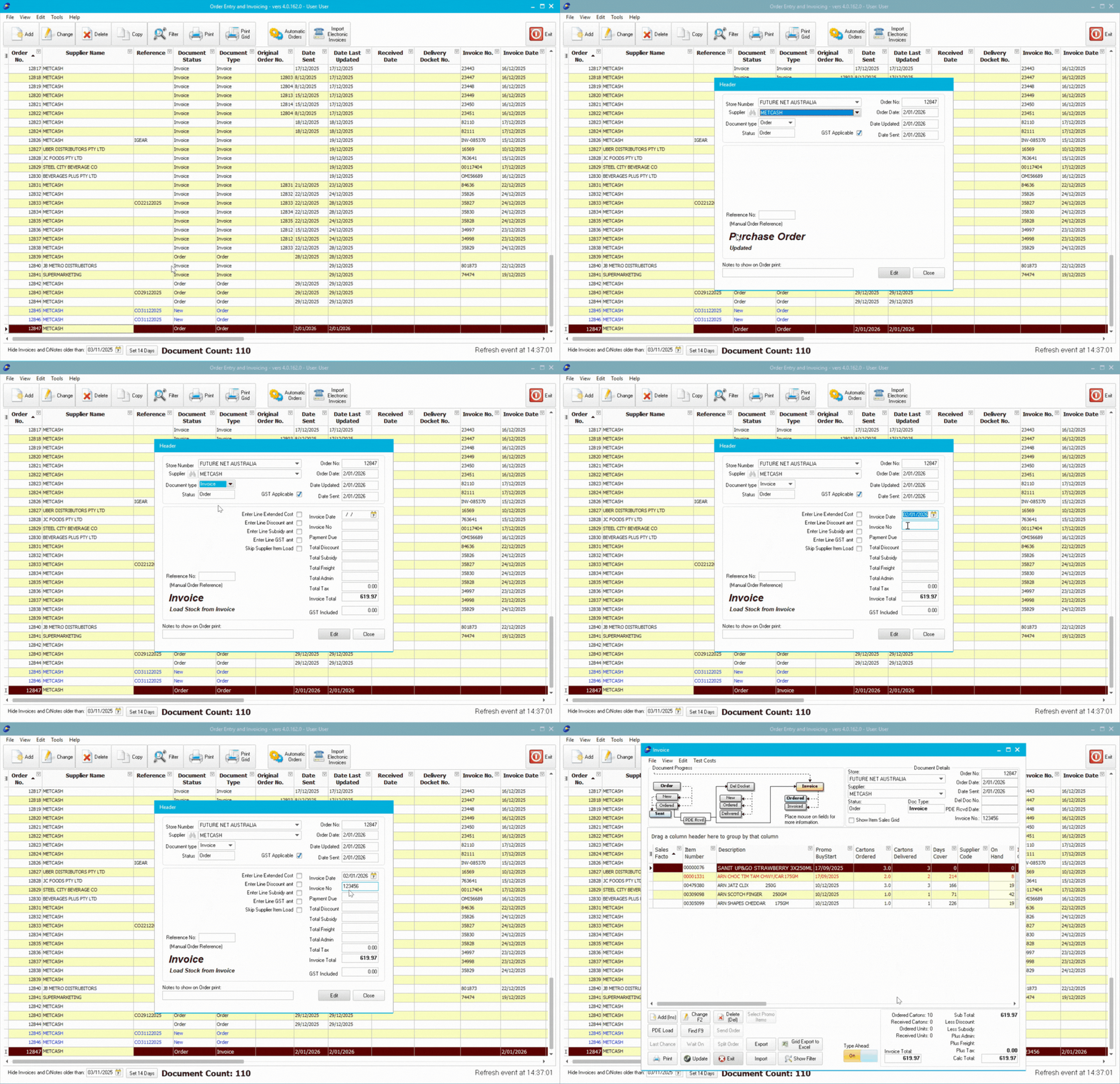
ℹ️ Note: The invoice date and number come from your supplier's physical or emailed invoice, not from your original order.
Verifying Received Quantities
Before updating the invoice, verify the quantities you actually received match what you ordered.
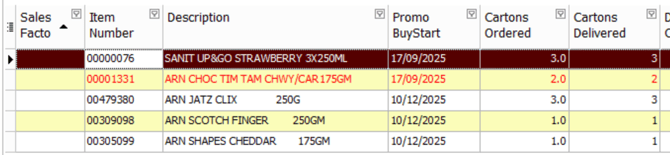
- Check the Cartons Received or Units Received column
- Compare against what was actually delivered
- Adjust quantities if the delivery differs from your order:
- Double-click the item or press F2
- Update the Cartons Received or Units Received field
- Click Ok
💡 Tip: You can scan received stock using your Convenience PDE
⚠️ Important: Always verify received quantities before updating. Suppliers may short-ship items or substitute different quantities than ordered.
Next Steps
Excellent work! You've completed the Orders & Invoicing Essentials series. You now know how to create orders, use order tools, send to suppliers, and manage all three invoice methods.
Master the final step: Check out Part 7: Updating Invoices for comprehensive guidance on the update process, handling mismatches, and ensuring accurate stock levels.
👉✅Orders & Invoicing Fundamentals Part 7: Updating Invoices
💡 Tip: Keep practicing! Regular order and invoice management keeps your stock levels accurate and ordering running smoothly.