
Review and approve price changes from host files before they go live. Use this when you've processed a host file with Update Normal Selling Prices Now turned off.
💡 Tip: Even if you plan to take all host pricing, you can use Edit Host Prices for rounding prices before updating.
Before You Start
You must have processed a host file with price updates disabled.
Navigate to the Host tab in Convenience and select Edit Host Prices.
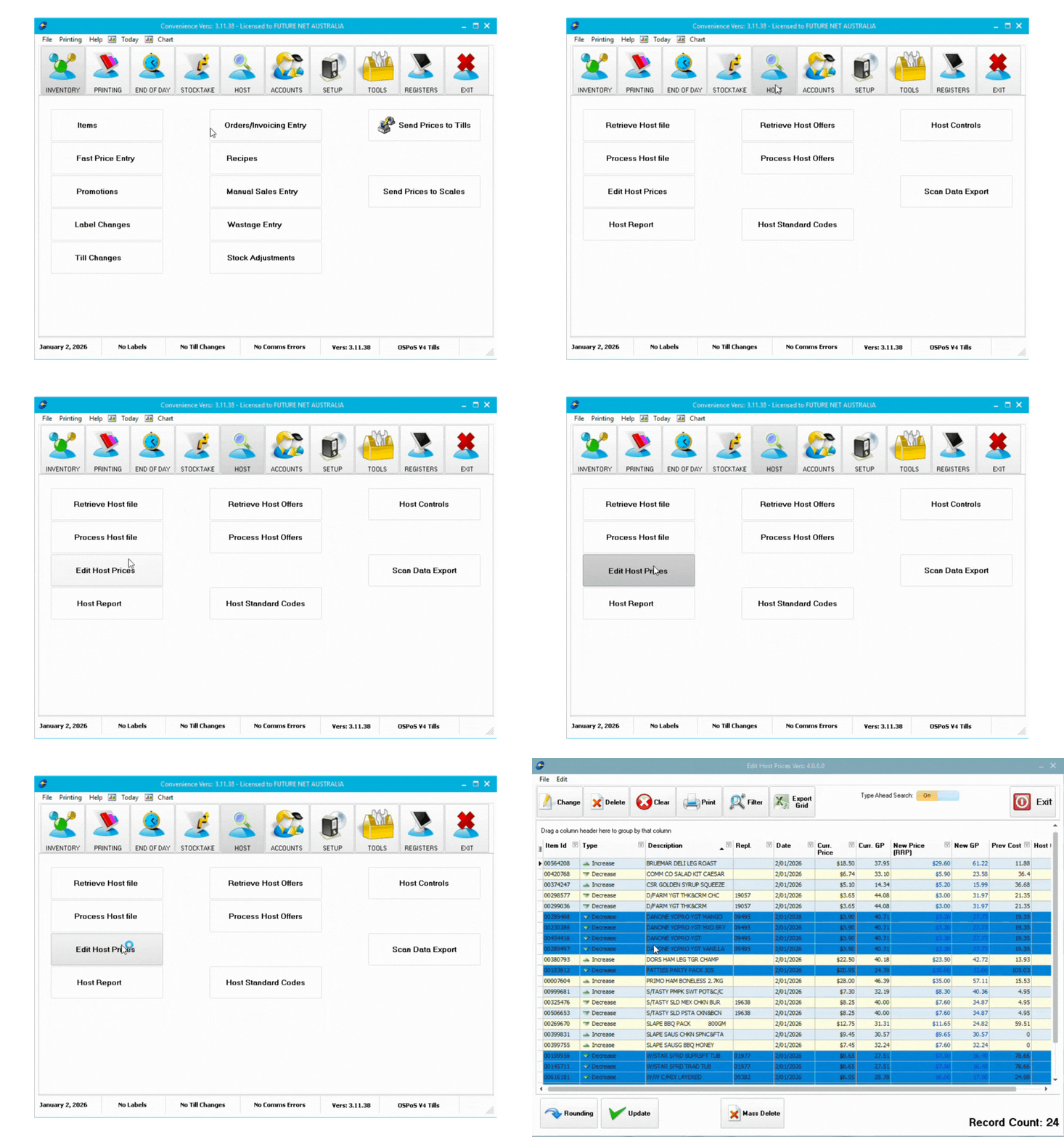
Updating prices
Price Change Types
| Type | Description |
|---|---|
| Increase | Price increase for standard items |
| Increase -P | Price increase for items with hold GP% flag |
| Decrease | Price decrease for standard items |
| Decrease -P | Price decrease for items with hold GP% flag |
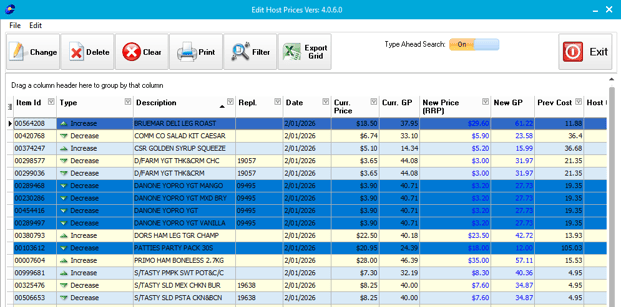
ℹ️ Note: Items marked with "-P" have a hold GP% flag. Consider this when updating prices.
Items highlighted blue are core range items.
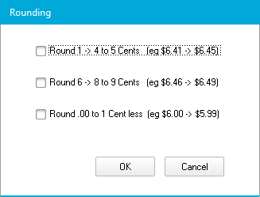
Applying Price Rounding
- Click Rounding at the bottom left corner
- Review the example for each rounding option
- Select your preferred rounding options
- Click Ok
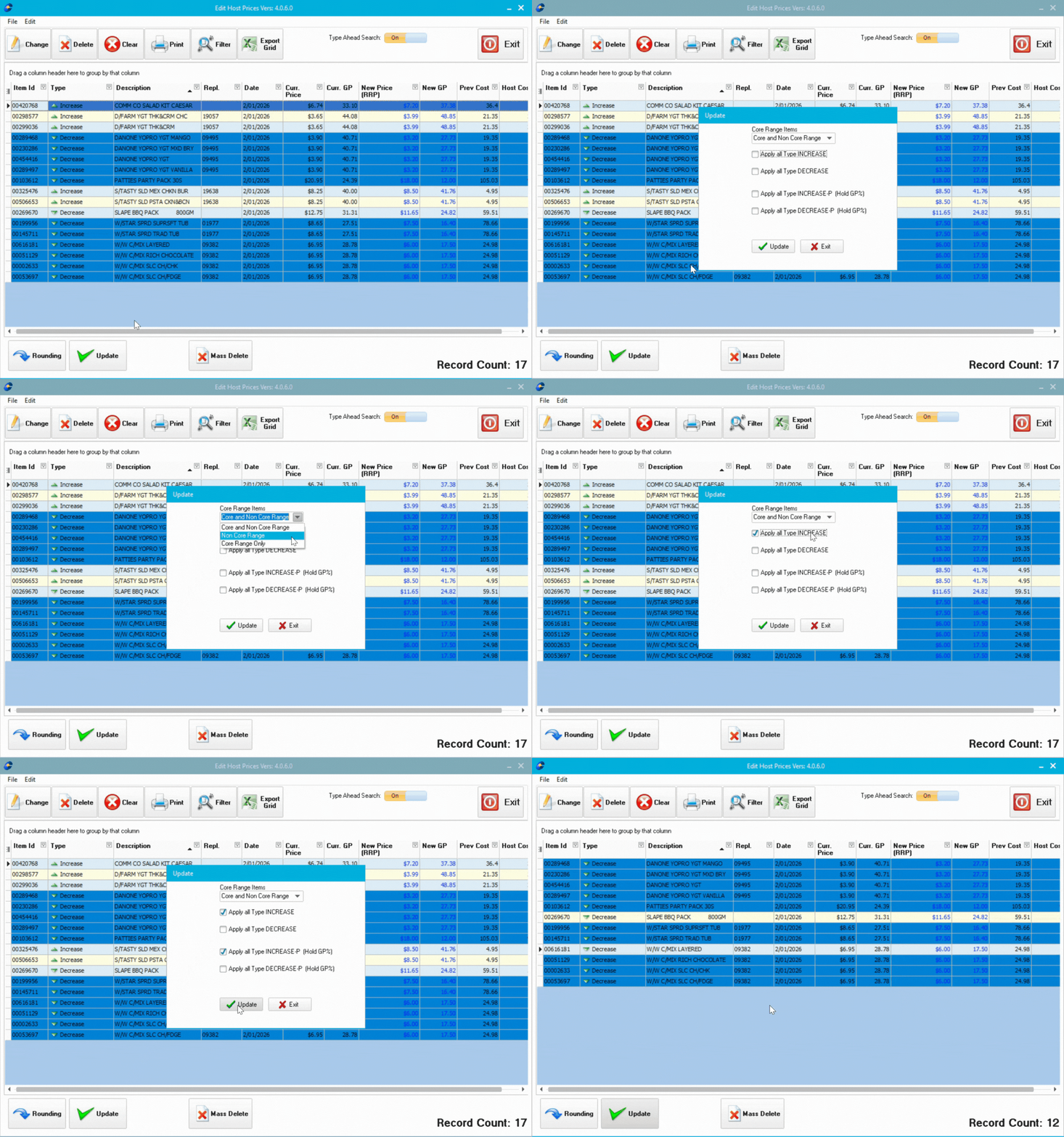
Reviewing and Updating Prices
- Review the price list (after rounding if applied)
- Manually change prices for specific items if needed in the column New Price(RRP)
- Remove items you don't want to update (they'll keep current prices)
- Click Update
- Tick which price change types to update (Increase, Decrease, Increase -P, Decrease -P)
- Click Update
Clearing Remaining Items
- Review the remaining items
- Manually edit any you want to change
- Click Clear to remove all remaining items
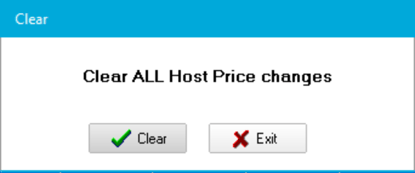
⚠️ Important: Always complete Edit Host Prices and clear remaining items before processing your next host file.
Troubleshooting
No items appear: This happens if you enabled Update Normal Selling Prices Now during processing (which applies changes automatically) or if the host file contained no price changes.
Next Steps
After clearing remaining items, download and process your next host file or view changes with Host Reports.