
View detailed information about what changes were applied during host file processing. Use these reports to verify items were added, updated, or deleted correctly.
Before You Start
You must have processed at least one host file to generate reports.
Viewing Host Reports
Navigate to the Host tab in Convenience and select Host Report

- Select a processed date from the Previous Processed dates dropdown
- Select one or more report types from the Report type section
- Click Preview
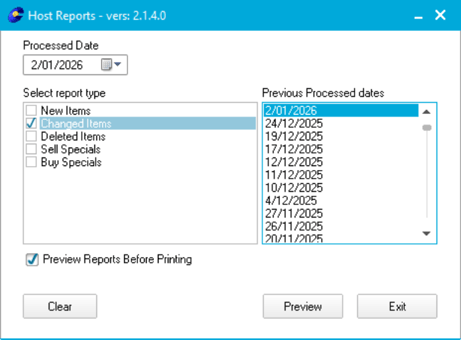
Previous Processed Dates only shows dates when host files were actually processed.
Available Report Types
- Items Added - New items created from the host file
- Items Updated - Existing items that were modified
- Items Deleted - Items removed because they're no longer supplied
- Price Changes - All price updates from the host file
- Full Import Summary - Complete overview of all changes
ℹ️ Note: Select multiple report types at once. Each displays one at a time—close the first to view the next.
Common Uses
Verify item updated: Select the date and run the Items Updated report. Search for the item in results.
Check price changes: Run the Price Changes report to see all items with price updates.
Troubleshoot missing items: Run the Items Added report to confirm if an item was included.
Review deletions: Run the Items Deleted report to see which items were removed.
Troubleshooting
No dates appear: You haven't processed any host files yet. Process a host file first.
Report is empty: The host file may not have contained changes for that report type. Try a different type or date.
Can't print: Ensure your printer is connected. Check Preview Reports Before Printing if you want to view on screen first.