
Download FoodWorks host files to receive grocery and Liquor inventory updates including new items, price changes, and product modifications.
⚠️ Important: FoodWorks host files must be downloaded ONE AT A TIME. Process each file before downloading the next—all files use the same filename and will overwrite each other.
Before You Start
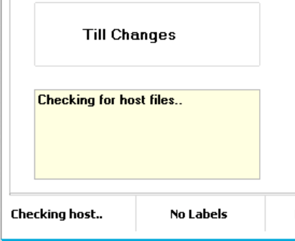
Check the Inventory tab for a yellow box underneath Till Changes. If the box appears, a Foodworks host file is ready to download. No box means no file available.
Downloading FoodWorks Host Files (Grocery & Liquor)
ℹ️ Note: This article covers FoodWorks liquor only. If your liquor comes from ALM (not Foodworks):
👉(Article Coming Soon)
Navigate to the Host tab in Convenience and select Retrieve Host File
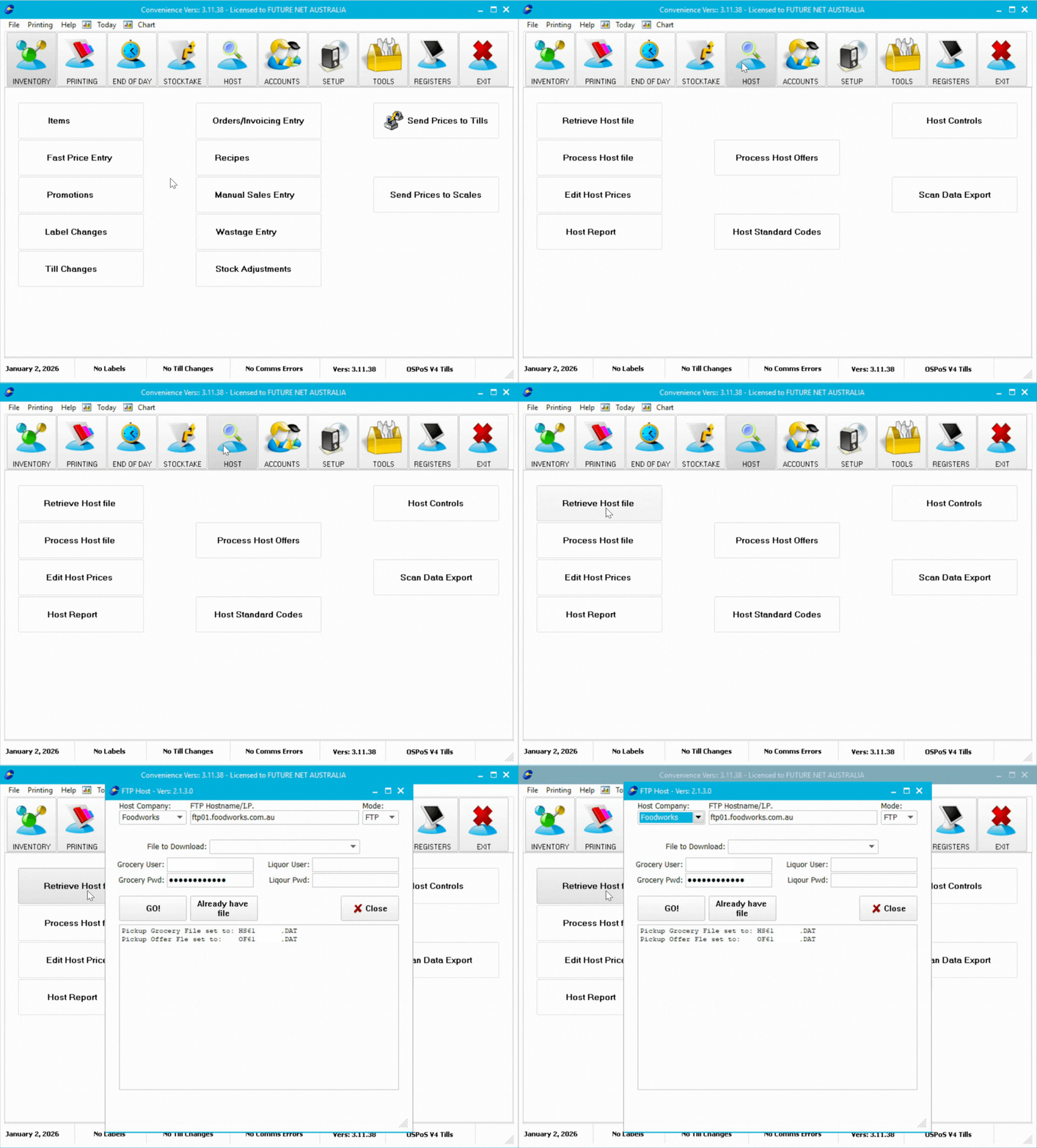
- Select Weekly Grocery Host - HS from the dropdown (for grocery), or Weekly Liquor Host - LQ (for liquor).
- Click Go
- Watch the dialogue box for confirmation
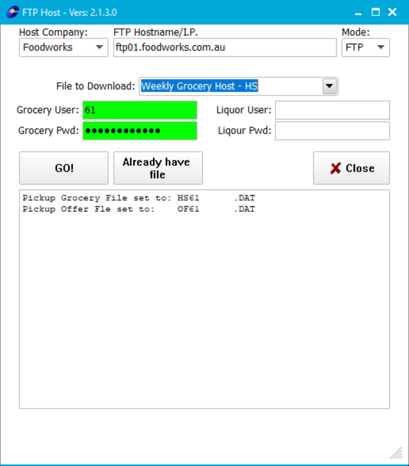
The dialogue box displays success or error messages. Note any errors and contact Future Net support at help.futurenet.com.au/support if needed.
Troubleshooting
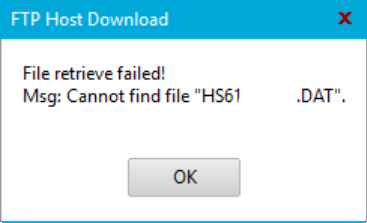
Download fails: This usually means there is no file to collect. Contact FoodWorks or try again later.
Next Steps
Process the downloaded file immediately before downloading any additional files.
👉⚙️Host File Mastery Part 3: Processing FoodWorks Host Files
Don't forget to download and process FoodWorks offer files separately.