
Create and manage supplier orders directly from your Convenience PDE. Scan items as you notice low stock levels, adjust quantities on the go, and automatically sync with your back office for efficient ordering.
ℹ️Note: This article covers the new Convenience PDE app. Not sure which version you're using? Learn how to identify your PDE here.
Starting an Order
Access Ordering
- Log in to your Convenience PDE
- Scroll to find Ordering
- Tap on it to open
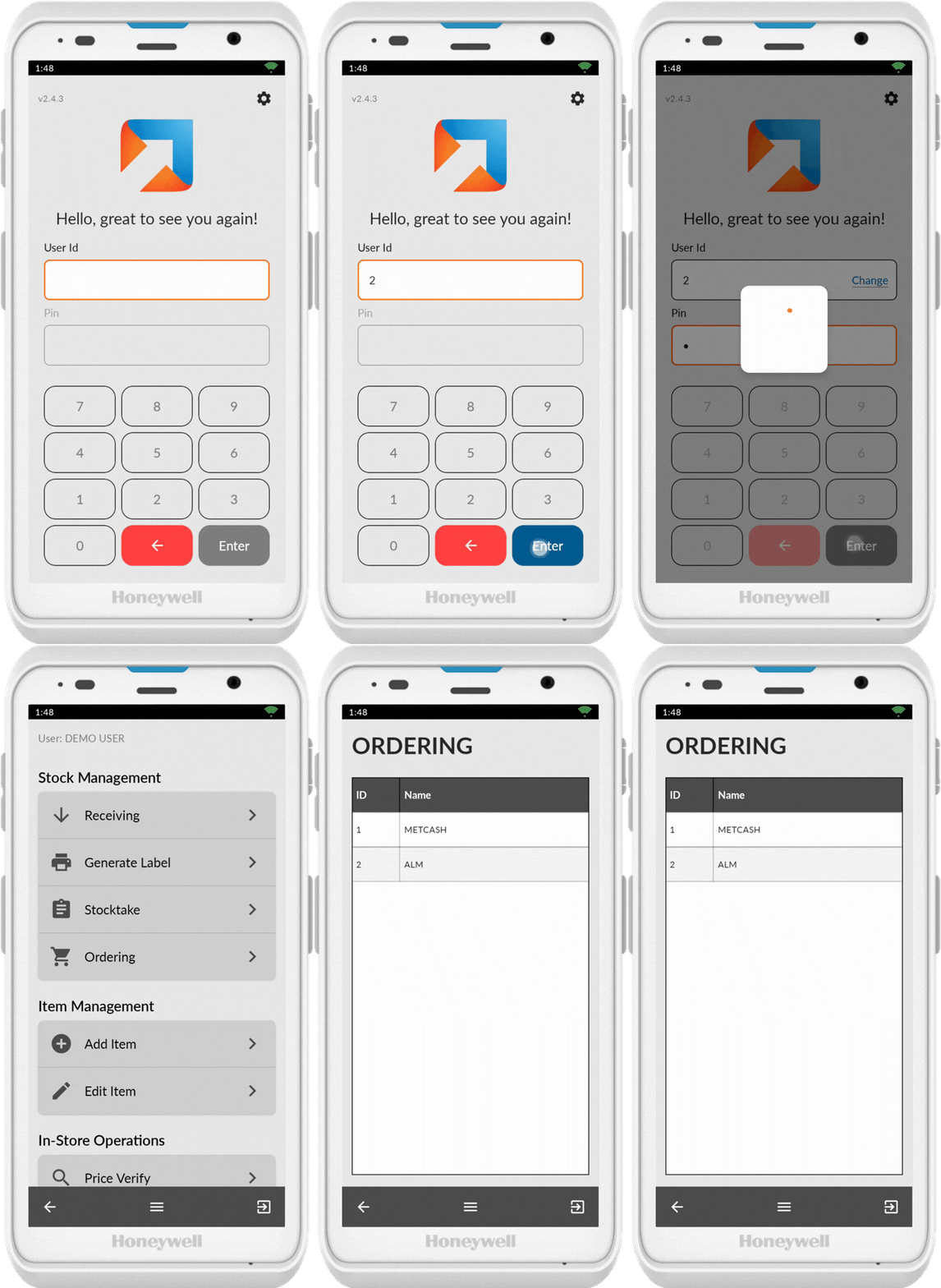
A list of suppliers displays.
ℹ️ Note: If the supplier you need isn't showing, here is how you can send suppliers to your Convenience PDE.
👉(Article Coming Soon)
Select Supplier and Create Order
- Tap on the supplier you wish to order from
- Tap Create Order at the bottom of the screen
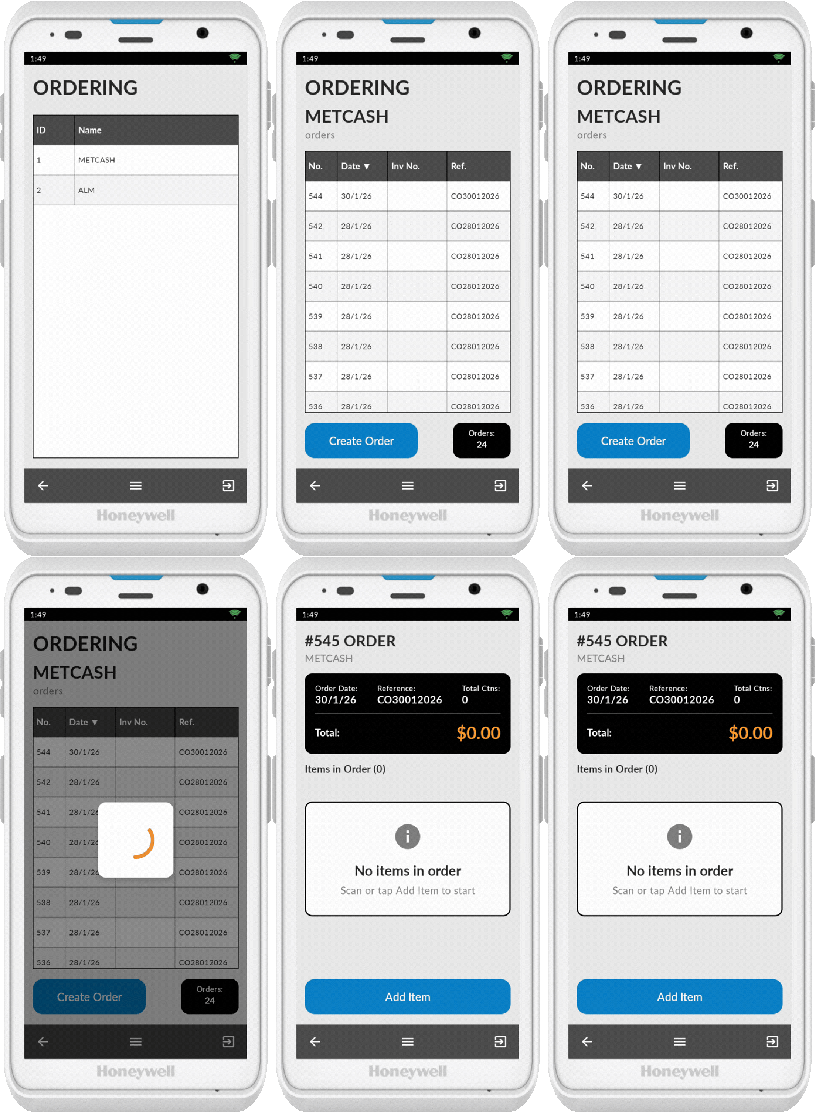
A blank order displays on the screen.
💡 Tip: To edit an existing order, tap on an existing order in the list instead of creating a new one. The editing process is the same as creating a new order.
Adding Items to the Order
Scan Items
You can add items in two ways:
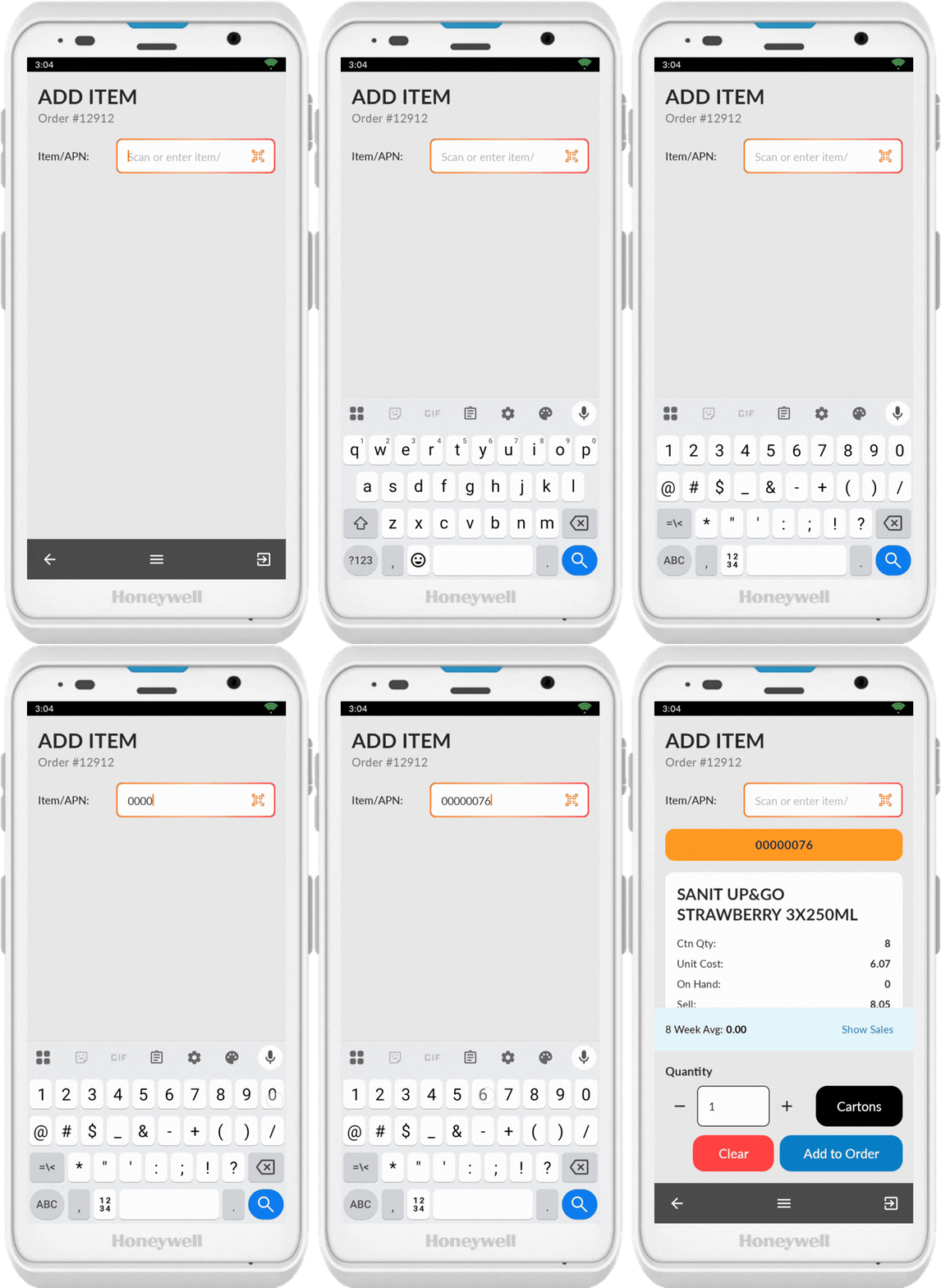
- Direct scanning: Scan the first item to add it immediately
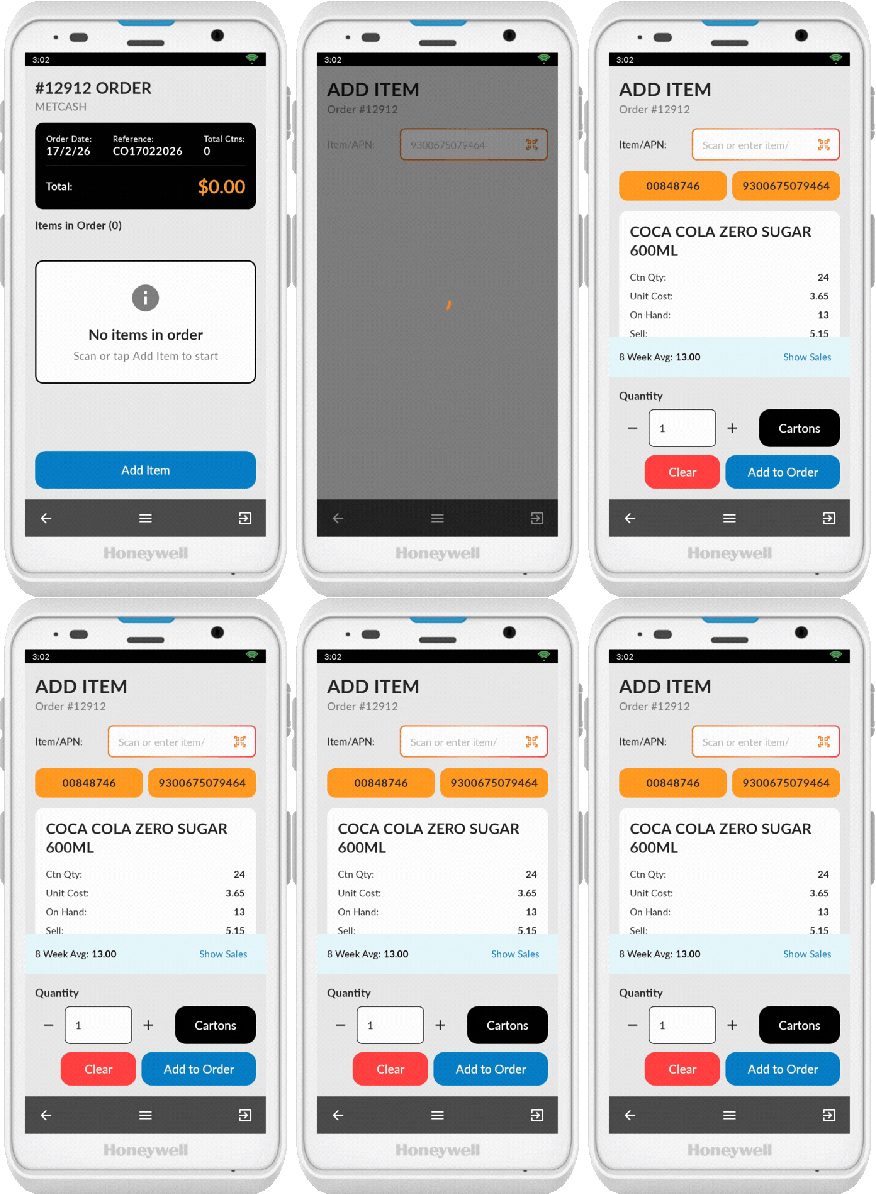
- Via Add Item screen:
- Tap the Add Item option
- Ensure the scanner icon (QR code) is showing
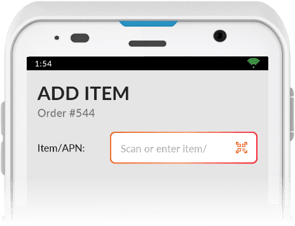
-
- If the barcode still doesn't scan correctly, tap the item/APN field to bring up the keypad and enter the number manually
Adjust Quantity
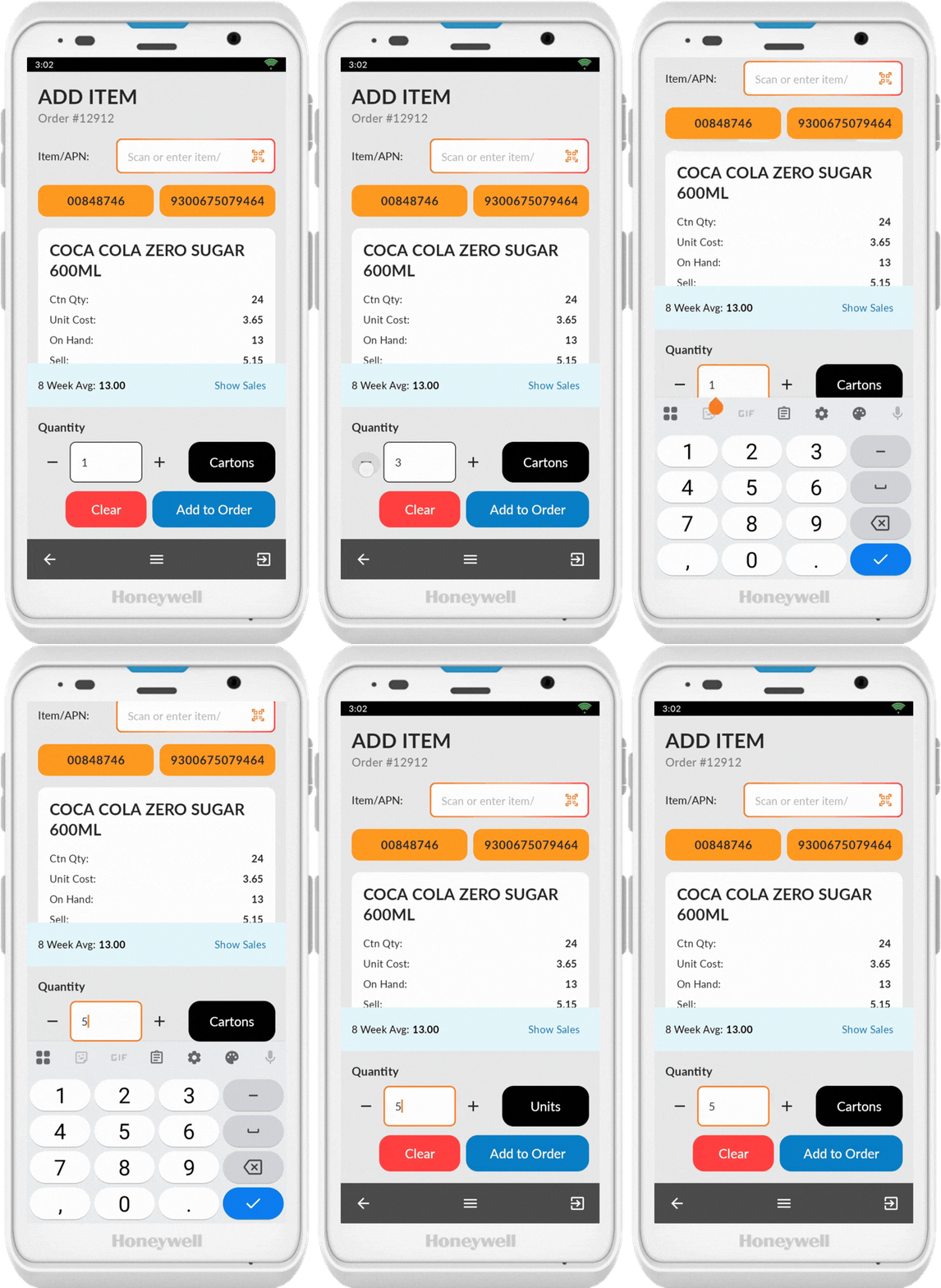
Once an item is scanned:
- Edit the quantity using + or - icons
- Or tap the quantity field to bring up the keypad and manually edit the quantity
- Toggle between Cartons and Units by tapping the unit button (cartons is default)
Viewing Product Information
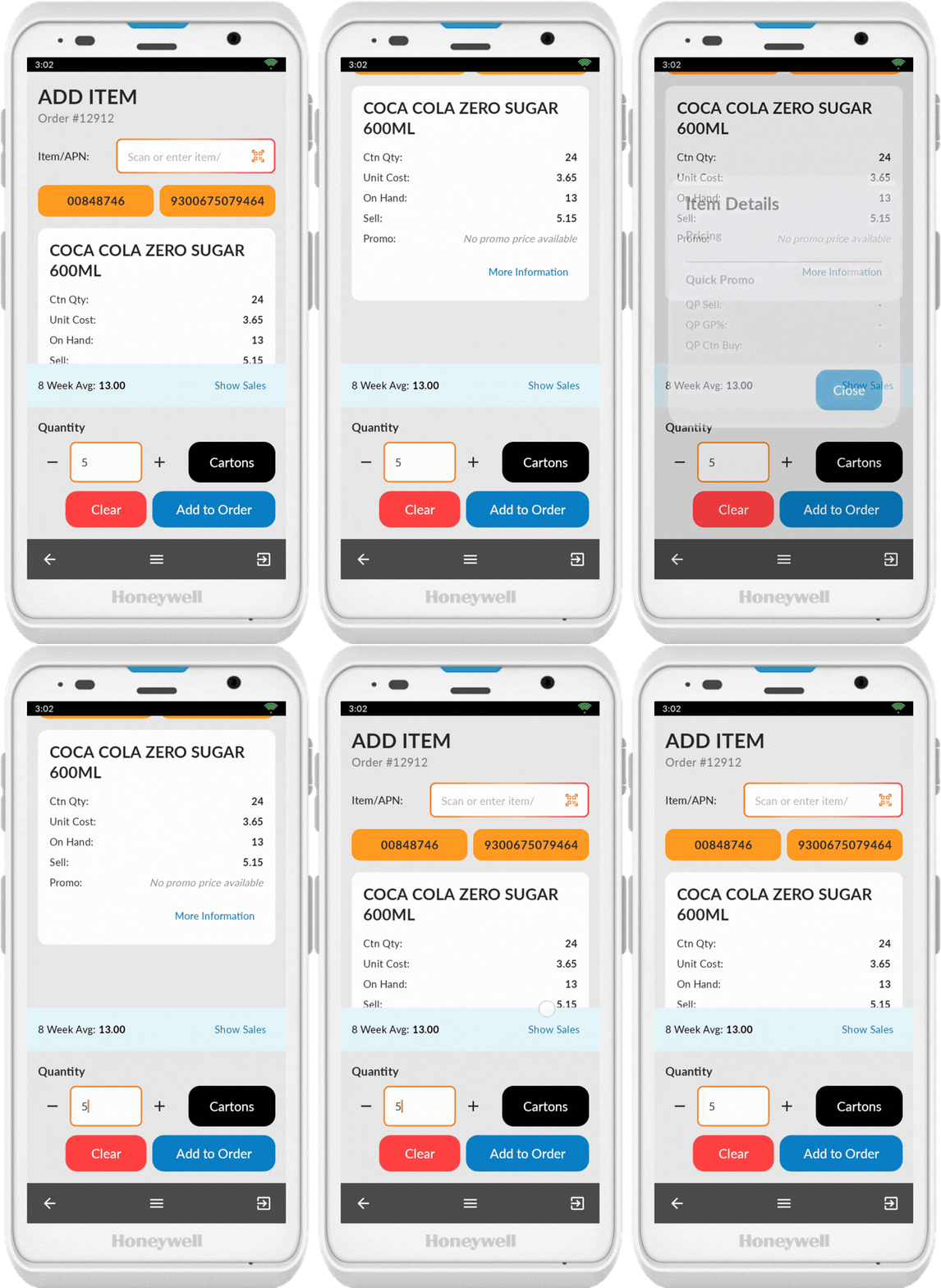
To view more information for a product, tap More Information to display details in a popup.
Viewing Item Sales Data
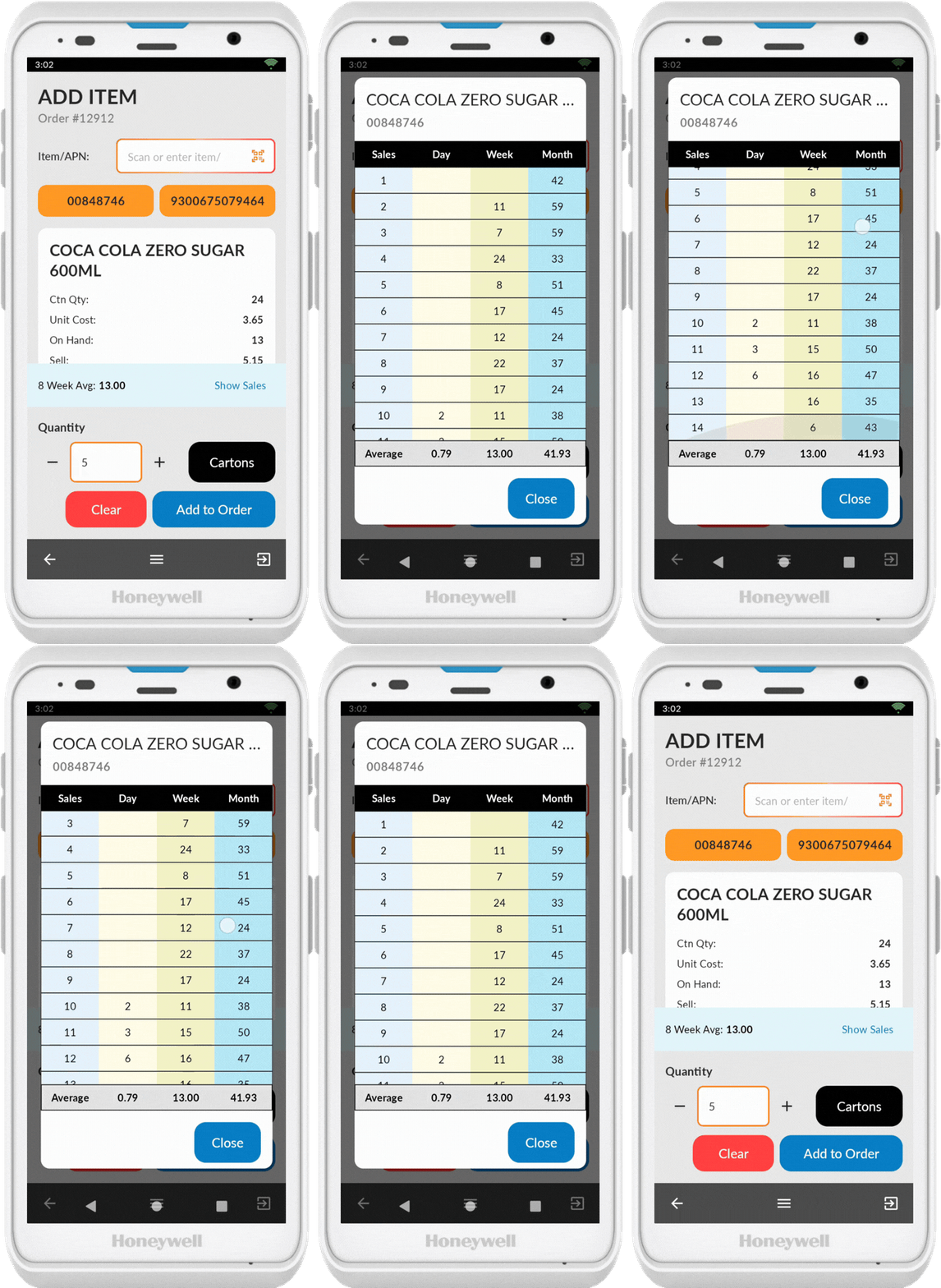
The Convenience PDE will display sales information to help you make informed ordering decisions. When adding or editing an item, you'll see an 8-week average displayed just above the quantity adjustment controls.
For more detailed sales insights:
- Tap Show Sales (located to the right of the 8-week average)
- A table displays showing average sales across three time periods:
- Past 15 days - Recent short-term sales trends
- Past 15 weeks - Medium-term sales patterns
- Past 15 months - Long-term sales history
- View the totals at the bottom of the table for overall sales performance
💡 Tip: Use the sales data to identify trends and order appropriate quantities. Short-term data shows recent changes, while long-term data helps identify seasonal patterns.
Confirm Item
Once you're happy with the item quantity, either:
- Scan the next product
- Select Add to Order
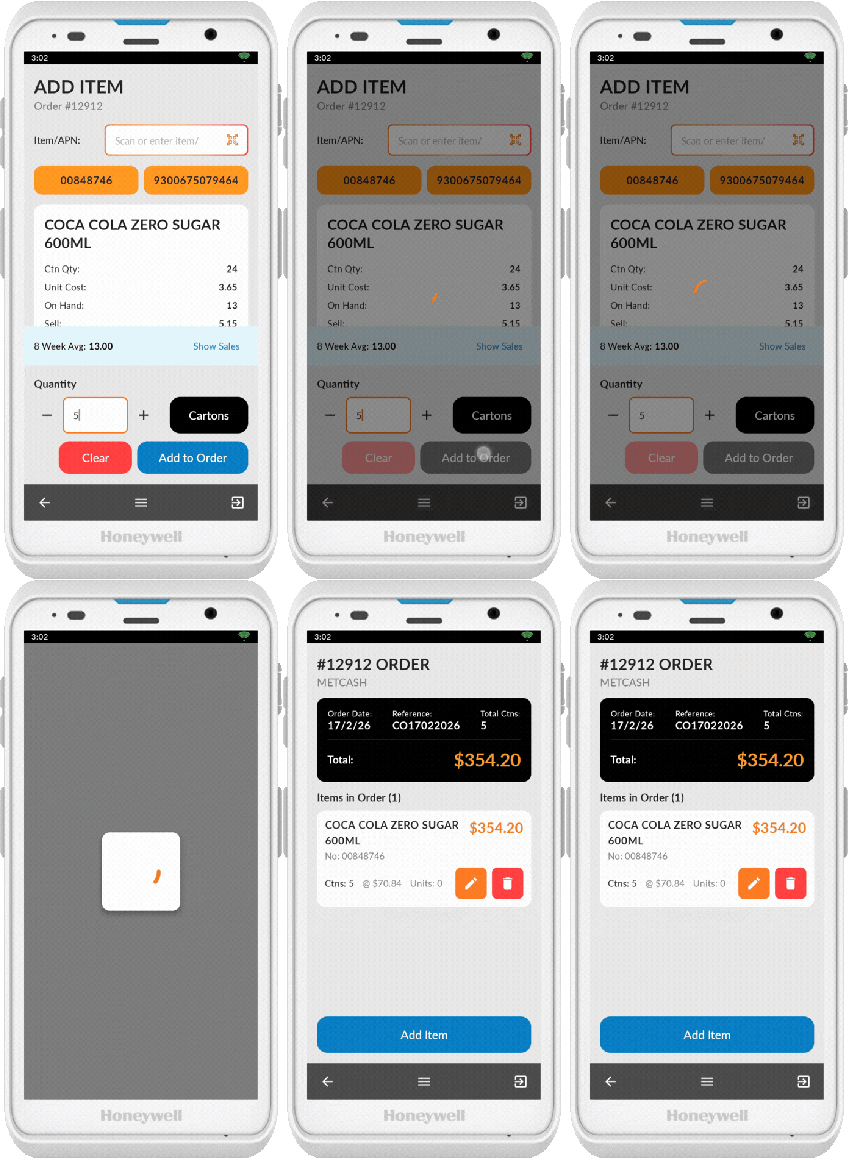
Changing Scanned Item
To change the item scanned without adding the scanned item to the order, tap clear.
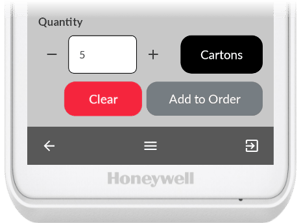
Managing the Order
Items in Other Orders
If you add an item that's already in another order, a popup displays notifying you of the existing order number.
-
Tap Add to order the item
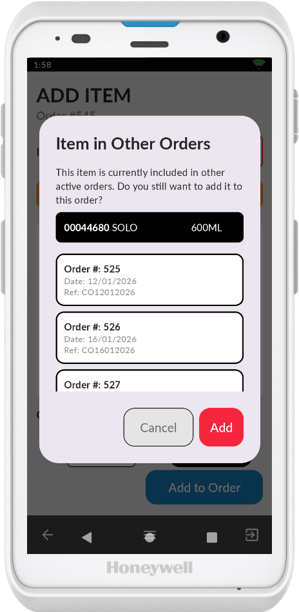
ℹ️ Note: For guidance on turning off the "in other order" popup.
👉(Article Coming Soon)
Viewing and Editing Added Items
As you add items, the order screen updates with:
- Items added to the order
- Total dollar value
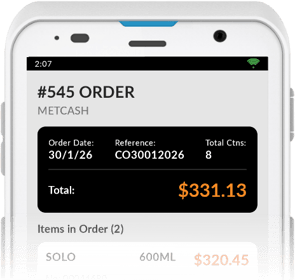
If you make a mistake:
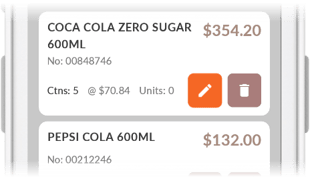
- Tap the pencil icon to edit the item
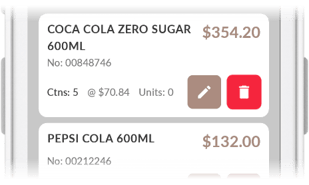
- Tap the trash can icon to delete from order
Updating Existing Items
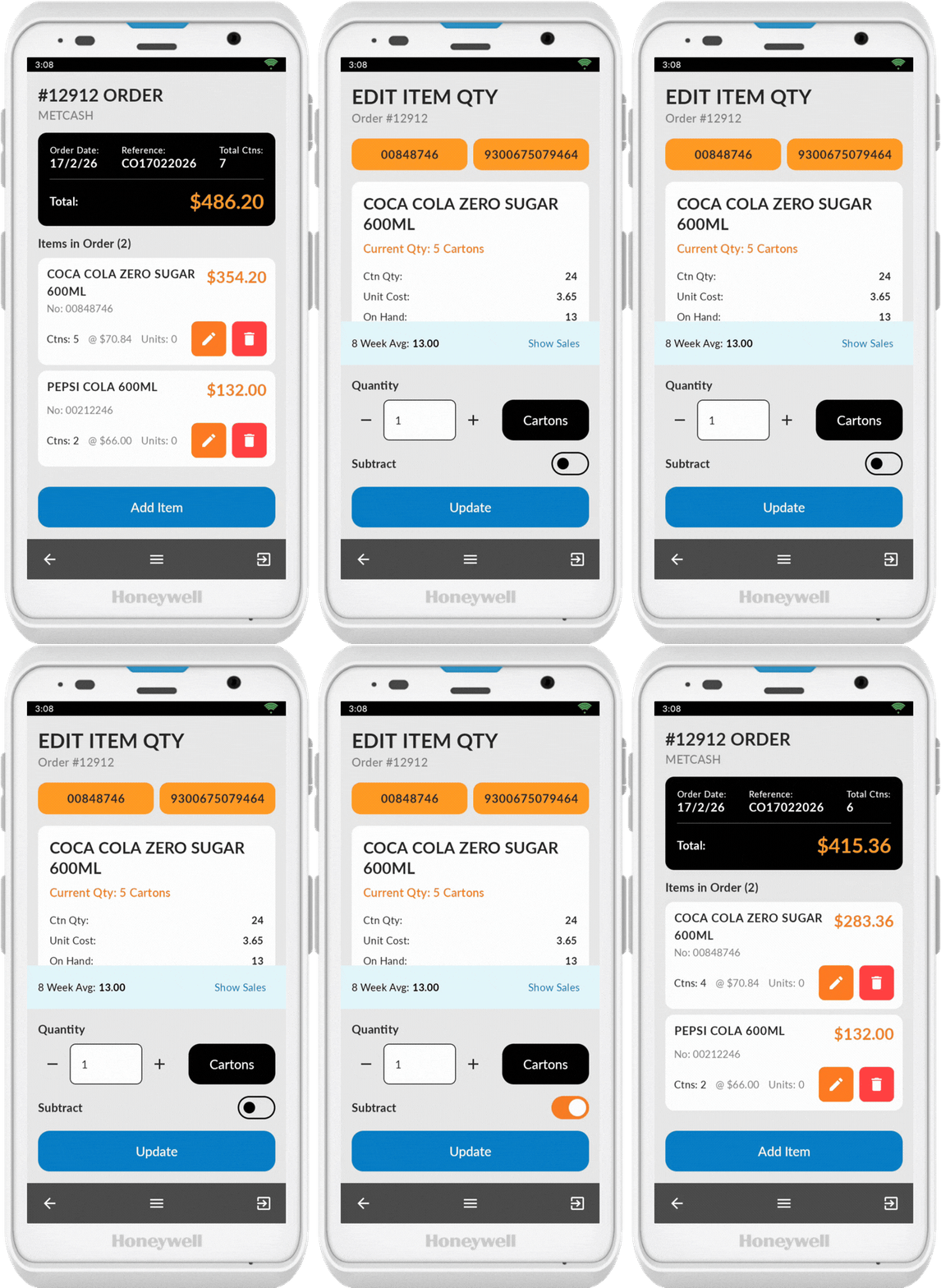
If you scan an item or tap the pencil icon on an item already in the order:
- It displays the cartons/units currently in the order
- You can add or subtract from the quantity
- Press Update after making changes to save
Completing the Order
The order automatically updates in the back office as you go so you can pause and resume ordering at any time without losing your progress.
Final Steps
Once all items are added and the order is complete, navigate to the back office and perform any final checks on the order before sending it to your supplier.
👉🛠️ Ordering Final Checks: Order Tools and Options
👉🔍 Ordering Final Checks: Last Chance
👉⏳ Ordering Final Checks: Wait On
👉📊 Ordering Final Checks: Sales Factor
👉 📤Orders & Invoicing Fundamentals Part 3: Sending Orders to Suppliers