
Your Convenience PDE uses distinct sounds to provide feedback during operation. These audio cues help you work efficiently without constantly watching the screen, confirming successful scans and alerting you to errors.
ℹ️Note: This article covers the new Convenience PDE app. Not sure which version you're using? Learn how to identify your PDE here.
Sound Types
Scanner Beep
The Scanner Beep plays any time a product is scanned to Indicate a successful scan.
Here's how it sounds:
Success Sound
The Success Sound plays after completing actions (Adding label to queue, adding item to wastage batch, etc.) to indicate the change was successfully sent to the backoffice.
Here's how it sounds:
Error Sound
The Error Sound plays when an action fails to complete, to indicate the action was unsuccessful and to check the screen for error messages.
Here's how it sounds:
Understanding Error Sounds
The error sound plays whenever you try to complete an action and it fails. This sound is designed to alert you immediately to issues without needing to watch the screen.
What Happens When You Hear the Error Sound
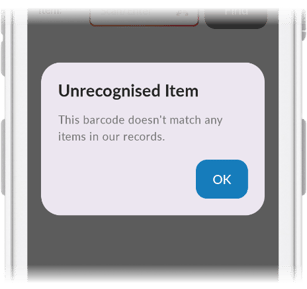
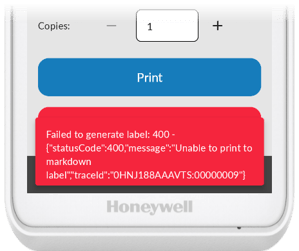
Every time the error sound plays, the PDE displays an error message explaining what went wrong. This message appears in one of two ways:
- Popup window: A dialog box appears in the centre of the screen with the error details
- Notification banner: A message banner slides in at the top or bottom of the screen
What to Do When You Hear Error Sounds
- Stop and read the error message - The screen will show specific details about what went wrong
- Note the error message - If the issue persists, write down the exact error text
- Take appropriate action - Most errors provide clear guidance on what went wrong
- Try again - After addressing the error, retry the action
Troubleshooting: No Sound
If you don't hear any sounds:
- Check the device volume using the + and - buttons on the left side of the PDE
- Verify the device isn't set to vibrate or silent mode
- Swipe down from the top of the screen to access quick settings and check sound settings