
ScreenConnect is Future Net's remote support tool that allows our team to assist with your PDE issues. This guide walks you through downloading and configuring ScreenConnect on your PDE device so Future Net can provide remote assistance when needed.
Before You Start
- Ensure your PDE is connected to the internet
- Have a Google account ready (Gmail account works, or create a free Google Play account)
- The setup process may vary slightly depending on your PDE model, but the core steps remain the same
Installing ScreenConnect
Step 1: Access Google Play Store
- Navigate to the home screen on your PDE
- Swipe up to view all apps
- Select Google Play Store
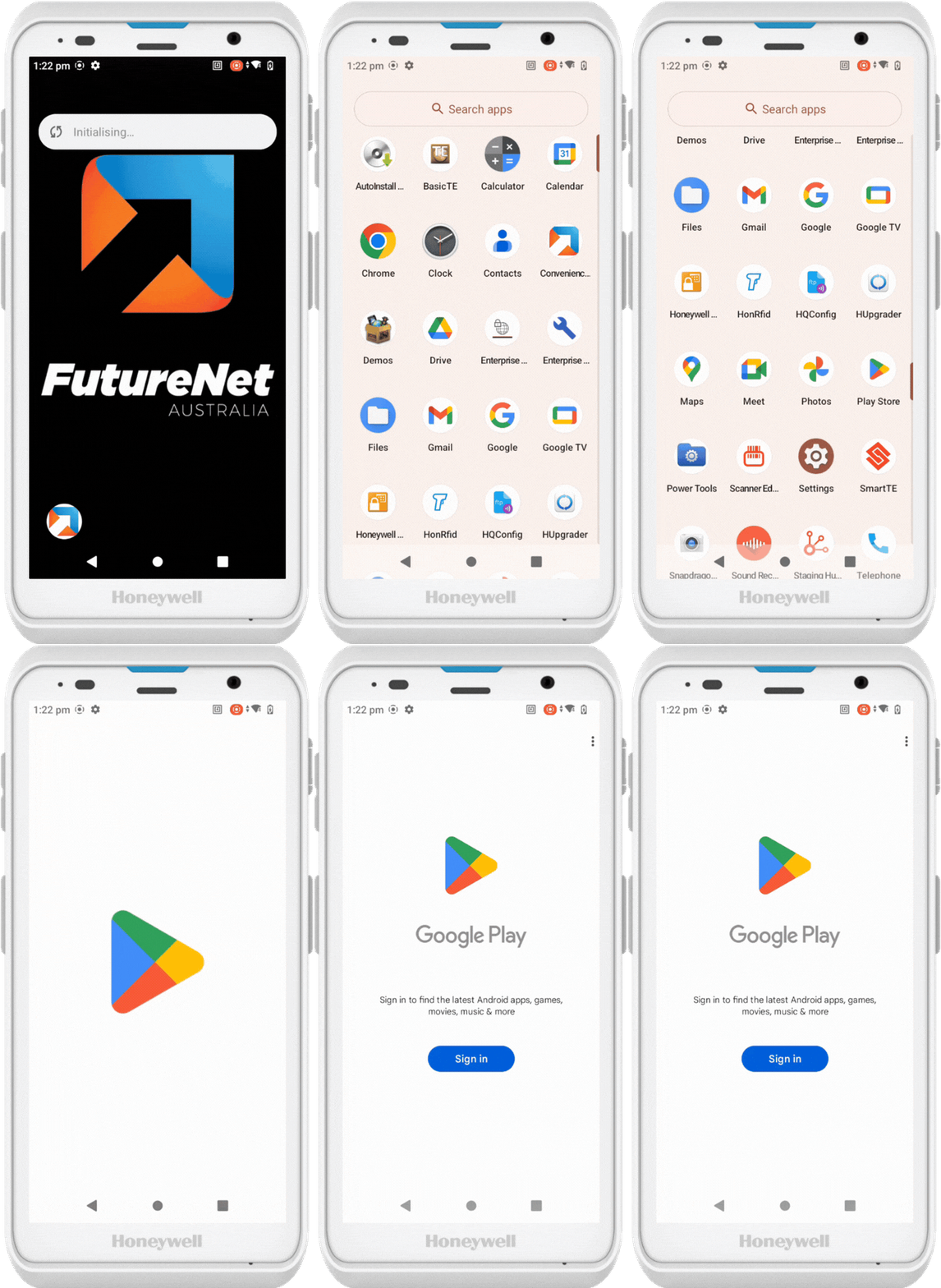
Step 2: Sign In to Google Play
- Sign in with your Google account (Gmail credentials work)
- If you don't have an account, select Create account and follow the prompts
- When prompted about backup options, turn off Backup data to this device to save storage space
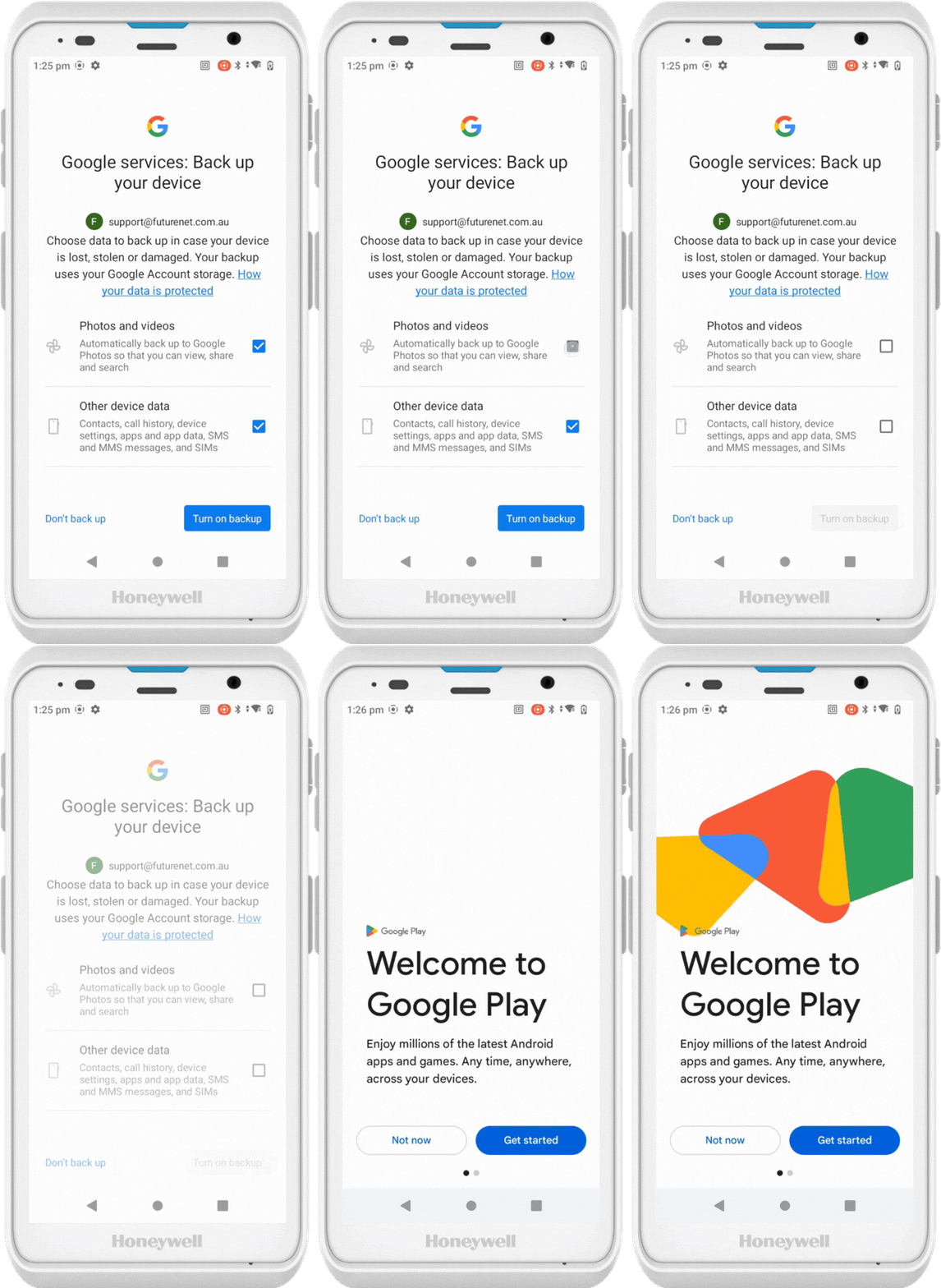
Step 3: Download ScreenConnect
- In the Google Play Store search bar, enter ScreenConnect
- Select ConnectWise ScreenConnect from the results
- Click Install and wait for the download to complete
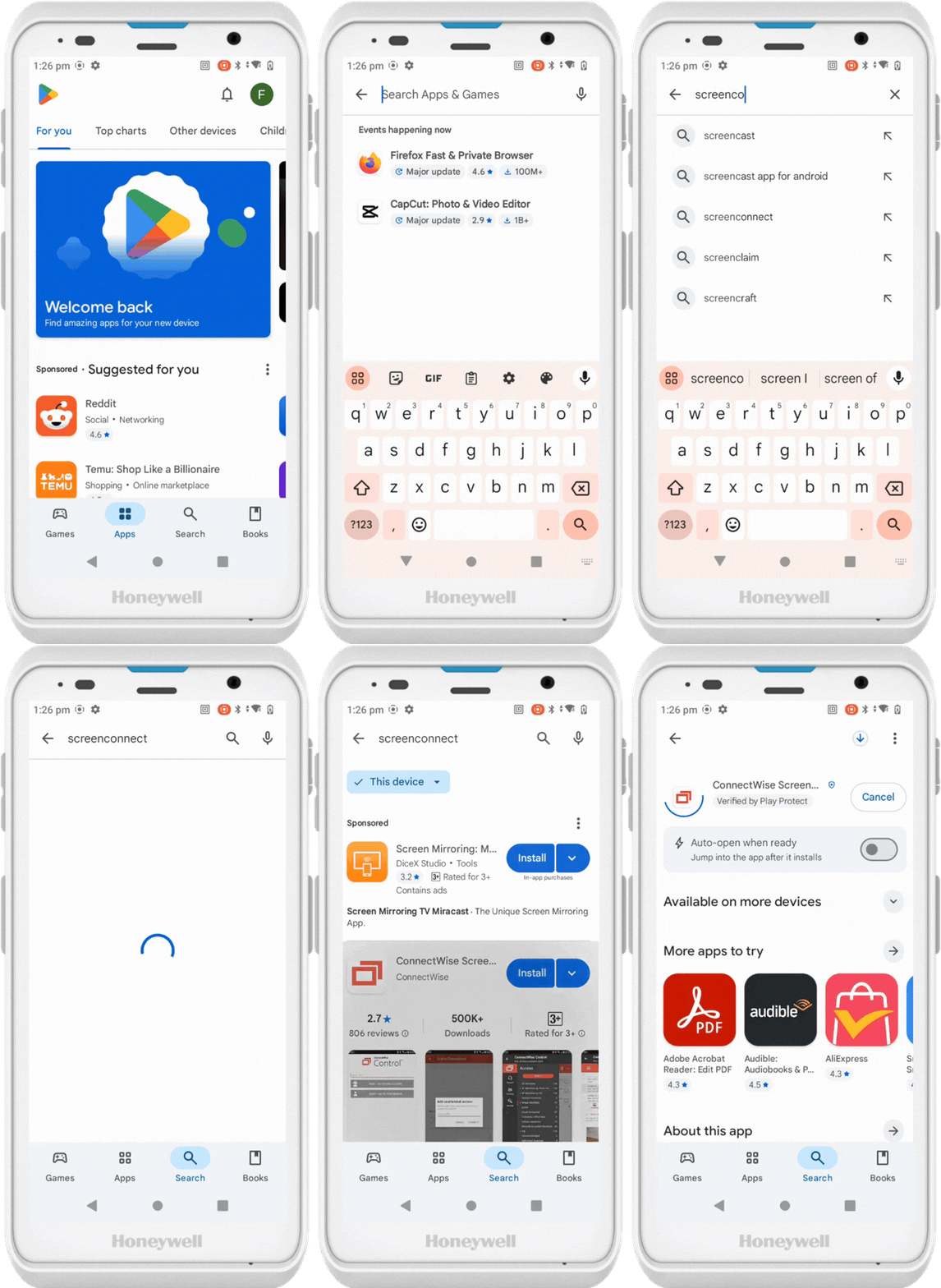
Now ScreenConnect it is ready to be configured.
Configuring ScreenConnect
Step 1: Enable Notifications
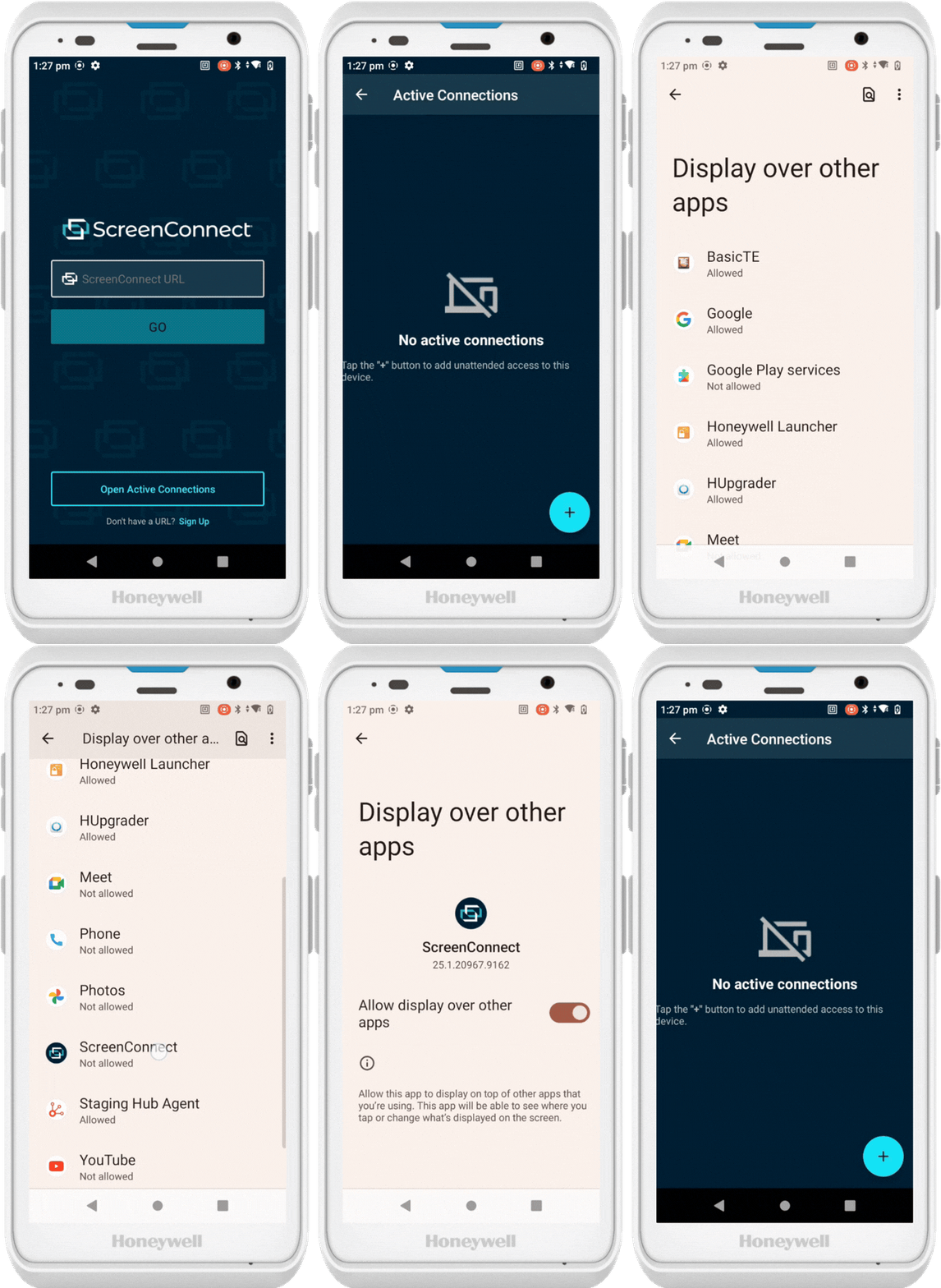
- Open the ScreenConnect app
- Follow the prompt to navigate to notification settings
- Enable all notifications for ScreenConnect
- Press the Back button to return to ScreenConnect
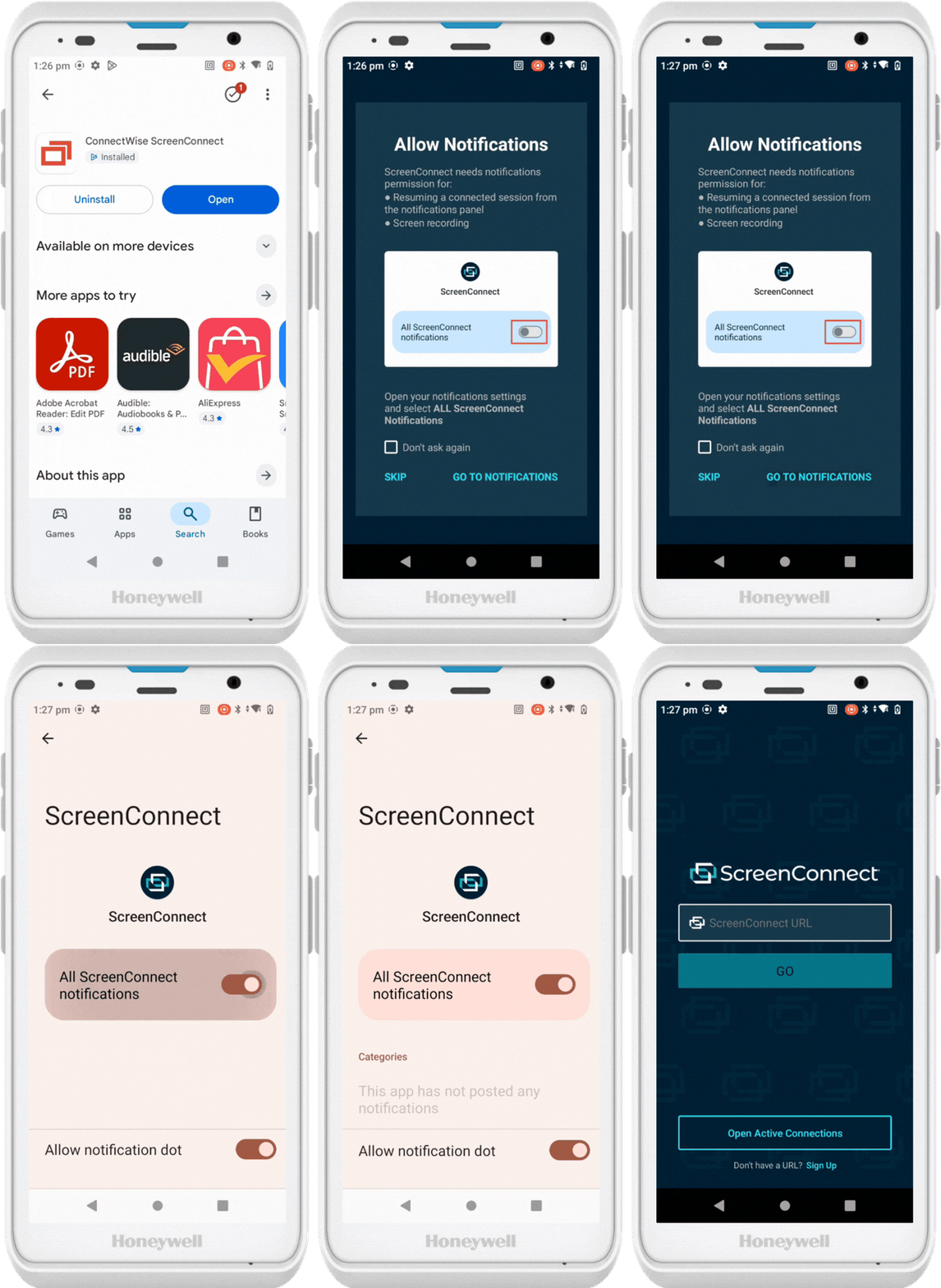
Step 2: Allow Display Over Other Apps
- Select Open active connections at the bottom of the screen
- When prompted, navigate to the settings menu
- Scroll down and select ScreenConnect
- Enable Display over other apps for ScreenConnect
- Press Back 2 times to return to the app
Step 3: Add Future Net Connection
- Press the + icon at the bottom of the screen
- Enter: futurenetaustralia.screenconnect.com
- Confirm the entry
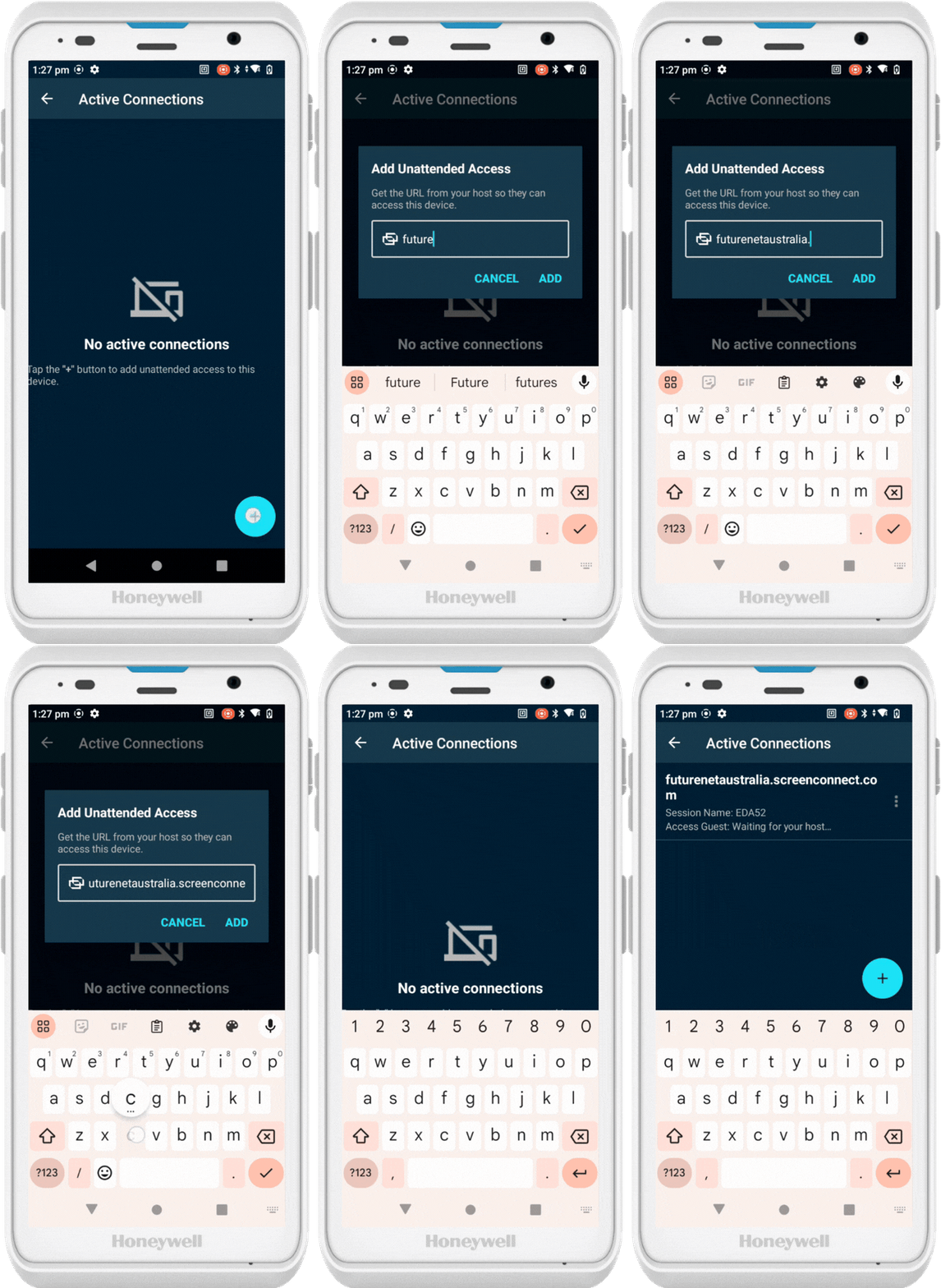
This adds your device to Future Net's connection list, allowing our team to access it for support.
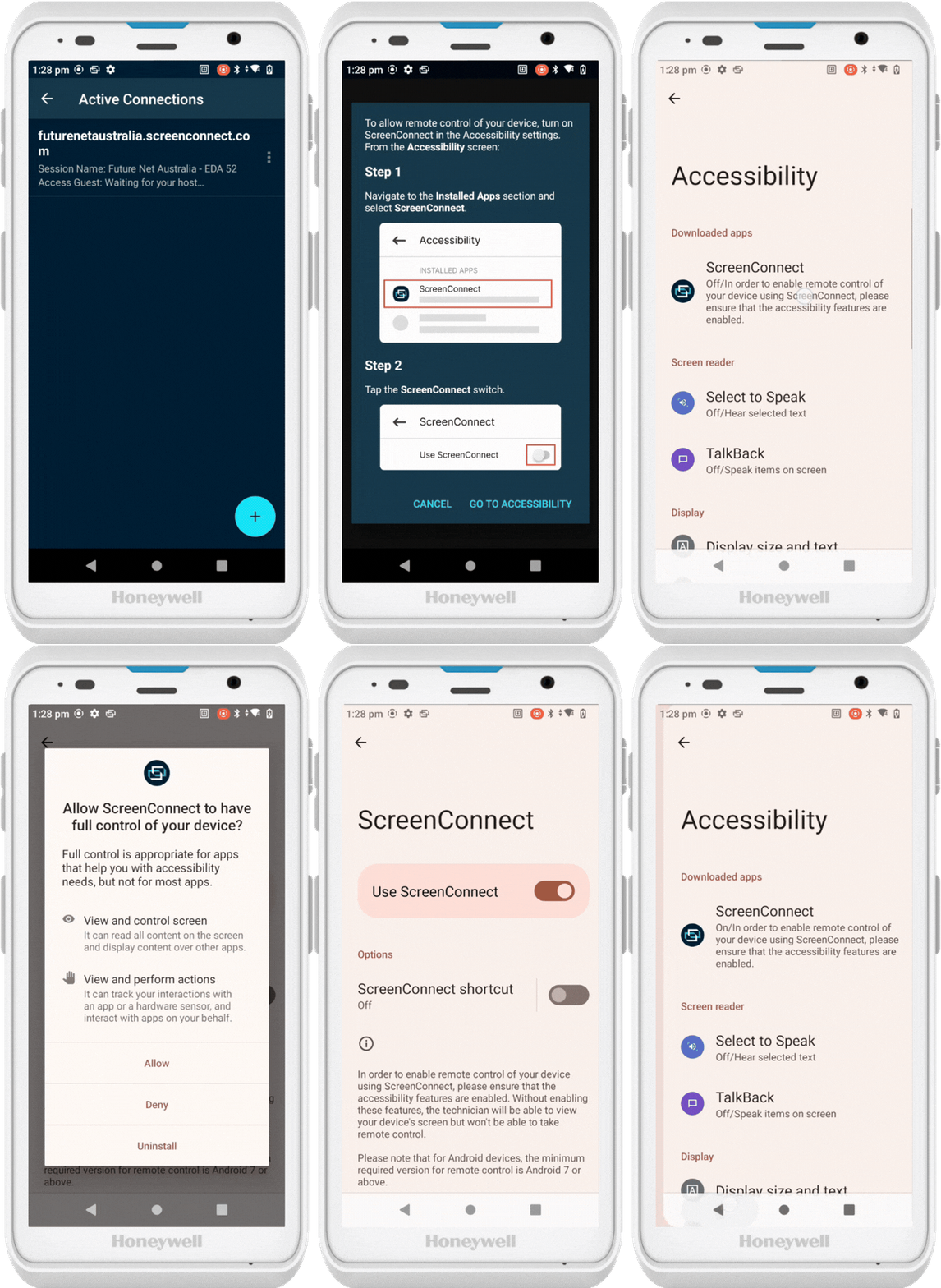
Step 4: Enable Accessibility Control (First Connection Only)
The first time Future Net connects to your device:
- You'll receive a prompt to enable accessibility control
- Follow the prompt to navigate to Accessibility settings
- Enable ScreenConnect control and select Allow
- Press Back 2 times to return to the app
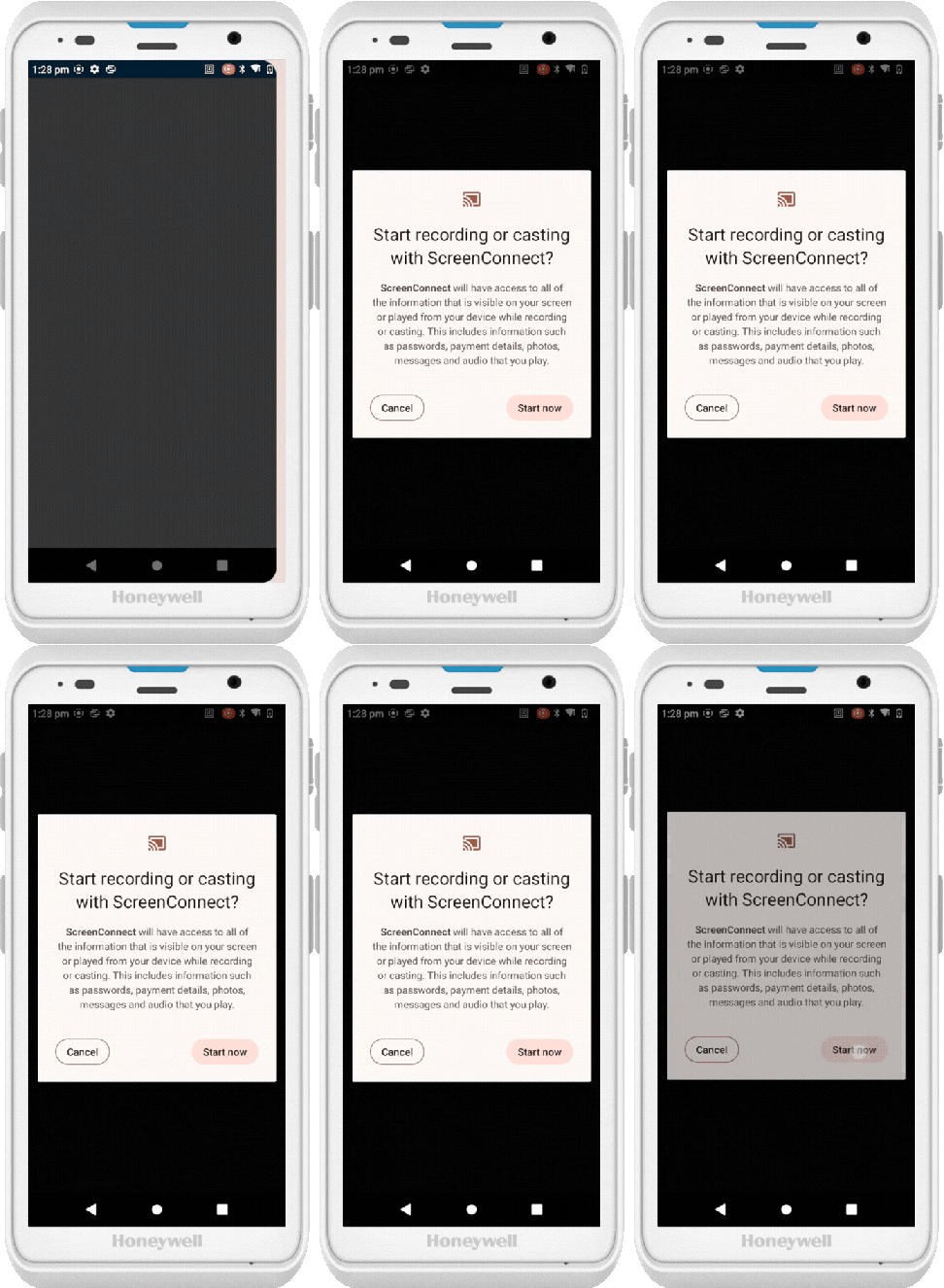
Step 5: Start Screen Casting
When Future Net initiates a remote session:
- You'll see a prompt to start screen casting
- Select Start now
Your PDE is now ready for remote support sessions.
What Happens Next
Once configured, Future Net can remotely access your PDE whenever you need assistance. You'll receive a notification each time a connection is initiated, and you'll need to approve screen casting by selecting Start now.