
Once your stocktake batch is created, you need to add items and their counts. Choose from four methods: manual entry, wireless PDE, PDE loading, or file upload.
Method 1: Manually Adding Items
Method 3: PDE Loading (Non-Wireless PDE)
Method 1: Manually Adding Items
Use this method when entering items directly on the PC, or when using a keyboard wedge scanner connected to your backoffice.
- In the stocktake batch, click Add in the bottom left corner
- Enter the item number or APN (barcode)
- If using a keyboard wedge scanner, scan the item's barcode
- If you don't know the item number or APN, click Item Lookup and search by description
- Click OK to select the item
- Enter the stock count for the item
- Click OK to add it to the batch

The item will appear in the batch showing variance details based on your count.
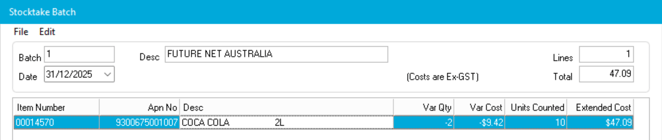
Modifying Items
To modify items already in the batch:
- Click Change to update the unit count
- Click Delete to remove an item from the batch
When finished adding all items: Click ReCalc Variances and wait for it to complete (this may take some time).
Method 2: Convenience PDE
Use this method when counting stock throughout the store with a wireless handheld device.
If you're using Future Net's Convenience PDE, the device will automatically detect your stocktake batch. You can scan items or enter them manually, specify quantities, and toggle between units and cartons. Items will appear in the Stocktake Entry batch on your PC in real-time.
To learn how to do this, check out the article on using the Convenience PDE for stocktake.
👉 📱Stocktaking with your Convenience PDE
Quick overview:
- After creating the batch, close the stocktake batch completely on the PC
- Navigate to Stocktake on your wireless PDE
- Scan items and enter quantities
- Press Send on the last item.
When finished: Click ReCalc Variances on the PC and wait for it to complete.
Method 3: PDE Loading (Non-Wireless PDE)
Use this method if you have a non-wireless PDE that requires batch loading.
For non-wireless PDEs, create the stocktake batch on your handheld device first. Contact your PDE vendor (Metcash, Spar, etc.) for specific instructions on creating batches. You can perform multiple loads if needed.
Loading the Batch
After creating the batch on your PDE, open the Stocktake Batch on the PC.
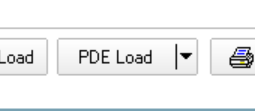
Click PDE Load.
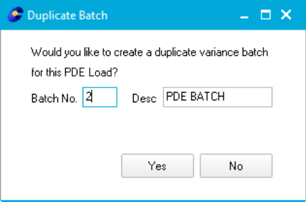
When prompted about creating a duplicate batch:
- Select Yes and enter a batch number (other than 1) if you want to preview/print valuation reports
- Select No to load directly into batch 1
Click Start on the PC
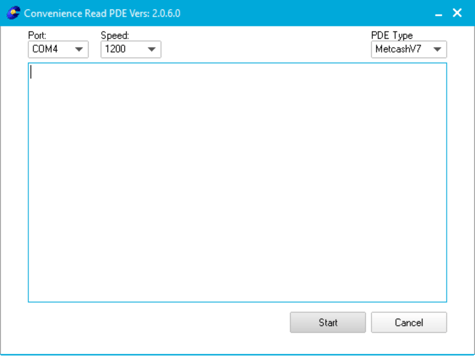
Initiate the send from your PDE
Method 4: File Upload
Use this method when a professional stocktake company conducts the count and provides you with a CSV file to upload.
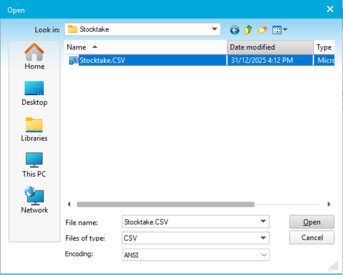
The file must be in CSV format with the following structure:
ItemNumber,APN,CountQTY
Uploading the File
In the Stocktake Batch window, select File Upload.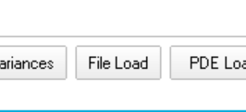
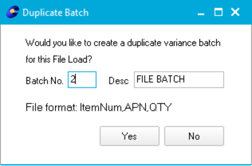
When prompted about creating a duplicate batch:
- Select Yes and enter a batch number (other than 1) if you want to preview/print valuation reports
- Select No to load directly into batch1
Click Select File and choose your CSV file
Wait for the system to load all items from the file.
The system will generate a report at the end showing any items that were not found in your system.
When finished: Click ReCalc Variances and wait for it to complete.
Next Steps
All items have been counted and added to your stocktake batch. You're ready to run reports.