
Item Details Report displays comprehensive information about your inventory items, including item numbers, pricing, tax codes, departments, GP%, and promotional pricing. You can also generate a purchase report to view items purchased within a specific date range.
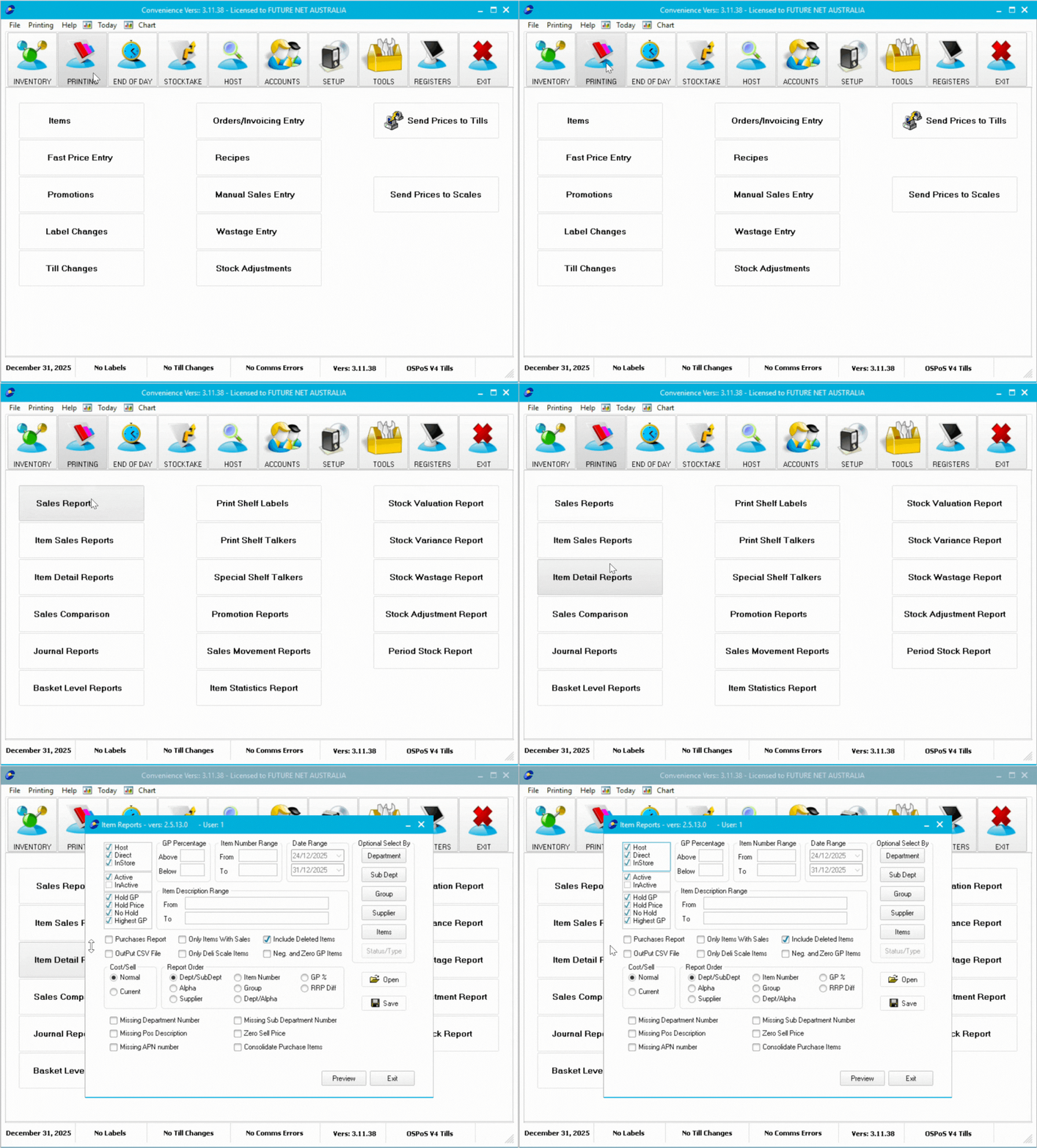
Open Item Details Report
- Navigate to the Printing tab in Convenience.
- Select Item Details Report.
Configure Report Options
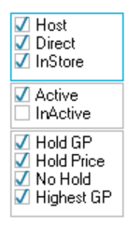
Item Type, Active Status, and GP
- Select item types to include: Host, Direct, InStore, or any combination.
- Choose Active, Inactive, or both.
- Toggle any GP options you wish to include.
Set Ranges (Optional)
Configure any of these optional filters:
| Filter | Description |
|---|---|
| GP Percentage | Show only items within a specific GP% range |
| Item Number Range | Limit results to a specific item number range |
| Item Description Range | Filter by item description range |
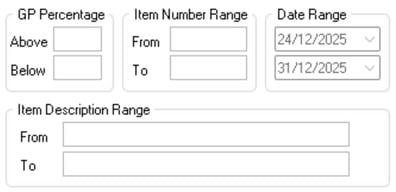
ℹ️ Note: the date range will only become active If you're generating a purchases report.
Optional Select By Filters
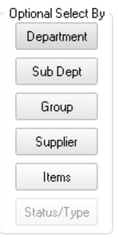
Filter your report by specific criteria:
- Choose a filter type: Department, Sub-Department, Group, Supplier, or Items.
- For purchase reports, use the Status/Type filter to select which document statuses to include.
Report Type
Select the type of report you want to generate from the available options.

Cost/Sell and Report Order
- In Cost/Sell, choose whether to display normal cost/sell or current pricing (includes promotional pricing).
- In Report Order, select how the report will be sorted. Dept/SubDept is the default, sorting by department number, then sub-department number.
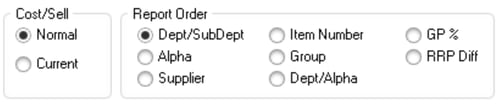
ℹ️ Note: Dept/SubDept sorting is based on department/sub-department numbers, not names.
Other Options
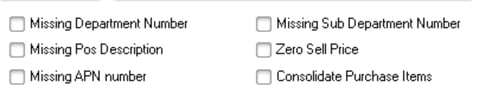
Select from the bottom section to generate reports for items with potential issues that need correction.
Open and Save Custom Reports
If you've configured a custom report you want to reuse:
- Click Save to save your report configuration.
- Click Open to load a previously saved report.
This is especially useful when using custom filters that would take time to recreate.
Generate the Report
- Click Preview to generate your report.
- Review the report in the preview window.
- Click Save or Print at the top left to save or print the report.
- Click Close when finished.
