
Updating invoices adds received stock to your inventory and completes the ordering cycle. This critical step ensures accurate stock levels and is required for automatic ordering to function properly.
⚠️ Important: Always verify received quantities before updating. Once updated, stock is added to your system and affects inventory counts.
Before You Start
Ensure your invoice has all items entered with correct quantities. You can update invoices created from scratch, imported electronically, or converted from orders.
The Update Process
- Open your invoice (status will show as Order/Invoice)
- Verify all items and quantities are correct
- Click Update
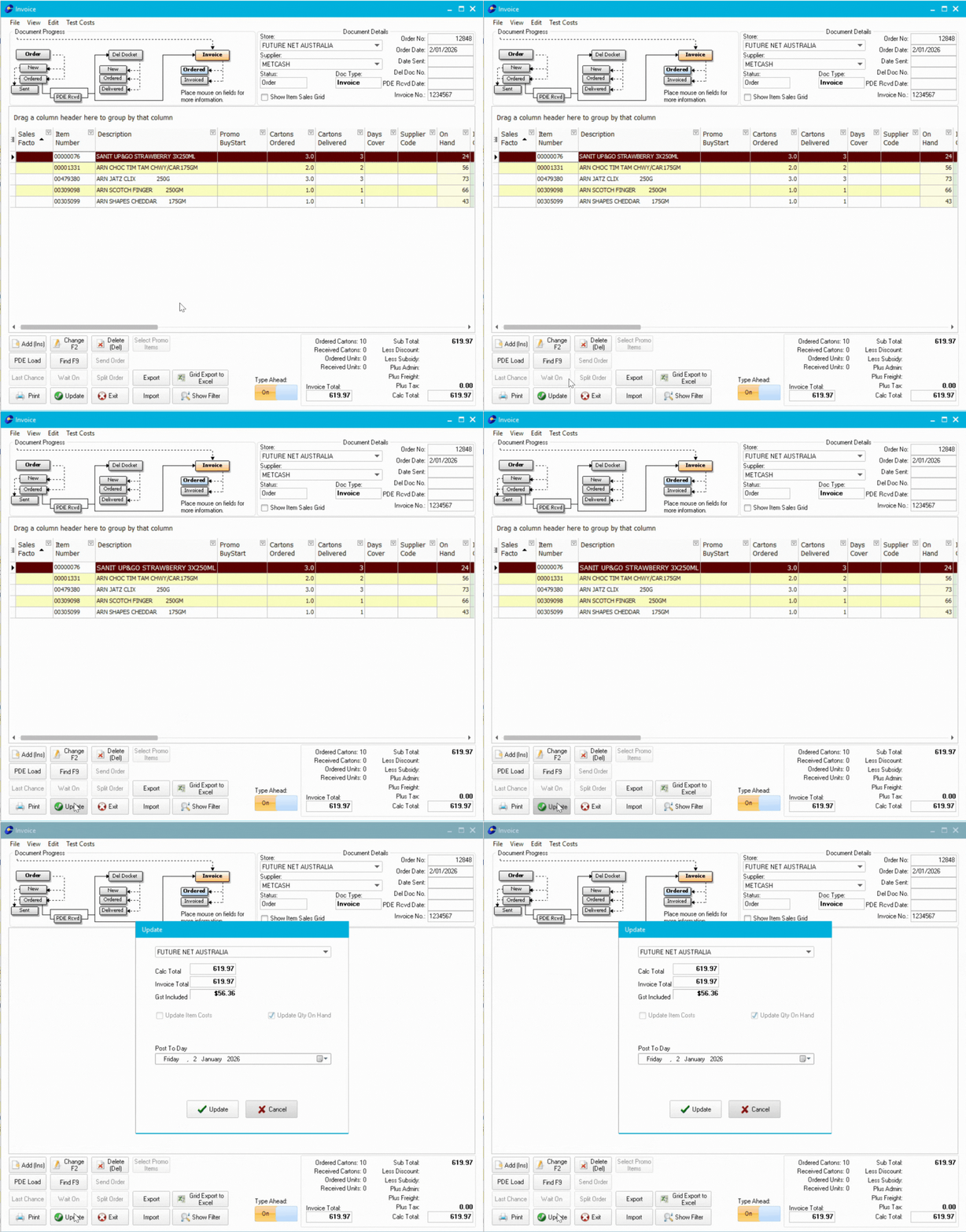
-
- Verify the Post to Day Date is correct
- If available, enable cost price updates (checkbox)
- Ensure no warnings or mismatches between Calc and Invoice totals (warning shown in red)
ℹ️ Note: Update Item Costs checkbox greyed out? Here's how you can enable it:
👉(Article Coming Soon)
Checking Calc Total vs Invoice Total
The system calculates what the invoice should total (Calc Total) based on items and quantities you entered. This should match your Invoice Total from the supplier.
What the totals mean:
- Calc Total: System-calculated total based on received items and costs
- Invoice Total: The total you entered from the supplier's invoice
Mismatched totals example:

If Totals Don't Match
When totals don't match within 2% (default setting), they display in red and you'll be prompted to confirm before proceeding.
To change the variance threshold from 2%:
👉(Article Coming Soon)
Continuing the update
- Click Update again
- Review the updated stock report that appears
- Print or save the report if needed, or close it

If any items were inactive, they will also be activated while updating.
Cost Change Reports
When updating invoices with cost price changes, the system generates a report for items with cost increases or decreases above 1% (default).
What to Do with Cost Changes
- Review the cost change report when it appears
- Verify changes match your supplier's invoice
- Check if changes are temporary (promotion) or permanent
- Contact your supplier if unexpected cost changes appear
- Update your system costs if needed for permanent changes
- Print or save the report for your records
To change the Cost Variance threshold from 1%:
👉(Article Coming Soon)
💡 Tip: Regular cost monitoring helps you spot pricing trends and negotiate better deals with suppliers.
Troubleshooting
Update button is greyed out:
- Invoice may already be updated (check status)
- You may not have permission to update invoices
- Contact Future Net support
"Post to Day Date" is wrong:
- Change the date to the correct receiving date
- This affects when stock appears in reports
Items missing from stock report:
- Check if items were actually added to the invoice
- Verify items weren't filtered out of the report
- Re-open the invoice to confirm items are there
Stock didn't increase:
- Confirm invoice status shows Invoice/Invoice
- Check if you updated the correct invoice
- Verify the correct items and quantities were entered
Next Steps
Congratulations! Your invoice is updated and stock is in your system. Your inventory levels are now accurate.
Ready to work smarter? Now that you've mastered manual ordering and invoicing, discover how Automatic Ordering can save you time and reduce stockouts.
👉 🧾Automatic Ordering Part 1: What is it?
Learn how to configure automatic ordering, set parameters for each supplier, and let the system do the heavy lifting while you focus on running your store.