
Re-print only the items that changed in a running promotion. When you update prices mid-promotion, this saves time and labels by printing only products with changes instead of the entire promotion.
When to Use This
Use this function when:
- A host company sends promotion corrections after you've already printed labels
- You need to correct pricing on specific items in an active promotion
- You want to add new items to an existing promotion
- You've updated stock quantities and need new labels for affected items
ℹ️ Note: If you process host files, you can disable or enable automatically accepting promotion changes from your host company.
How to Check Which Items Changed
Before reprinting, you can check which items have been modified:
Navigate to Inventory → Promotions in Convenience
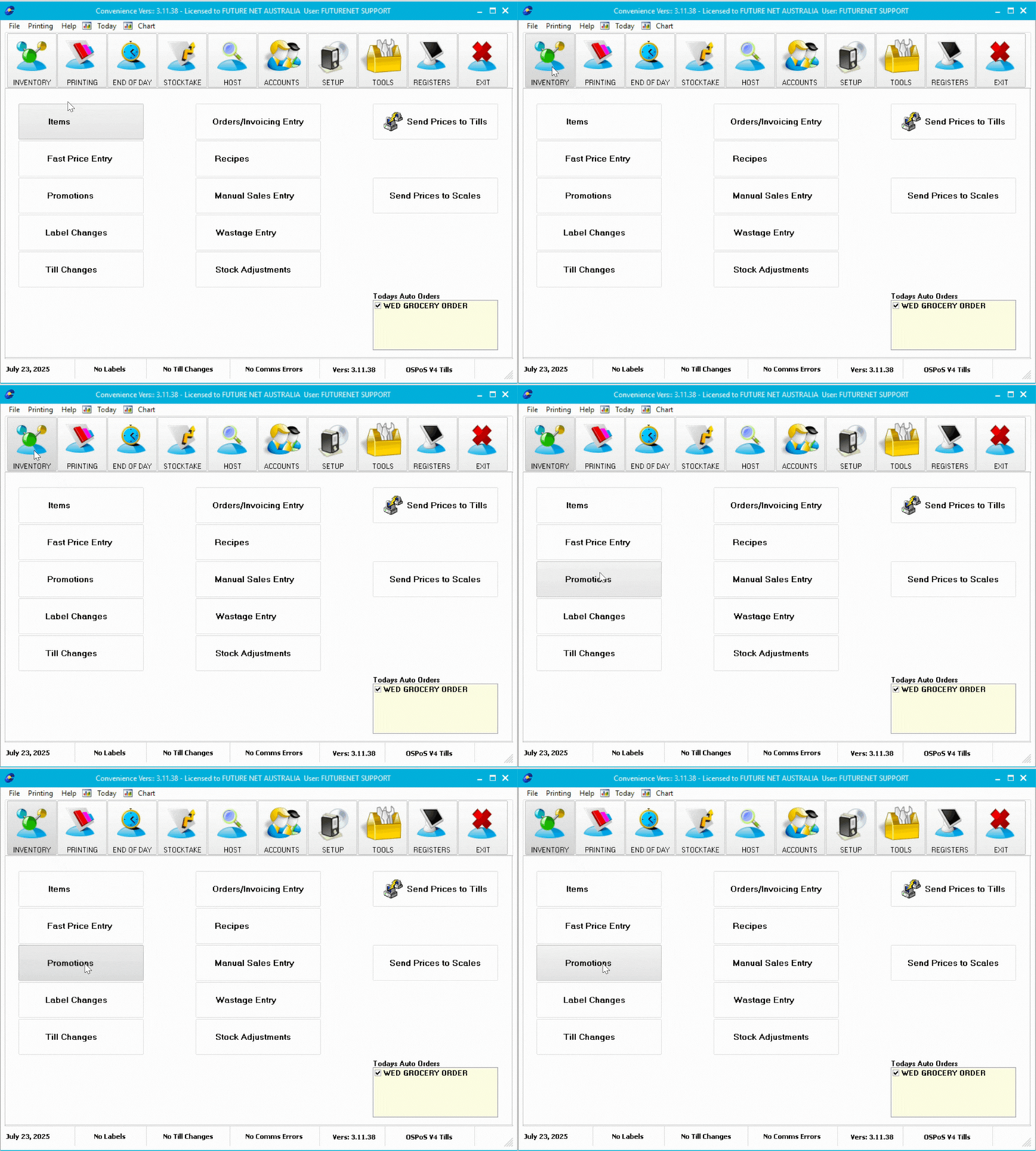
- Open the promotion you want to check
- Look at the item grid
- Find the Date Changed column
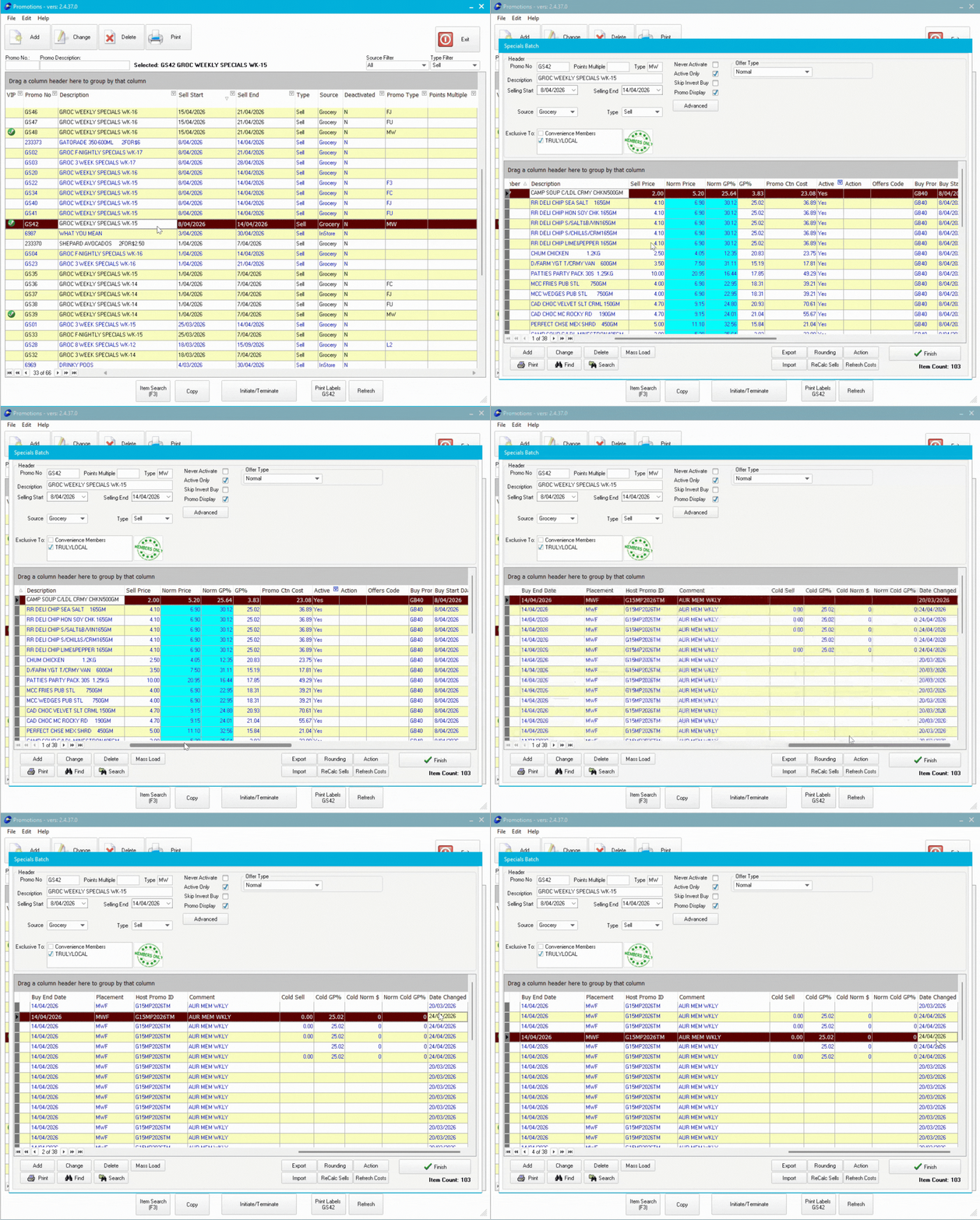
This column shows when each item was last modified. Items with recent dates are the ones that will print when you use the changed-only function.
💡 Tip: Sort by the Date Changed column to quickly see which items were modified most recently.
Method 1: Via Promotions
Open Promotions
- Navigate to the Inventory tab in Convenience
- Select Promotions
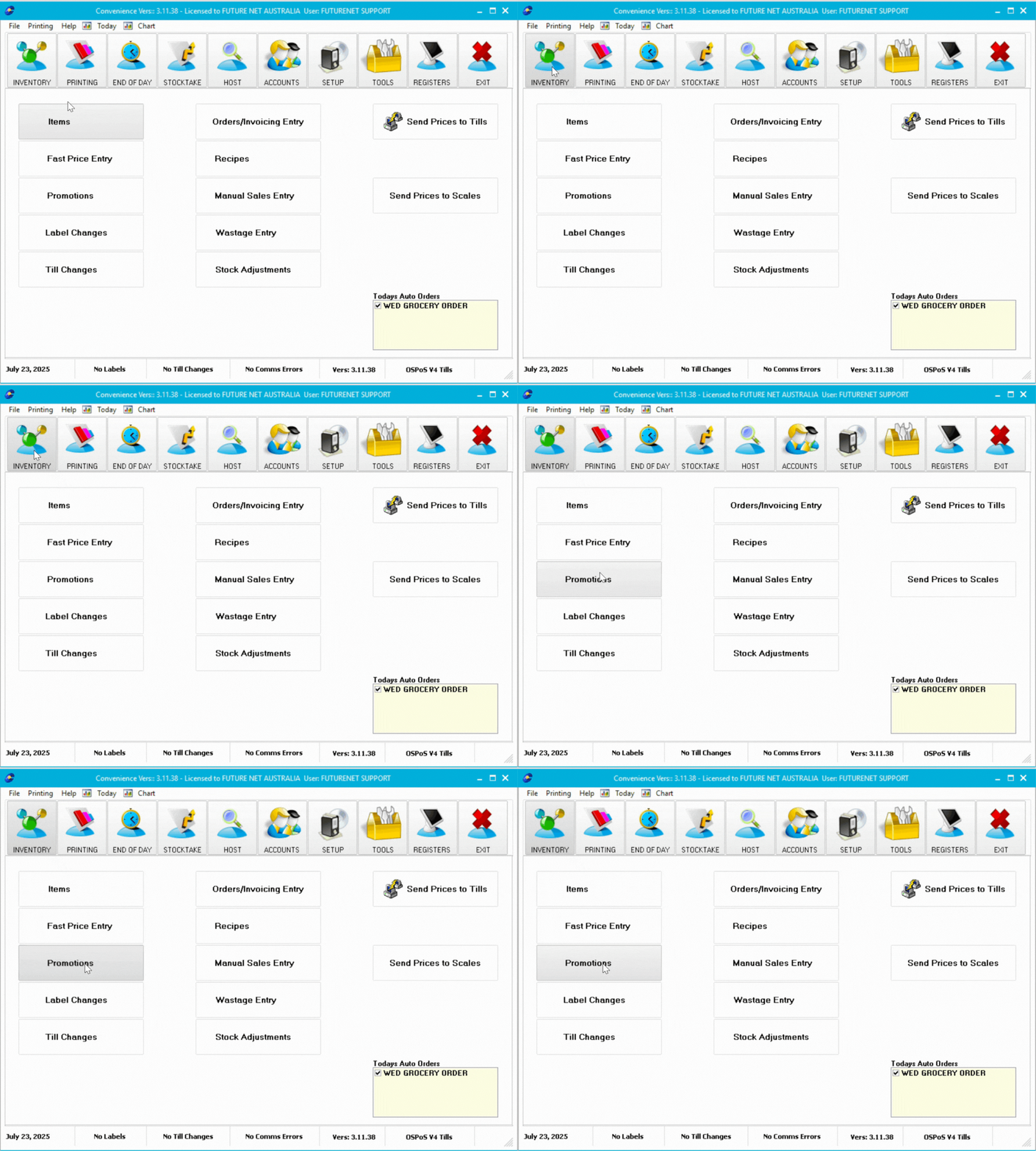
Select Your Promotion
Find and select the promotion you want to re-print labels for.

Print Changed Labels
- Select Print Labels at the bottom of the screen
- A pop-up appears asking if you want to print only changed items
- Tick Only Promo lines changed on Date
- Select the date from the dropdown (choose when the changes were made)
- Select OK
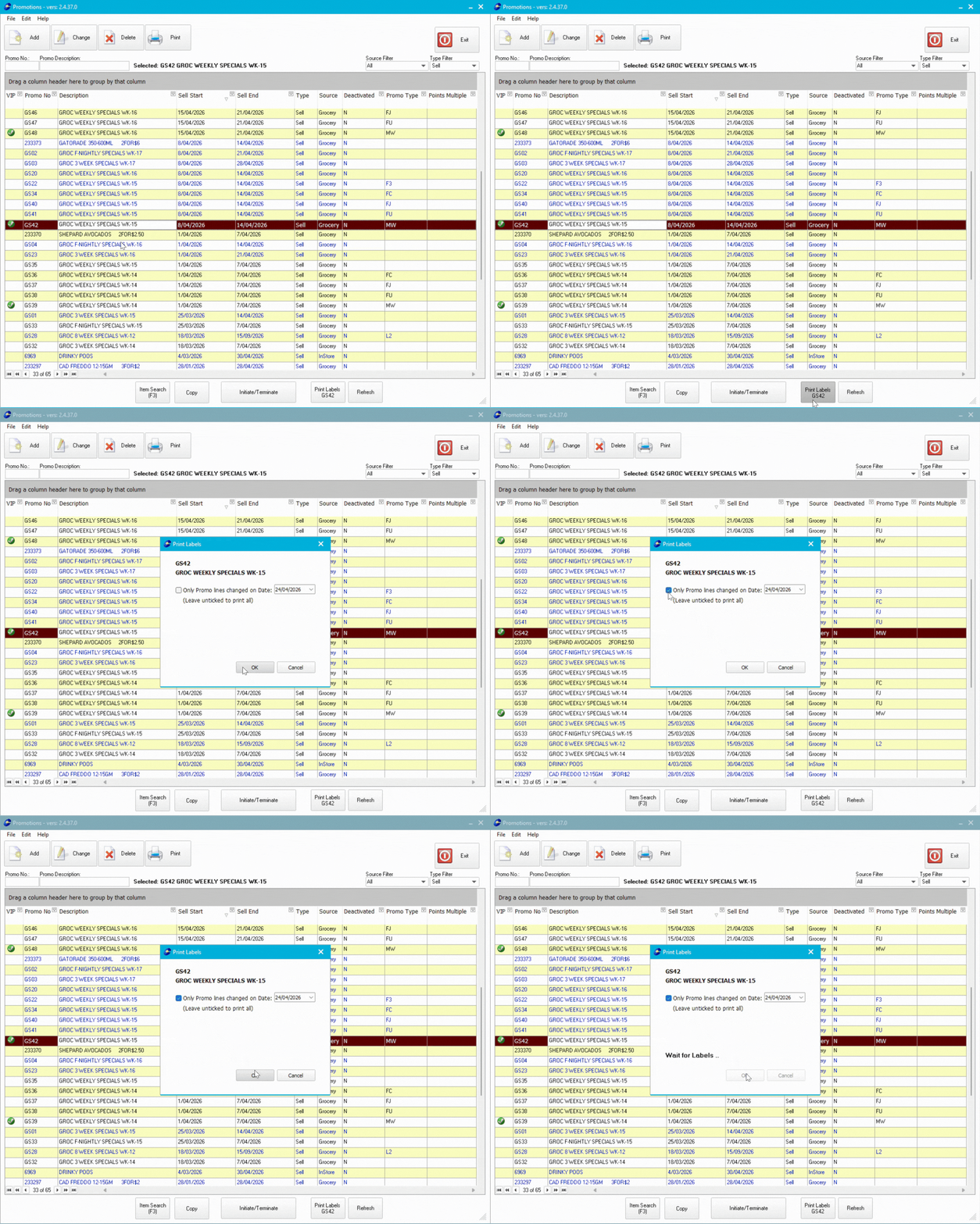
A label batch containing only items that changed after your selected date will be generated. You can change the labels and print the batch as you would a normal print batch.
💡 Tip: If you made changes today, select today's date to print just those new changes.
Method 2: Via Print Shelf Labels
This method gives you more control over filters and label formats. It is recommended to use this method for printing member price only label formats.
Open Print Shelf Labels
- Navigate to the Printing tab in Convenience
- Select Print Shelf Labels
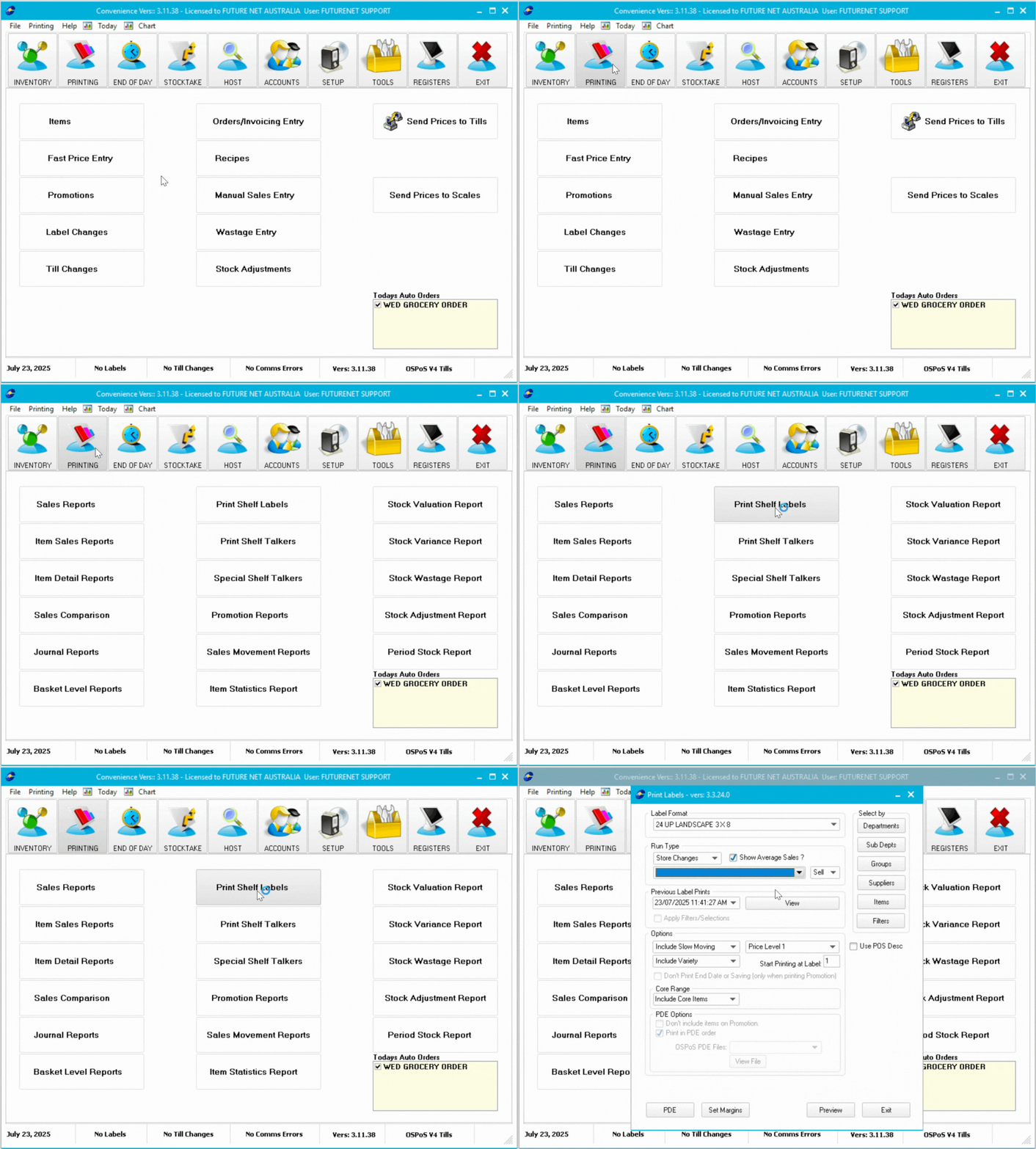
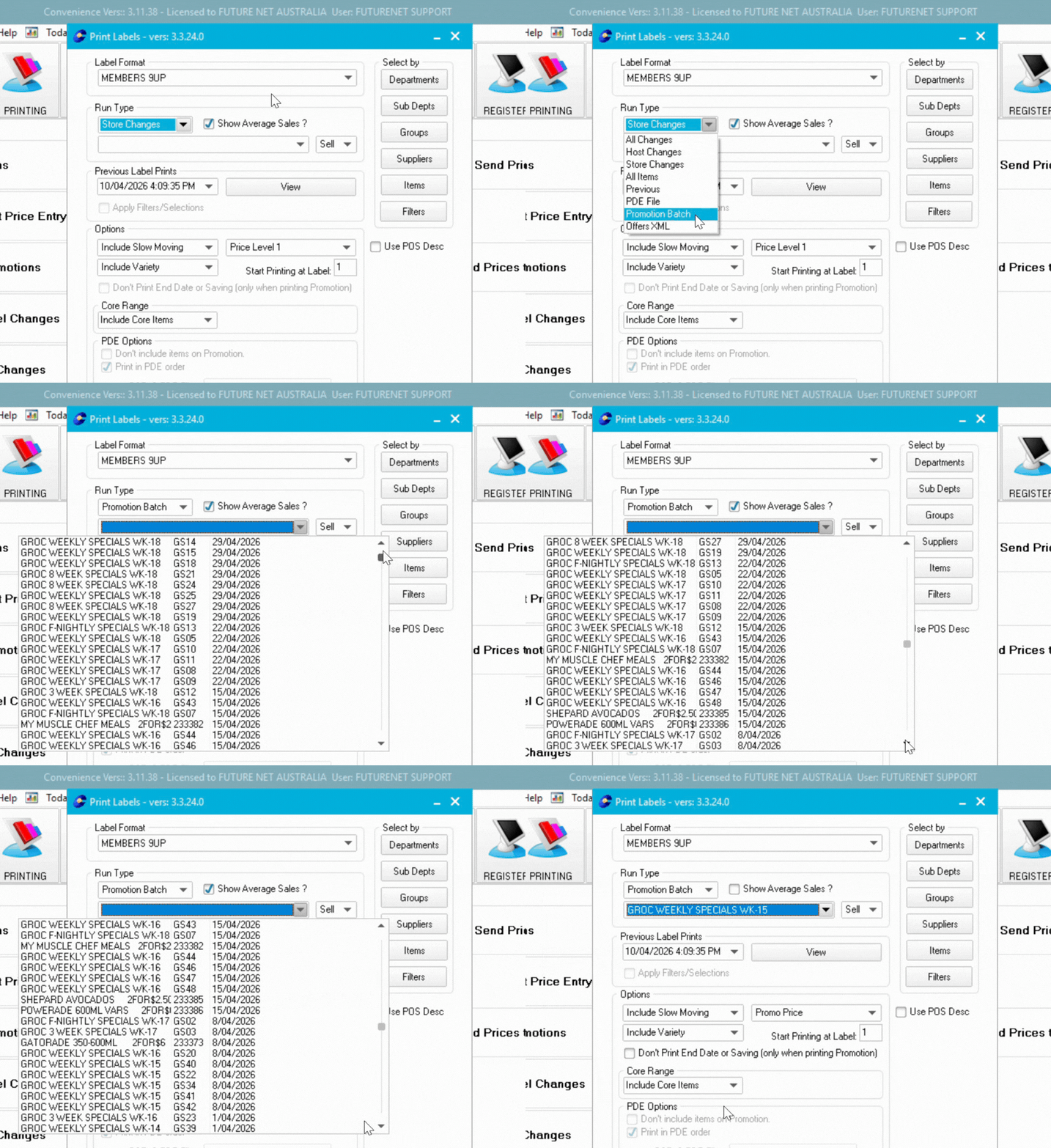
Select Promotion
- In Run Type, select Promotional batch
- Choose your promotion from the dropdown menu
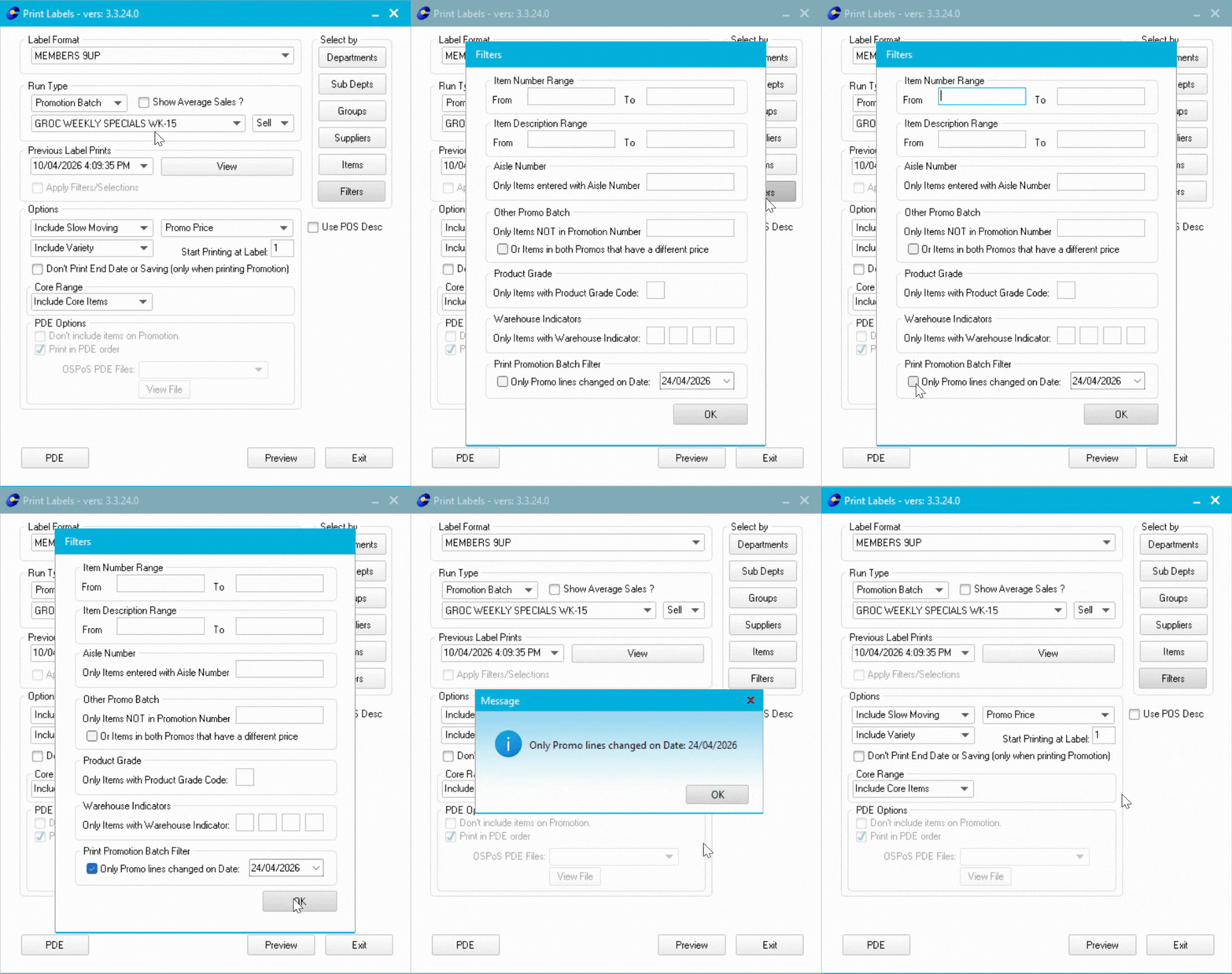
Set Date Filter
- Select Filters
- Find the date filter option
- Set the date to print changes from (items changed after this date will print)
- Select OK
Preview and Print
Select Preview to see which labels will print.
A label batch containing only items that changed after your selected date will be generated.
ℹ️ Note: Method 2 is useful if you need to apply additional filters like specific departments, suppliers, or label formats.