
Markdown price allows you to print reduced price labels for items nearing expiry or requiring clearance. Generate and print markdown labels directly from your Convenience PDE to a connected markdown printer.
Markdown price is for labeling purposes only and doesn't change the item's system price.
ℹ️Note: This article covers the new Convenience PDE app. Not sure which version you're using? Learn how to identify your PDE here.
Before You Start
You need a markdown printer to use this function. Contact Future Net sales if you would like to discuss your options: sales@futurenet.com.au
Creating Markdown Labels
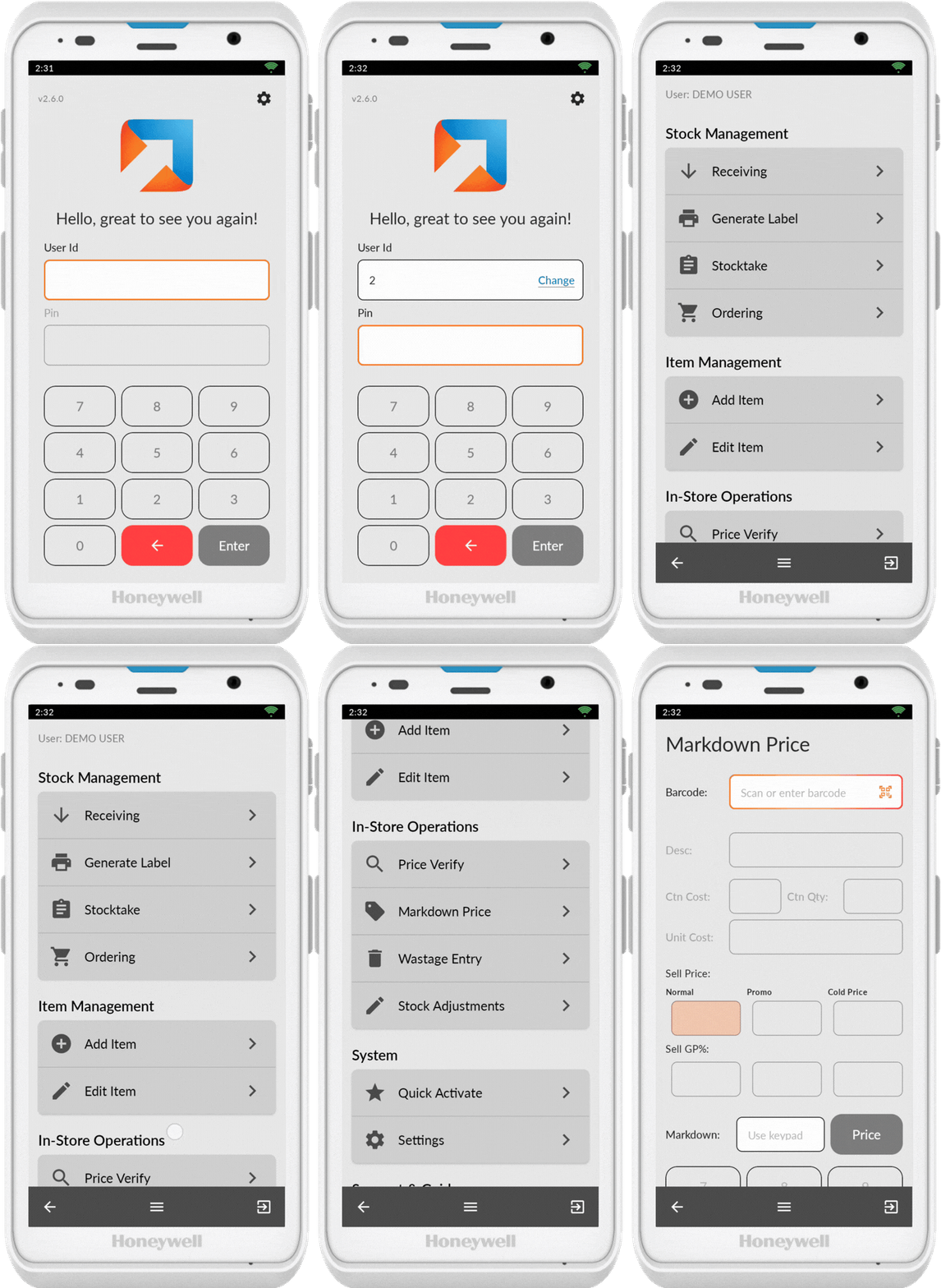
Access Markdown Prices
- Log in to your Convenience PDE
- Scroll to find Markdown Prices
- Tap on it to open
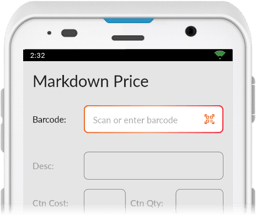
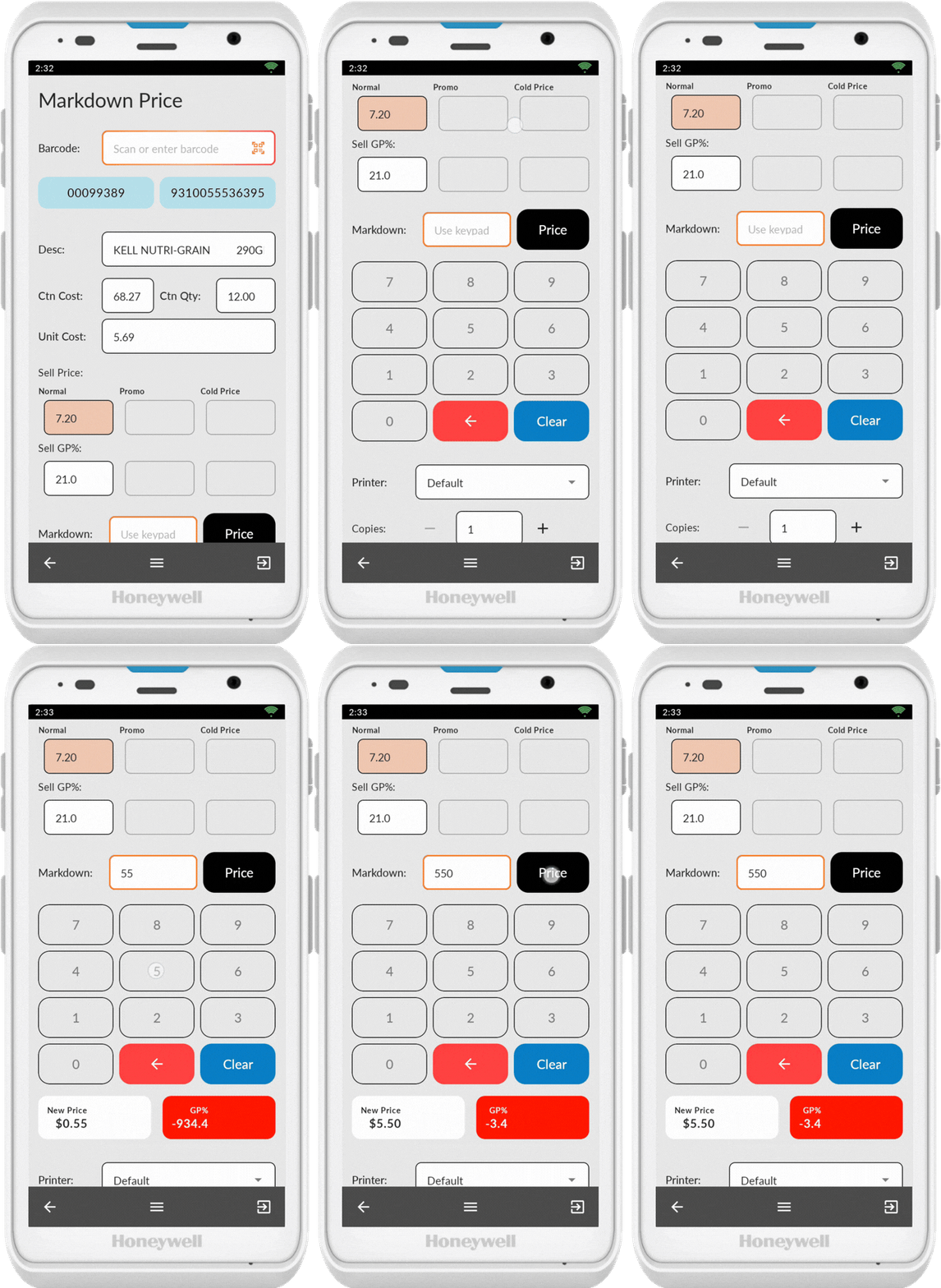
Scan Item
- Ensure the scanner icon (QR code) is showing
- Scan an item barcode
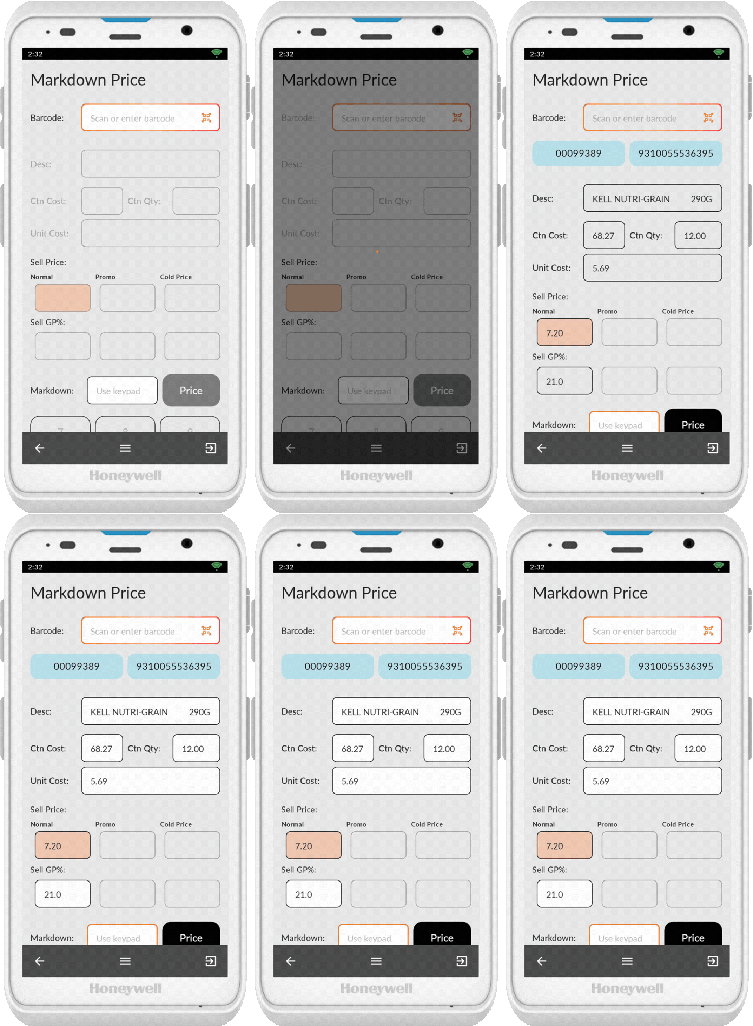
⚠️ Important: Only item barcodes can be scanned, not shelf labels.
If the barcode doesn't scan, tap on the Barcode field to bring up the keypad and enter the barcode number manually. Tap anywhere on the screen to hide the keypad.
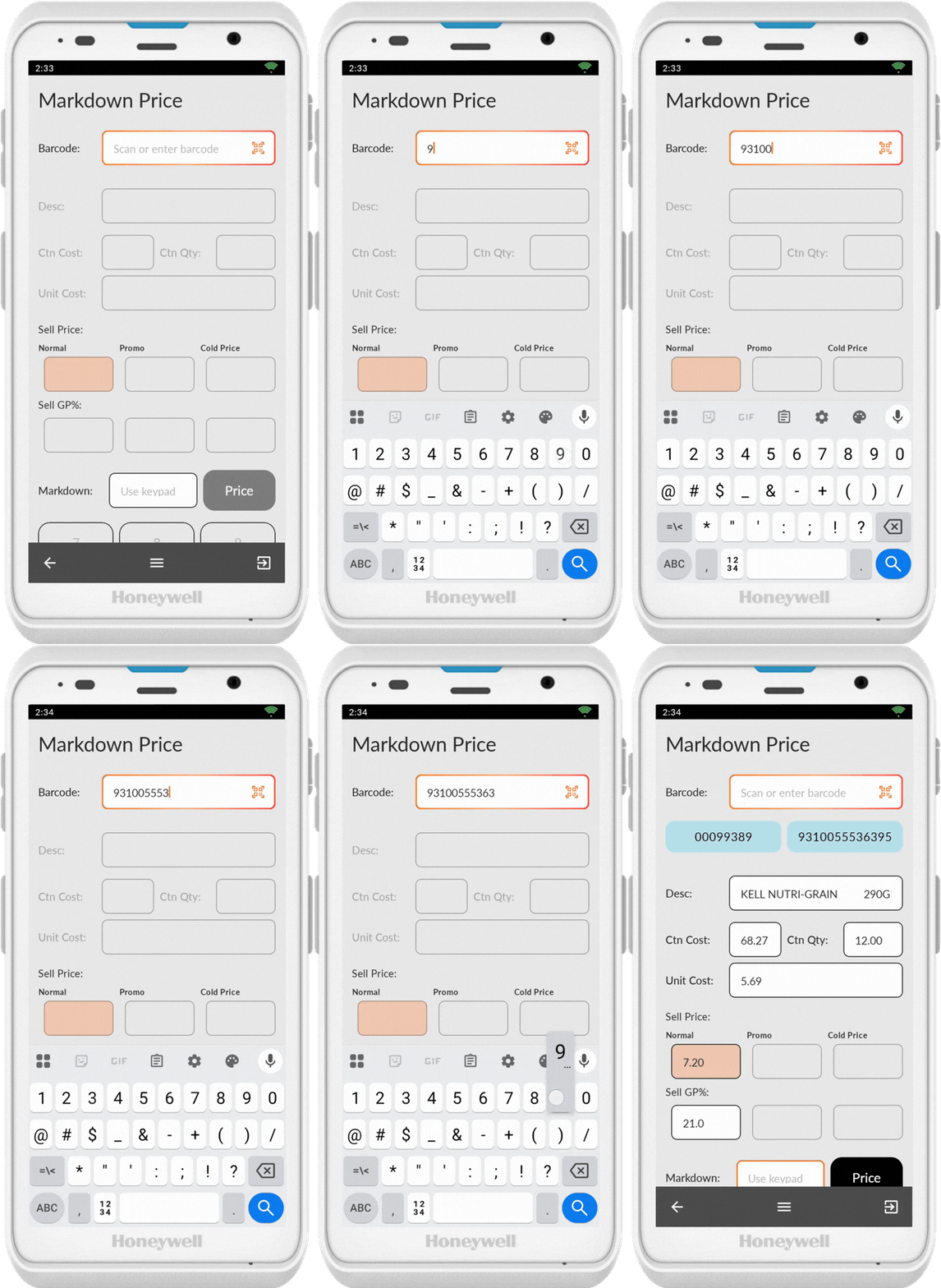
Enter Markdown Price
- Review the product info displayed (including promo pricing)
- Use the keypad at the bottom of the screen to enter the markdown price. (The price will auto format in the New Price display)
- To mark down by percentage instead, tap on Price to toggle between Price and % Markdown
Configure Print Options
- Select your printer (if you have more than one markdown printer)
- Set the number of copies using + or -, or tap the quantity field to manually edit
- Press Print to print the labels
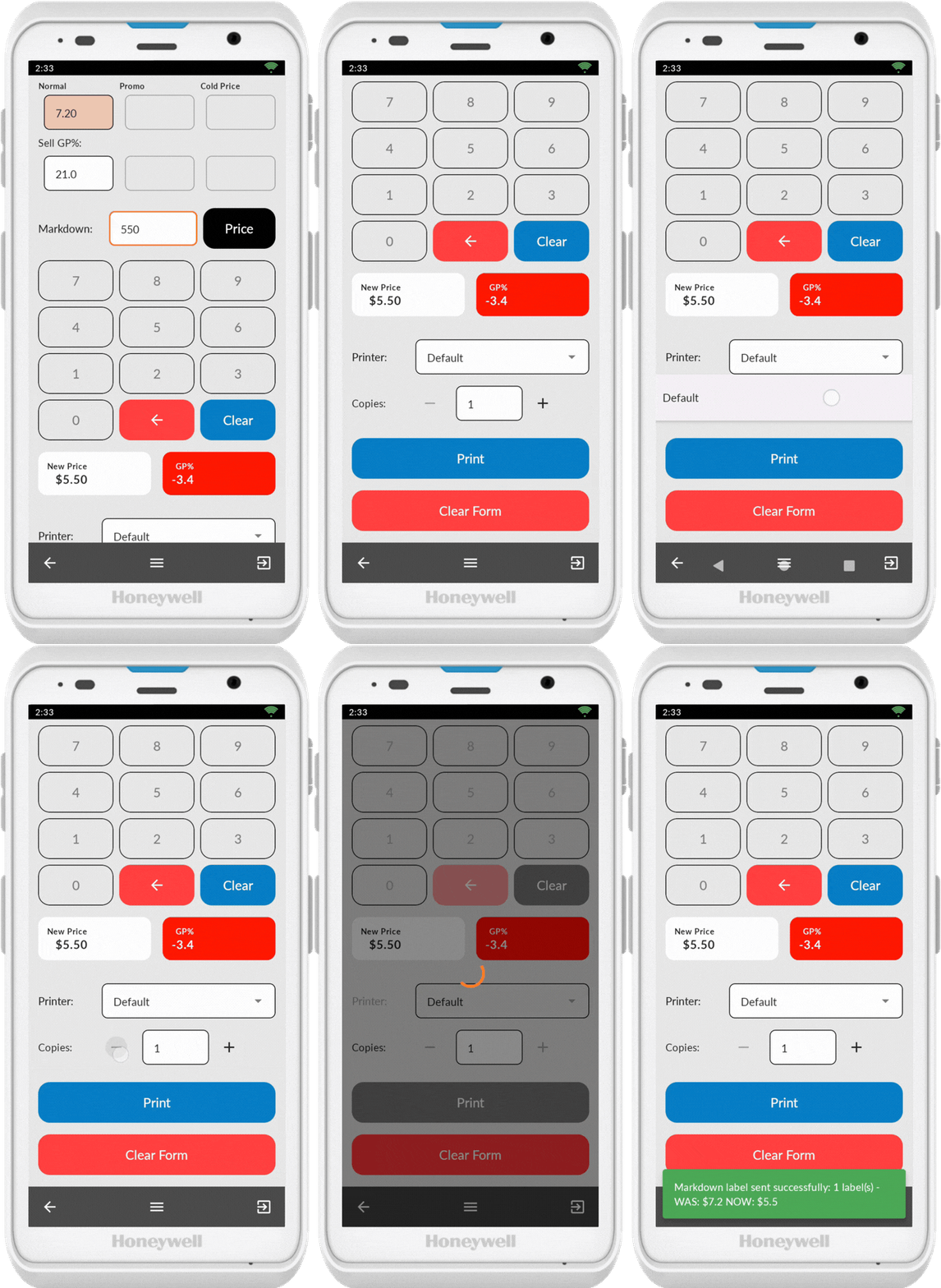
You will see a green confirmation pop-up when an item is successfully activated
💡 Tip: To start over, press Clear Form or rescan the item without pressing print.
Troubleshooting
Label Doesn't Print
- Check the markdown printer is powered on
- Verify the printer is connected to the internet (WiFi icon should display on printer)
- Ensure the printer shows Online
- Press the pause and play button on the printer to toggle between online and offline
If the pop-up is red and displays Failed to generate label: 400 please contact Future Net Support at help.futurenet.com.au/support to help configure your labels correctly
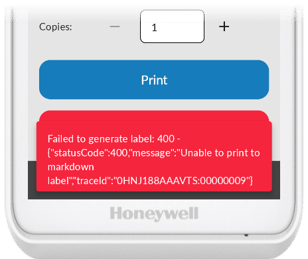
If the app doesn't get this error and the label still doesn't print, contact Future Net support at help.futurenet.com.au/support