
Your PDE comes with essential hardware components for daily store operations. This guide covers the physical device features, buttons, scanning methods, and charging options for the Honeywell EDA 52.
What's in the Box
Your PDE package includes:
- The PDE device (Honeywell EDA 52)
- Scanning handle with trigger
- Charging cable (USB-C) and charging dock
- Comfort strap for handheld use
Read below how to set up all these components
Charging Dock
To use the charging dock:
-
Plug the supplied USB cable into the USB port in the bottom of the base
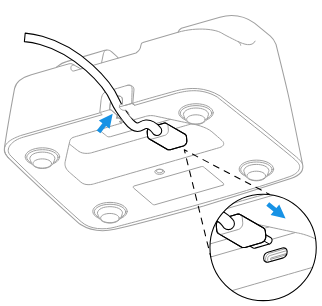
-
Connect the USB cable to a computer or plug the USB cable into the provided wall adapter
-
Insert the PDE into the charging dock.
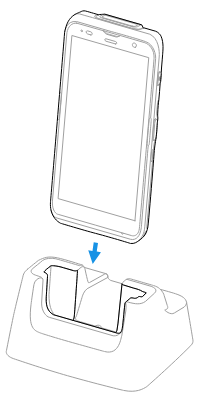
💡 Tip: You can also connect a USB C cable directly to the bottom of the PDE if charging dock unavailable.
Scan Handle
Attaching the Scan handle
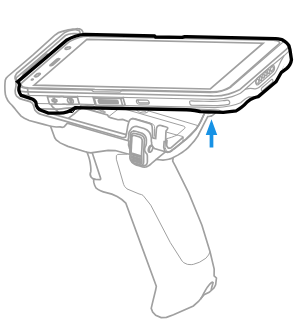
To insert the PDE into the provided scan handle:
- Insert the top of the PDE into the handle at a slight angle
- Push the unit down until the latches engage
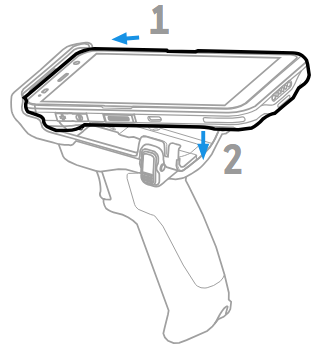
ℹ️ Note: Scan handle may differ slightly from illustration depending on model.
Removing the Scan handle
To remove the PDE from the provided scan handle:
- Press the release buttons on both sides
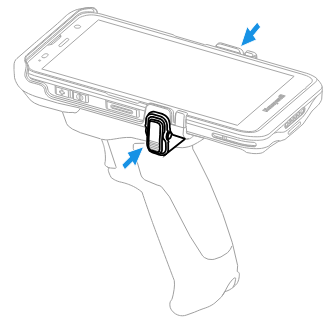
-
Lift PDE out
Scanning Options
You have two ways to scan items:
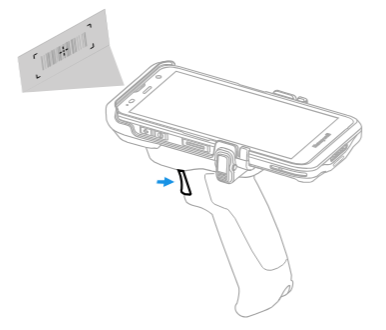
With Scanning Handle
Pull the trigger on the scanning handle to scan items. The handle provides ergonomic grip for extended scanning sessions.
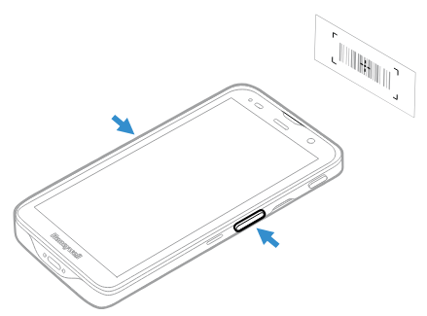
Without Scanning Handle
Squeeze the long red scan button on the right side of the device (or both the right and left buttons simultaneously) to scan.
💡 Tip: Attach the comfort strap to the rear of the PDE for easier handheld use.
Device Controls and Features
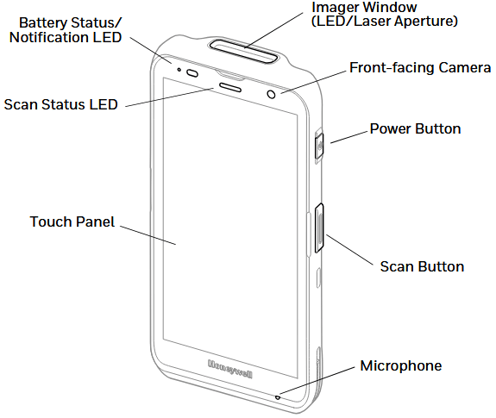
Front, Right Side, and Top of Device
Front
- Battery/Notification LED
- Touch Panel
- Front-Facing Camera: Not needed for regular use
Right
-
Power button at the top, indicated by the power icon:
- Press and hold: Shut down or restart the device
- Quick press: Turn the screen off/on
- Long press on first use: Power on the device when first received
- Scan Button
Top
-
Imager window: Keep this clean and free of dust, fingerprints, and obstructions at all times to ensure accurate scanning.
💡 Tip: Regularly clean the Imager Window with a soft, lint-free cloth for optimal scanning performance.
Rear, Left Side and Bottom of Device
Rear
- Battery Cover: Not needed for regular use
- Camera: Not used in the PDE program
- Speaker: For audio feedback and notifications
Left
- Volume buttons: Located towards the top, marked with + and - symbols. Use these to adjust device volume.
- Scan Button
Bottom
-
I/O Connector: Charging port and dock contacts:
- USB-C port: For cable charging
- Two gold contacts: For dock charging - keep these clean for efficient charging
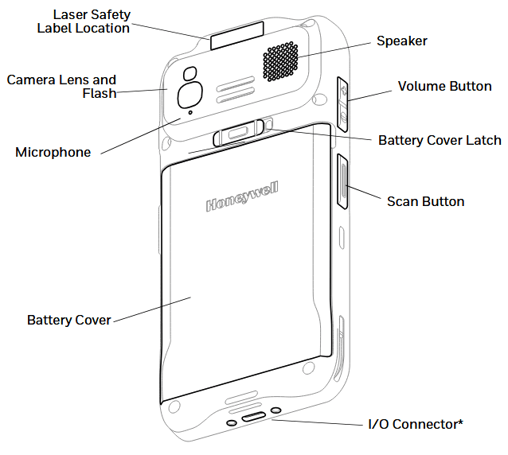
Removing the Battery
Only attempt if a technician asks you to remove the battery.
- Press and hold the Power button until the options menu appears
- Tap Power off
- Remove from scanning handle and/or release the hand strap
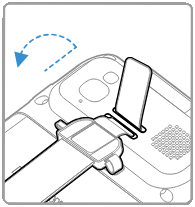
-
Unlock the battery cover. Press and hold down the small button on the battery latch and then slide the latch to the right
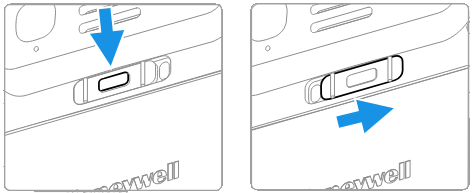
-
Lift the battery cover and remove it
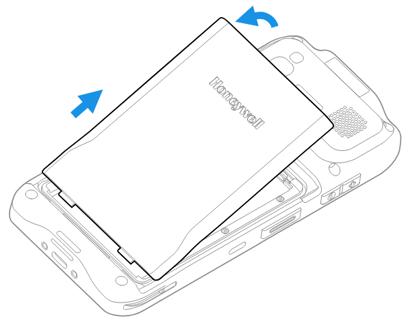
-
Use the tabs on the bottom of the batter to lift and remove it from the PDE
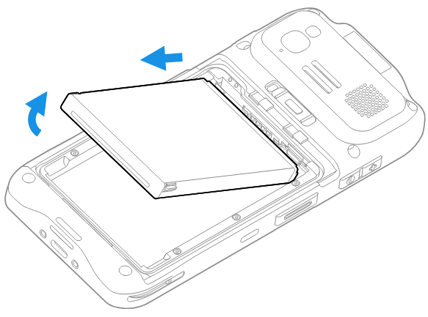
💡 Tip: Follow these steps in reverse to insert the battery. When inserting the battery, the top of the battery must go in first to connect the pins.
What's Next
Now you understand your PDE device, get your PDE connected to WiFi to use the Convenience PDE app.
👉📶 Connecting Your Convenience PDE to WiFi
For more detailed operation guides for your EDA 52, please refer to the manufacturer user manual.