
Total price offers let you sell multiple items at a set price when a trigger quantity is met. Examples include "Coca Cola 2 for $5" or "Buy 1 Coca Cola and 1 Cadbury chocolate for $5."
⚠️ Important: An item can only be in one offer promotion at a time. For multiple deals on the same item (e.g., 2 for $7.50 or 3 for $10), see the Superseding Offer Promotions article.
Creating a Simple Total Price Offer (Same Items)
Example: Coca Cola 2 for $5
- Navigate to the Inventory tab in Convenience and select Promotions
- Click Add
- Enter the promo number and select batch type Sell
- Click OK
- Enter a description and set the Start Date and End Date
- Change Offer Type from Normal to Total Price
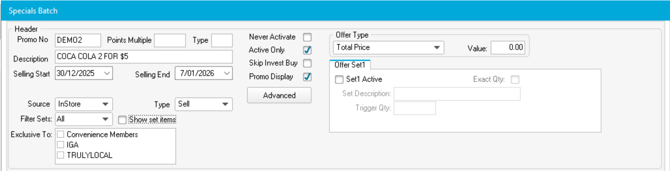
Configuring Offer Set 1
- Tick the Set1 Active checkbox
- Enter 2 in Trigger Qty (the number of items needed to trigger the offer)
- Tick Exact QTY (ensures only exact multiples get the discount - 3 items means 2 at promo price, 1 at normal price)
- Enter 5.00 in Value (the total price for the trigger quantity)
- For cold promotions, enter the value in the Cold field instead
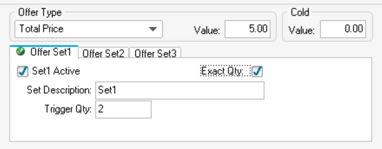
ℹ️ Note: You don't need to change the set description.
Adding Items to the Offer
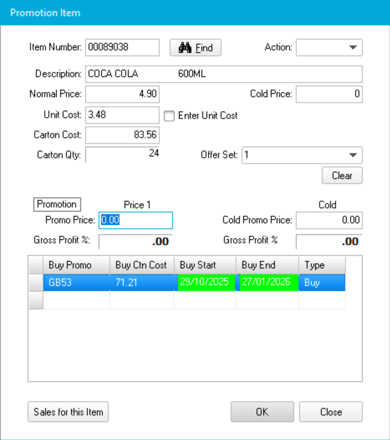
- Click Add at the bottom of the screen
- Enter or search for the item number
- Select 1 in the Offer Set dropdown
- Leave the sell price at $0.00 (it will use the normal price)
- Click OK
💡 Tip: Add multiple varieties of the same product (e.g., different Coca Cola flavours) - any combination of 2 items will trigger the $5 price.
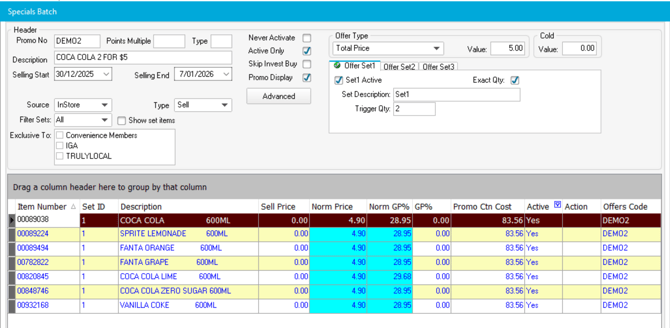
Activating the Promotion
- Click Finish
- Print your shelf tickets
- Click Initiate/Terminate to send to registers
- Test at the register to confirm it's working
Creating Multi-Set Total Price Offers
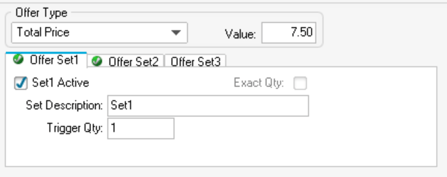
Example 1: Buy 1 Coke and 1 Chocolate for $7.50
This requires two offer sets, each with a trigger quantity of 1.
Set 1 Configuration: 1. Tick Set1 Active 2. Enter 1 in Trigger Qty 3. Enter 7.50 in Value
Set 2 Configuration: 1. Tick Set2 Active 2. Enter 1 in Trigger Qty 3. Leave Value blank (value is set in Set 1)
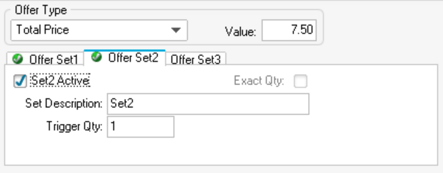
Adding items: - Add Coca Cola items with Offer Set = 1 - Add chocolate items with Offer Set = 2

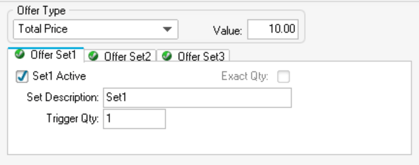
Example 2: Buy 1 Coke, 1 Chocolate and 1 Pie for $10
This uses all three offer sets, each with a trigger quantity of 1.
Set 1 Configuration: 1. Tick Set1 Active 2. Enter 1 in Trigger Qty 3. Enter 10.00 in Value
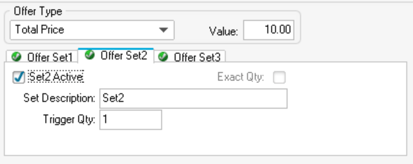
Set 2 Configuration: 1. Tick Set2 Active 2. Enter 1 in Trigger Qty
Set 3 Configuration: 1. Tick Set3 Active 2. Enter 1 in Trigger Qty
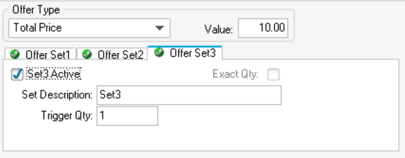
Adding items: - Add Coca Cola items with Offer Set = 1 - Add chocolate items with Offer Set = 2 - Add pie items with Offer Set = 3

Troubleshooting
Offer Set dropdown not visible when adding items
Return to the promotion setup and verify that at least one offer set is active.
Customer scans 3 items but only 2 are discounted
This is correct if Exact QTY is ticked - only exact multiples receive the discount.