
Discount % Set 1 offers apply a percentage discount when a trigger quantity is met. This is used for offers like "Buy 2 get 20% off."
Creating the Offer
- Navigate to the Inventory tab in Convenience and select Promotions
- Click Add
- Enter the promo number and select batch type Sell
- Click OK
- Enter a description and set the Start Date and End Date
- Change Offer Type from Normal to Discount % Set 1
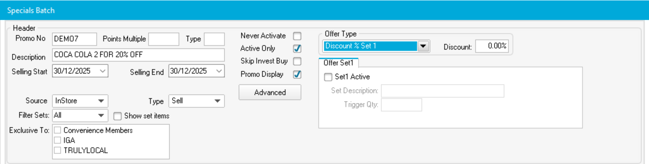
Configuring the Discount
- Tick Set1 Active
- Enter the Trigger Qty (number of items needed for the discount)
- Enter the discount percentage in Discount % (e.g., 20 for 20% off)
- For cold promotions, enter the value in the Cold field instead
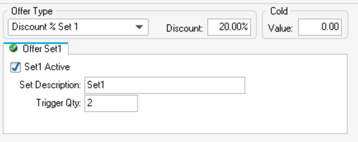
Example: Buy 2 get 20% off - Trigger Qty: 2 - Discount %: 20
Adding Items to the Offer
- Click Add at the bottom of the screen
- Enter or search for the item number
- Ensure Offer Set is set to 1
- Leave the sell price at $0.00
- Click OK
- Repeat for all items in the offer

Activating the Promotion
- Click Finish
- Print your shelf tickets
- Click Initiate/Terminate to send to registers
- Test at the register to confirm the discount applies correctly