
Create cashier accounts so employees can login at registers with their own number and password. Assign security levels to control what functions they can use.
Before You Start
Navigate to the Setup tab in Convenience and select Cashiers and Users.
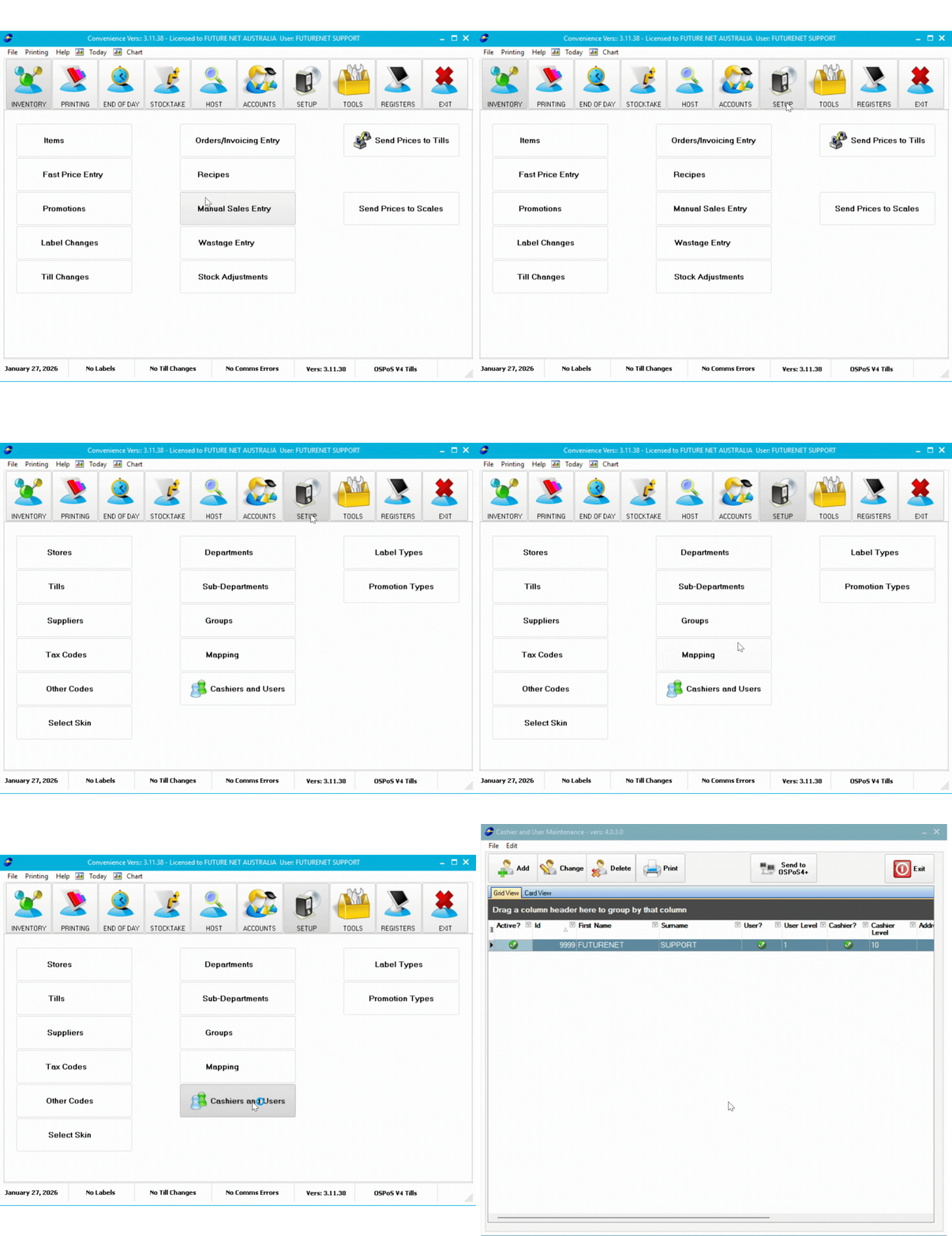
Creating a Cashier
Open Cashier Setup
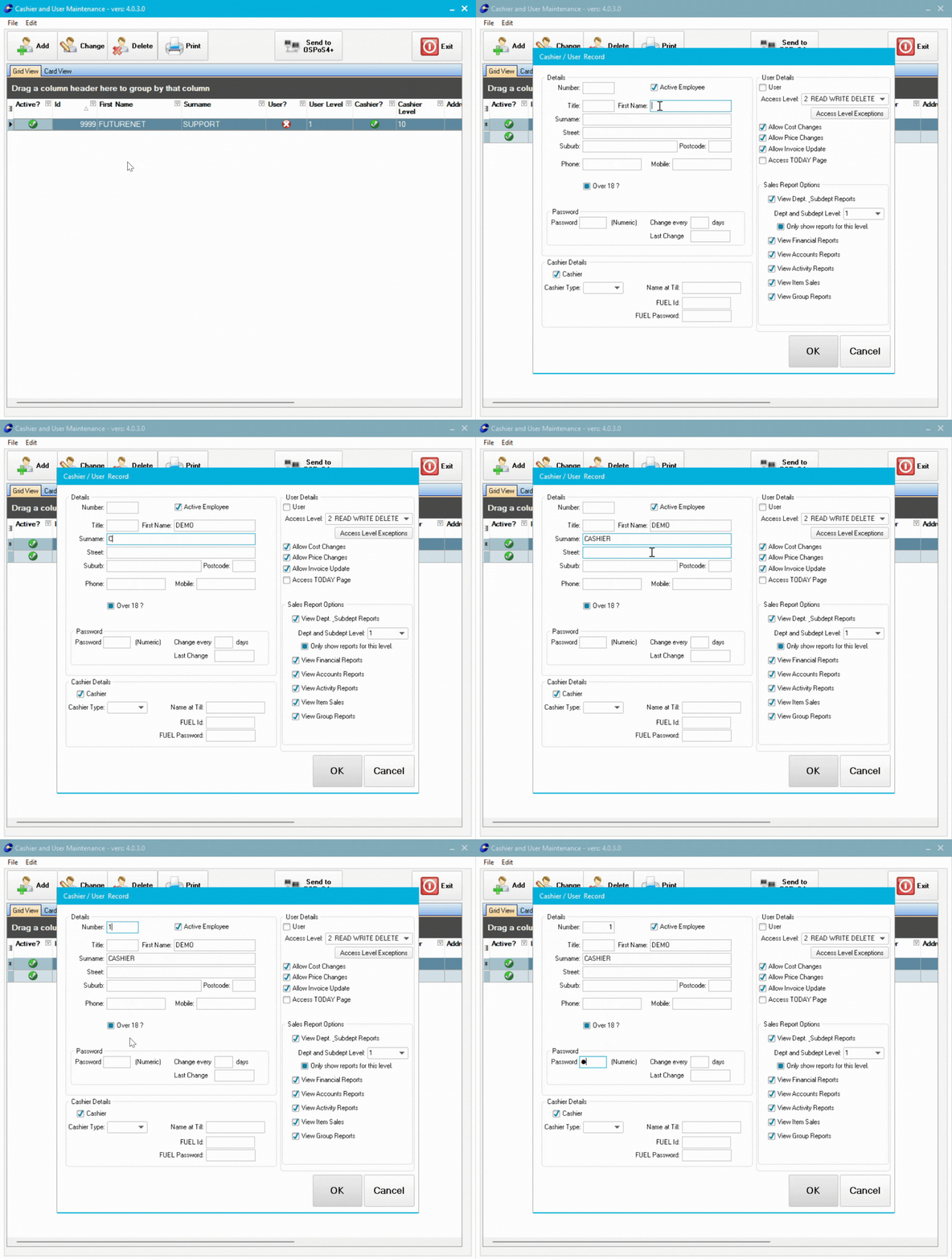
Select Add to create a new cashier.
Enter basic details:
- Enter a Number - This is the cashier's unique login ID for registers
- Enter First Name and Surname
- Enter a Password - Cashier will use this with their number to login
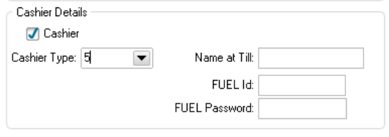
Set Security Level
In Cashier Details, select a Cashier Type/Level. This controls what the cashier can do at registers.
Our recommended setup is:
- Level 5: Standard staff - process sales, accept payments, basic functions
- Level 7: Supervisors - approve refunds, price overrides, error corrections
- Level 9: Managers - full access including voids, drawer opens, reports
When a lower-level cashier tries to access a restricted function, the register prompts for supervisor approval.
💡 Tip: You can change what level each register function needs in the Security tool.
👉Setting Cashier Security Levels - Customise what each security level can do
Optional Settings
Password Expiry: Enter number of days (e.g., 90) to force password changes. Leave blank for no expiry.
Name at Till: Enter a custom display name. Leave blank to use their first name.
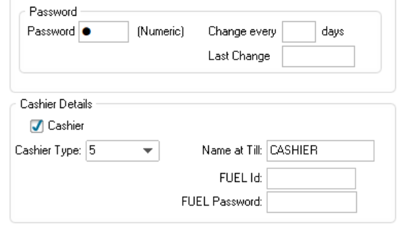
Save and Send to Registers
- Select OK to save the cashier
- Select Send to OSPoS4+
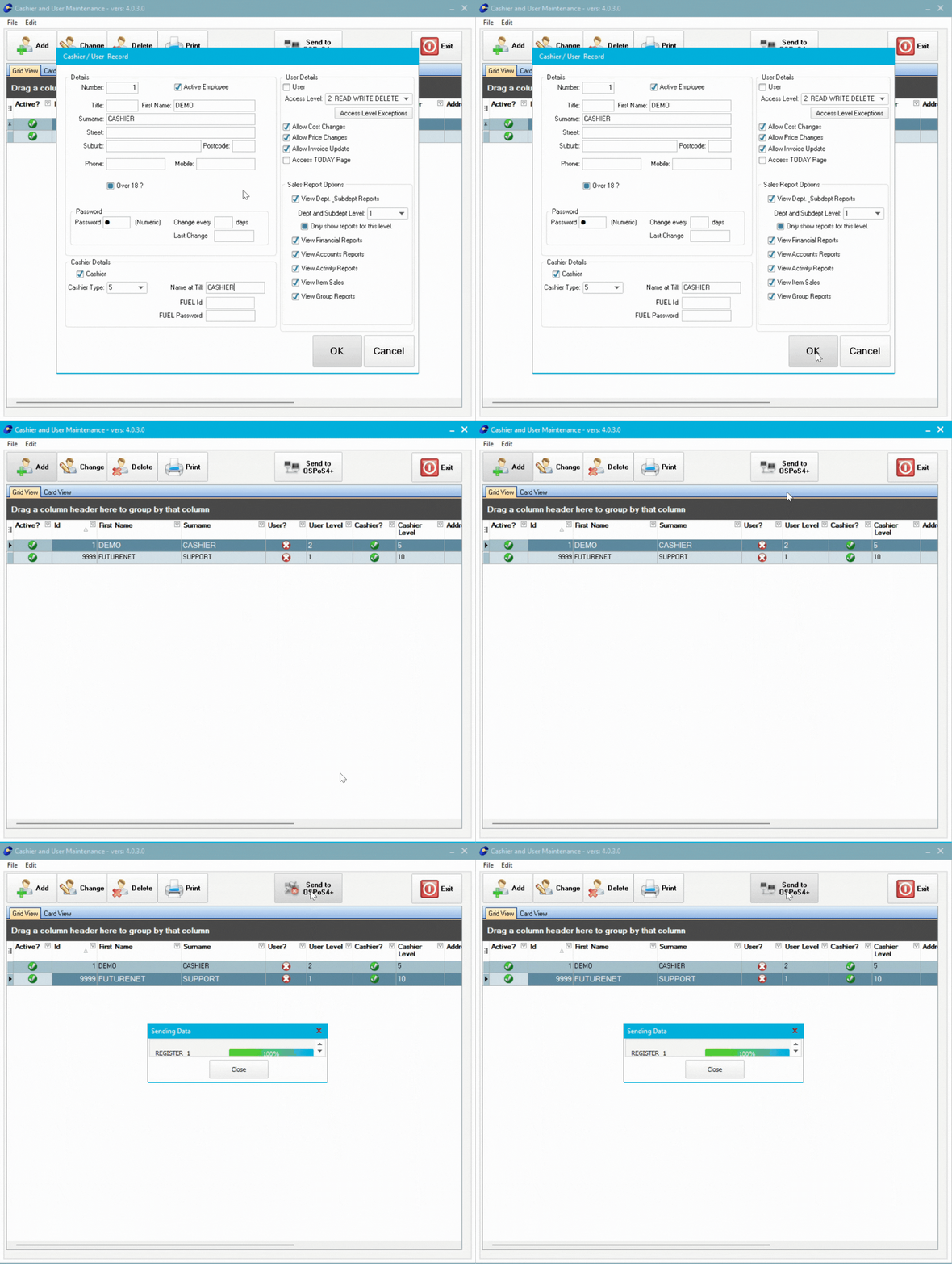
⚠️ Important: Always select "Send to OSPoS4+" after creating or editing cashiers. Changes won't appear at registers until you do.
Next Steps
👉Printing Cashier Barcodes - Print barcode login tags for quick register access