
Enable user access for employees who need to use Convenience back-office. Users login with their number and password to access inventory, reports, and settings.
Before You Start
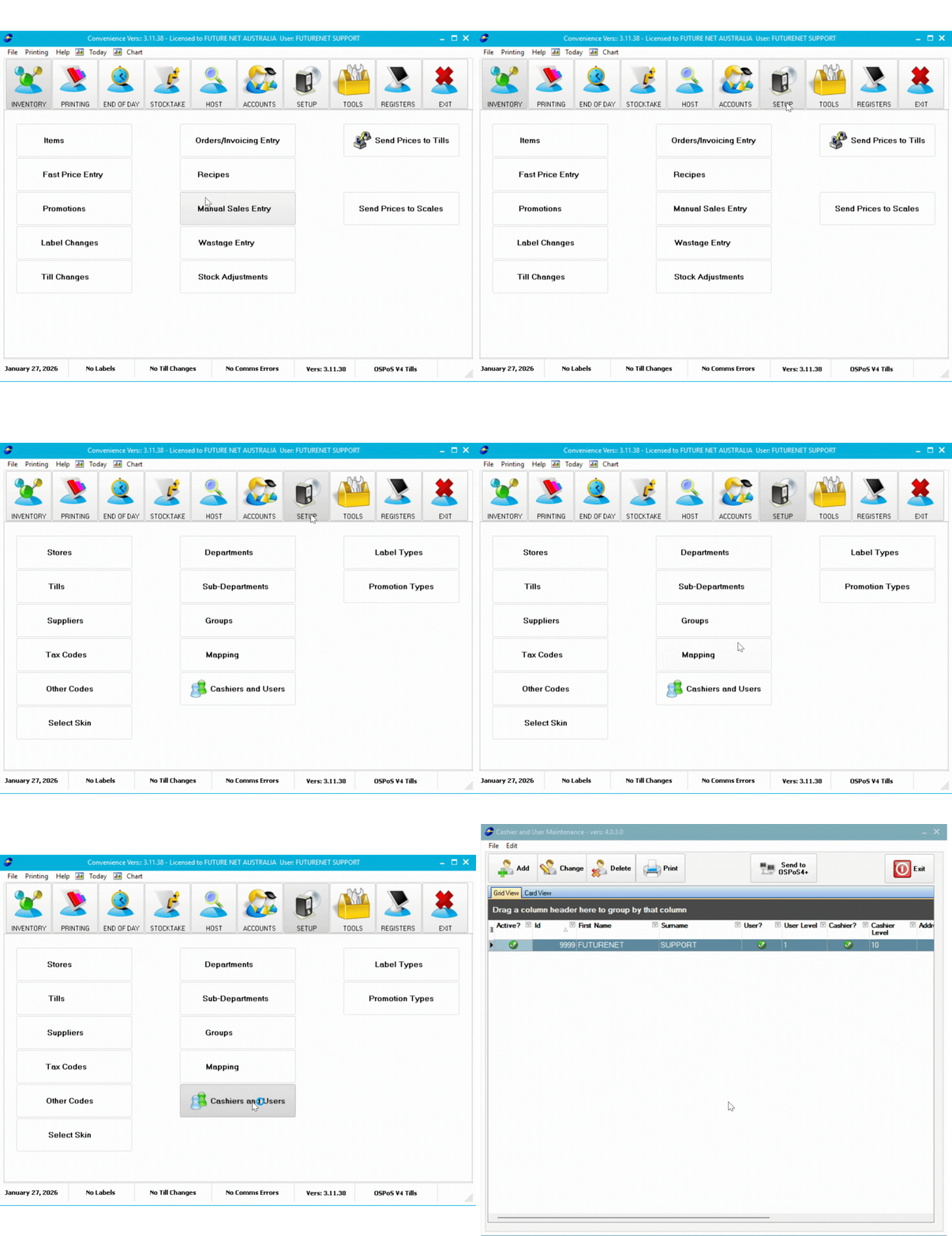
Navigate to the Setup tab in Convenience and select Cashiers and Users.
Creating a User
Open User Setup
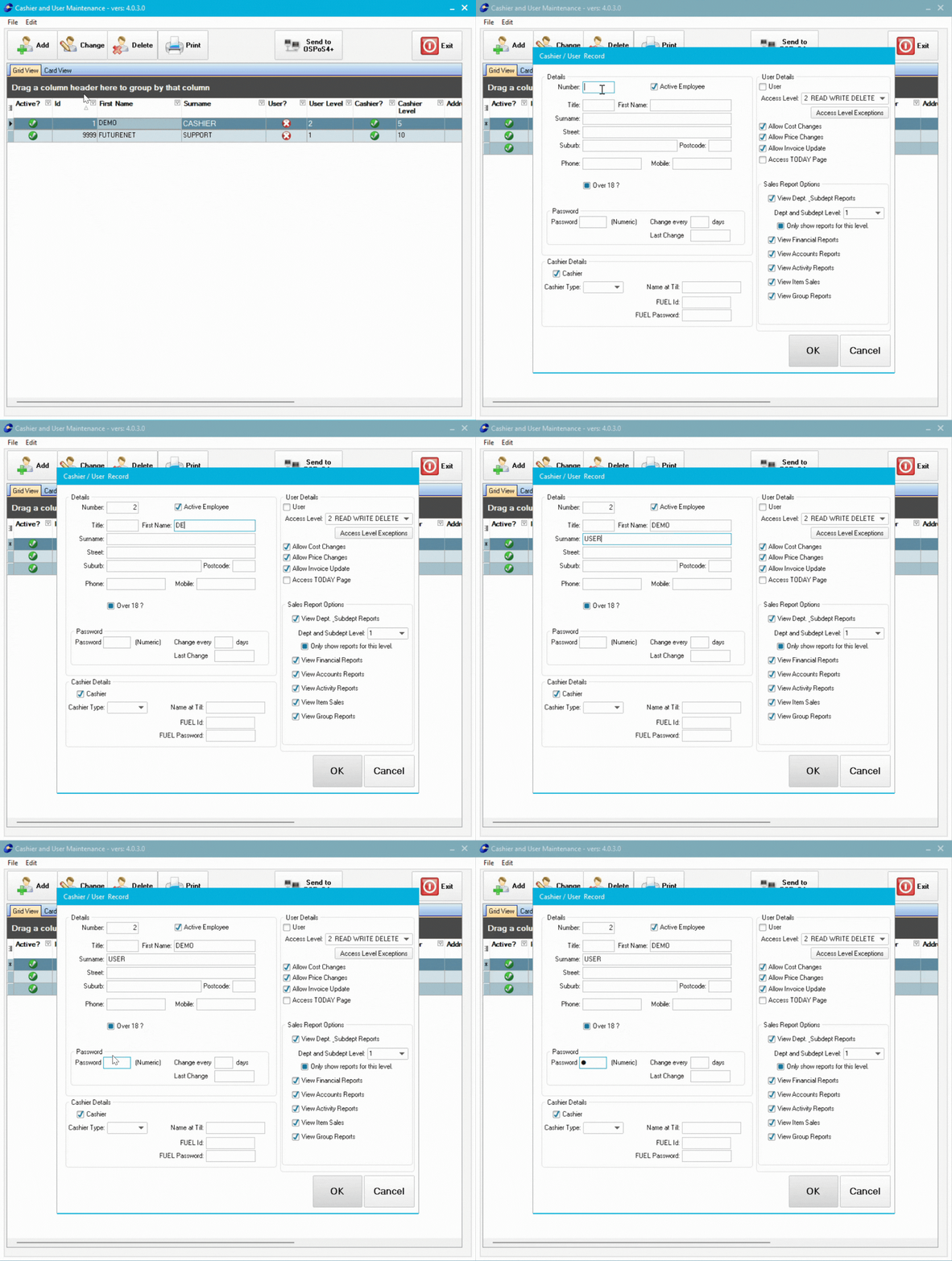
Either select Add for a new employee, or open an existing cashier to add user access.
Enter basic details if creating a new user (not adding to existing cashier):
- Enter a Number - User's login ID
- Enter First Name and Surname
- Enter a Password
If adding user access to an existing cashier, you can skip this part.
💡 Tip: If the employee works at registers, create them as a cashier first. This ensures they use the same number and password for both registers and back-office.
Enable User Access
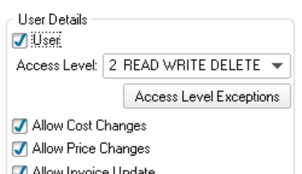
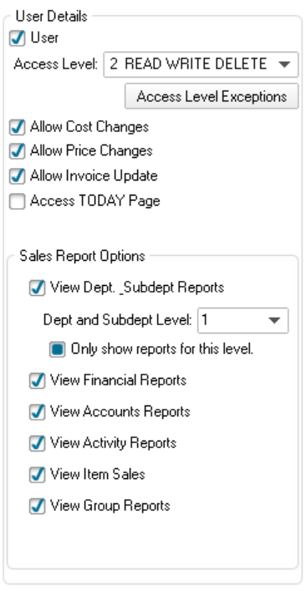
In the User Details section, tick User. This allows the employee to login to Convenience back-office.
ℹ️ Note: All actions in Convenience are logged to the user's account. This creates an audit trail for price changes, stock adjustments, and other modifications.
Set Access Level
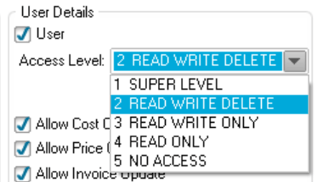
Select an Access Level. This controls what the user can access in Convenience:
- Low level (4): View-only access to basic functions like stock lookup
- Mid level (3): Can edit products and process invoices
- High levels (1-2): Full access to reports, settings, and sensitive data
💡 Tip: You can further restrict specific functions/programs using User Access Mode.
👉Configuring User Access Permissions - Set granular control over what each user can access in Convenience
Additional Options (Optional)
Tick any additional user options you want to enable based on their role.
Save and Send
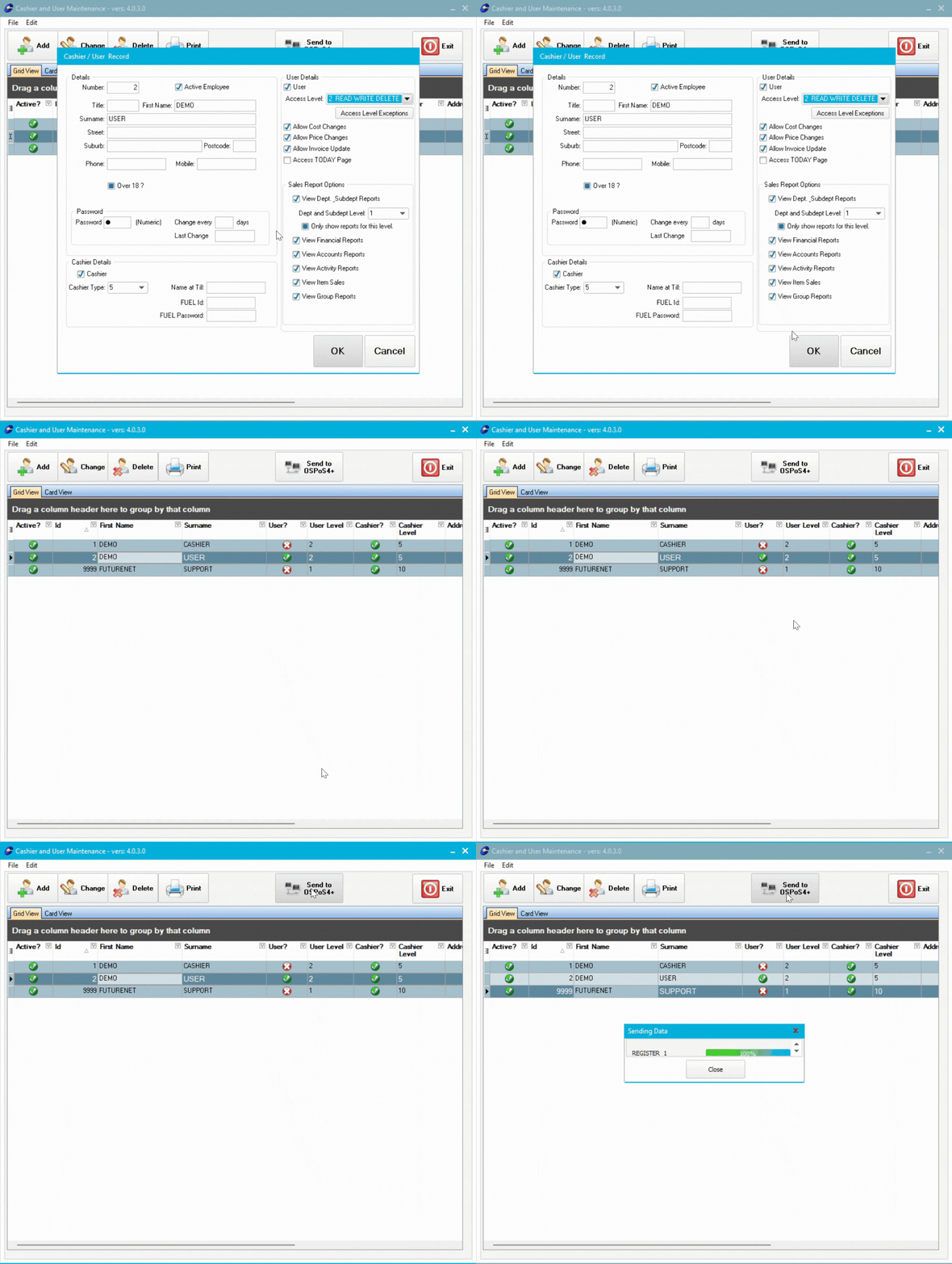
- Select OK to save
- If you created a new user, select Send to OSPoS4+
How Users Login
After enabling user access, employees login to Convenience:
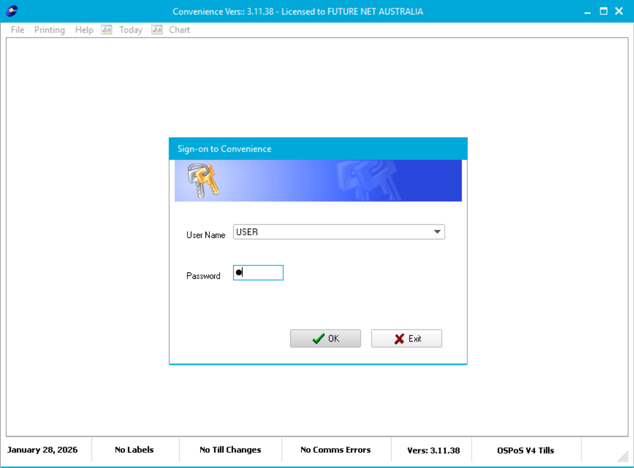
- Launch Convenience
- Find their username
- Enter their password
- Select Ok
Users can now access Convenience based on their access level permissions.
Troubleshooting
User can't login to Convenience: Check the "User" tick is enabled in their cashier/user record.
User has too much access: Lower their access level or configure User Access Mode to restrict specific functions.
User can't access specific function: Check User Access Mode settings haven't blocked that function.