
After verifying your reports, update your stocktake to commit the new stock levels to Convenience. This final step updates all stock on hand and commits the valuation to history for future reference.
Updating Your Stocktake
Once you've verified all reports are correct, update your stocktake to commit the new stock levels.
- Open the Stocktake Entry batch
- Click Update

- Verify the Post To Day date is correct
- Tick Confirm that a Stock Variance Report has been printed
- Tick Backup Database (highly recommended for recovery purposes)
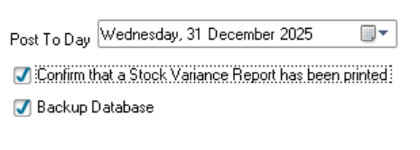
- Click Update
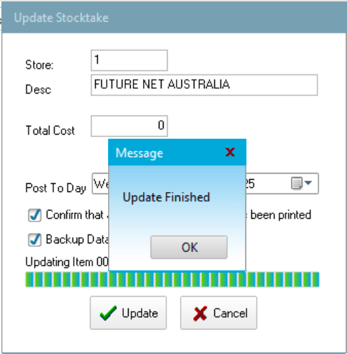
⚠️ Warning
The update process may take considerable time depending on stocktake size and PC performance. Do not force quit the task or restart the PC, even if it displays "NOT RESPONDING". If you have concerns during the update, Contact Future Net support at help.futurenet.com.au/support
Why Backup Database?
Ticking Backup Database creates a restore point before updating stock levels. If anything goes wrong and you contact Future Net support immediately, they can restore Convenience to just before the update.
Committing Stock Valuation to History
After updating the stocktake, commit the stock valuation to history so you can view stock values at any future date.
- Navigate to the Printing tab in Convenience
- Select Stock Valuation Report
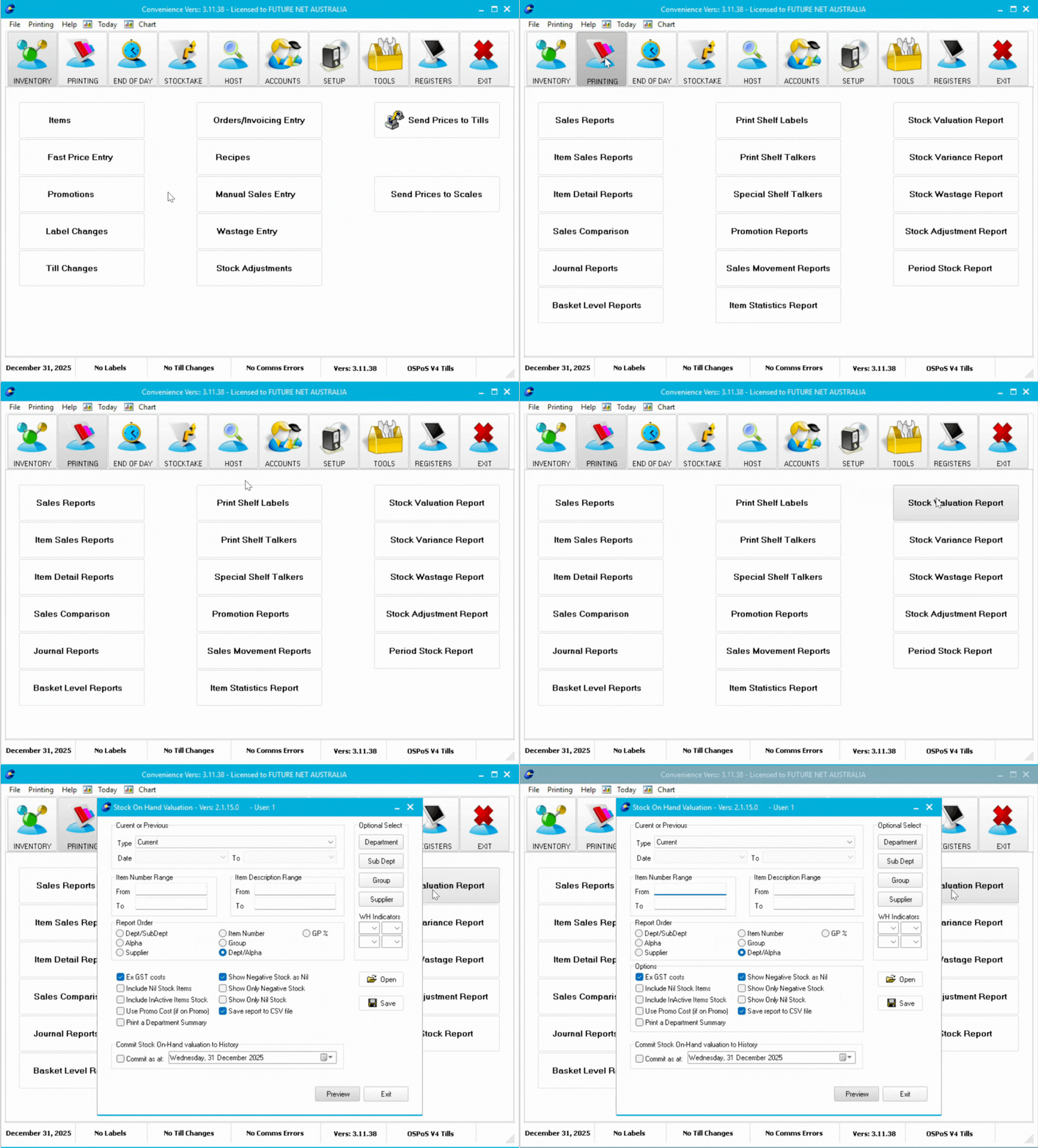
Ensure type is set to Current
Tick Commit Stock On-Hand Valuation to History
Verify the date is correct
Click Preview
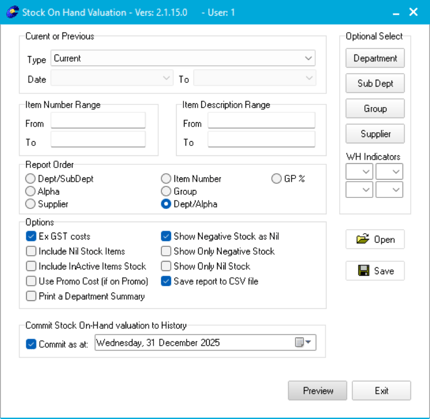
This commits your current stock valuation to history, allowing you to view stock values from this date in the future.
Want to re-run a valuation report you previously committed? Check out how to do that here:
👉 (Article Coming Soon)
Restarting the Journaler
Don't forget to restart the Journaler if you stopped it at the beginning of the stocktake.
- Navigate to the bottom right corner of your screen
- Right-click the Journaler Icon
- Select Start Journaling
- Click Yes to confirm
