
Account Masterfile is your control centre for all customer accounts in Convenience. Whether you're creating debtor accounts, loyalty programs, or layby systems, you'll use this interface daily. Master the basics here, then apply them across all account types.
Before You Start
Navigate to the Accounts tab in Convenience and select Account Masterfile.
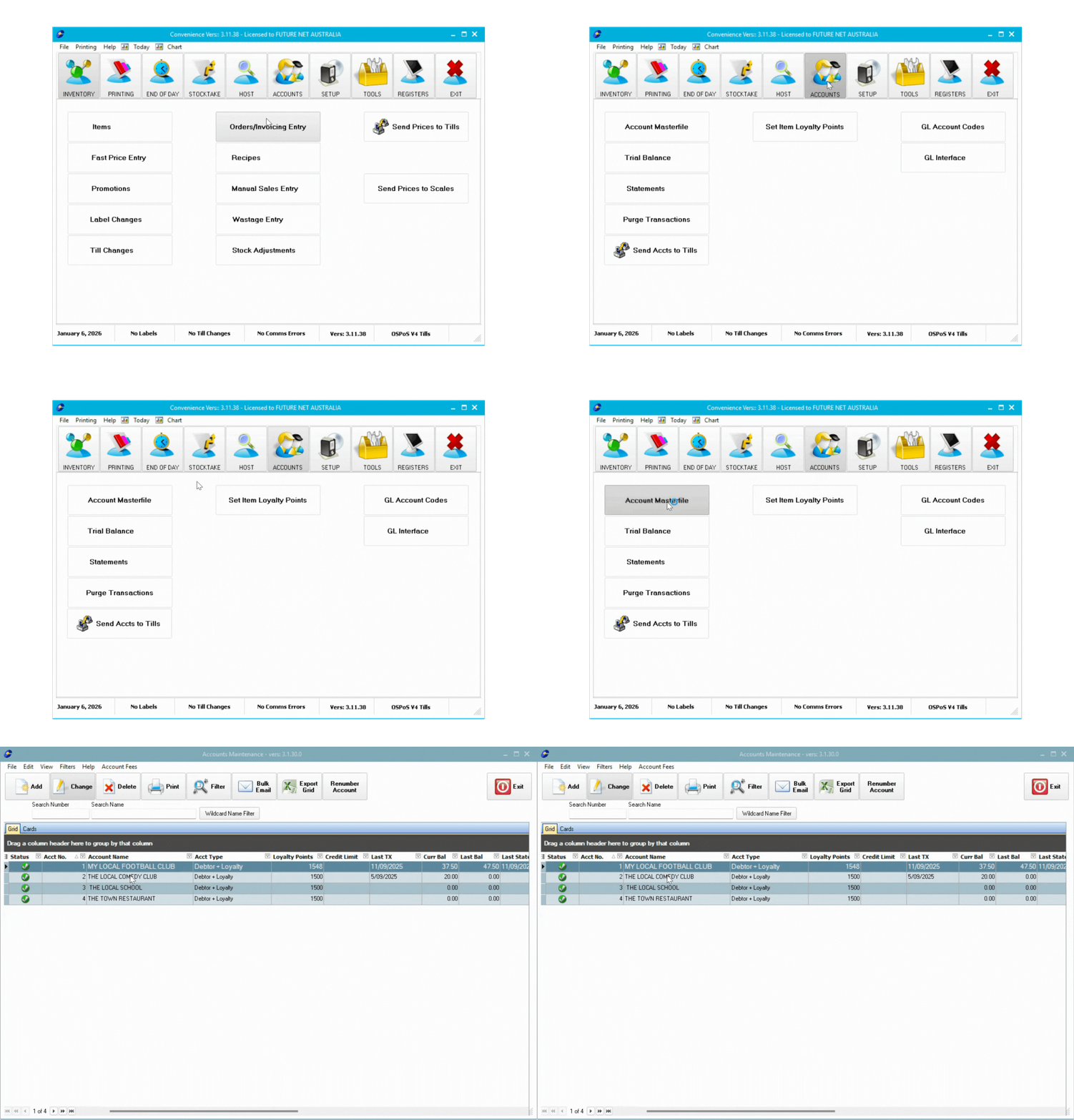
Understanding the Interface
Switch between Grid or Cards view using the display options at the top. First time users will see a blank grid.
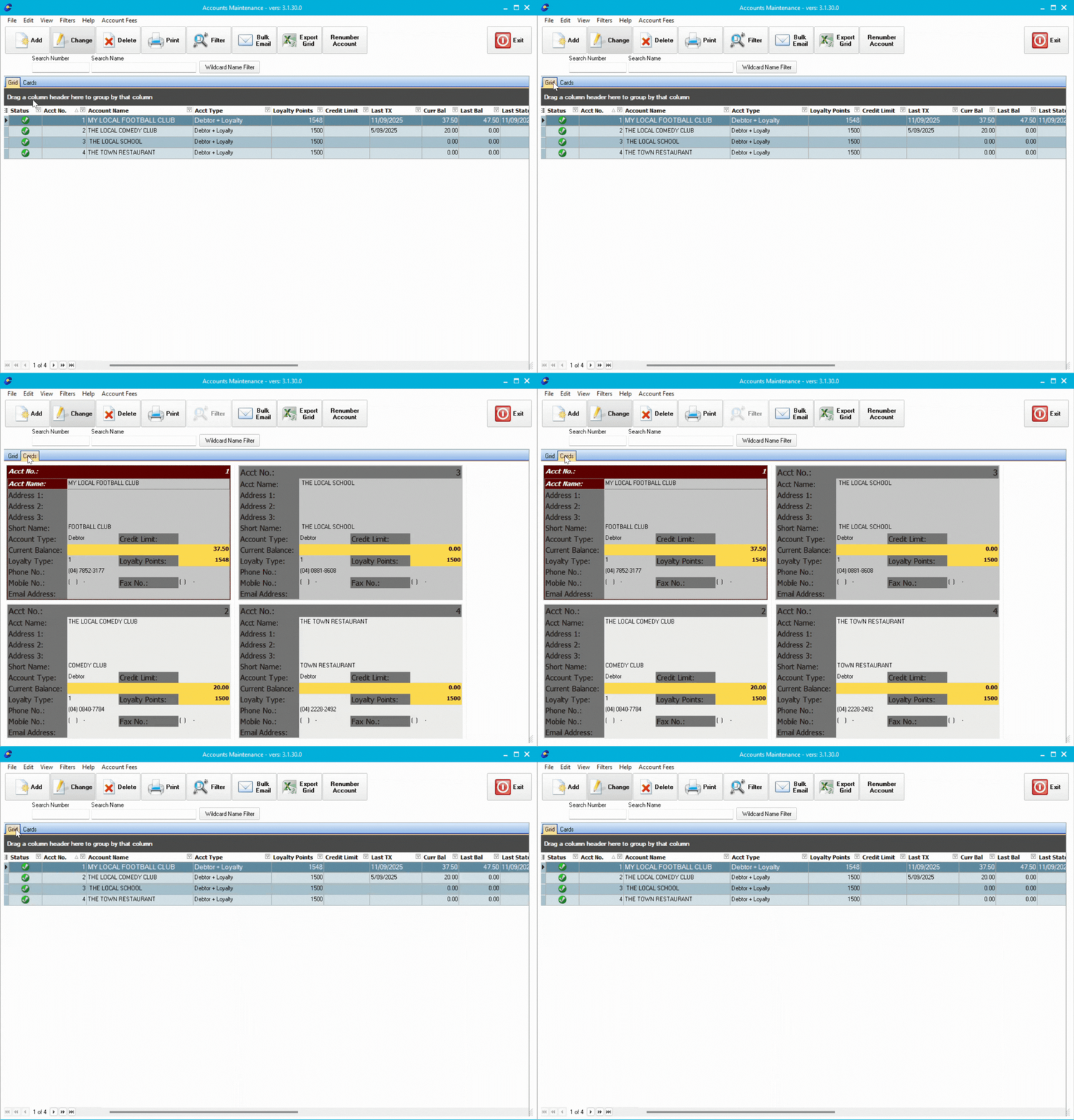
Key Columns
Status: Green tick means account is active and usable at registers
Acct No: Unique account number for customer identification
Account Name: Customer's full name or organisation
Acct Type: Debtor, Loyalty, Layby, or combined types
Loyalty Points: Current point balance for loyalty accounts
Credit Limit: Maximum debt allowed on debtor accounts
Curr Bal: Current account balance (positive = customer owes money)
Last TX: Date of most recent transaction
Key Menu Options
View → Refresh: Recalculates balances if they're not displaying correctly
Filters → Show Filter Row: Adds search bar below headers to find accounts quickly
Account Fees → Process Account Keeping Fees: Automatically charges account fees
Print → Print Account Barcode Labels: Prints account cards on A4 paper for laminating
Bulk Email: Send promotional content to customers with email addresses
Export grid: Exports accounts to Excel
💡 Tip: Print barcode cards for frequent customers so they can scan cards at registers without searching.
Next Steps
Now that you understand the Account Masterfile interface, create your first account:
👉💳Accounts Explained Part 3: Creating Debtor Accounts