
Print Shelf Talkers allows you to select multiple promotions and offers in one batch, saving time when printing labels. This is particularly useful for weekly hosted promotions when you need to print labels for multiple promotions starting at once.
Using Print Shelf Talkers
Open Print Shelf Talkers
- Navigate to the Printing tab in Convenience.
- Select Print Shelf Talkers.
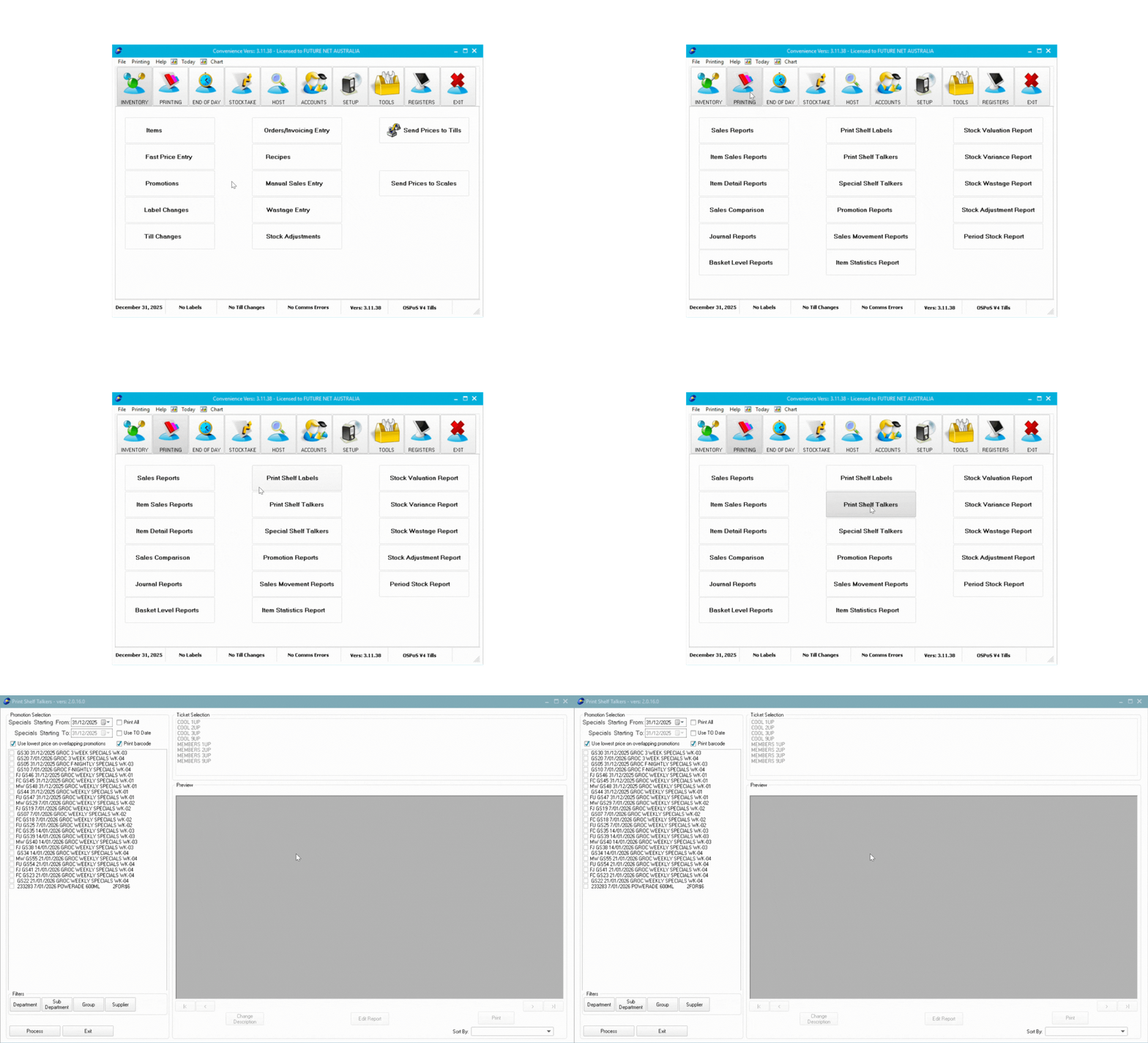
Set Date Range
- Select the Start Date to display all promotions starting after that date.
- To set an end date, enable the To Date option.

ℹ️ Note: The Use lowest price on overlapping promotions option ensures that if an item appears in multiple selected batches, only the lowest promotion price will print.
Select Promotions
Tick the checkbox next to each promotion you want to print.
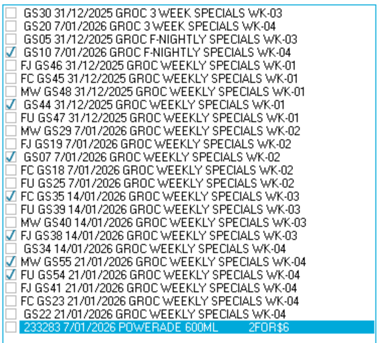
💡 Tip: To print every promotion listed, simply tick Print All instead of selecting individual promotions.
Filter by Category (Optional)
Before processing, you can filter to include only items in specific:
- Departments
- Sub-Departments
- Groups
- Suppliers
- Click the filter option you want to use at the bottom.
- In the filter window, tick the boxes for your selections.
- You can select multiple options from the same filter type.

Process and Preview Labels
- Click Process at the bottom to generate the labels.
- The preview will display your labels based on the selected label type.
- Click on the preview page to zoom out and view the full page.
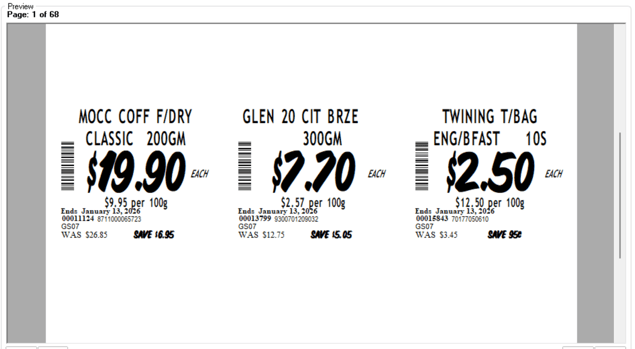
ℹ️ Note: The preview defaults to zoomed in view.
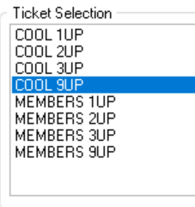
Change Label Type
Select a different ticket type from the options at the top if needed.
Sort Labels
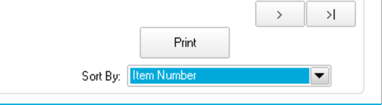
Use the Sort By dropdown at the bottom right to change the print order of labels.
Customising Labels with Change Description
Change Description lets you modify item descriptions and remove unwanted labels before printing.
As an example, a Coca Cola variety range on a 2 for $5 offer would generate a separate label for every individual item. Using Change Description, you can print just one label per variety line to reduce waste.
Using Change Description
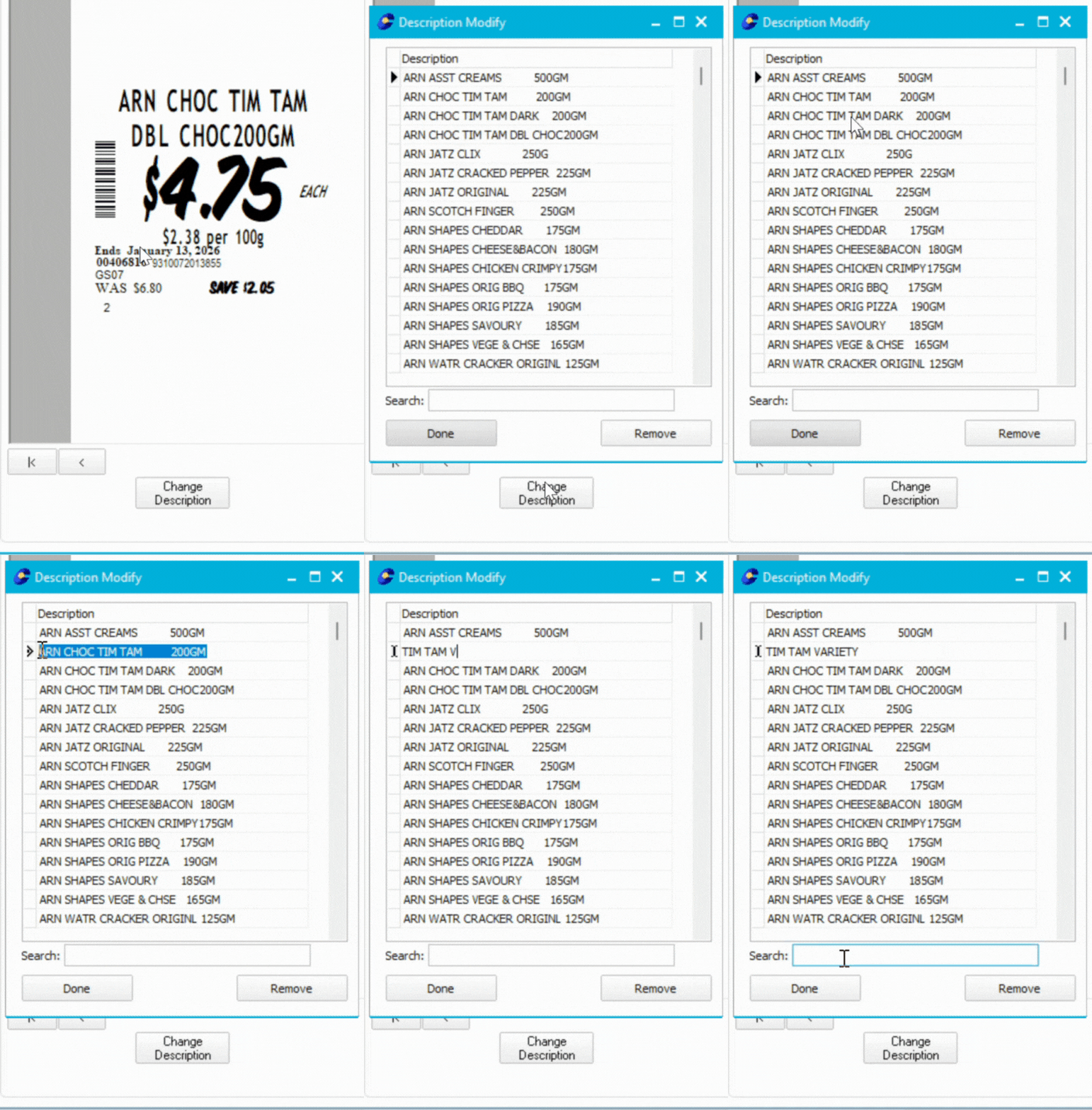
- Click Change Description at the bottom.
Edit Descriptions
- Click on the line you want to change.
- Enter the new description.
- Use the search function to find items in large batches.
Remove Unwanted Labels
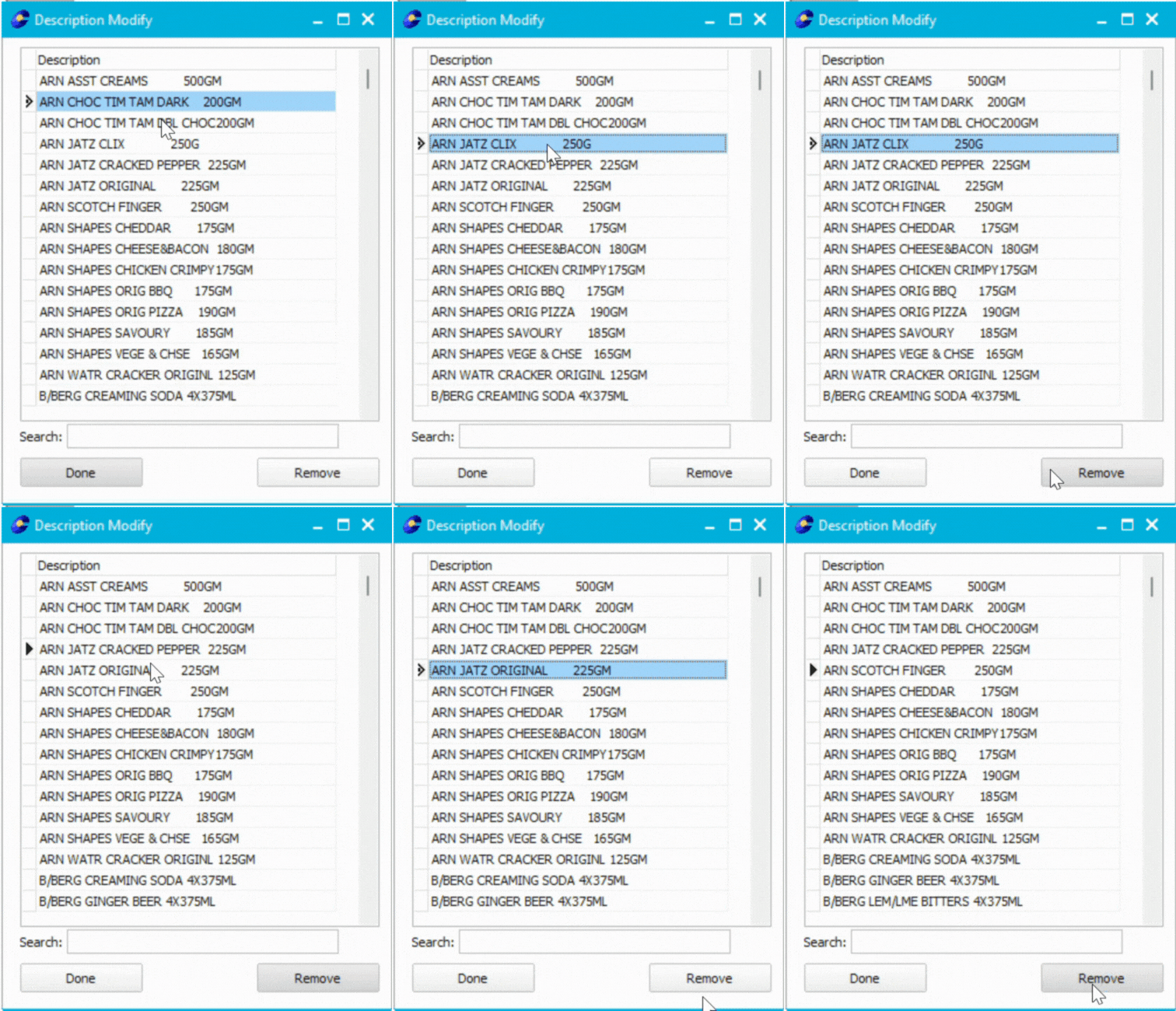
- Select the item you don't want to print.
- Click Remove at the bottom.
Finalise Changes
- After making all changes, click Done.
- The preview will update to show your modifications.
💡 Tip: Consider changing to a different label type (e.g., 3up instead of 9up) to minimise label waste.
Print Your Labels
Click Print at the bottom right corner to print the labels.